

Manage contacts
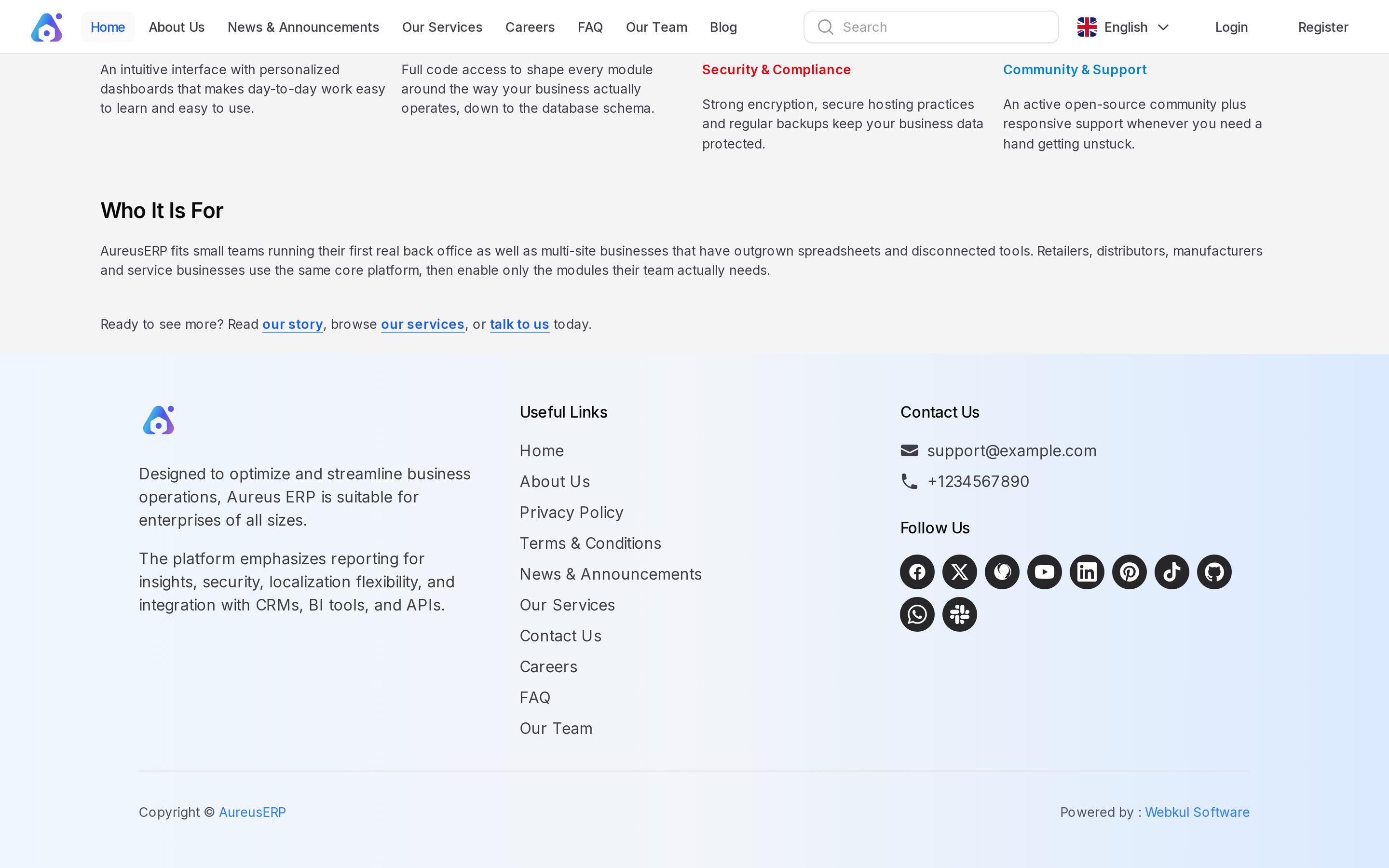
Manage Contacts holds the public contact details of your business. You enter an email address, a phone number and links to your social media profiles. The footer of your public site shows them, so visitors can reach you or follow you.
In simple words: This is the one form that fills the contact area at the bottom of every page.
Open it from Website → Settings → Manage Contacts.
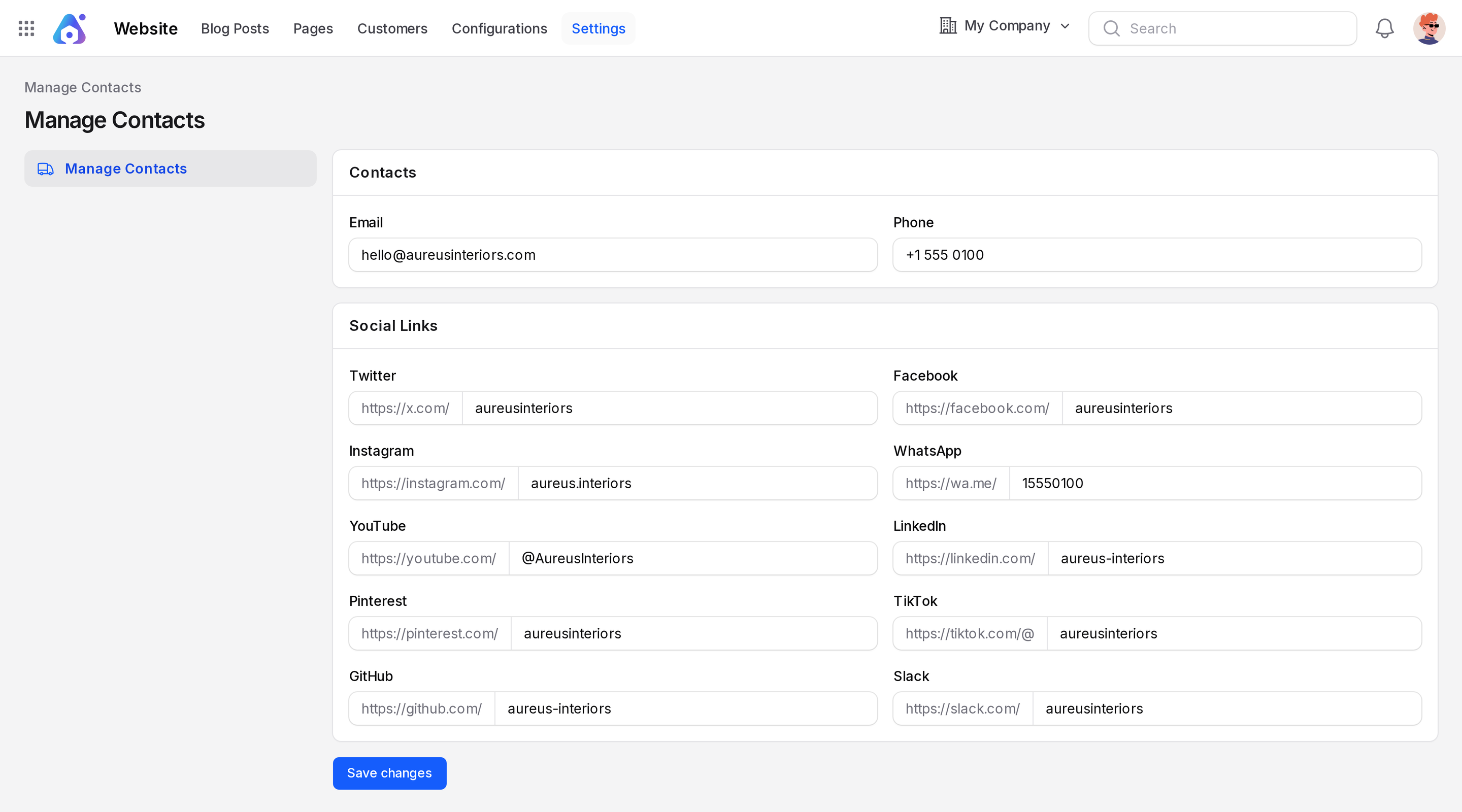
Contact details
Email and phone
Email: The address shown under Contact Us in the footer. Visitors click it to write to you.
Phone: The number shown under Contact Us in the footer.
Social Links
Each social field shows a fixed prefix. You type only your username after it. The system builds the link from both parts.
| Field | Prefix shown in the form | You type |
|---|---|---|
https://x.com/ | Your handle | |
https://facebook.com/ | Your page name | |
https://instagram.com/ | Your username | |
https://wa.me/ | Your number with country code | |
| YouTube | https://youtube.com/ | Your channel name |
https://linkedin.com/ | Your company name | |
https://pinterest.com/ | Your username | |
| TikTok | https://tiktok.com/@ | Your username |
| GitHub | https://github.com/ | Your account name |
| Slack | https://slack.com/ | Your workspace name |
WARNING
Type only the username. Do not paste a full address. The prefix is added for you, so a full address would give a broken link.
Update your contact details
Go to
Website → Settings → Manage Contacts.Enter your Email, for example
hello@yourcompany.com.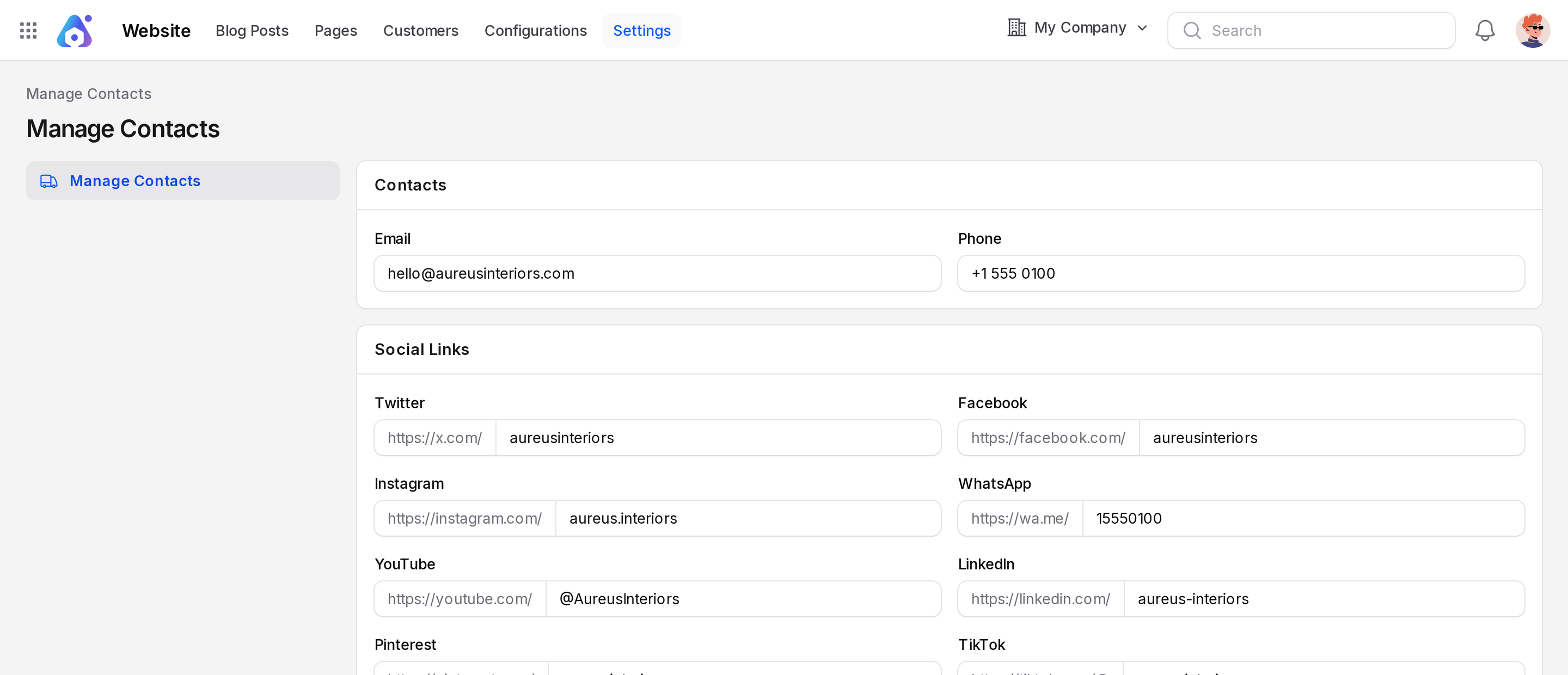
Enter your Phone, for example
+1 555 0100.Type the username for each social network you use. Leave the others empty.
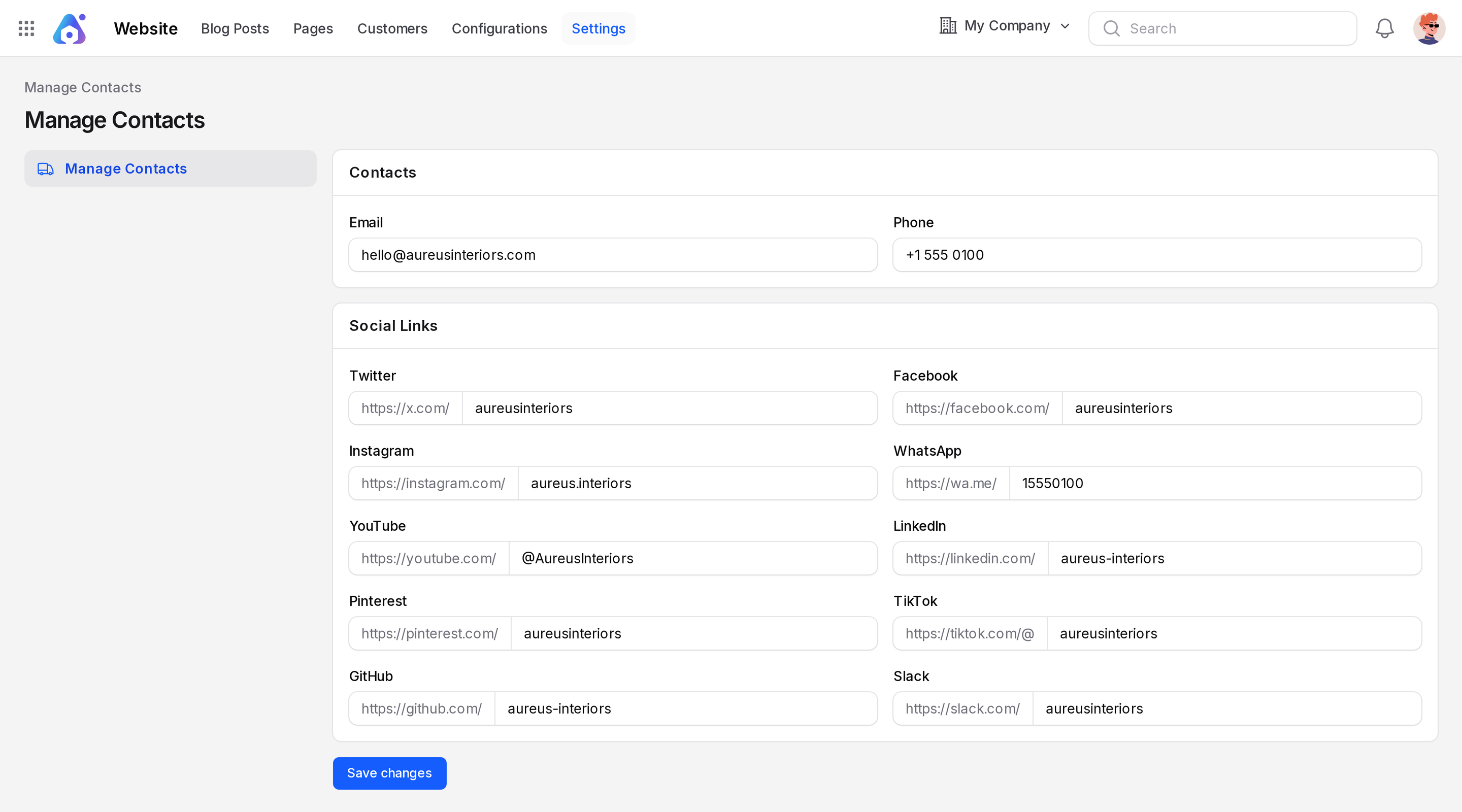
Click Save changes.
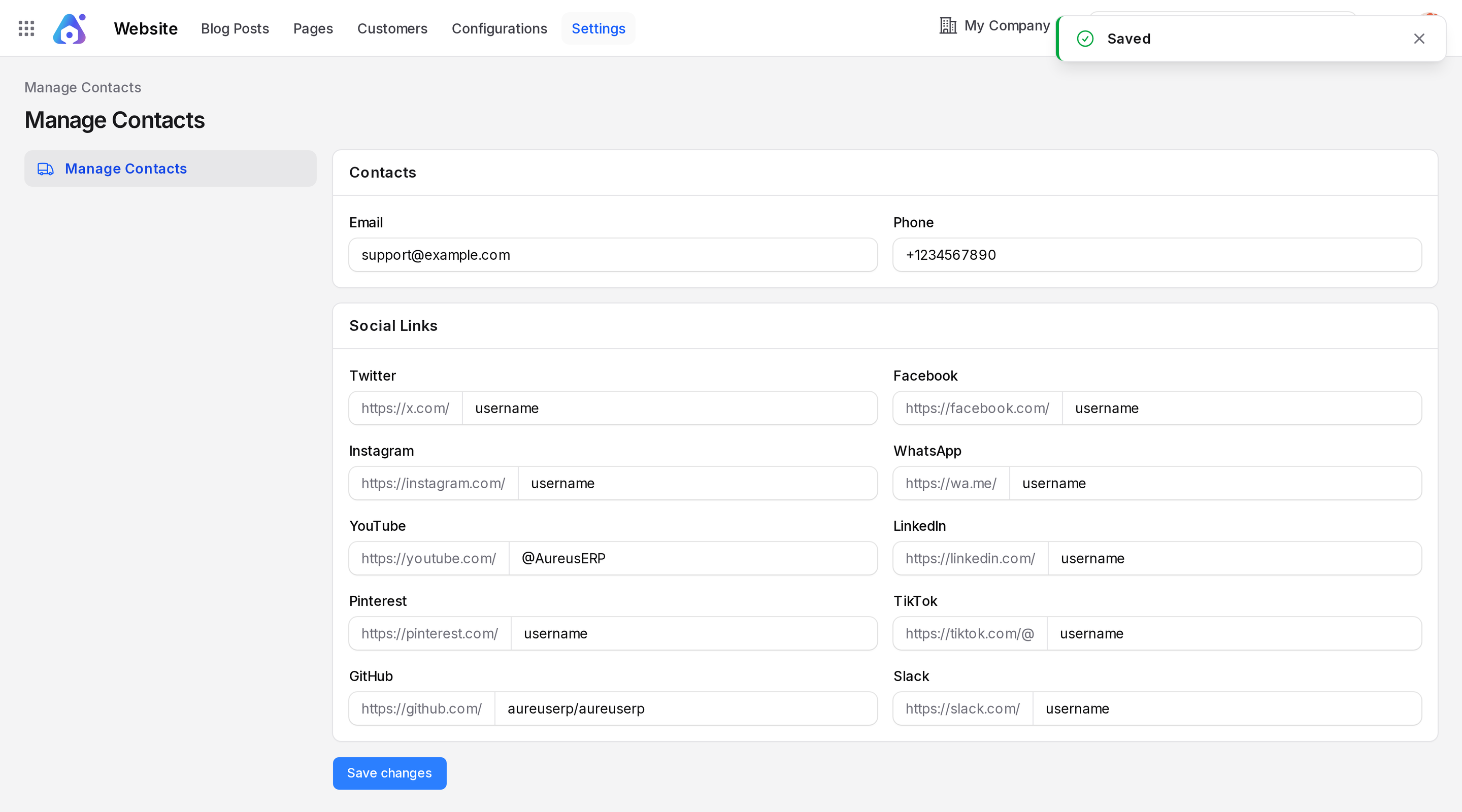
Default values
A new system starts with fixed sample values. The email is support@example.com, the phone is +1234567890, and most social fields hold the word username. Replace them with your own details. Until you do, the footer shows the sample values.
What the visitor sees
Open your site at / and scroll to the footer.
- The Contact Us block shows your email and phone.
- The Follow Us block shows an icon for each social link you filled in.
- Clicking an icon opens the profile in the visitor's browser.
Fields you leave empty show no icon.
INFO
The footer is the same on every page. One change in Manage Contacts updates the whole site.
Actions and statuses
| Action | Result |
|---|---|
| Save changes | Stores all values. The footer shows them on the next page load |
There is no draft state for this form. What you save is live.