

Close a session
Closing a session ends the working period of a register. You count the cash in the drawer, compare it with what the system expects, and post the day's sales to accounting. Do it at the end of every shift or day so your books stay current.
In simple words: Count the drawer, tell the system the amount, and click Confirm. Aureus does the accounting for you.
Before you close
- Finish or cancel every order that is still New. A session with unfinished orders cannot close. The terminal shows the message "You cannot close the POS when orders are still in draft" with Review Orders and Cancel Orders.
- Record any cash in and out. See Cash in and out.
- Count the cash in the drawer.
Close from the back office
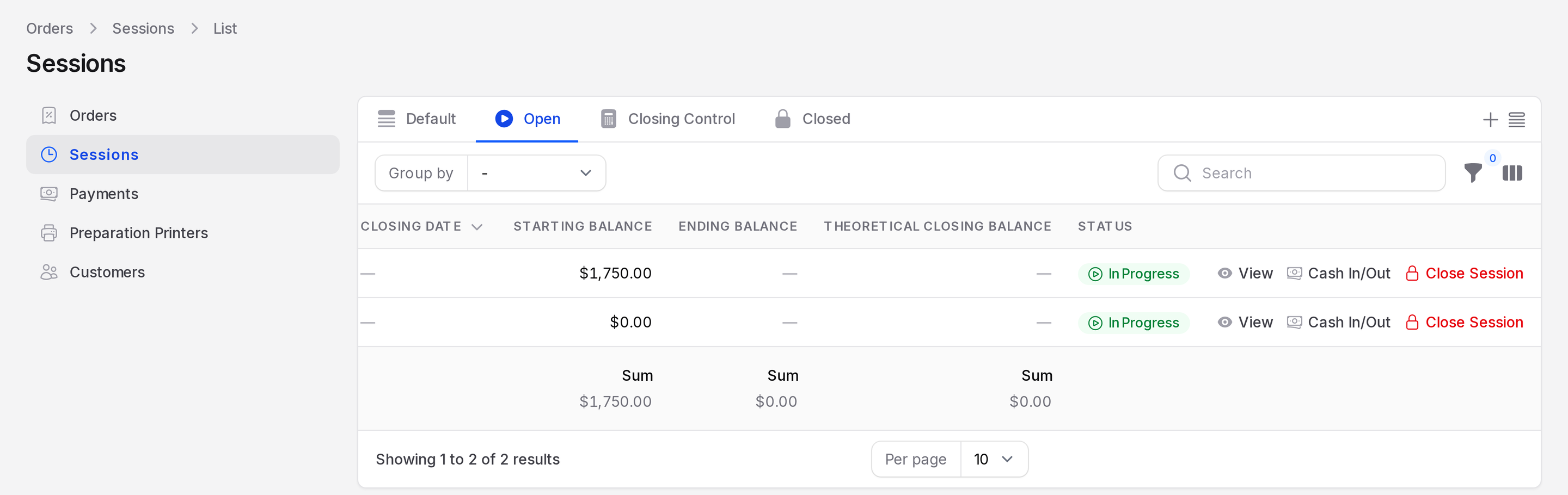
- Go to
Point of Sale → Orders → Sessions. - Find the session that is In Progress.
- Click Close Session on its row.
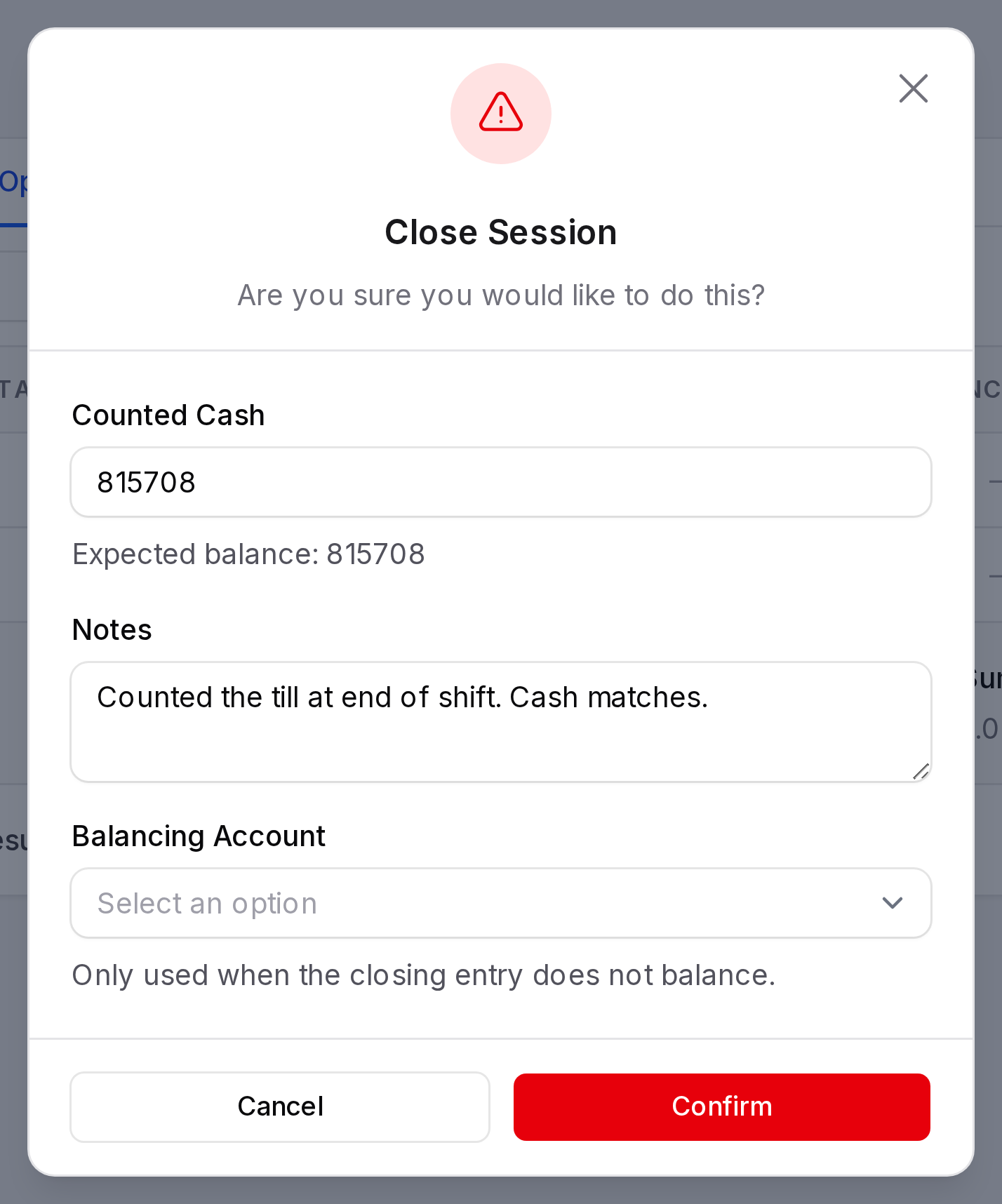
- In the Close Session window, fill in the form.
- Counted Cash: The cash you counted in the drawer. The hint shows the Expected balance, so you can compare. If you leave it empty, Aureus uses the expected balance.
- Notes: An optional remark, such as "Drawer counted at closing, matches the expected balance".
- Balancing Account: An account used only when the closing entry does not balance. Leave it empty if you do not need it.
- Click Confirm. A notice says Session closed.
Example: TechNest expects 7,847 (1,750 opening, plus 6,597 cash sales, minus the 500 courier payment, with the refund netting out). The cashier counts 7,847 and enters it. The difference is zero.
Close from the terminal
The cashier can close without leaving the till.
- Click your initials at the top right of the terminal.
- Click Close register. The Closing register screen opens.
- Read the summary: Opening, Payments in cash, Cash in / Out and Expected in drawer.
- Enter the Counted amount. Use Cash count to count by coin and note, or the copy icon to copy the expected amount.
- Add a Closing note if you wish. The Difference shows what is missing or extra.
- Click Close register.
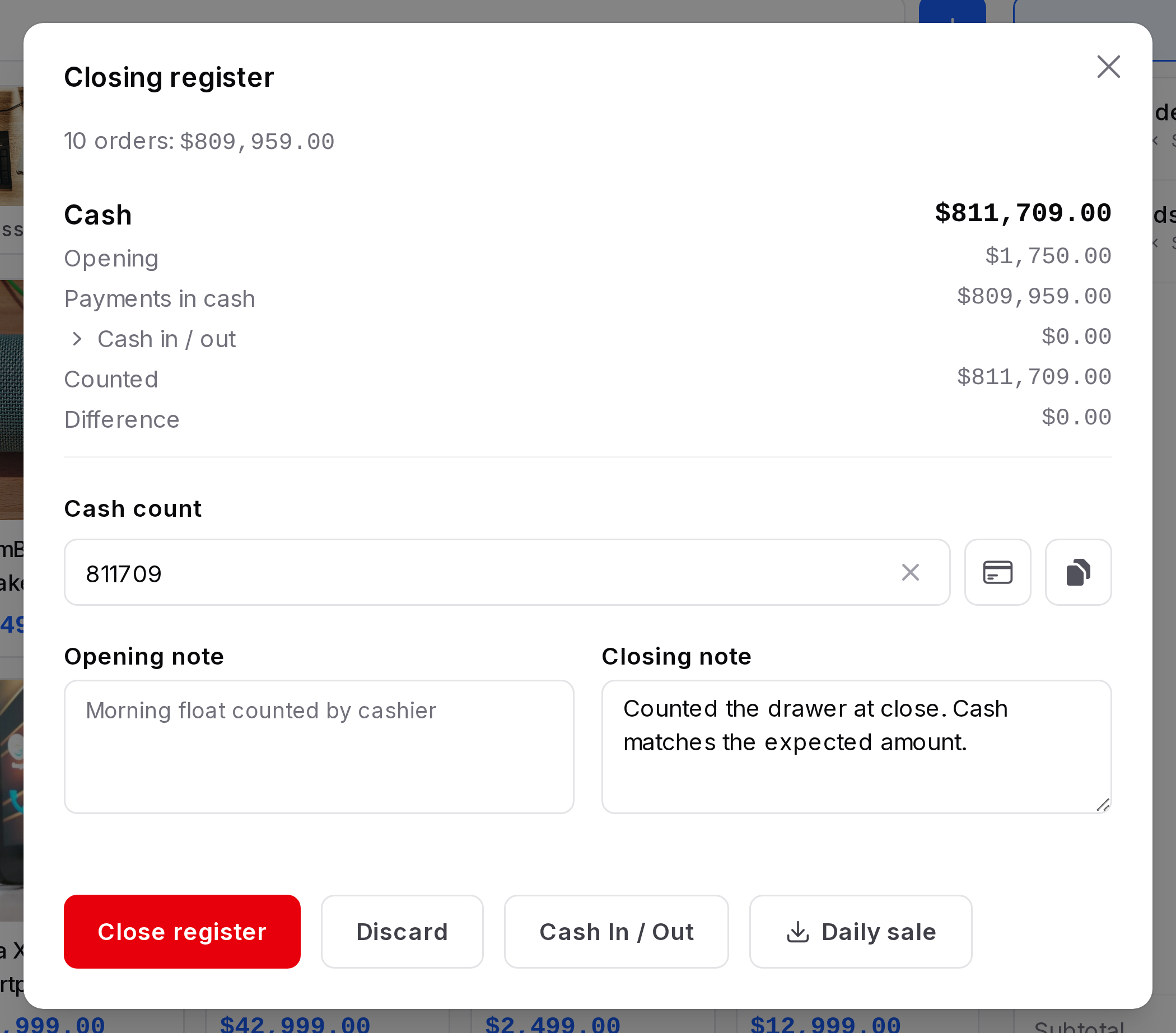
If a payment method other than cash is used, the screen also lists it with its own Counted and Difference. Click Back to the till to leave without closing.
Difference limits
A register can set a Maximum Difference. If the counted cash is further from the expected cash than that limit, only a manager can close. The terminal says "The difference is above the allowed limit. Only a manager can close this register." Set the limit in the Payment tab of the register. See Set up a register.
What closing does
When you confirm, Aureus does these things in one step.
- Saves the Ending Balance (what the system expected), the counted cash and the Cash Difference.
- Posts one closing journal entry in the register's journal. It records the sales, the taxes and the money received by each payment method. Orders that were invoiced are settled through the customer invoice instead.
- Posts a second entry for the cost of goods sold, if Post Cost of Goods Sold is on in the register's Accounting tab. It uses the Stock Output Account.
- Updates stock. Your inventory setting decides the timing: In real time moves stock as you sell. At the session closing moves it now.
- Changes every paid order to Posted and the session to Closed & Posted.
If the entry does not balance, Aureus needs a Balancing Account. The default is set in the register's Accounting tab and in Point of Sale → Settings. Without one, the close stops with a message that shows the amount. See POS settings.
TIP
Choose Closed in the Sessions list to review old sessions. The View action shows their orders and payments.
WARNING
You cannot reopen a closed session. Check the counted cash before you click Confirm.