

Create a lead
A lead is the first record of a possible sale. It holds who contacted you, what they want and where they came from. You use leads to sort enquiries before you spend time on a full opportunity.
In simple words: A lead is a note about someone who might buy. You fill it in, check it, then convert it or close it as lost.
Open the list with CRM → Leads → Leads. If you do not see Leads, switch on Lead Qualification first.
About the example
This page records one enquiry. Rajesh Sharma of Sharma Textiles Pvt. Ltd. asks for an ERP for his textile manufacturing unit. The same lead continues on the next pages.
Settings
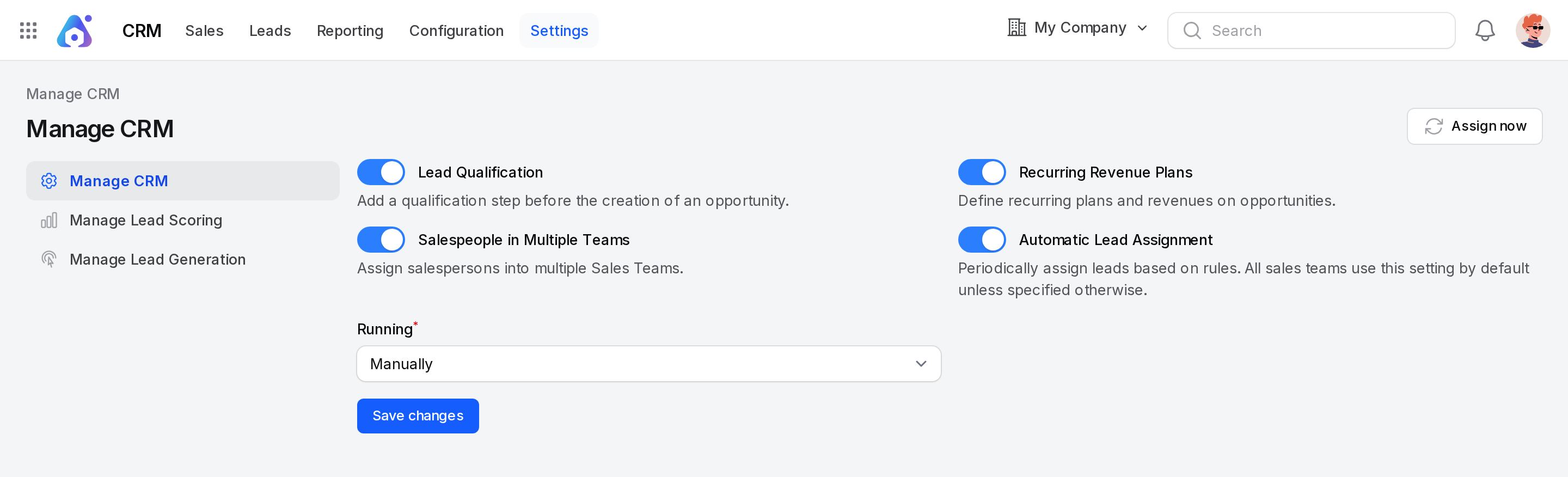
Lead Qualification adds a qualification step before an opportunity exists. It turns on the Leads area.
- Go to
CRM → Settings → Manage CRM. - Switch on Lead Qualification.
- Click Save changes.
See CRM settings.
The leads list
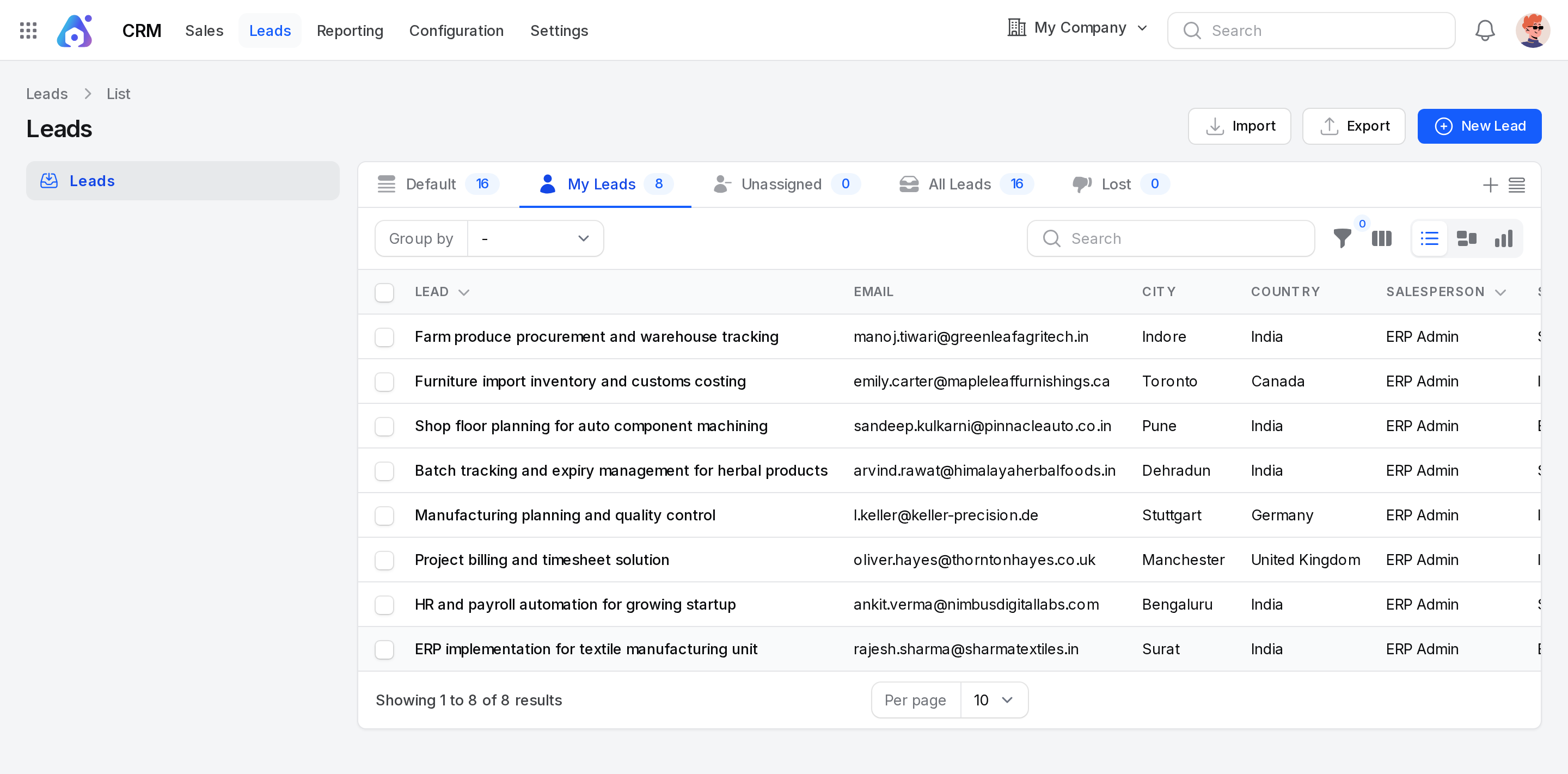
The list shows every lead, newest first.
Views
The tabs above the list are ready-made views:
- Default: All leads.
- My Leads: Leads where you are the salesperson.
- Unassigned: Leads that have no salesperson yet.
- All Leads: Every open lead.
- Lost: Leads that you closed as lost or deleted. Open one to see the Lost Reason and Closing Note.
A switcher in the toolbar changes the layout. Choose List, Kanban or Graph. Kanban and Graph work on the field you pick in Group by. The Graph without a grouping counts leads by month.
Columns
The list shows Lead, Email, City, Country, Salesperson and Sales Team.
Use the column toggle to show more: Contact Name, Company Name, Phone, Priority, Tags, Source, Medium, Lost Reason and Created On.
Search, filter, group and export
- Type in the search box to find a lead by Lead, Contact Name, Company Name or Email.
- Use the filter icon to build rules on fields such as Lead, Contact Name, Company Name, Email, Phone, City, Country, Stage, Salesperson, Sales Team, Tags, Priority, Source, Medium, Campaign, Probability and Created On.
- Use Group by to fold the list by Salesperson, Sales Team, Source or Priority.
- Click Export to download leads. Click Import to load leads from a file.
- Tick several rows to use the bulk actions. See Bulk actions.
See Search, filter and group records.
Create a lead
- Go to
CRM → Leads → Leads. - Click New Lead.
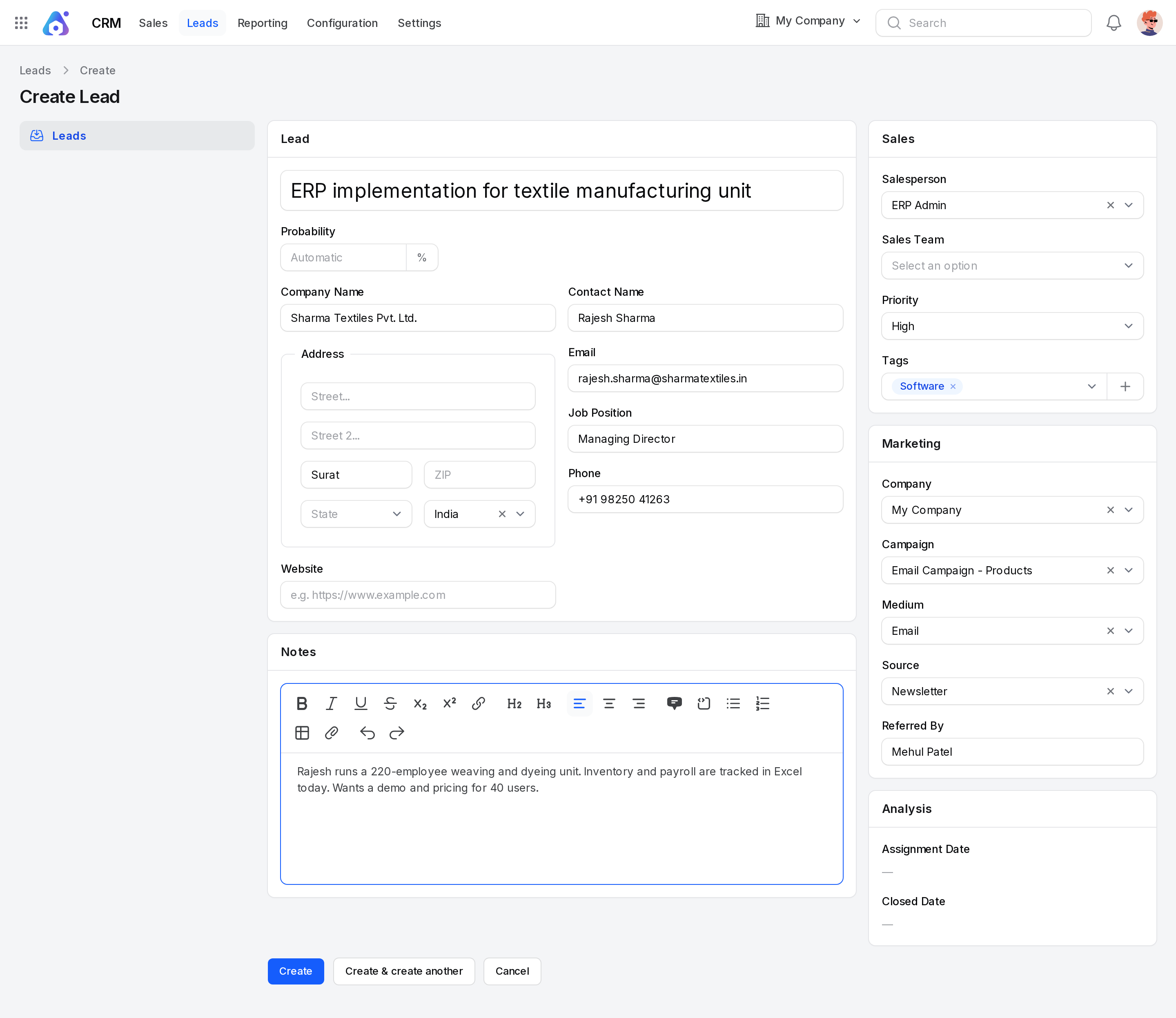
- Fill in the Lead section on the left and the Sales, Marketing and Analysis sections on the right.
- Click Create. Use Create & create another to save and open an empty form.
After you save, Aureus shows the lead page and the message Lead created. A new lead gets the first stage of your pipeline and you as salesperson, unless you choose otherwise.
Lead
- Lead name: A short title for the enquiry. Required, up to 255 characters. The hint reads e.g. Product Pricing.
- Probability: Your estimate of the chance to win, from 0 to 99.99 %. Leave it empty to let Aureus work it out. The field then shows Automatic. See Lead scoring.
- Company Name: The company that contacted you.
- Address: Fill in Street..., Street 2..., City, ZIP, State and Country. Pick the Country first, because the State list shows only states of that country.
- Website: The company web address. It must be a valid URL such as
https://www.example.com. - Contact Name: The person you will talk to.
- Email: Their email address. It must be a valid address.
- Job Position: Their role in the company.
- Phone: Their phone number.
Example: Enter ERP implementation for textile manufacturing unit as Lead name. Set Company Name to Sharma Textiles Pvt. Ltd. and Contact Name to Rajesh Sharma. Use rajesh.sharma@sharmatextiles.in and +91 98250 41263. Enter Job Position Managing Director, City Surat, and Country India.
Notes
- Notes: Free text with formatting. Write what you learned, such as the size of the unit or what the contact asked for.
Example: Rajesh runs a 220-employee weaving and dyeing unit. Inventory and payroll are tracked in Excel today. Wants a demo and pricing for 40 users.
Sales
- Salesperson: The user who owns the lead. It starts as you. Only active users of the lead company are listed.
- Sales Team: The team that handles the lead. Only teams of the lead company are listed.
- Priority: Low, Medium, High or Very High. It starts as Low.
- Tags: Labels that group leads, such as Software or Consulting. You can pick many. Type a new name and create it on the spot. See Tags.
Example: Keep yourself as Salesperson. Set Priority to High and add the tag Software.
Marketing
- Company: Your own company that owns the lead. It starts as the company you work in. Change it only if you run several companies.
- Campaign: The marketing campaign that brought the lead.
- Medium: The channel, such as Email.
- Source: Where the lead came from, such as Newsletter.
- Referred By: The name of the person who sent the lead to you.
Example: Choose the campaign Email Campaign - Products, the medium Email and the source Newsletter. Type Mehul Patel in Referred By.
Analysis
- Assignment Date: The date and time the lead got its salesperson. Aureus fills it. You cannot type here.
- Closed Date: The date and time the lead was closed. It stays empty until the lead is closed.
Probability details
Next to Probability, an information icon opens Probability details. It shows the Computed probability and the Sales team used. If you typed the probability by hand, the window says so.
If you typed your own value, a refresh icon appears. Click Use computed probability to go back to the automatic value.
The lead page
After you save, the lead opens in read mode. A switcher at the top has these tabs:
- View: The details in read mode.
- Edit: The same form, ready to change. Saving shows Lead updated.
- Activities: Planned and done follow-ups for this lead. Click Schedule Activity to add one. See Schedule activities.
- Similar Leads: Other leads and opportunities that share the same email, phone number or customer. This tab appears only when Aureus finds at least one, and a number on the tab shows how many.
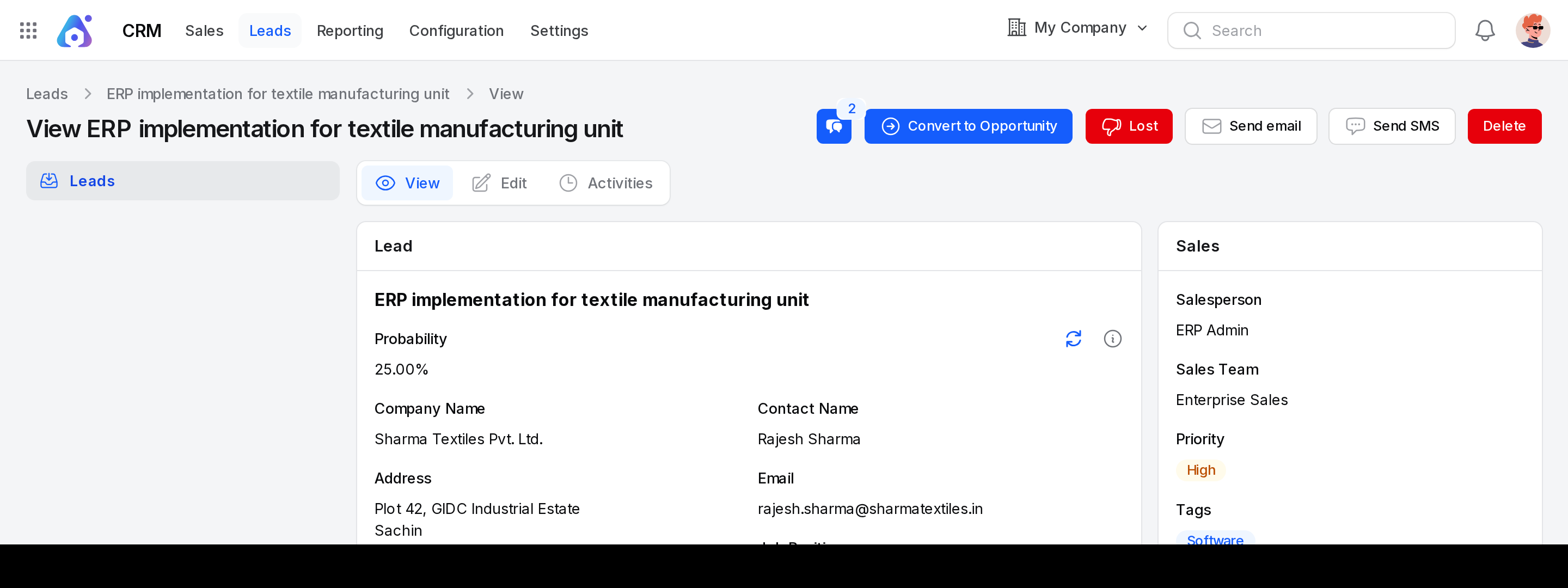
Open Chatter in the header to write notes, send messages and log activities on the lead. See Chatter.
Actions and statuses
A lead is either open or lost. The buttons in the header change what happens to it.
| Button | What it does |
|---|---|
| Chatter | Opens the message and note panel for the lead. |
| Convert to Opportunity | Turns the lead into an opportunity. See Convert a lead. |
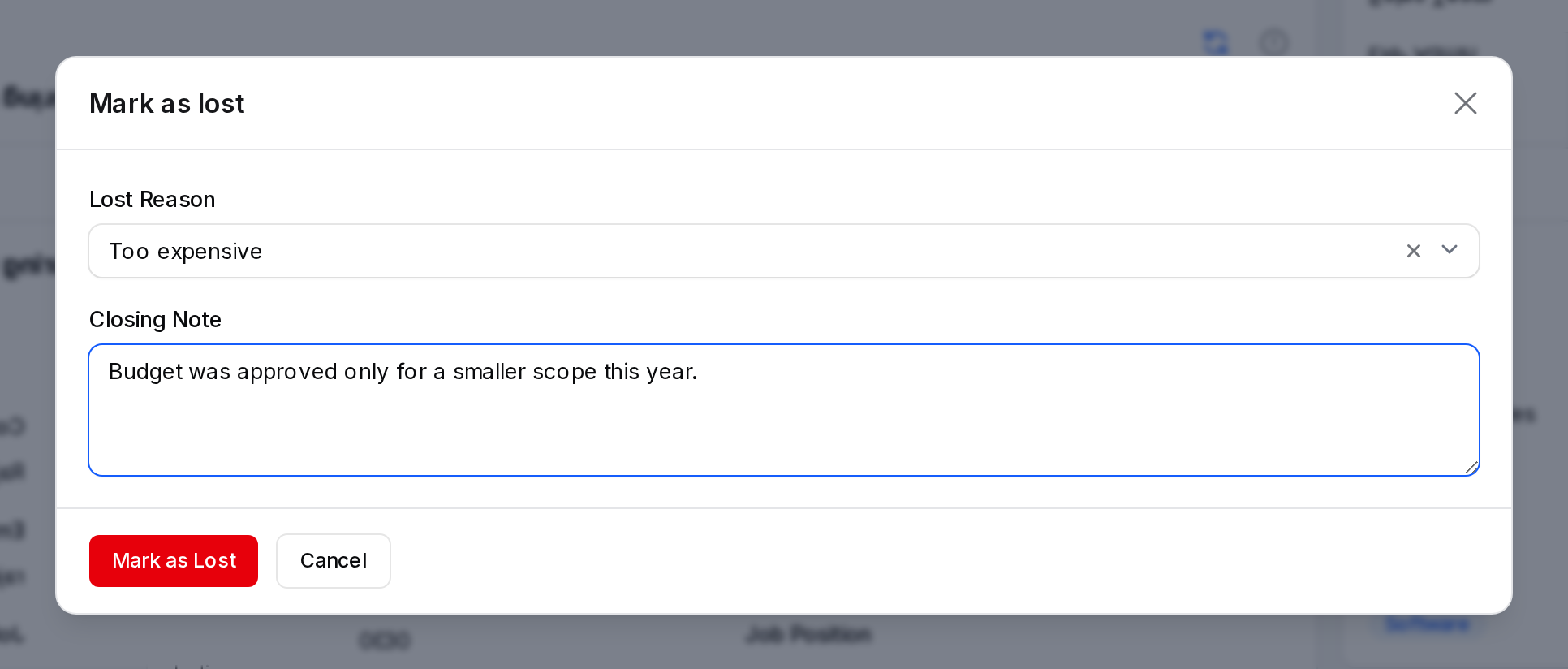
| Lost | Opens Mark as lost. Choose a Lost Reason, add a Closing Note and click Mark as Lost. |
| Send email | Opens a window with To, Subject and Message. It shows only when the lead has an email. |
| Send SMS | Opens a window with Recipient and Message. Use the international format for the number. |
| Delete | Removes the lead from the open views. It then appears under Lost. |
| Restore | Shows only on a lost or deleted lead. It brings the lead back to the open views. |
On the Edit tab you see Chatter, Convert to Opportunity and Lost.
Row actions
In the list, each row has a clock icon to Schedule Activity. The row menu holds View, Edit, Convert to Opportunity, Send email, Send SMS, Lost, Restore and Force delete. Force delete removes the lead for good.
Bulk actions
Tick several rows to see these actions:
- Export, Restore, Delete and Force delete.
- Mark Lost closes all ticked leads with one Lost Reason and Closing Note.
- Convert to Opportunities converts many leads at once. See Convert a lead.
- Merge joins duplicate leads into one. See Convert a lead.
- Email and SMS actions send one message to all ticked leads. Leads without an email or valid number are skipped.
Behind the scenes
- Lost sets the probability to 0, stores the closing date, and moves the lead to the Lost view. Nothing is erased.
- Restore clears the lost reason and the closing note, and the probability becomes automatic again.
- The email address and the phone number are cleaned and stored for matching. Two records with the same email, or the same phone number, show up as similar leads.
- When Automatic Lead Assignment is on and set to Repeatedly, a new lead with no team or salesperson is given to a team and a member straight away. See Assign and track.
- Saving a lead recalculates its automatic probability.
TIP
Fill in the email and phone. They help Aureus find similar leads and let you reach the contact.
WARNING
A lead with a probability of 100 % cannot be converted. Lower the probability first.