

Overview calendar
The Overview is a year calendar of the time off requests of all employees. It helps you spot busy weeks and the leave types booked. The bars show the leave type, not the person. You can open, edit and delete a request, and create a new one.
In simple words: Open Overview to see a whole year of requests on one page.
Menu: Time Off → Overview.
Before you start
Requests must exist. See Request time off.
What you see
The page is titled Overview. The calendar title is the year, for example 2026. All twelve months show as small month grids, Sunday to Saturday.
- Toolbar: arrows, today, and the views month, week and day.
- Bars: each request is a bar in the colour of its leave type. The bar shows the type, not the employee name.
- New Time Off: a button to create a request.
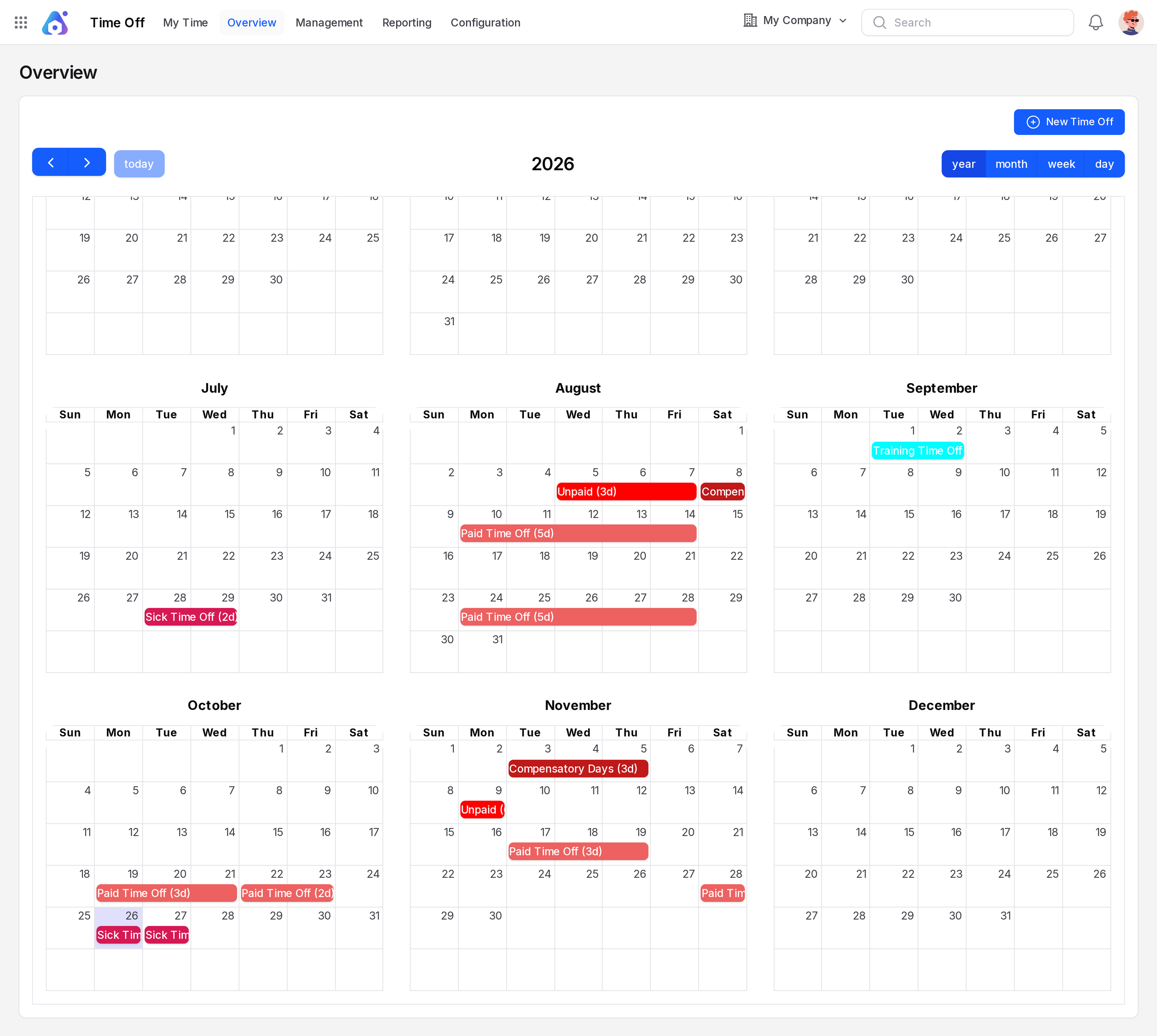
Example: Paid Time Off bars appear in August and October. An Unpaid bar starts on 5 August. Long names are cut short on the bar.
This calendar starts each week on Sunday. The calendar on My Time starts on Monday.
Open a request
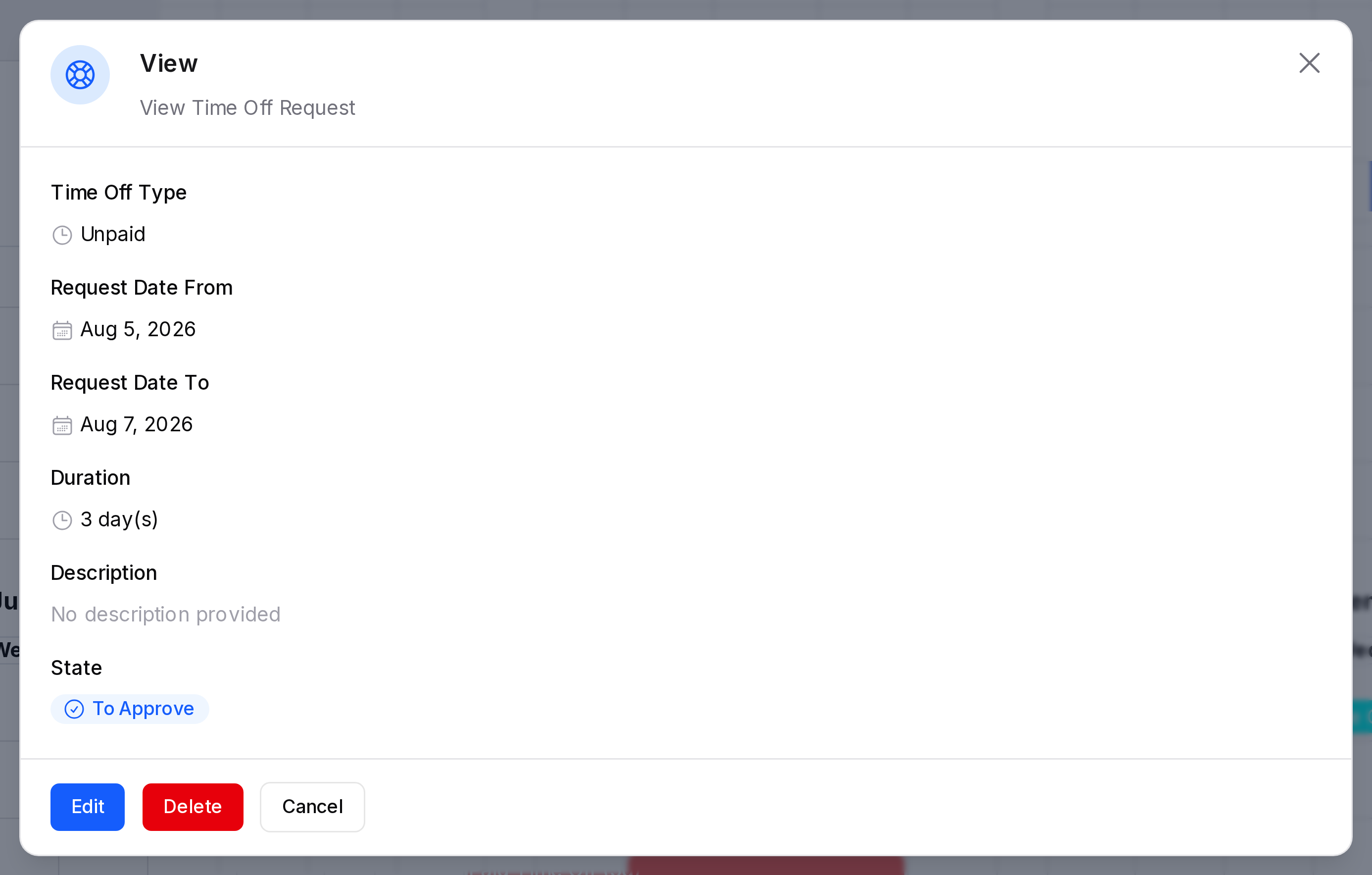
- Click a bar, for example the Unpaid bar on 5 to 7 August.
- The View window shows Time Off Type, Request Date From, Request Date To, Duration (
3 day(s)), Description and State (To Approve). This window says State where the lists say Status. It means the same. - Use Edit to change it, Delete to remove it, or Cancel to close.
Create a request
Click New Time Off. The form is the same as in Request time off.
TIP
Approving or refusing happens in Manage requests, not here.