

Blanket orders
A blanket order is a long term deal with one vendor. You agree on products, a total quantity and a price for a period. Each RFQ you raise against it uses that price and counts against the total quantity.
In simple words: A blanket order is a promise to buy a set quantity at a fixed price over time. Orders draw from it until it is used up.
Open Purchase → Orders → Purchase Agreements and click the Blanket Orders tab.
Settings
The menu is hidden until you turn it on. Go to Purchase → Settings → Manage Orders and switch on Purchase Agreements. The helper text reads "Manage blanket orders and purchase templates". The same page is at Settings → Settings → Purchase. See Purchase settings.
Blanket order or template
Both share one form and one list. Choose Blanket Order in Agreement Type when you promise a total quantity over a period. Choose Purchase Template when you only want a ready-made set of lines. See Purchase templates.
Overview
The list shows these columns: Agreement, Vendor, Agreement Type, Buyer, Company, Valid From, Valid Until, Reference and Status.
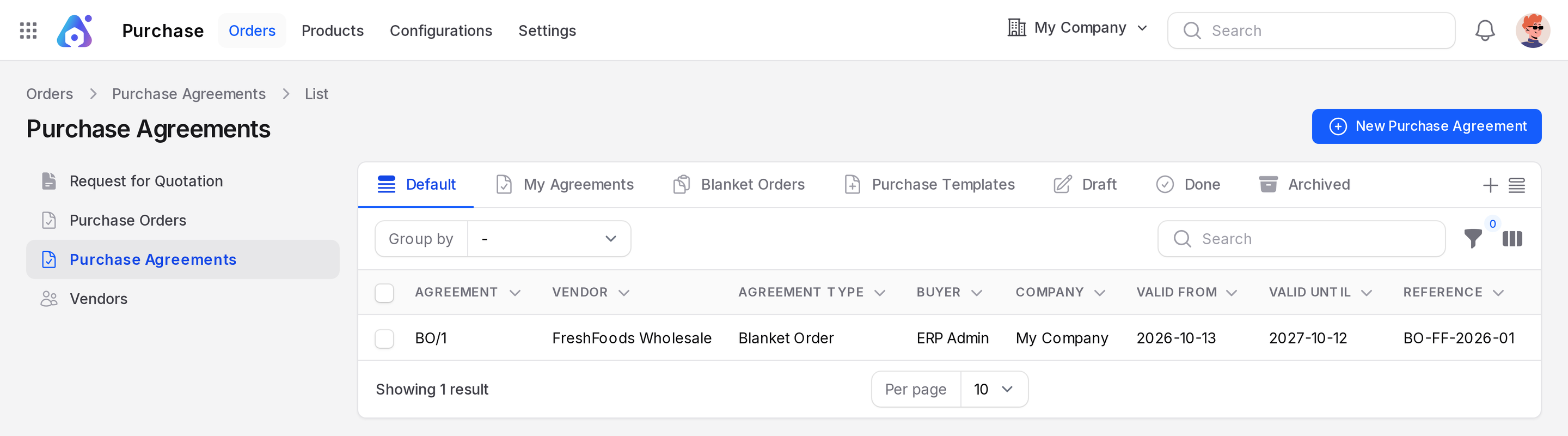
| Tab | Shows |
|---|---|
| Default | All agreements |
| My Agreements | Agreements where you are the buyer |
| Blanket Orders | Only blanket orders |
| Purchase Templates | Only templates |
| Draft | Agreements not yet confirmed |
| Done | Closed agreements |
| Archived | Archived agreements |
Use Group by with Vendor, State, Agreement Type, Created At or Updated At.
Create a blanket order
Example: FreshFoods Wholesale agrees to sell you 100 SSD 512GB at 3,200 each for the year.
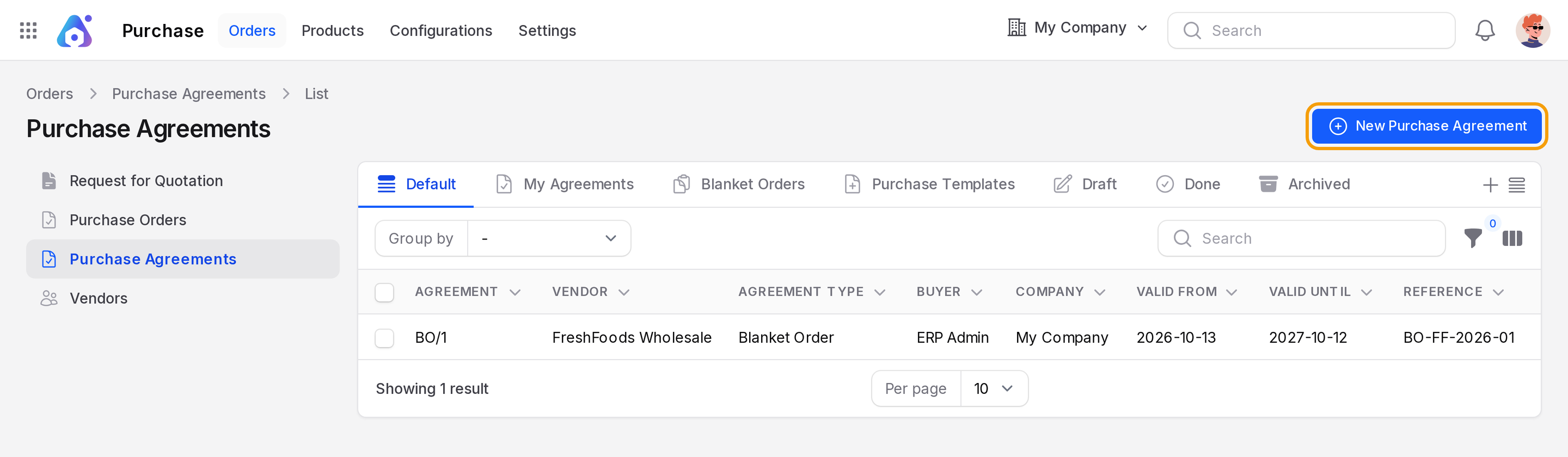
- Click New Purchase Agreement.
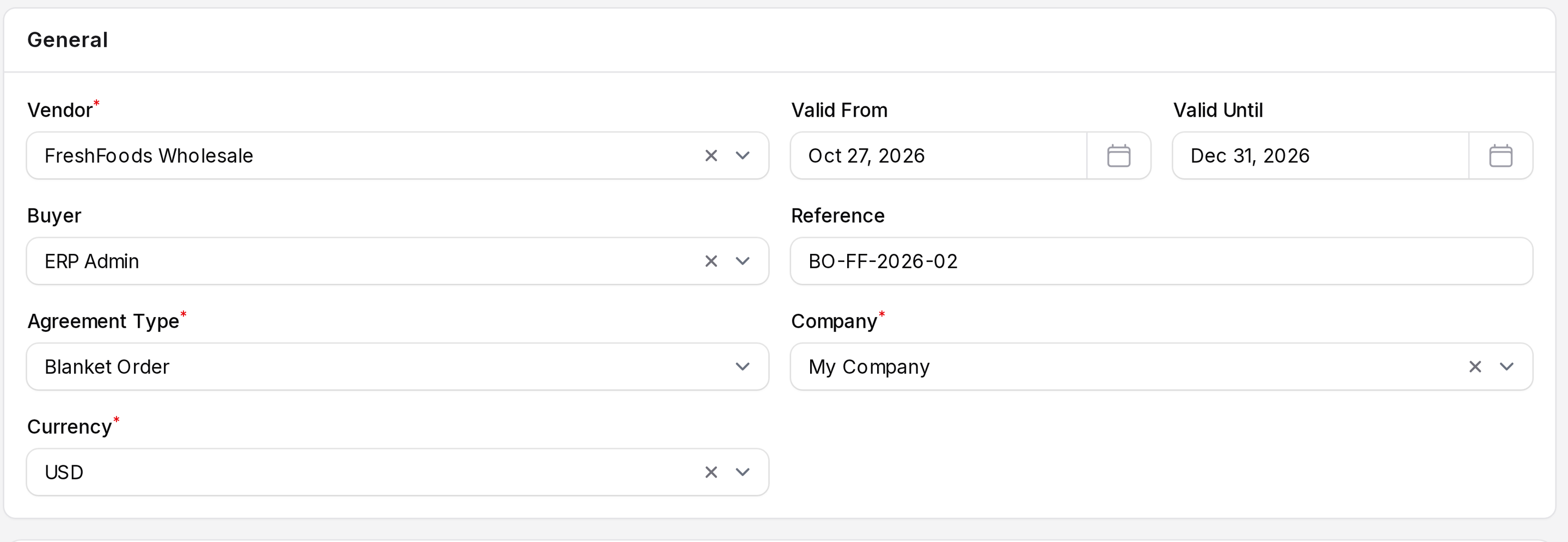
- Fill in the top section.
- Vendor: Required. The supplier who gave the offer.
- Buyer: The user in charge of the deal.
- Agreement Type: Required. Keep Blanket Order.
- Currency: Required. Starts with your company currency.
- Valid From and Valid Until: Required for a blanket order. Dates cannot be in the past.
- Reference: Your own or the vendor's reference.
- Company: Required. Starts with your current company.
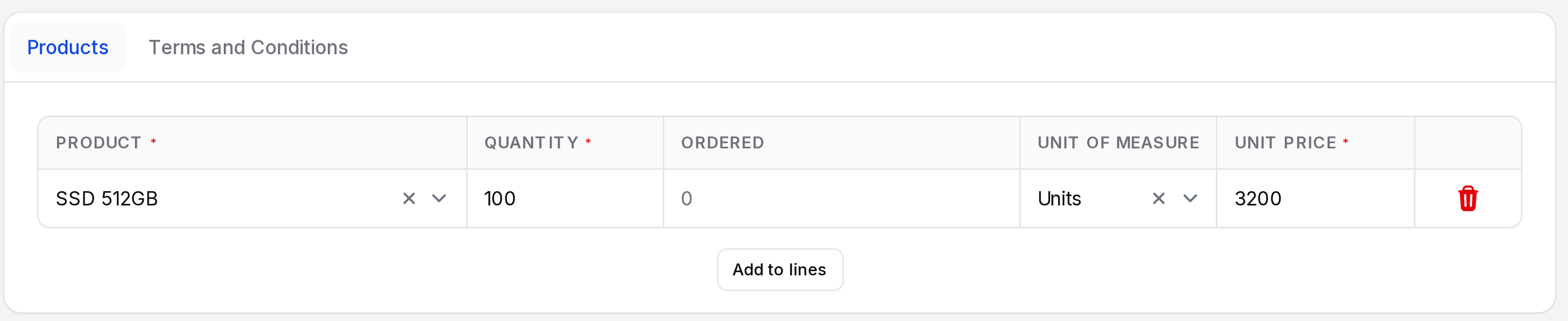
- On the Products tab, add a line for each product.
- Product: Required. Goods products only.
- Quantity: Required. The total you commit to.
- Ordered: Read only. Shows how much is already ordered.
- Unit of Measure: Shown only when Unit of Measure is on in Manage Products.
- Unit Price: Required. The agreed price.
- Use the Terms and Conditions tab for notes the vendor should see.
- Click Create. The agreement starts as Draft.
WARNING
If this vendor already has a confirmed agreement that is not closed or canceled, a window asks Similar confirmed agreement exists. Click to continue only if you really want a second one.
Actions and statuses
The state bar shows Draft, Confirmed, Closed and Canceled.
Draft  >  Confirmed  >  Closed
   \         \
+---------+---> Canceled| Button | What it does |
|---|---|
| Confirm | Moves Draft to Confirmed. It needs at least one line. |
| Close | Moves Confirmed to Closed. |
| Cancel | Cancels the agreement. Hidden once closed or canceled. |
| Downloads a PDF of the agreement. | |
| Delete | Removes the agreement. |
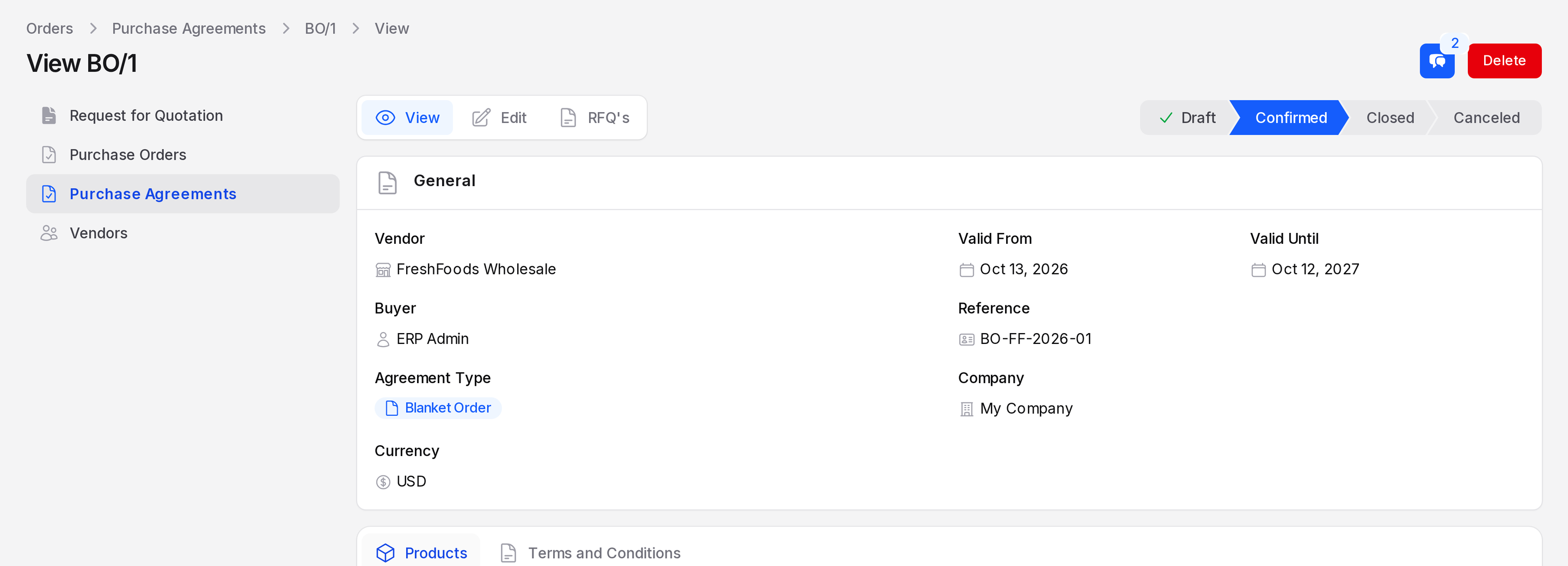
Without a line, Confirm shows Unable to confirm purchase agreement. Add a product line first.
Close is blocked while related RFQs are still open. The message reads "You cannot close this purchase agreement because some related RFQs are not in Done or Canceled status." Finish or cancel those RFQs first.
After you confirm, vendor, buyer, type and company are locked.
Use a blanket order on an RFQ
The Agreement field shows on the RFQ form only when Purchase Agreements is on.
- Click New RFQ and pick the Vendor.
- If the vendor has a confirmed agreement that is valid today, Aureus fills Agreement, the product lines and the Currency for you.
- To choose another one, open the Agreement list. It offers confirmed agreements only.
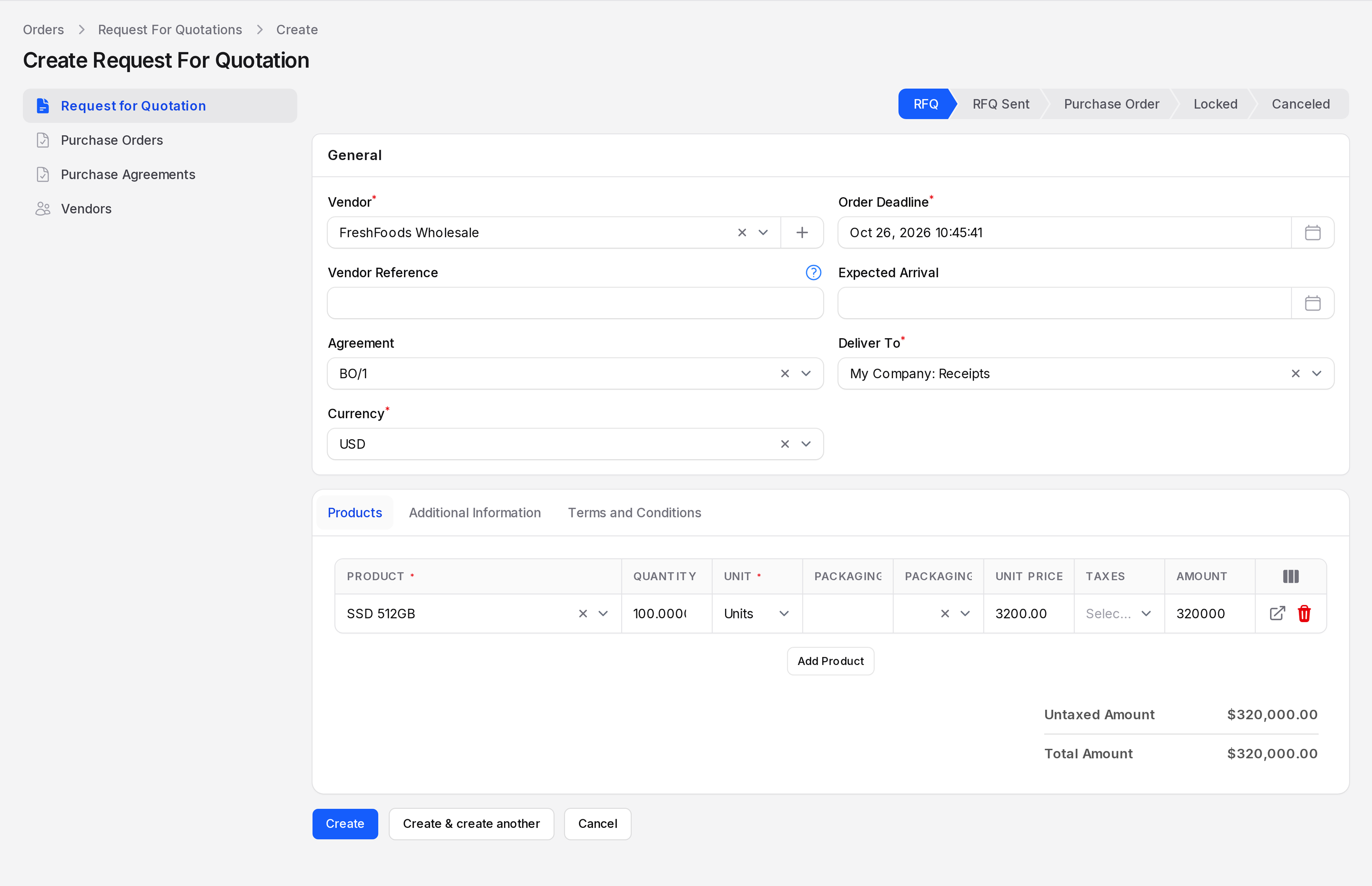
Lines copied from an agreement keep the agreed unit price.
Quantity limit
You cannot order more than the quantity left. If you try, Aureus shows Quantity Exceeds Blanket Order Limit and says how much is available. Lower the quantity or raise it on the agreement. The Ordered column on the agreement shows what is used.
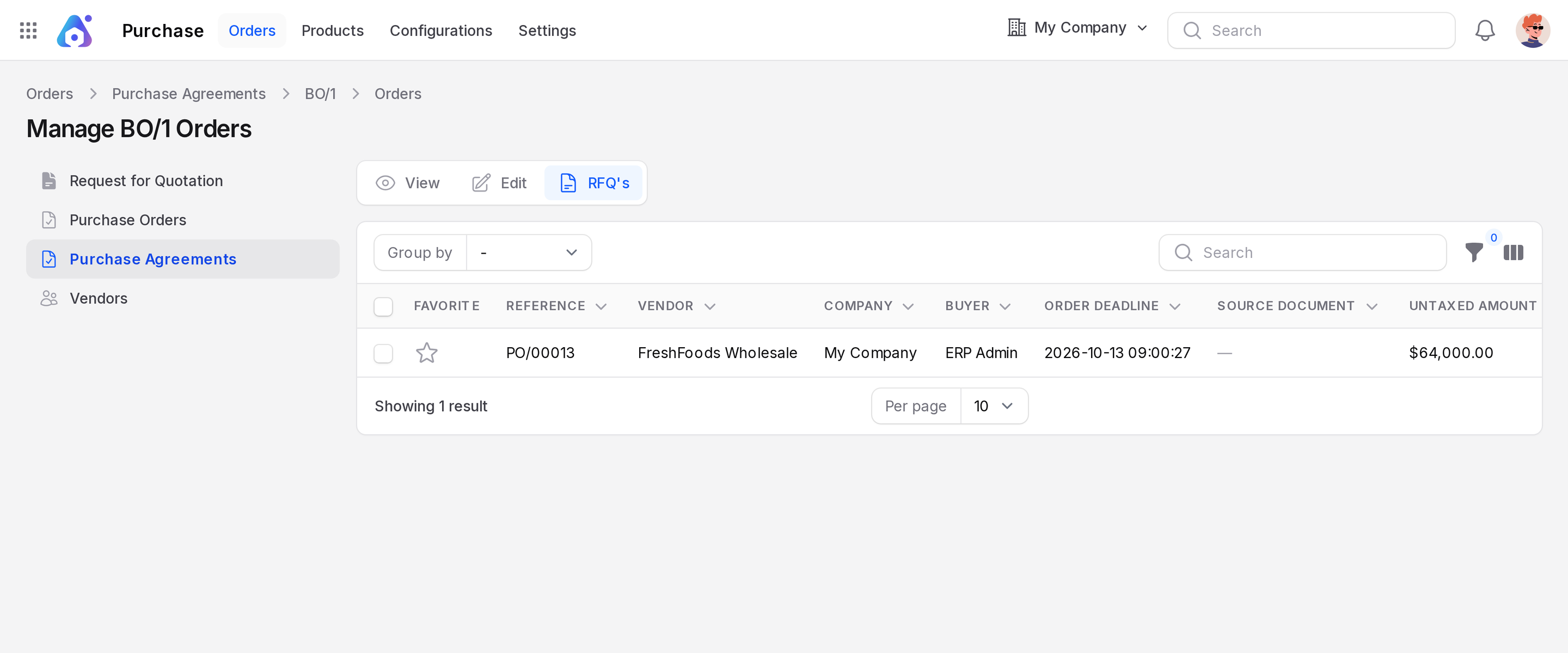
RFQ's sub page
Open an agreement and click RFQ's in the switcher. It lists the RFQs and orders made from this agreement. Check it before you click Close.
Behind the scenes
Agreements do not create stock or bills. They only feed order lines and cap blanket quantities. The order itself still follows the usual flow: confirm, receive, bill.