

Order notes and customers
Notes tell the kitchen or the team something about a line. A customer on the order lets you invoice it later and keep a sales history. This page shows how to add both.
In simple words: Use Note for special requests on one product. Use Customer to say who is buying.
Add a note to a line
- Click the line you want to annotate. The Note button turns on only when a line is selected.
- Click Note. The note window opens.
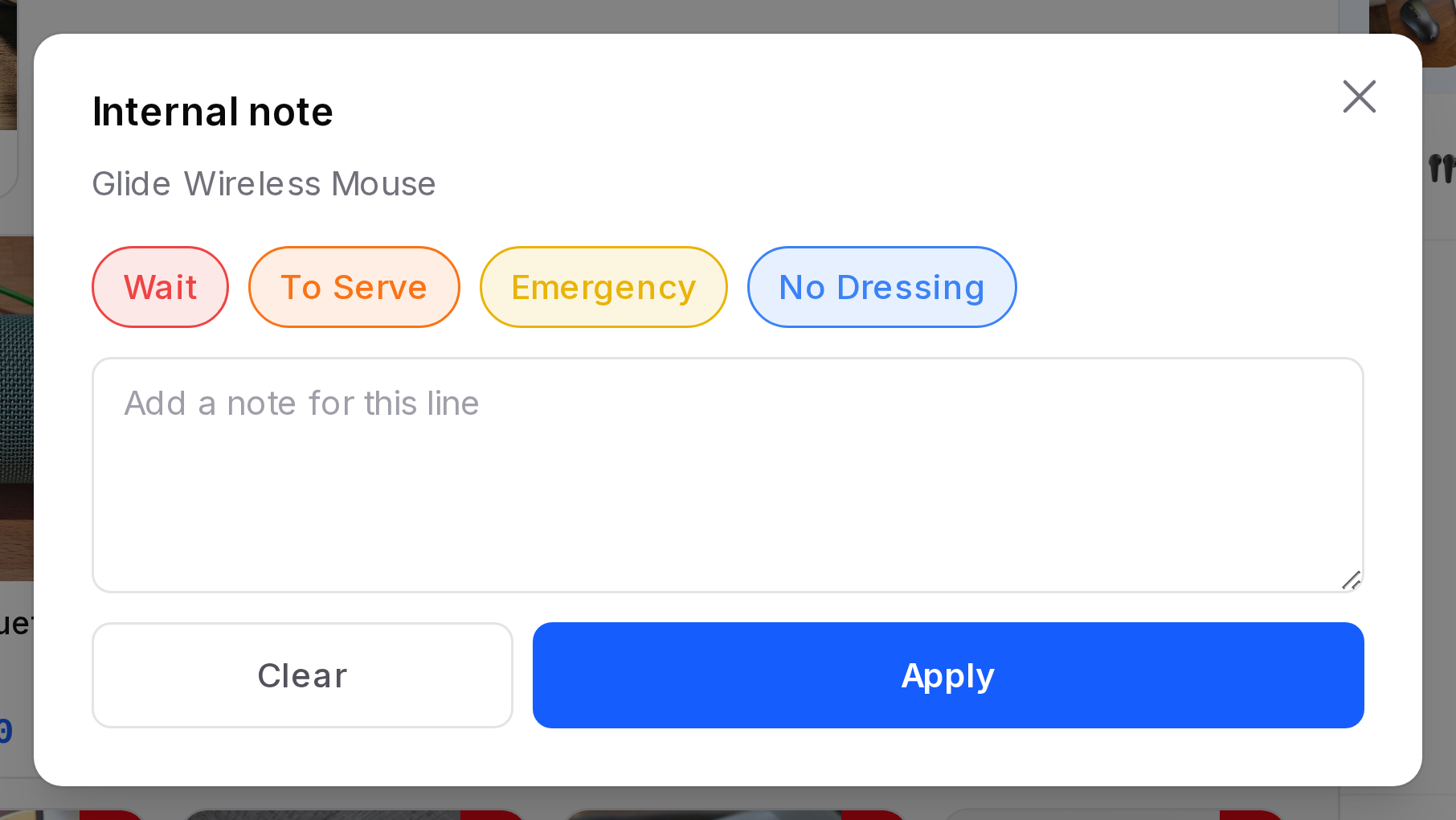
- Click a quick note, such as Wait, To Serve, Emergency or No Dressing. Or type your own text in the box.
- Click Apply. The note shows under the line as a small label.
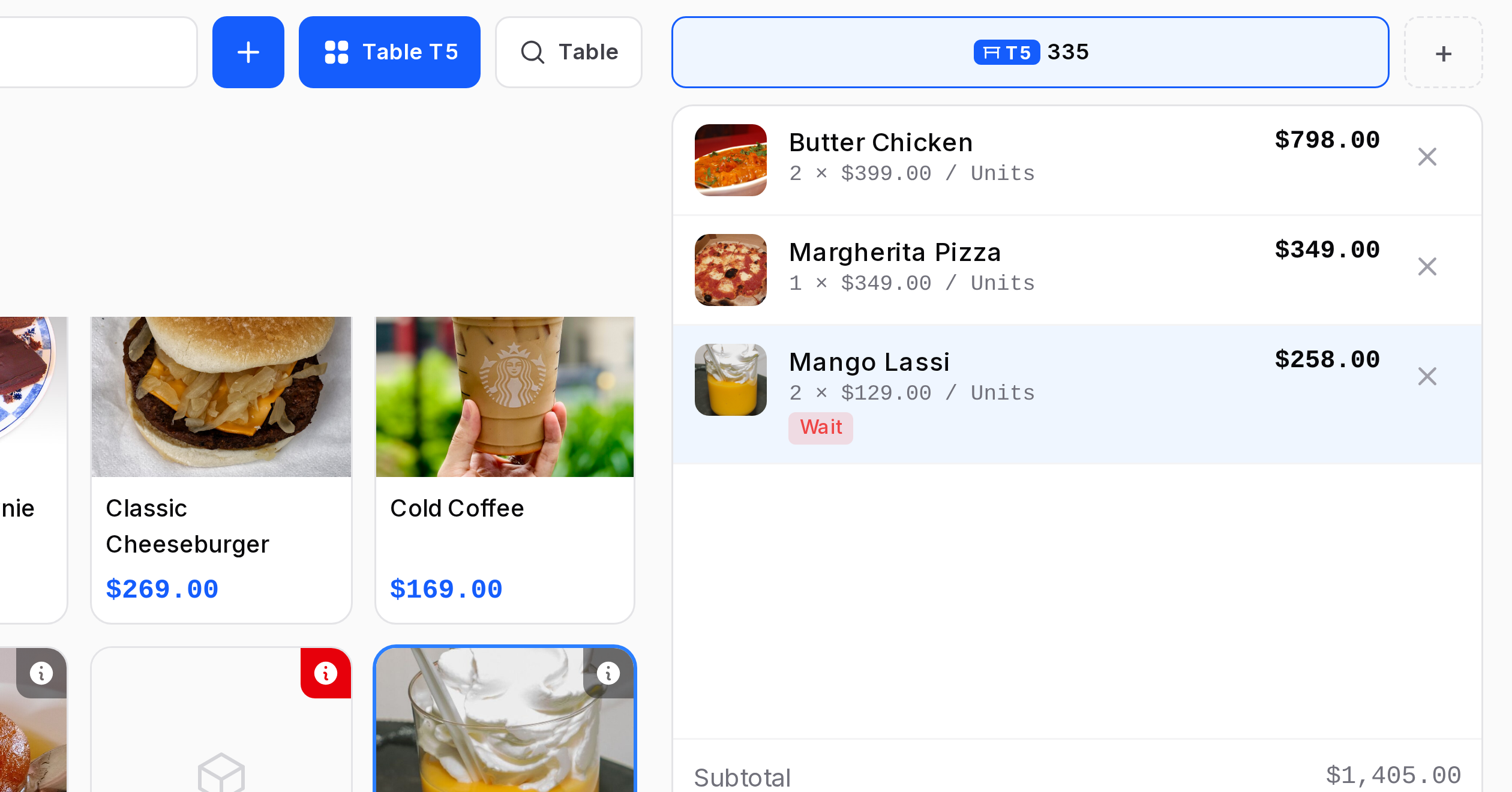
Click Clear to remove the note.
Example: At Spice Route, the waiter selects Mango Lassi x2 and clicks the Wait quick note. The kitchen sees "Wait" on that line.
Internal note and kitchen note
In a shop the window is titled Internal note. In a restaurant it is titled Kitchen note, and the note goes with the line to the kitchen.
The quick notes come from your list of note models. See Set up a register.
Add a customer
- Click Customer in the order panel. The Select a customer window opens.
- Type in Search customers to find a person or company.
- Click the name. The window closes and the button shows the customer's name.
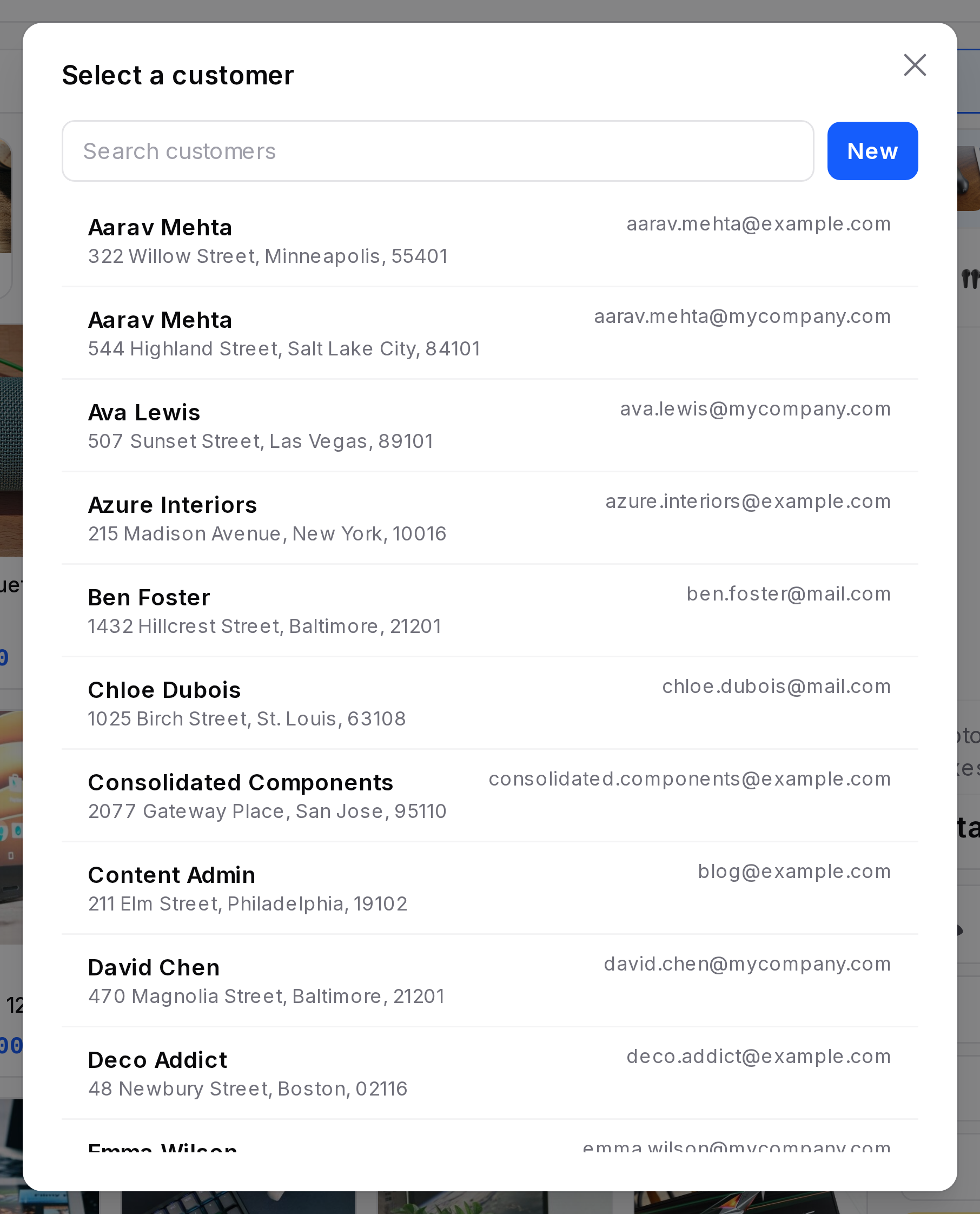
To change the customer, click the name button and pick another. Use Remove customer to clear it.
Create a customer at the till
Click New customer in the window. Fill in Name, Email and Phone. The new customer is added and selected at once.
Customers are the same contacts used in the rest of Aureus. See Contacts.
Example: TechNest picks Sofia Rossi so the sale can be invoiced to her later.
Customer Required setting
A register can force a customer on every sale.
- Setting:
Point of Sale → Configurations → Point of Sale, open the register, tab PoS Interface. - Option: Customer Required.
When it is on, validating an order without a customer shows "Customer required". Some payment methods and the Invoice option need a customer too. Pick one, then validate again.
Actions and statuses
Notes and customers can change while the order is New. They are part of the receipt and the order record after payment.
TIP
Quick notes are fast. Add the ones your team uses most to your note models.