

One-step manufacturing
One-step manufacturing is the simplest way to run production. Components leave your stock location and go straight into production. Finished products come back straight into stock. No extra transfer documents are created, so a small shop can work fast.
In simple words: Take the parts from stock, build the product, put it back in stock. One document, the manufacturing order.
Open Inventory → Configurations → Warehouse Management → Warehouses, then choose a warehouse and click Edit.
Settings
One step is the default. If you only want to keep it, you need no setting. You turn on the options below only to see the Manufacturing radio and change it.
The Manufacturing radio sits in the Resupply Management fieldset of the warehouse form. It shows only when the Manufacturing app is installed and Multi Steps Routes is on.
- Go to
Inventory → Settings → Manage Warehouses. - Turn on Multi Steps Routes and Locations.
- Click Save changes.
See Inventory settings and Warehouses for the rest of the warehouse form.
Choose one step
- Open
Inventory → Configurations → Warehouse Management → Warehouses. - Click your warehouse, then the Edit tab.
- In Resupply Management, select Manufacture (1 step) in the Manufacturing radio.
- Click Save changes.
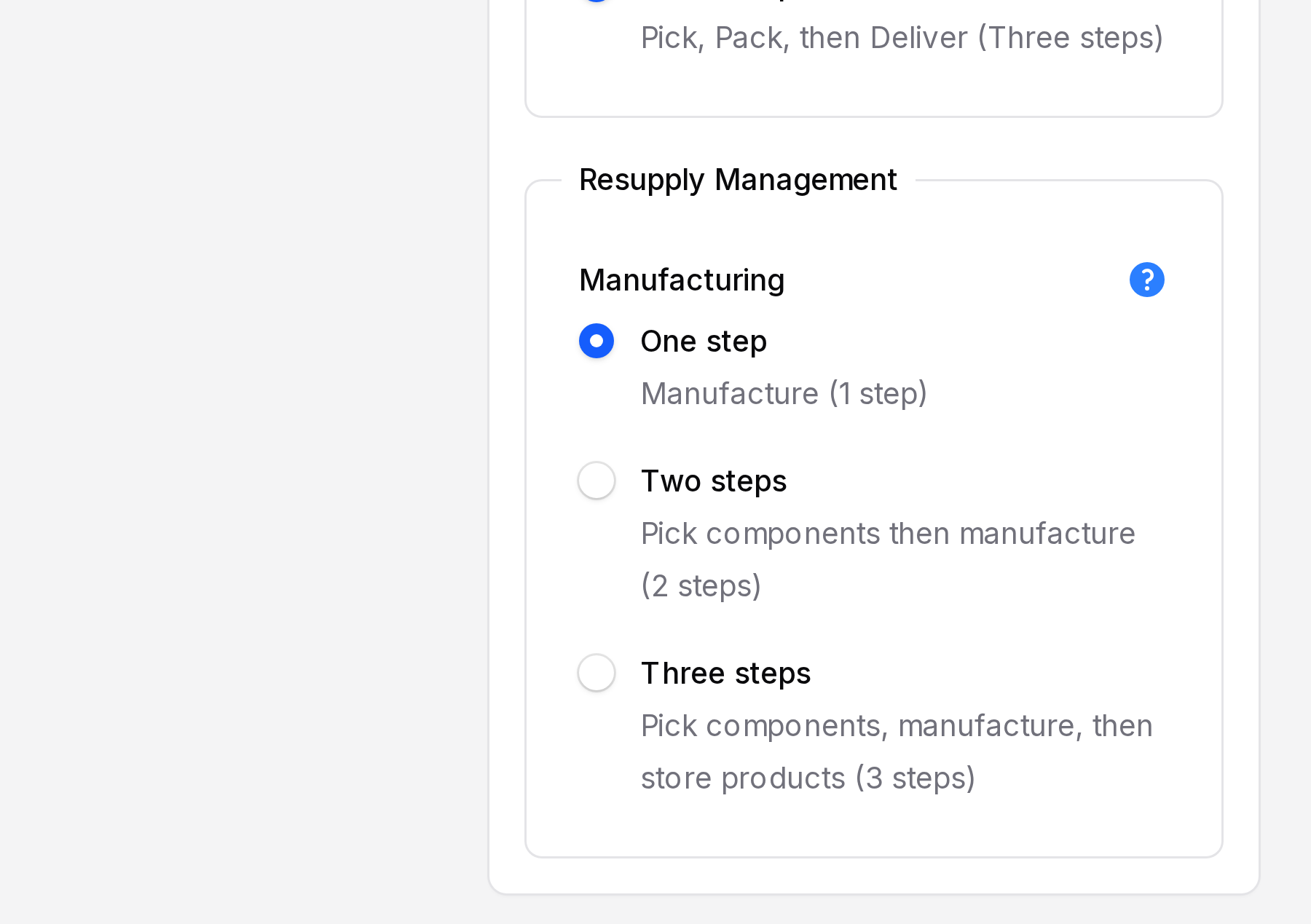
The three options are:
| Radio option | Steps | Page |
|---|---|---|
| Manufacture (1 step) | Manufacture | This page |
| Pick components then manufacture (2 steps) | Pick, manufacture | Two-step manufacturing |
| Pick components, manufacture, then store products (3 steps) | Pick, manufacture, store | Three-step manufacturing |
How the stock moves
Stock  ───────────────►  Production  ───────────────►  Stock
   components consumed       finished product created
Production is a virtual location. Components disappear from Stock when the order is done. The finished product appears in Stock at the same time.
Walk through a manufacturing order
This walk-through uses the same order in all three step pages, so you can compare them. The order is MO/2: Business Laptop, 2 units, BoM BOM-MC-LAPTOP.
- Open
Manufacturing → Operations → Manufacturing Ordersand click Create Manufacturing Order. - Select Business Laptop as Product and set Quantity to 2. The BoM fills in.
- Click Create. The order is in Draft.
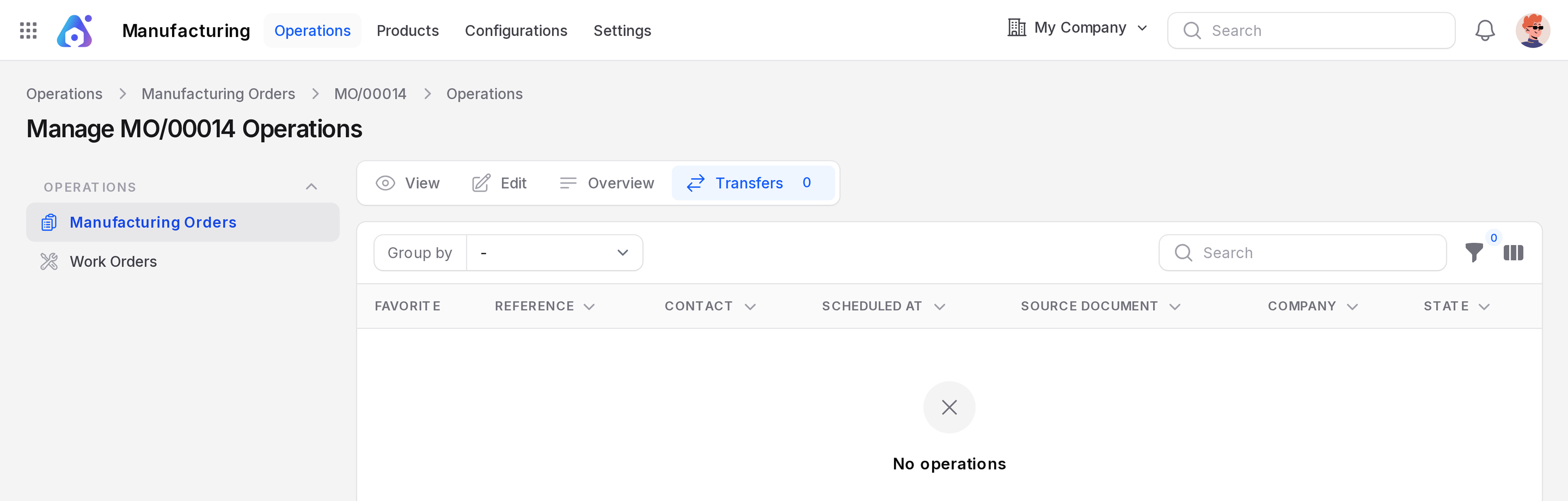
- Click Confirm. The state becomes Confirmed.
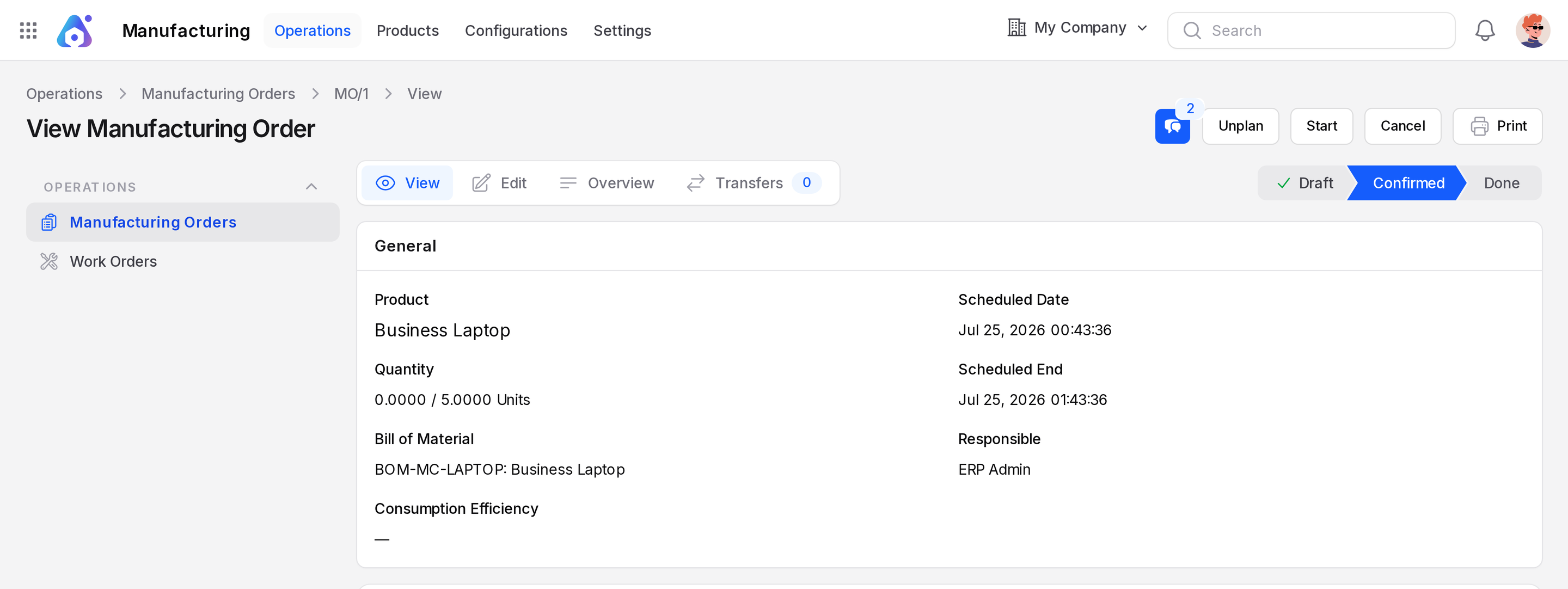
- Open the Transfers sub page. The list is empty, because 1 step creates no pick transfer.
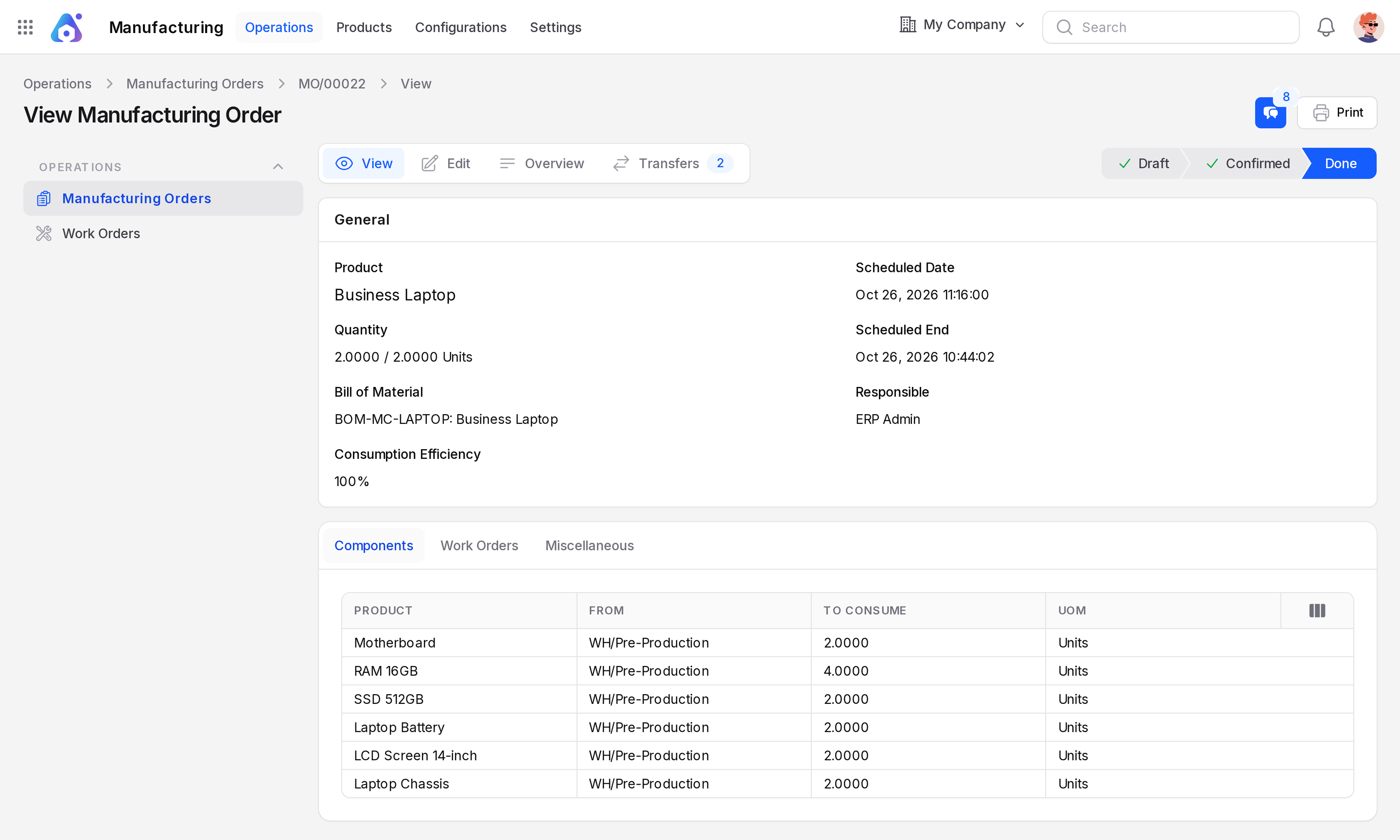
- Click Produce All. The state becomes Done.
Actions and statuses
| Moment | What happens |
|---|---|
| Confirm | The state becomes Confirmed. No transfer is created. |
| Produce All | Components leave Stock. The finished product enters Stock. State Done. |
TIP
Choose one step when the same people pick, build and store. It has the least paperwork.