

Internal transfers
An internal transfer moves stock from one location to another inside your company. Use it to restock a picking shelf, move goods to a quality area or tidy a warehouse. It changes where stock sits, not how much you own.
In simple words: An internal transfer is "take these from shelf A and put them on shelf B".
Open Inventory → Operations → Transfers → Internal Transfers.
Settings
The menu needs Locations on. Go to Inventory → Settings → Manage Warehouses, turn on Locations and click Save changes. See Locations.
Create an internal transfer
Example: move 20 Camping Hammock from WH/Stock to WH/Packing Zone.
- Click New Internal Transfer.
- Fill Contact if needed. Choose the Operation Type. The default is My Company: Pick. The list also has Receipts, Delivery Orders, Pack, Quality Control, Storage and Internal Transfers. Internal Transfers (prefix INT) is the plain choice. With the default Pick type, the number looks like WH/PICK/00010, not INT.
- Set Source Location and Destination Location. Defaults are WH/Stock and WH/Packing Zone.
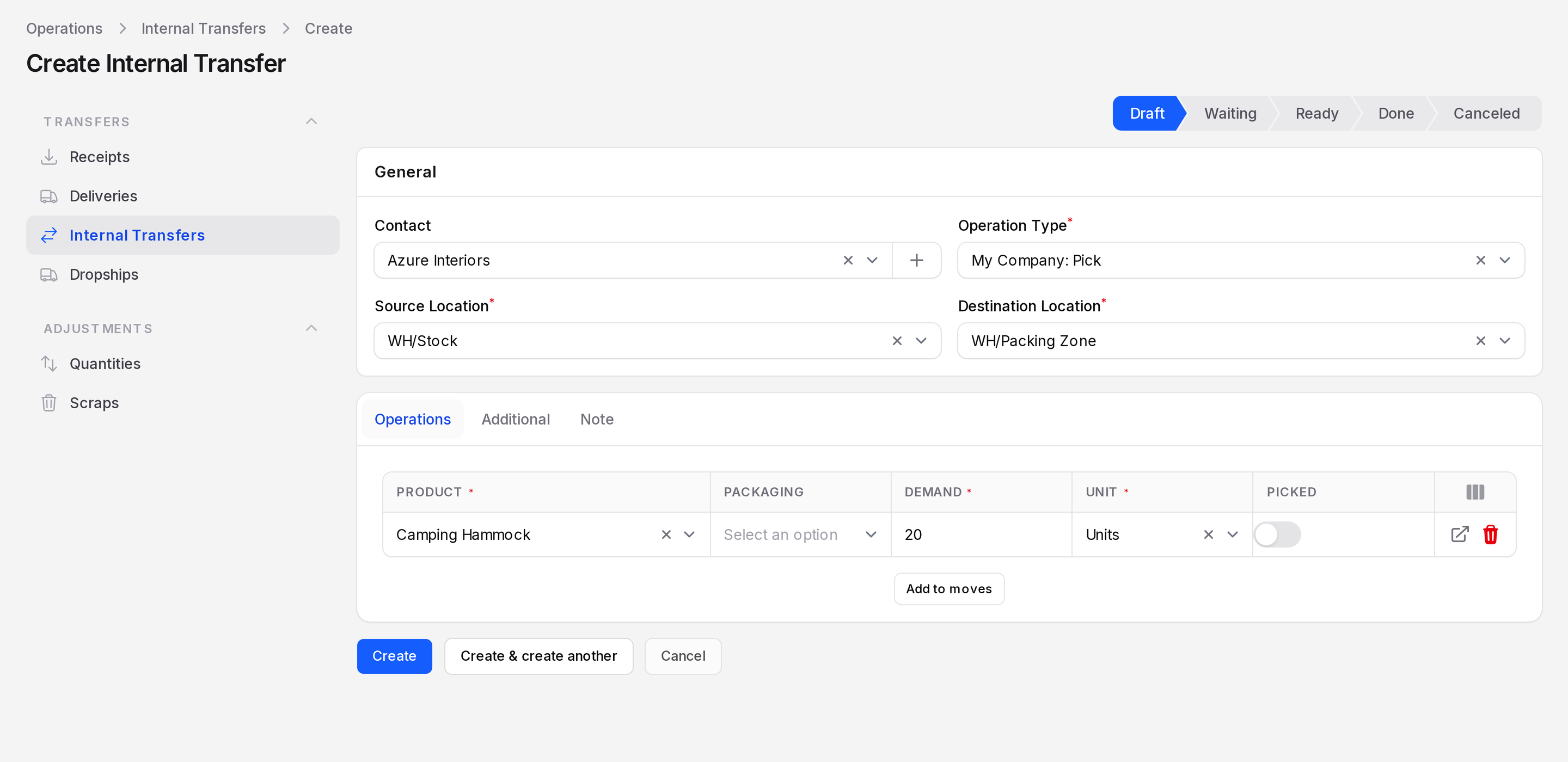
- In the Operations tab, click Add to moves. Pick the Product, set Demand to 20 and check the Unit.
- Click Create. The form also offers Create & create another and Cancel. You stay on the Edit page, and the Packaging column fills in by itself, for example Pack Of → 20.
- Click Mark as Todo. With stock available, the state goes straight to Ready. If the state is Waiting, click Check Availability.
- When the state is Ready, click Validate. The buttons on a Ready transfer are Validate, Cancel, Print and Delete.
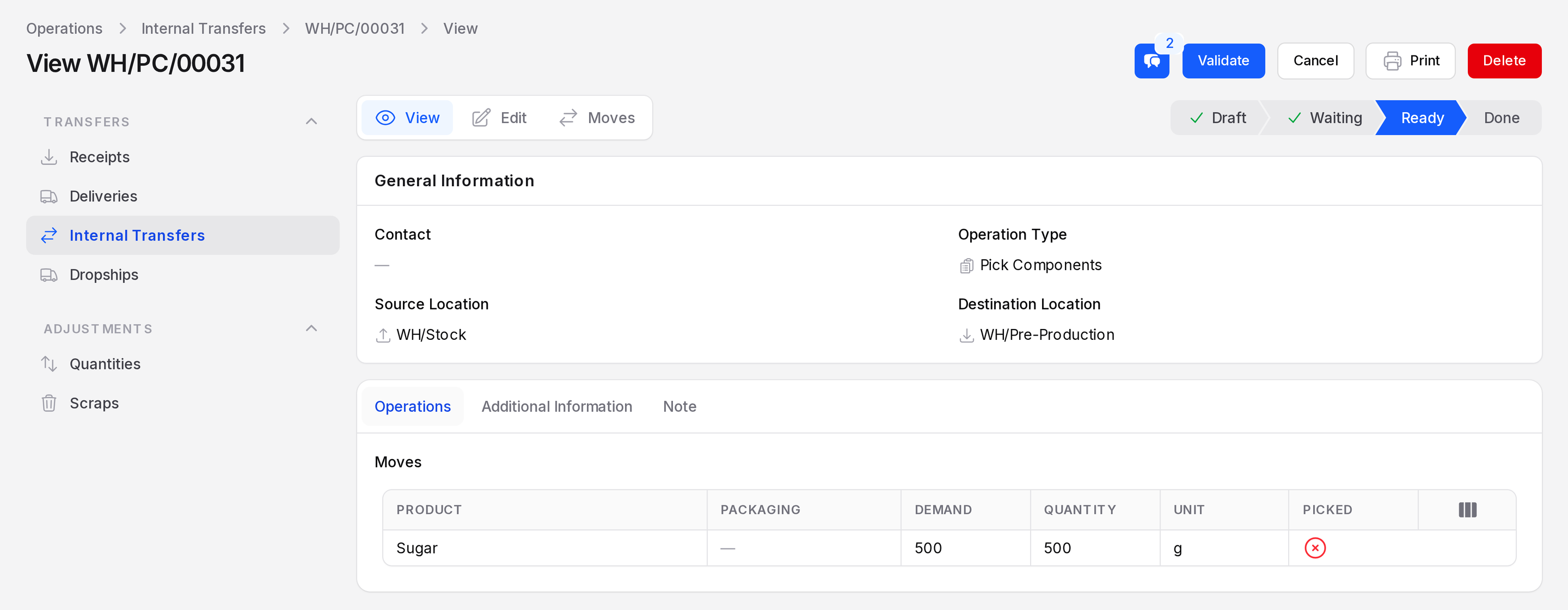
The state becomes Done and the hammocks now sit in WH/Packing Zone.
Fields
- Contact: Optional partner.
- Operation Type, Source Location, Destination Location: required.
- Responsible, Scheduled At, Source Document: on the Additional tab.
- Table columns match receipts. See Receipts.
Automatic internal transfers
Warehouses with extra steps create internal documents for you. The example warehouse produces WH/PICK, WH/PACK, WH/QC, WH/STOR, WH/PC and WH/SFP records. They behave like any internal transfer. Open them from the same list. Click Next Transfer on a done document to jump to the one that follows.
INFO
Moving stock never changes the total on hand. Use Inventory adjustments to change quantities.
Actions and statuses
Buttons follow the common table in Transfers: Mark as Todo, Check Availability (on Waiting only), Validate, Cancel, Print, Delete, Return and Next Transfer.