

Activities
An activity is a task you schedule on a record, such as a call to a customer, an email to send, or a meeting to hold. Each activity has a type, a due date and a person who is responsible. Activities sit in the Chatter panel of a record, so the follow-up stays next to the work it belongs to.
In simple words: An activity is a reminder with an owner and a date, attached to the record it is about.
Schedule an activity
You can schedule an activity from two places: the Chatter panel of a record, or the clock icon on a list row.
From the Chatter panel
Open a record that has the Chatter panel, for example a quotation, a task or a maintenance request.
In the Chatter panel, click Schedule Activity.
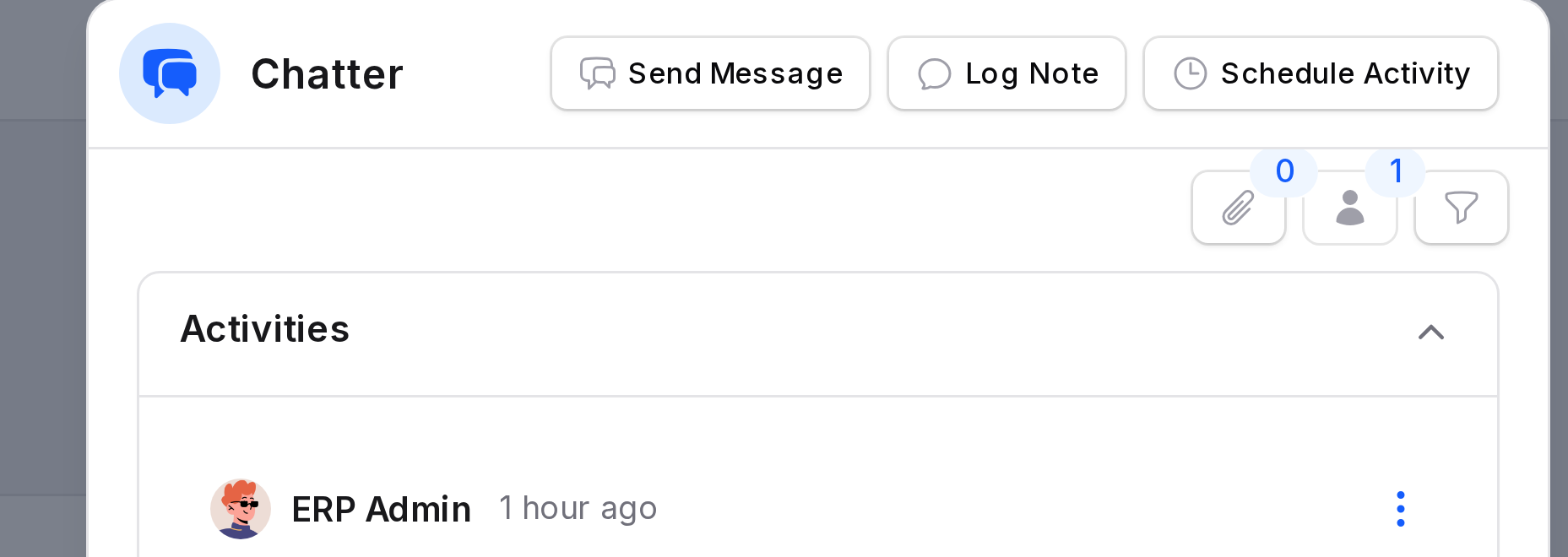
Fill in the form:
- Activity Plan: Optional. Choose a ready-made set of activities. See Schedule from an activity plan.
- Activity Type: Choose what kind of activity it is, for example To-Do. This field is required.
- Due Date: Choose the date by which the activity must be done.
- Summary: Add a short title, for example
Check Quantity. - Assigned To: Choose the user who must do the activity. This field is required.
- Note box: Write more detail in the text editor at the bottom, if needed.
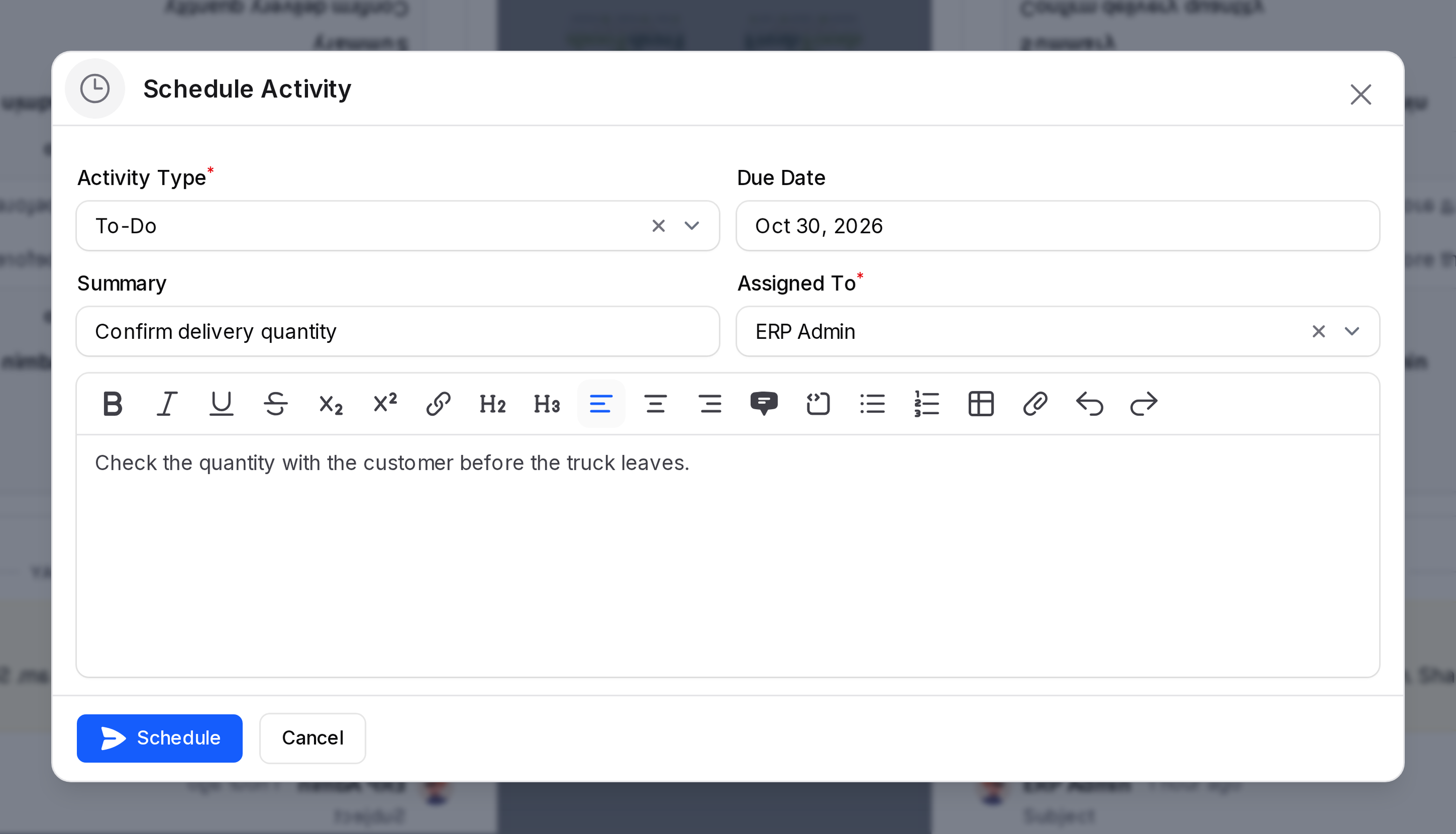
Click Schedule to save the activity, or Cancel to close the form without saving.
From a list view
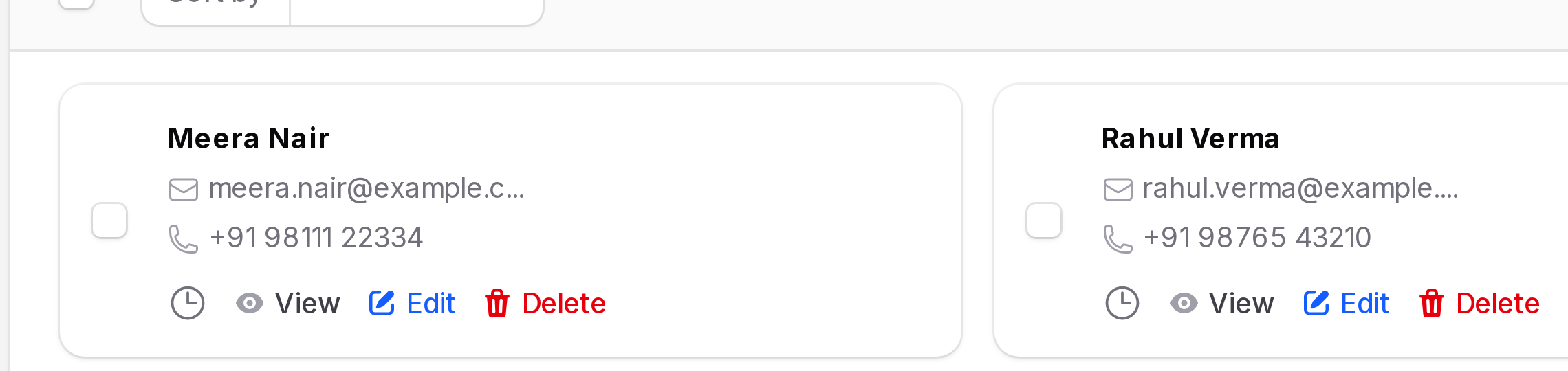
On many list pages, each row has a clock icon at the end. Click it to open the same Schedule Activity form for that record, without opening the record first.
INFO
When the activity type is a meeting, the form does not ask for a due date or an assignee.
After you schedule, the activity shows in the Activities section at the top of the Chatter panel.
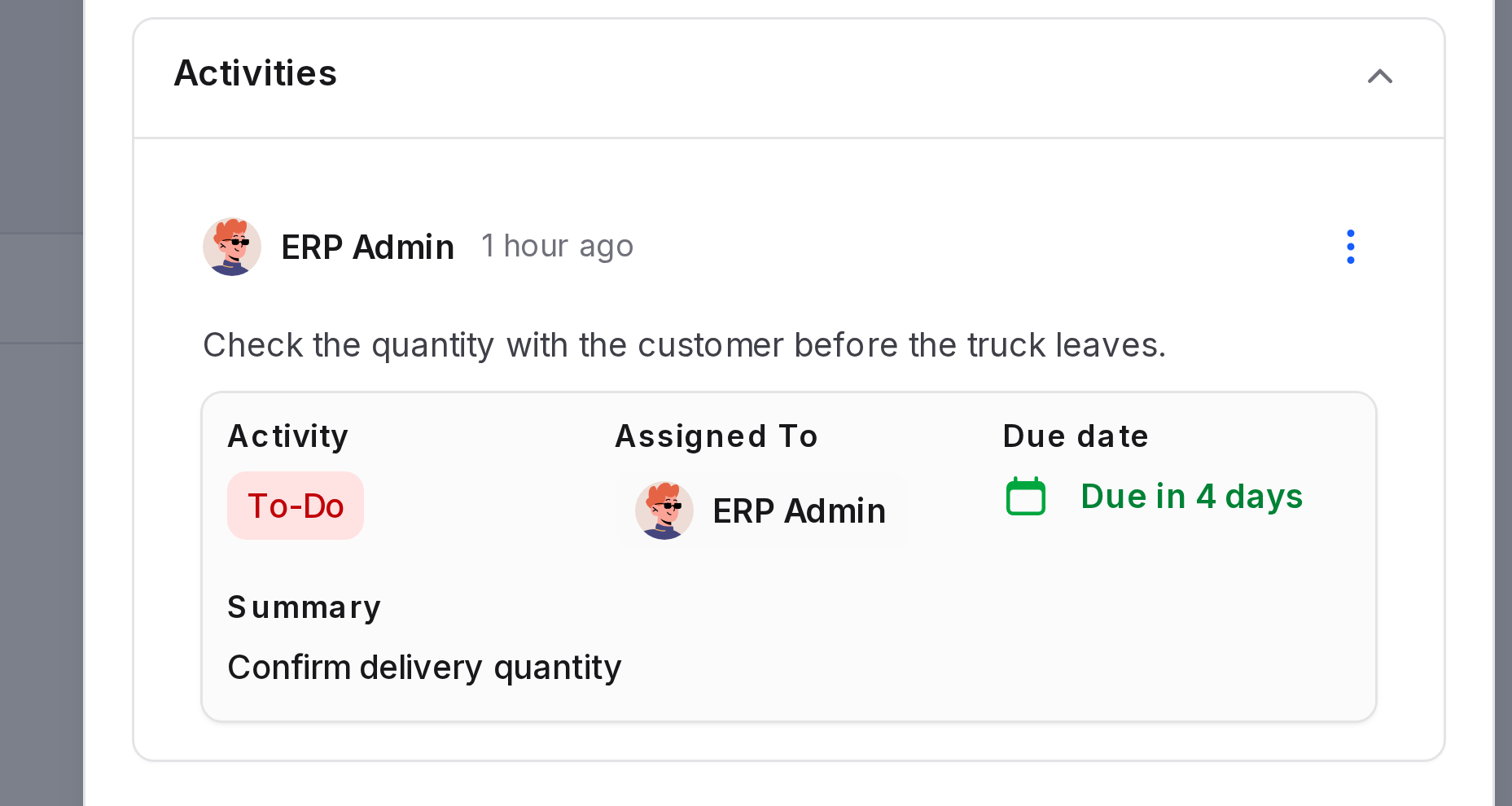
Each activity card shows:
- Activity: The activity type, for example To-Do.
- Assigned To: The user who must do it.
- Due date: The date, with how many days are left.
- Summary: The short title you entered.
Schedule from an activity plan
An activity plan is a ready-made set of activities. Use a plan when the same follow-ups repeat, for example the steps for a new employee.
- In the Schedule Activity form, choose a plan in Activity Plan.
- Choose the Plan Date. The dates of all activities in the plan are counted from this date.
- Read the Plan Summary to see the activities the plan will create.
- Click Schedule.
TIP
The Activity Plan field appears only when the record has plans available. Plans are set up in the Configuration menu of the module, for example under Project, Recruitment or Employees.
Work with scheduled activities
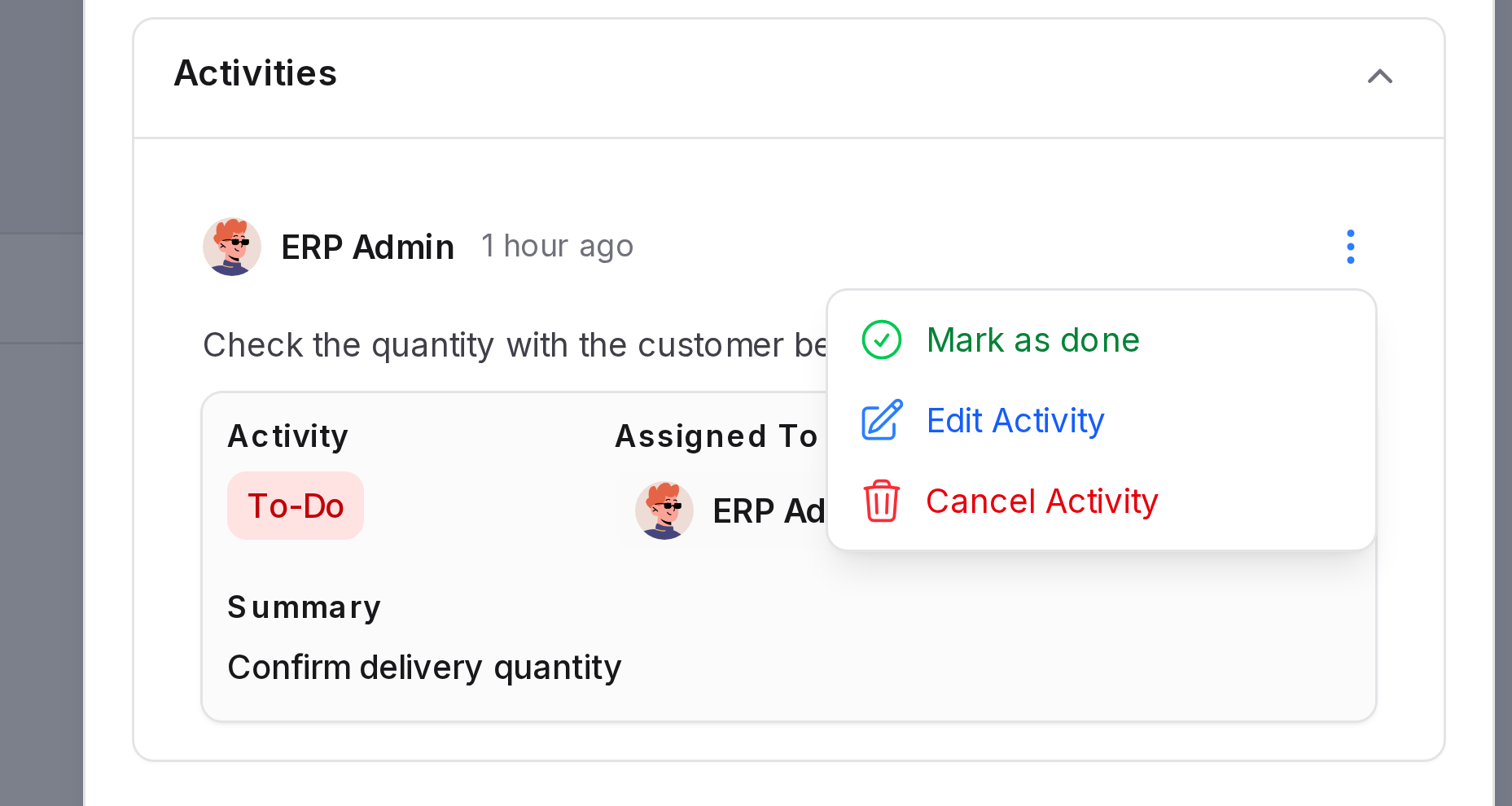
Click the three dots at the top right of an activity card to open its menu:
- Mark as done: Closes the activity. See Mark an activity as done.
- Edit Activity: Change the type, plan, due date, summary or assignee.
- Cancel Activity: Remove the activity without doing it.
Mark an activity as done
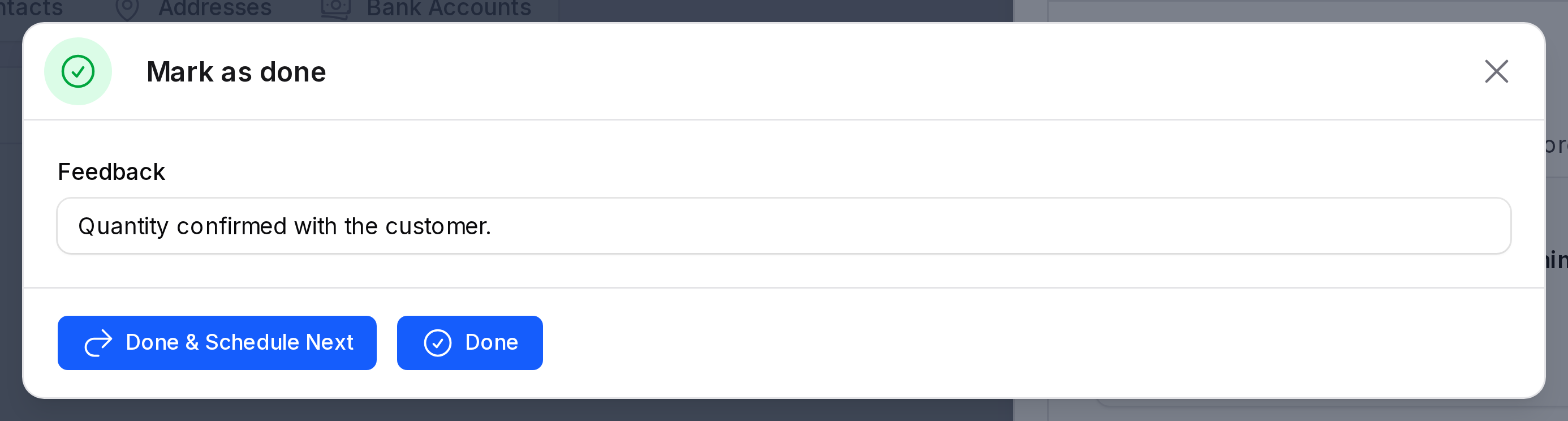
- Click Mark as done on the activity.
- Write your result in Feedback, if you want to keep a record of it.
- Click one of the buttons:
- Done closes the activity.
- Done & Schedule Next closes the activity and opens a new schedule form.
The finished activity moves into the message history of the record, with your feedback.
Activity types
An activity type is the kind of activity you pick when you schedule one, such as Meeting, Call or To-Do. Each type can set a default user, a default due date delay, and a follow-up activity.
Open the activity types
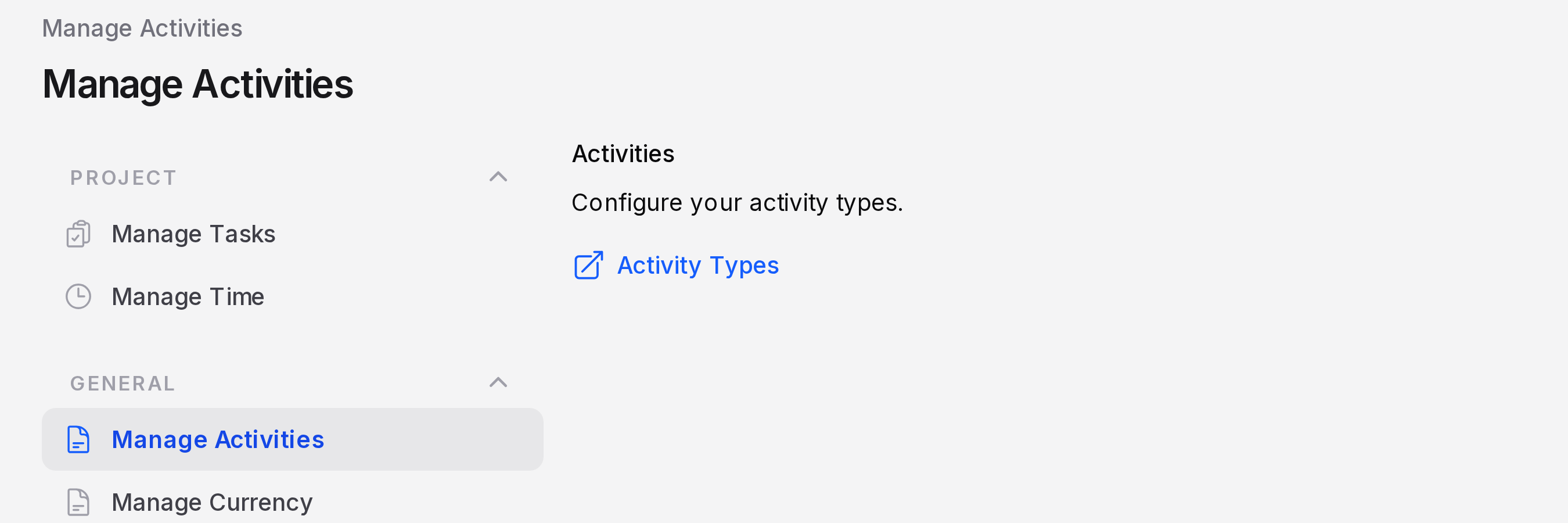
- Open the Settings app and click the Settings tab.
- In the left menu, under General, click Manage Activities.
- Click Activity Types.
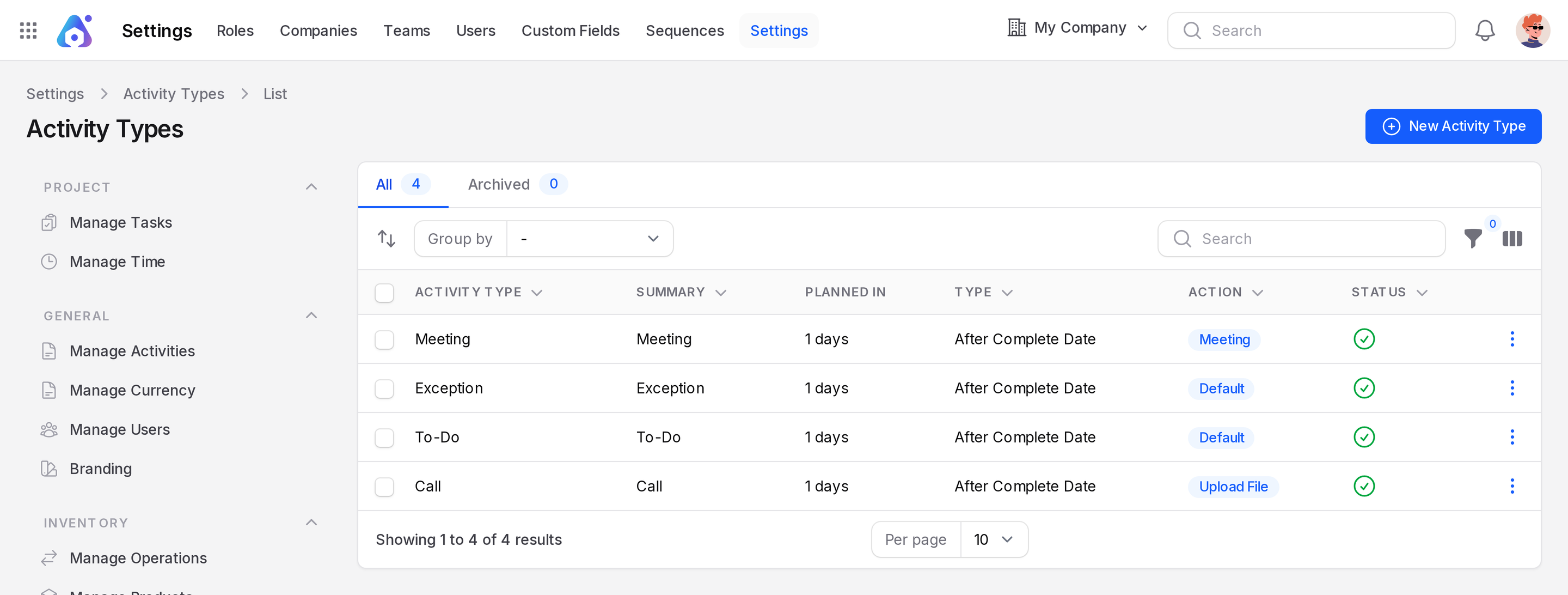
The list shows these columns:
- Activity Type: The name of the type.
- Summary: The default summary for new activities of this type.
- Planned In: How long after the start point the due date falls, for example
1 days. - Type: The start point for the delay, for example After Complete Date.
- Action: What the type does, for example Meeting, Upload File or Default.
- Status: A tick shows the type is active.
Use the All and Archived tabs to switch between active and archived types. You can also search, group and filter the list.
Create an activity type
On the list, click New Activity Type.
Fill in the form. General Information and Delay Information are on the left. Advanced Information and Status & Configuration are on the right.
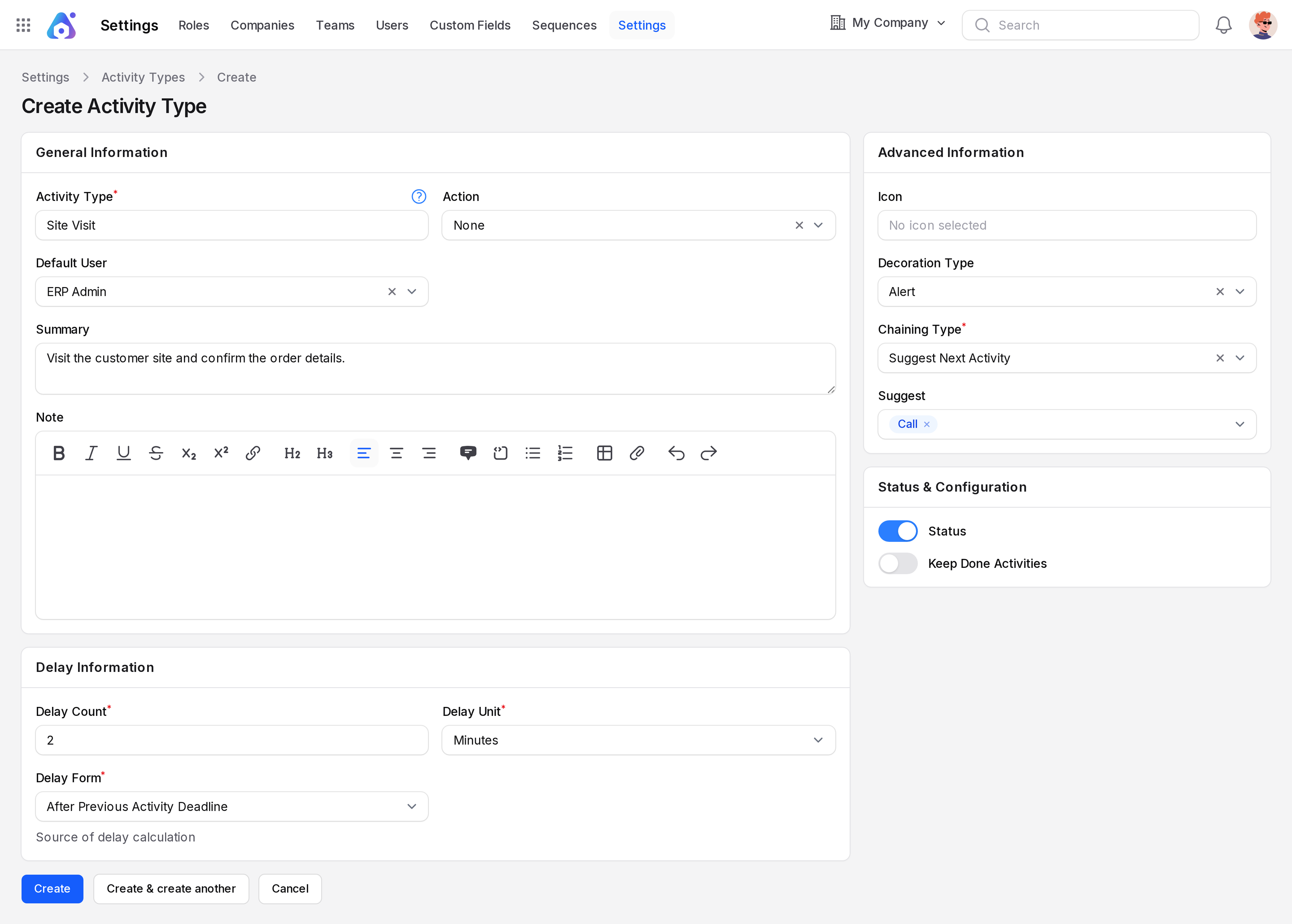
General information
- Activity Type: The name of the type. This field is required.
- Action: Choose None, Upload File, Default, Phone Call or Meeting.
- Default User: The user who is assigned by default when you schedule this type.
- Summary: The default short title.
- Note: The default note text.
Delay information
- Delay Count: A number. This field is required and starts at
0. - Delay Unit: Choose Minutes, Hours, Days or Weeks.
- Delay Form: Choose where the delay is counted from: After Previous Activity Deadline or After Complete Date.
Advanced information
- Icon: Pick an icon for the type.
- Decoration Type: Choose Alert or Error to colour the activity.
- Chaining Type: Choose Suggest Next Activity or Trigger Next Activity.
- Suggest: Appears when the chaining type is Suggest Next Activity. Choose the types to offer next.
- Trigger: Appears when the chaining type is Trigger Next Activity. Choose the type that starts next.
Status & Configuration
- Status: Turn on to make the type active.
- Keep Done Activities: Turn on to keep finished activities of this type.
Save the type.
INFO
For the Upload File action, the chaining fields do not appear.