

General settings
The Settings app is where an administrator controls how Aureus ERP works for everyone. It holds your users, roles, companies and teams. It also holds the options that apply across all modules, such as the base currency and the look of the application.
In simple words: Settings is the control room for people, companies and system-wide options.
Only administrators and users with the right role can open it.
Set up in this order
- Install the modules you need. See Plugins.
- Choose the base currency. See Manage currency.
- Add your company. See Companies.
- Create roles. See Roles.
- Create teams if you need group access. See Teams.
- Set the rules for new users, then create or invite users. See Manage users and Users.
- Set branding, custom fields and sequences. See Branding, Custom fields and Sequences.
Top tabs
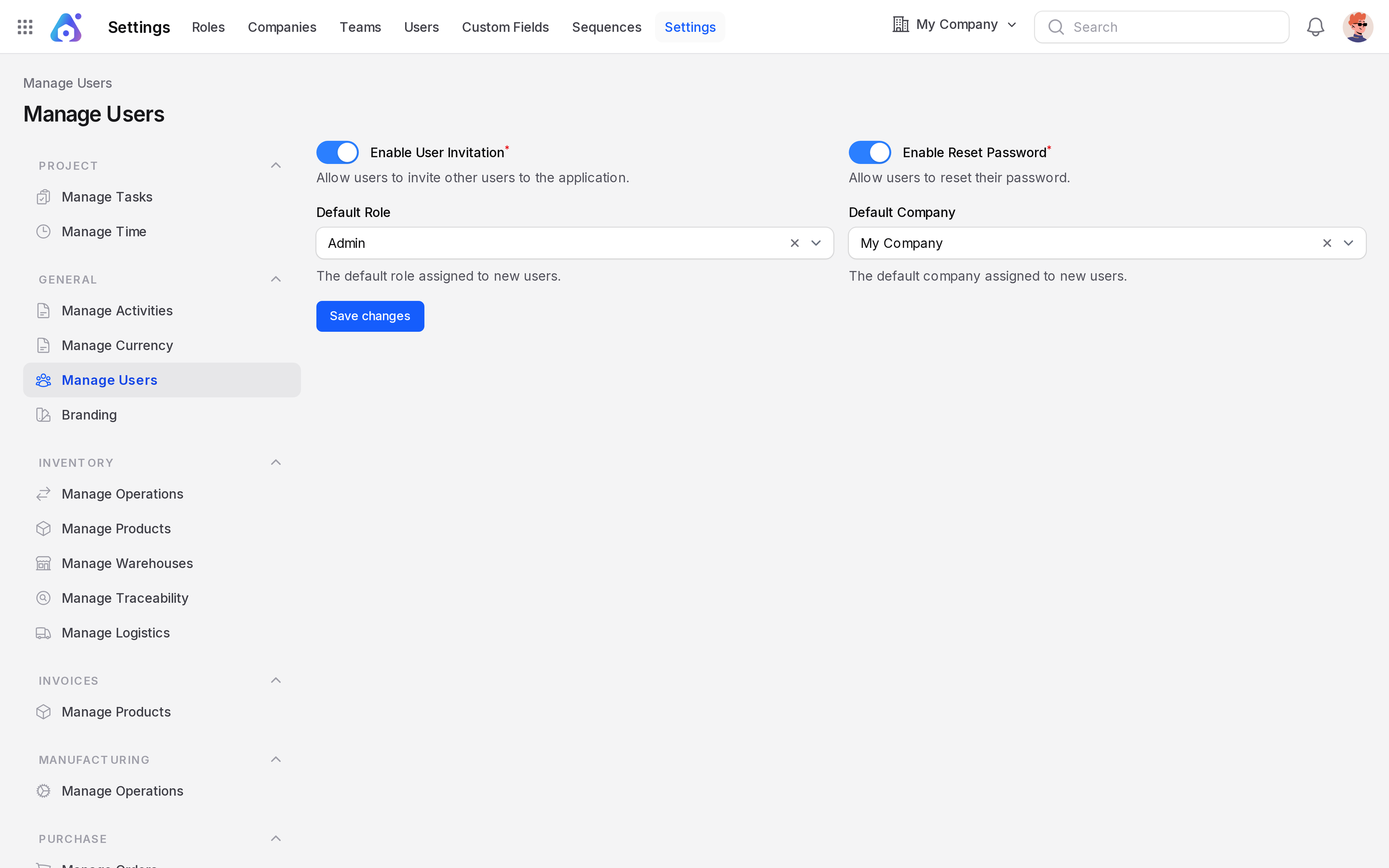
The app is called Settings, and its last tab is also called Settings. The tabs at the top of the screen are:
- Roles: Define what each group of users may see and do. See Roles.
- Companies: Add and edit the companies you work for. See Companies.
- Teams: Group users into teams. See Teams.
- Users: Create users and invite new ones. See Users.
- Custom Fields: Add your own fields to records. See Custom fields.
- Sequences: Control how document numbers are built. See Sequences.
- Settings: Open the option pages described below.
Plugins is not a tab. It is its own menu in the main navigation.

The General group
Click the Settings tab to open a menu on the left. The General group has these pages:
- Manage Activities: Create and edit activity types. See Activities.
- Manage Currency: Choose the base currency. See Manage currency.
- Manage Users: Set invitation, password reset and default values for new users. See Manage users.
- Branding: Change logos, favicon and colors. See Branding.
Each installed module can add its own group to this menu.
INFO
You see only the pages your role allows. If a page is missing, ask an administrator to check your role.