

Product configuration
Product configuration holds the shared lists that products and orders draw from. They are currencies, categories, attributes, packagings and unit categories. You set them up once, then pick them from drop-down lists when you work on products and orders.
In simple words: The small lists that describe your products and your money.
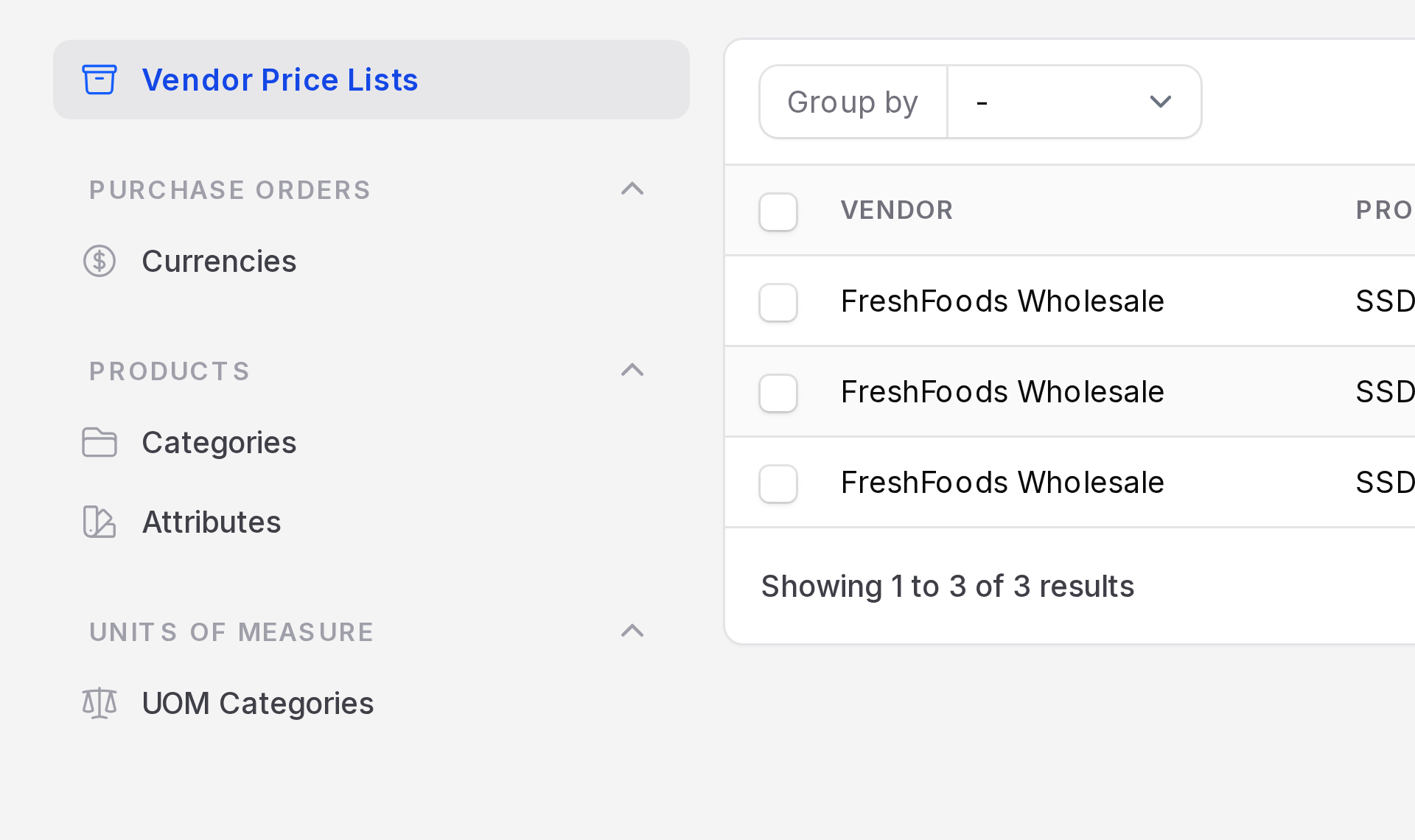
Find them under Purchase → Configurations. Some entries depend on a setting.
Settings
| Entry | Menu group | Needs |
|---|---|---|
| Currencies | Purchase Orders | Nothing |
| Categories | Products | Nothing |
| Attributes | Products | Variants on |
| Packagings | Products | Packagings on |
| UOM Categories | Units of Measure | Nothing to open. Order lines show Unit only with Unit of Measure on |
Switch these on in Purchase → Settings → Manage Products. See Purchase settings.
Currencies
A currency lets you buy in the money your vendor uses. The order Currency field lists the active ones.
- Go to
Purchase → Configurations → Currencies. - Open a currency, or click the create button to add one.
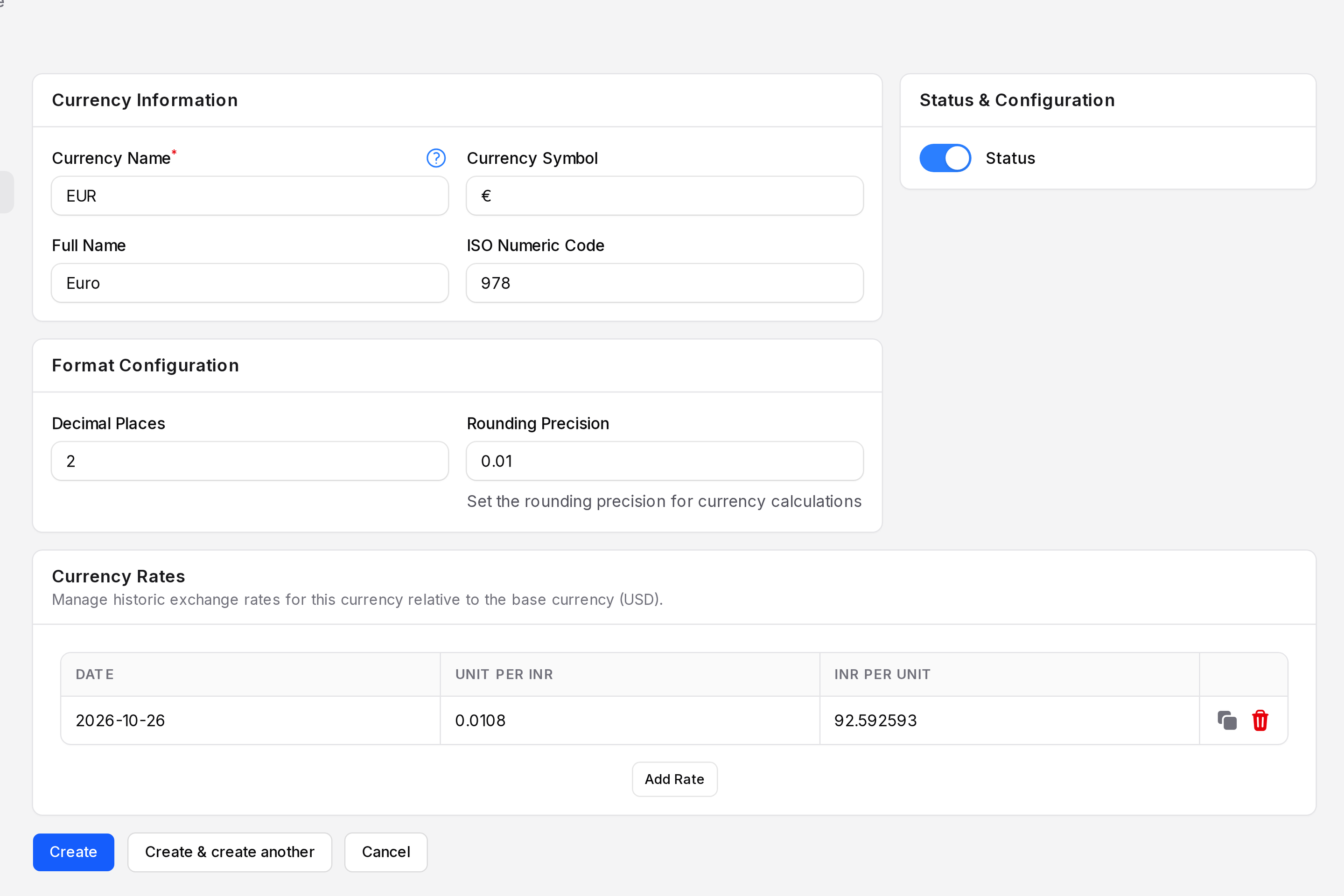
- Currency Name: The official code, for example EUR. Required.
- Currency Symbol: The sign shown with amounts.
- Full Name: The long name, for example Euro.
- ISO Numeric Code: The international number of the currency.
- Decimal Places: How many decimals amounts show. The default is 2.
- Rounding Precision: The step used to round amounts.
- Status: Active currencies appear in lists. Inactive ones do not.
The Currency Rates table holds dated exchange rates against the base currency. Click to add a rate with a Date and a rate value.
TIP
Add a rate before you confirm an order in a foreign currency. Aureus converts vendor prices with it.
Categories
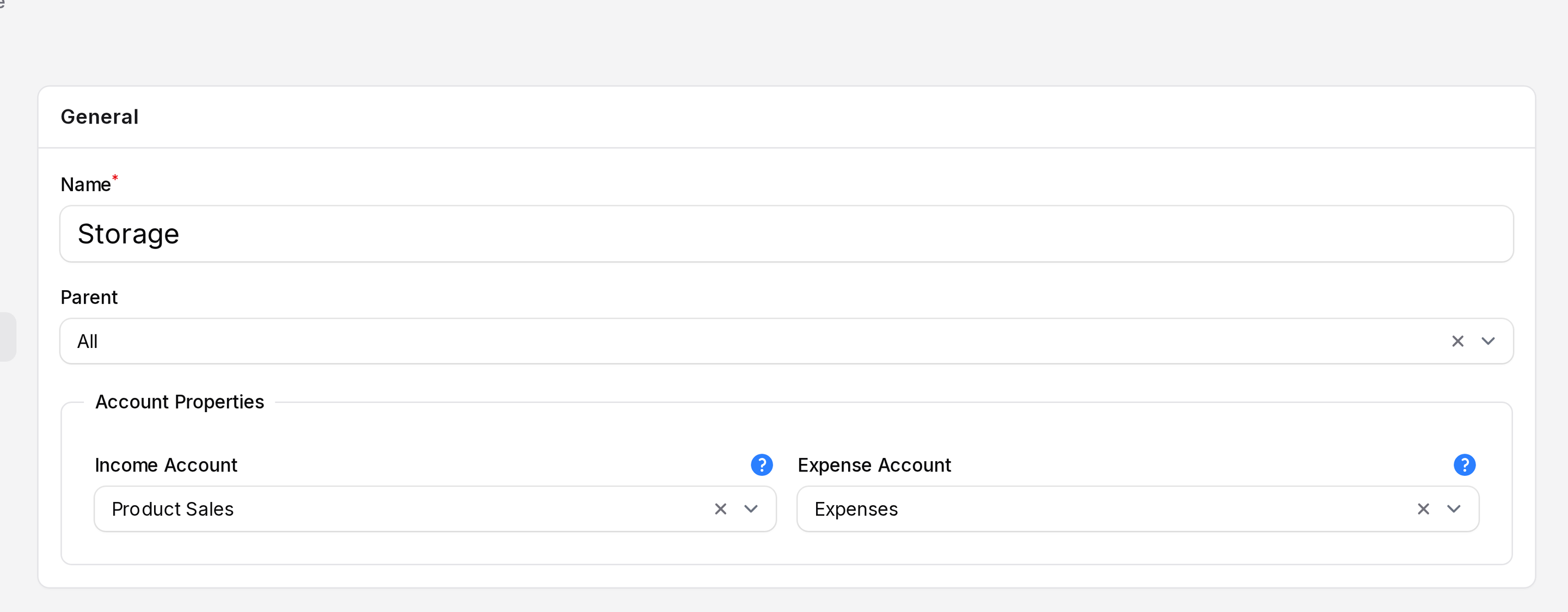
A category groups similar products, such as Laptops or Storage. Categories can be nested.
- Go to
Purchase → Configurations → Products → Categories. - Click the create button.
- Enter the Name and an optional Parent.
- Click Create.
Pick the category in the Category field of a product.
Attributes
An attribute describes a product by a choice, such as size or colour. Each value you add can make a variant.
- Go to
Purchase → Configurations → Products → Attributes. - Click the create button.
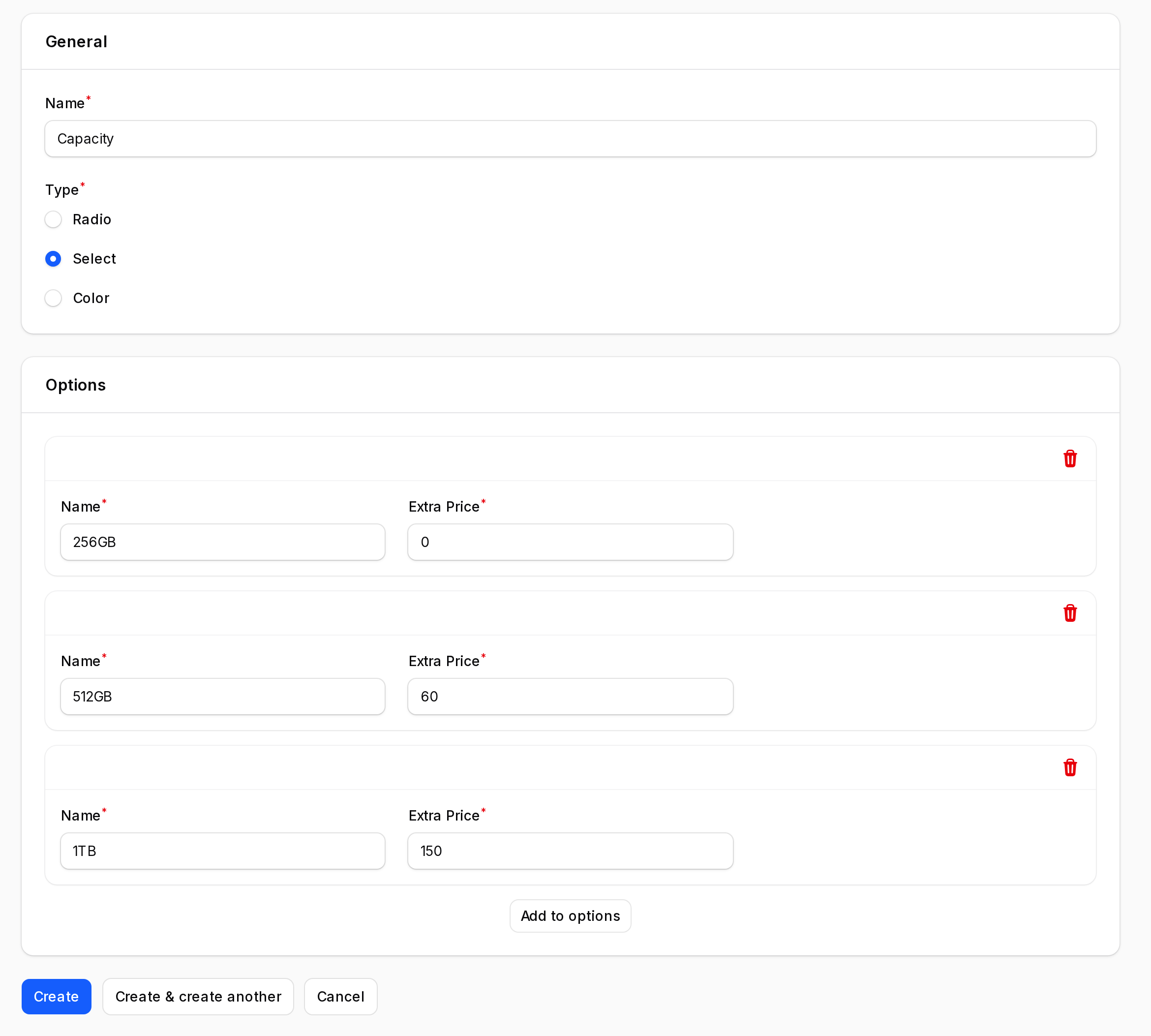
- Enter the Name, for example Capacity. Choose a Type.
- In Options, add each value with its Name. Colour attributes also have a Color.
- Enter an Extra Price if a value costs more.
- Click Create.
Attach attributes to a product on its Attributes page. See Configure a product.
Packagings
A packaging is a standard pack of a product, such as a box of 10. It helps you order whole packs.
- Go to
Purchase → Configurations → Products → Packagings. - Click the create button. A window opens.
- Fill the fields.
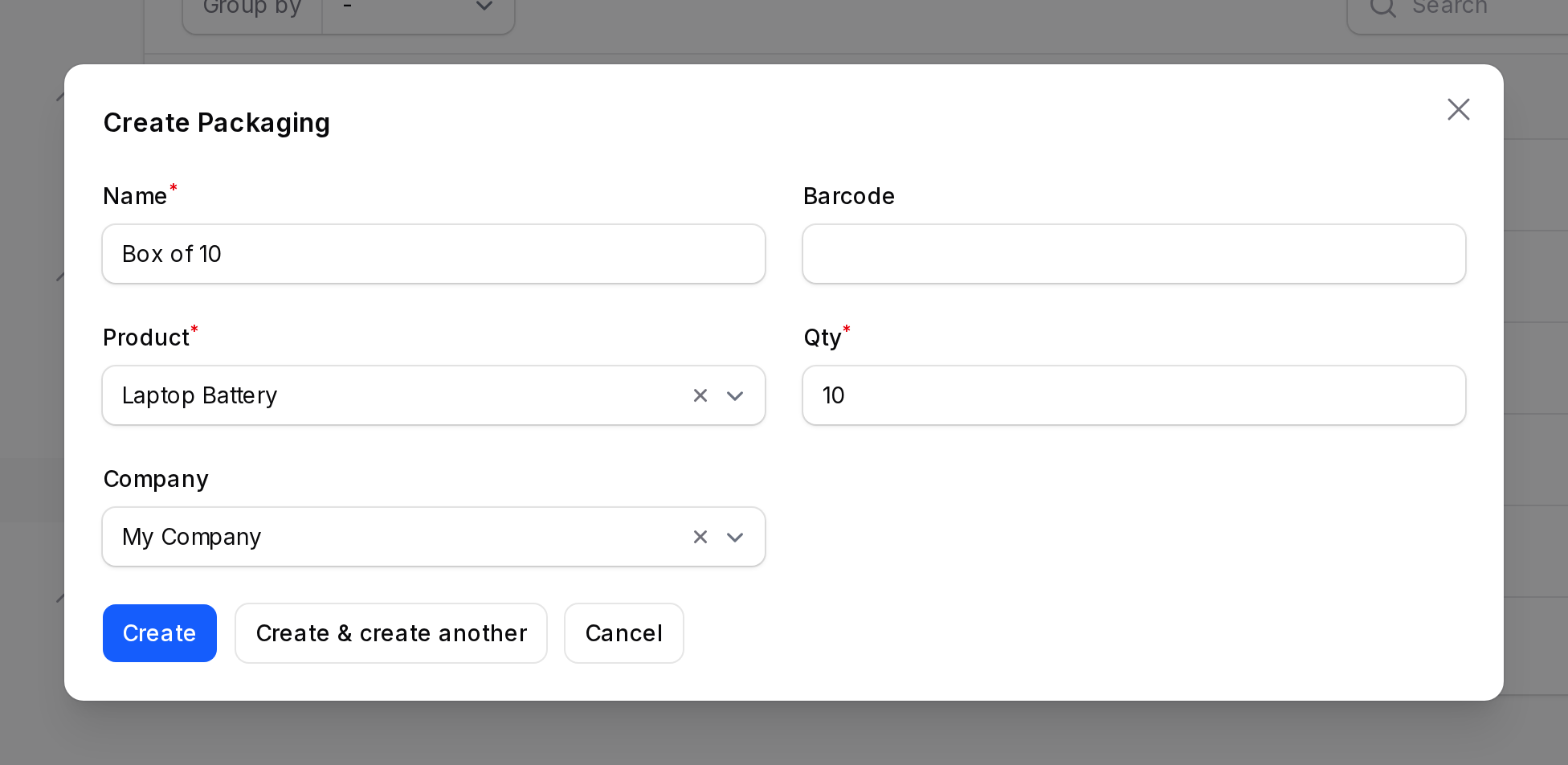
- Name: The packaging name. Required.
- Barcode: The barcode printed on the pack.
- Product: The product it packs. Required.
- Qty: Units per pack. Required.
- Company: The company that owns it.
- Click Create.
On an order line, Packaging Qty and Packaging appear. Aureus can match a line quantity to a pack, such as 20 units as 2 boxes of 10.
Units of measure
A unit category groups units that convert into each other, such as length or weight. Each unit has a ratio to the reference unit.
- Go to
Purchase → Configurations → Units of Measure → UOM Categories. - Click the create button.
- Enter the category Name.
- Under Units of Measure, click Add Unit for each unit.
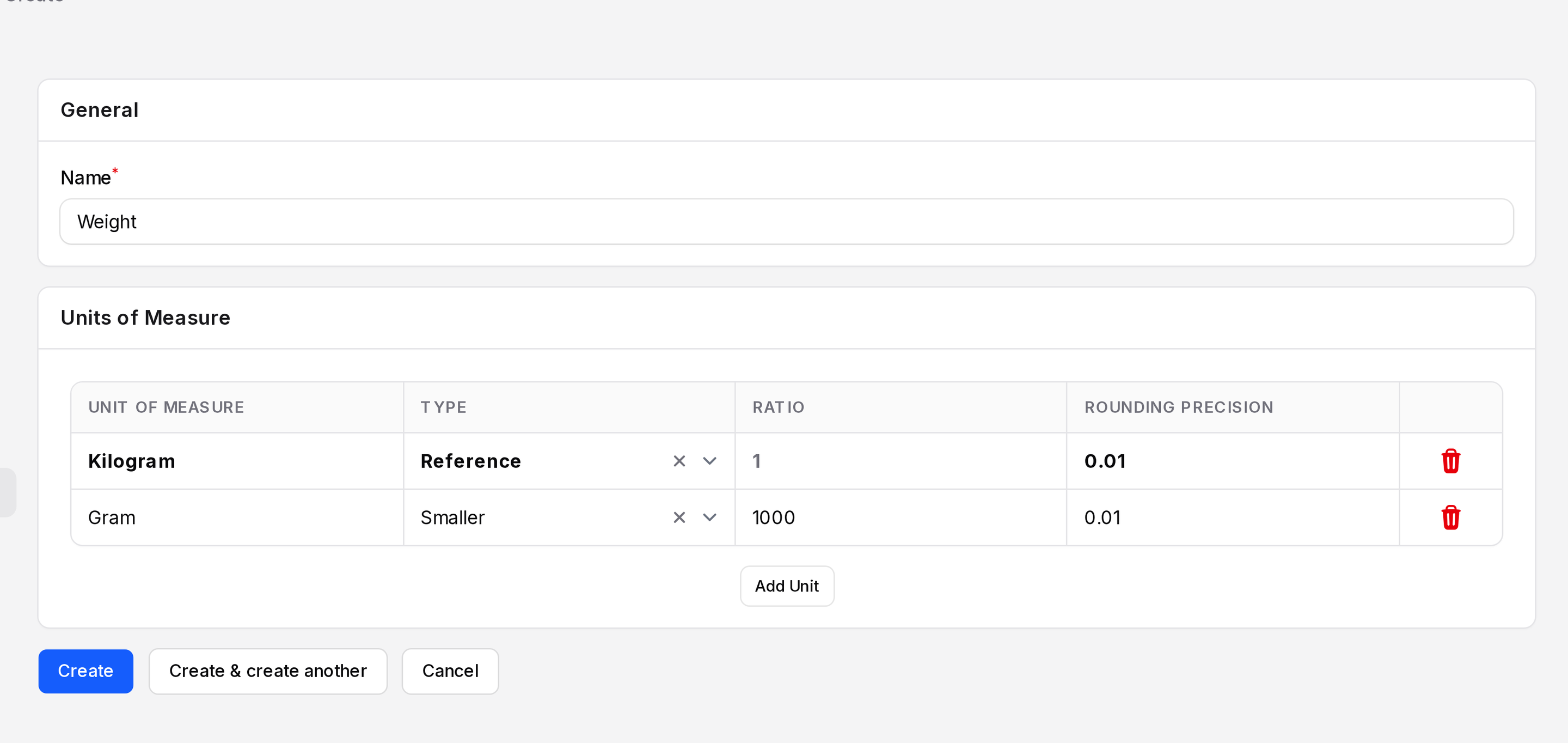
- Unit of Measure: The unit name.
- Type: Reference, Bigger or Smaller. Each category needs exactly one Reference unit.
- Ratio: How the unit compares to the reference. It must be above zero.
- Rounding Precision: The step for rounding quantities. It must be above zero.
WARNING
A category without a reference unit, or with two, cannot be saved.