

Open the register
Opening the register starts a new session and tells the system how much cash is in the drawer. You do this at the start of every shift or trading day. Until the register is open, you cannot sell.
In simple words: Open the register, confirm the cash in the drawer, and start selling.
You can open a register from the back office Dashboard or from the terminal's Registers page. Both lead to the same Opening Control window.
Before you start
The register must be active and set up with its journals, payment methods and accounts. If something is missing, Aureus shows a message when you try to open. See Set up a register.
Open from the Dashboard
- Go to
Point of Sale → Dashboard. - Find the card of your register, for example TechNest Electronics.
- Click Open Register. The terminal opens.
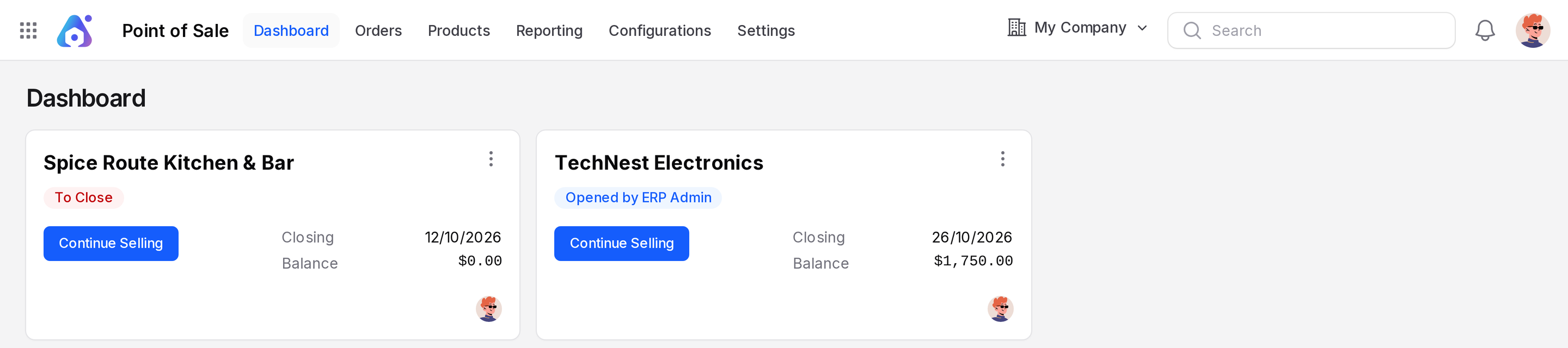
A register that already has a live session shows Continue Selling instead. Click it to go back to the same session.
Open from the terminal
- Open the terminal at
/pos/registers. This page lists every register. - Click Open register under the register you want. A register that is already open shows Resume.
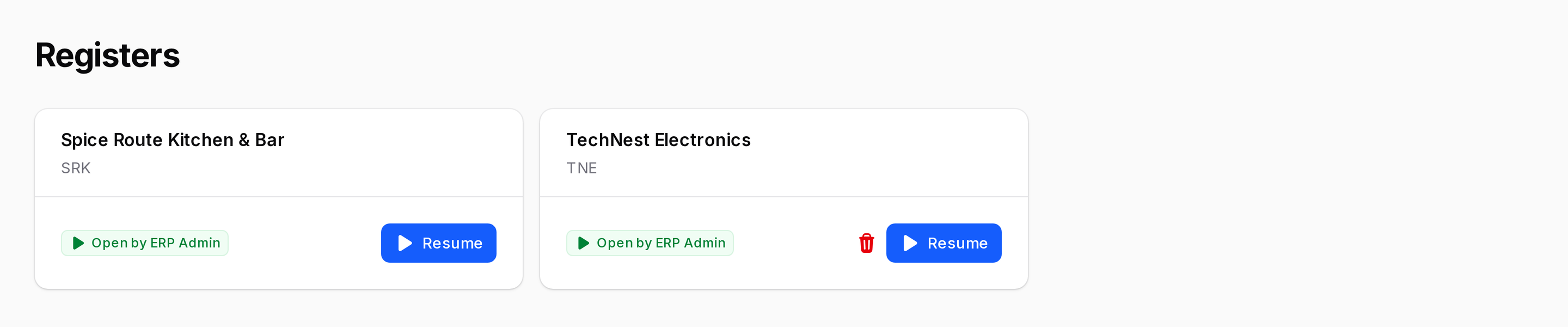
Each card shows the register name, its short code and its status, such as Closed or Open by ERP Admin.
The Opening Control window
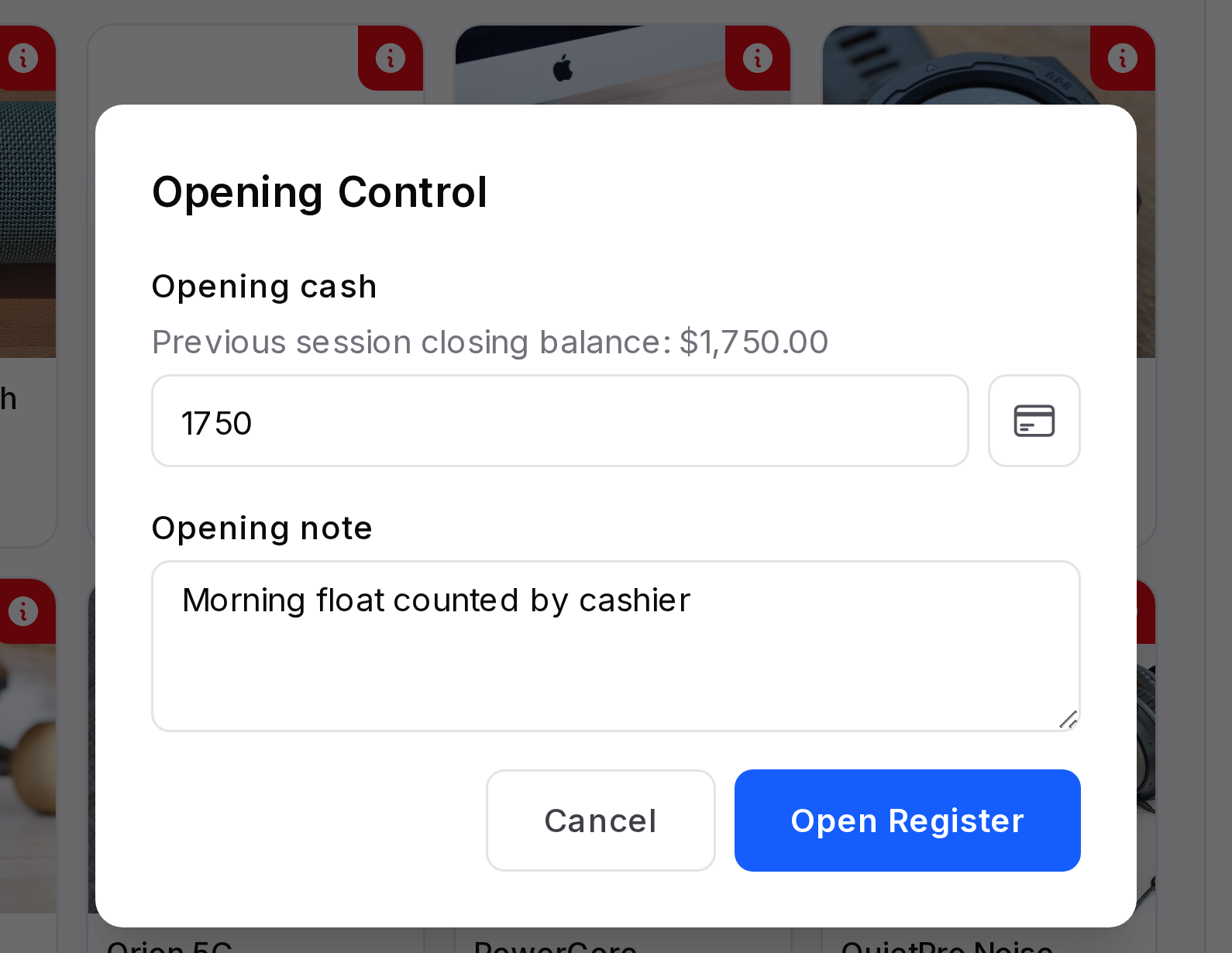
After you open, the Opening Control window appears over the till.
- Opening cash: The cash you put in the drawer. The hint under the field shows the closing balance of the last session, so you can compare. Type the amount.
- Opening note: An optional message for the closing check, such as who prepared the drawer.
- Click the card icon next to Opening cash if you want to count by coin and note.
Count coins and notes
The Coins/Notes window lists every denomination with a counter. Click + or type the number of each coin or note. The Total at the bottom updates as you count. Click Confirm and the total fills Opening cash.
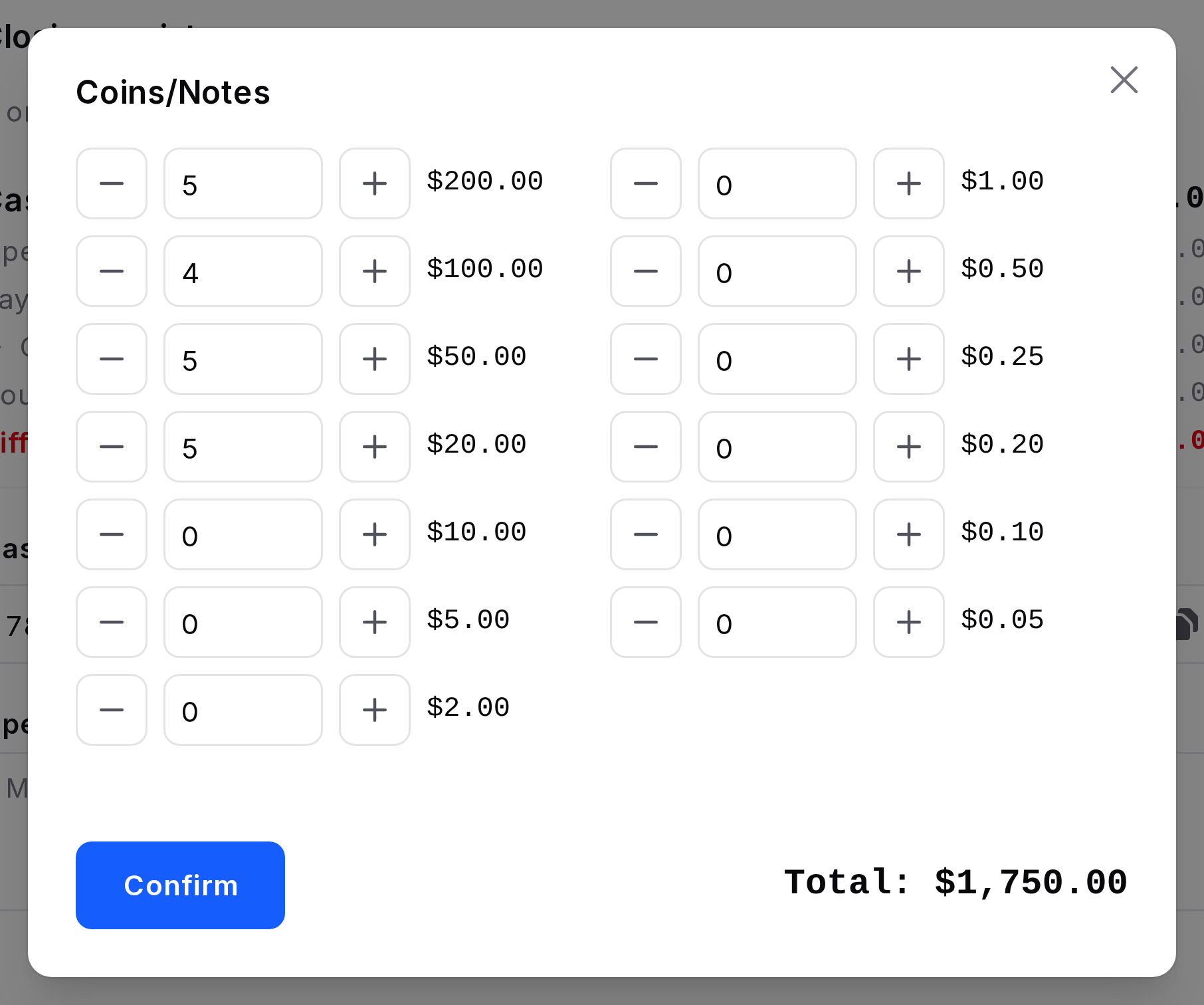
The denominations come from your list of coins and bills. See Coins and bills.
- Click Open Register.
The till opens with an empty order and the session status becomes In Progress.
Example: TechNest counts 5 notes of 200, 4 of 100, 5 of 50 and 5 of 20. The total is 1,750. The cashier types the note "Float prepared by ERP Admin" and clicks Open Register.
Actions and statuses
- Open Register: Confirms the opening cash and moves the session from Opening Control to In Progress.
- Resume: Returns to a session that is already in progress.
- Discard session: Removes a session that has no orders and no cash movements. Use it if you opened by mistake.
INFO
If a session is stuck in Opening Control, a manager can click Open Session on it in Point of Sale → Orders → Sessions. See Register sessions.
WARNING
Count the drawer honestly. The opening cash is the starting point for the expected balance at closing.