

Manage currency
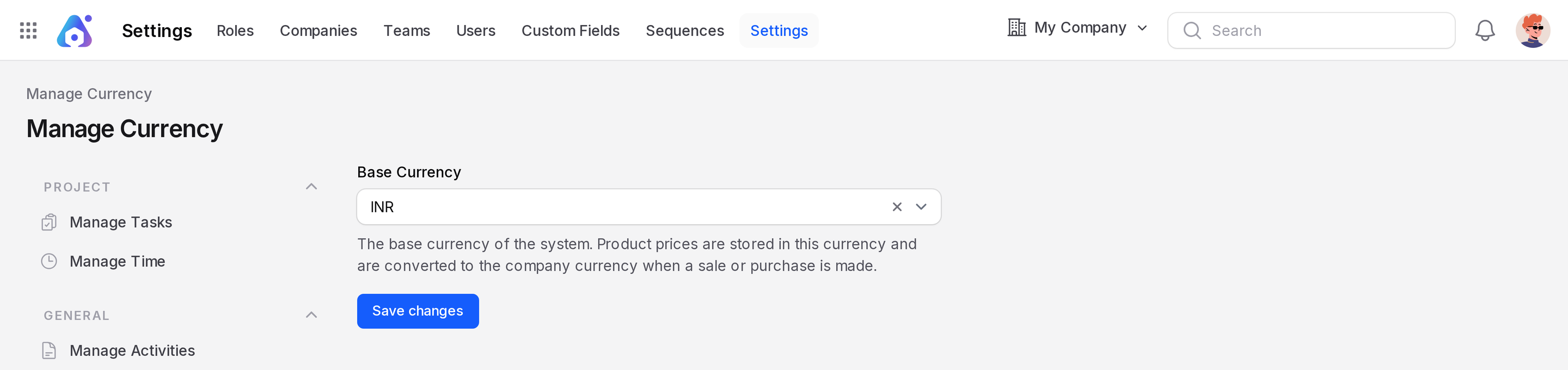
The Manage Currency page sets the Base Currency of your system. Product prices are stored in this currency. They are converted to the company currency when you make a sale or purchase.
In simple words: The base currency is the one your product prices are kept in.
Set the base currency
- Go to
Settings → Settings. - In the left menu, under General, click Manage Currency.
- In Base Currency, choose a currency. Type to search the list.
- Click Save changes.
INFO
The list shows only active currencies. If yours is missing, activate it first. See Manage currencies.
Manage currencies
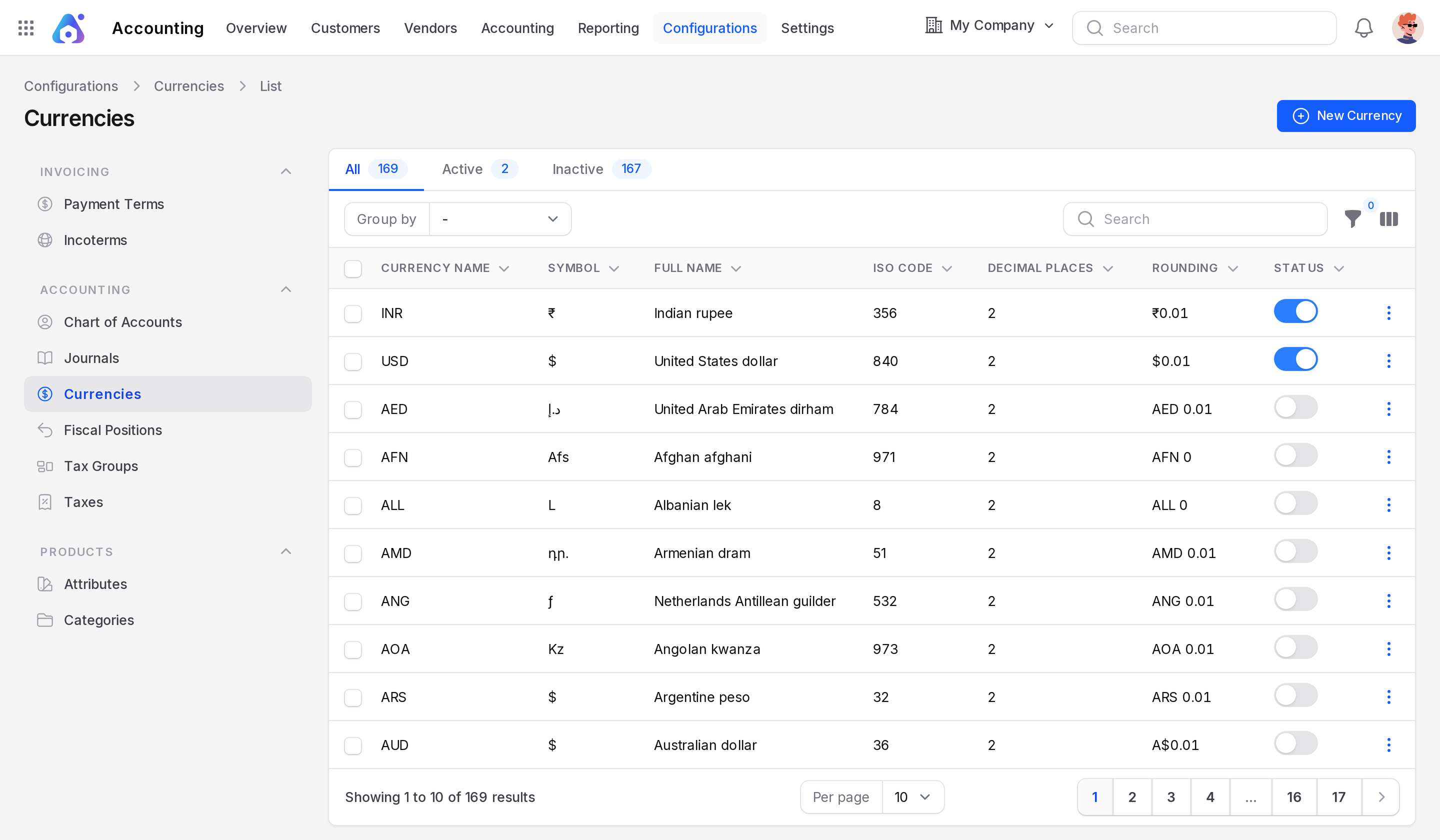
The currency list is not in the Settings menu. It appears in the Configuration menu of modules that use money, for example Invoices, Sales, Purchases and Accounting. The menu item is Currencies.
- Open the Configurations tab of one of these modules, for example
Accounting → Configurations. - In the left menu, click Currencies.
Overview
The list shows these columns:
- Currency Name, Symbol, Full Name, ISO Code, Decimal Places, Rounding.
- Status: A toggle that shows if the currency is active.
- Created At and Updated At: Hidden by default. Use the column menu to show them.
The tabs All, Active and Inactive show a count. Active currencies are listed first. You can search, sort, group by Name, Status or Decimal Places, and filter by Status.
Create or edit a currency
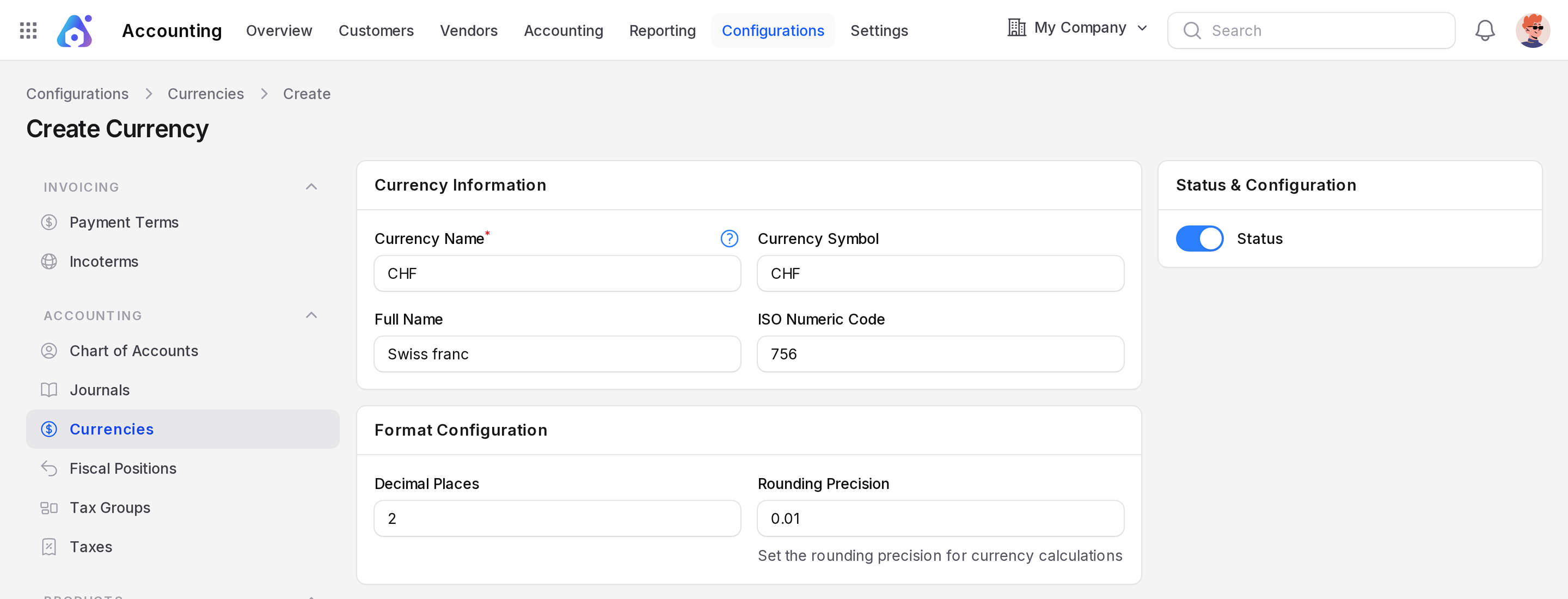
- Click New Currency, or open a row and click Edit.
- Fill in Currency Information:
- Currency Name: The official name. Required.
- Currency Symbol: The sign, for example
$. - Full Name: The long name.
- ISO Numeric Code: A number from 1 to 999.
- Fill in Format Configuration:
- Decimal Places: From 0 to 6. The default is 2.
- Rounding Precision: The rounding used in calculations.
- In Status & Configuration, use Status to turn the currency on or off. It is on by default.
- Save the record.
Enable or archive a currency
Use the Status toggle in the list, or on the form. Off means the currency is archived and cannot be chosen.
WARNING
A currency used by a company cannot be deactivated. You see Currency cannot be deactivated. A currency in use also cannot be deleted.
Set currency rates
The Currency Rates section keeps past exchange rates against the base currency.
- Open the currency and click Edit.
- In Currency Rates, click Add Rate.
- Fill in the row:
- Date: The day the rate starts. Today by default.
- Unit Per [base currency]: The rate. The minimum is 1.
- [Base currency] Per Unit: Filled in for you. It is the inverse of the rate.
- Save the record.
You need at least one rate row. Use the clone icon to copy a row. Deleting a row asks you to confirm.
