

Vendor portal
The vendor portal is a private area of your website where a vendor signs in to see the requests for quotation (RFQs) you sent. The vendor can read the RFQ, download it, and click Accept or Decline. You see the answer in the order chatter. This saves phone calls and long email threads.
In simple words: The vendor logs in, opens your RFQ and says yes or no. You read the answer on the order and then confirm it.
INFO
The portal needs the Website plugin and the vendor must have portal access. See Portal access.
Give a vendor portal access
Do this once for each vendor.
- Open the vendor in
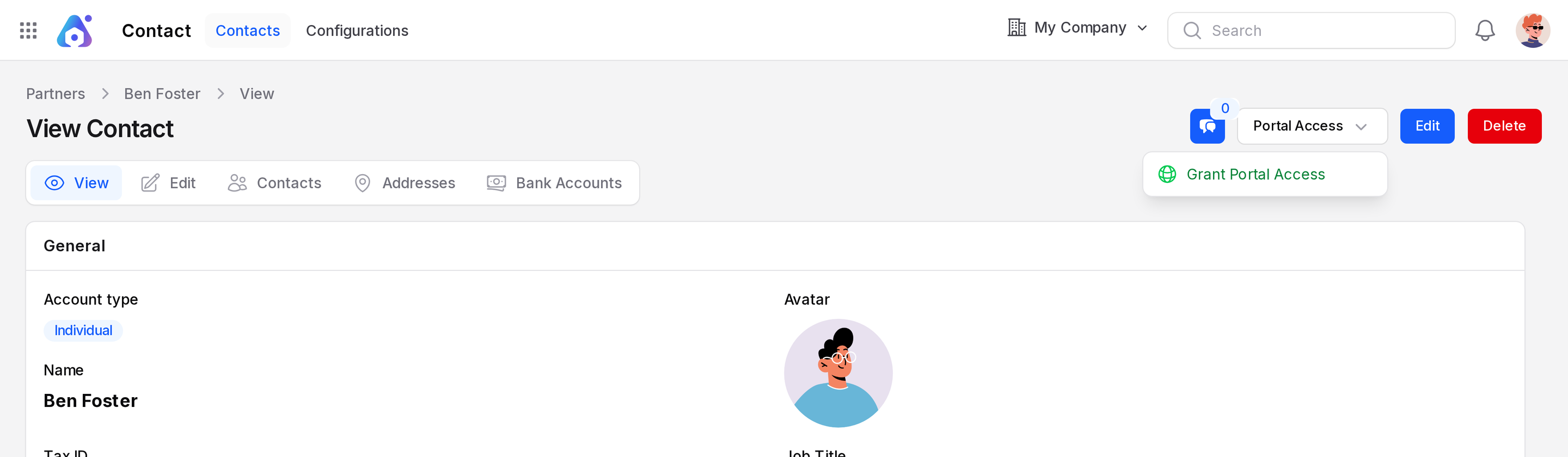
Contact → Contacts. The contact needs an email address. - Click Portal Access, then Grant Portal Access, and confirm.
- Aureus emails the vendor a link to set a password.
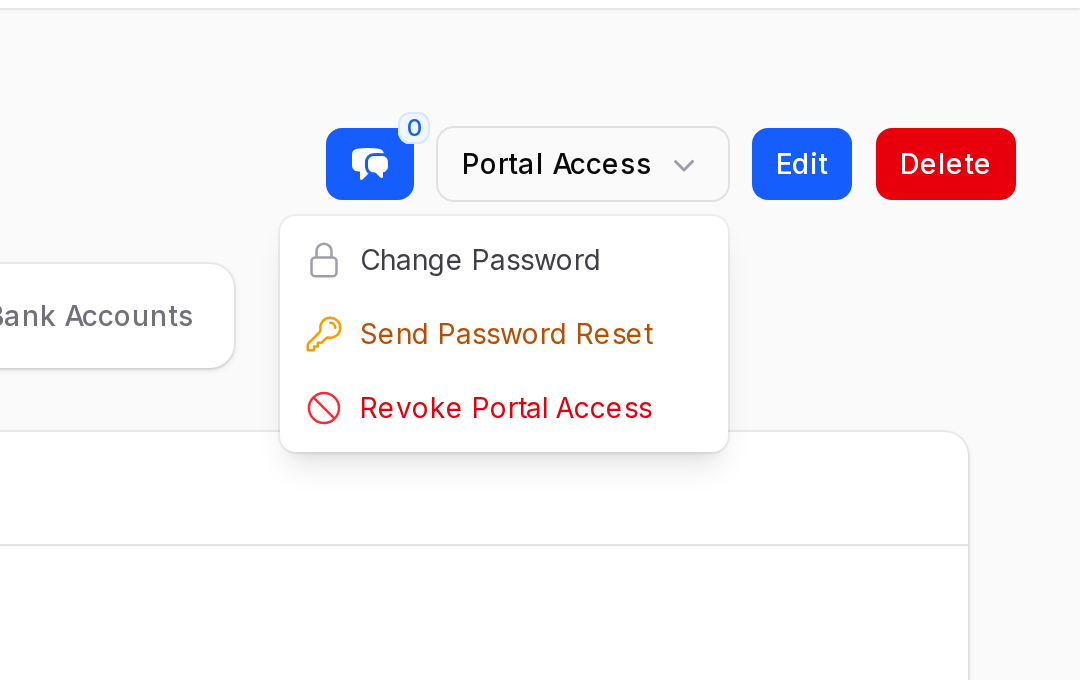
To set the password yourself, open Portal Access again and click Change Password. Enter the New Password and confirm it. Tell the vendor the password in a safe way.
Sign in to the portal
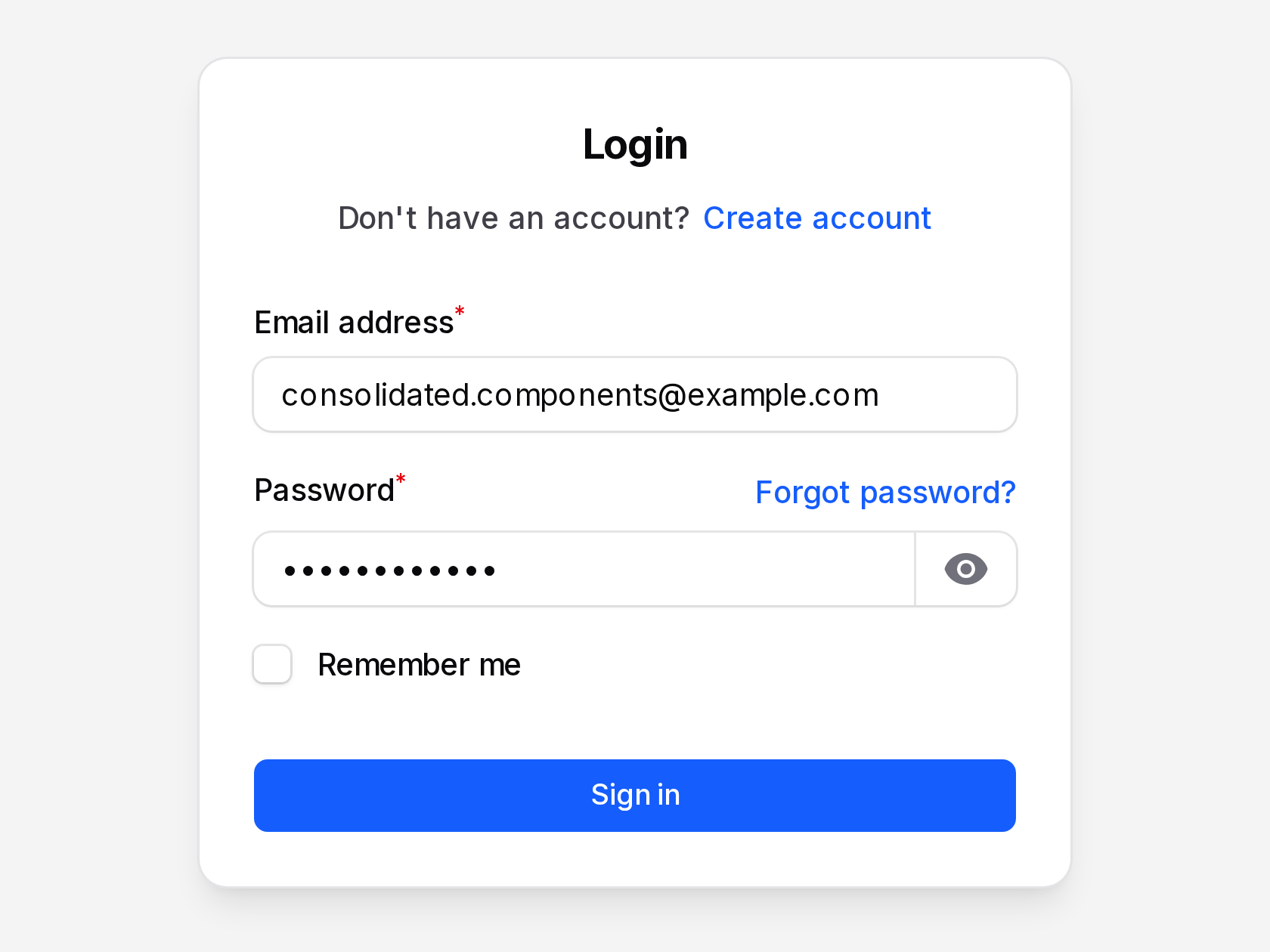
The vendor opens your website and clicks Login. Then the vendor enters the Email address and Password and clicks Sign in.
See the RFQs
After sign in, the vendor opens Account. The left menu has two pages: Quotations and Orders. Quotations lists the RFQs sent to this vendor.
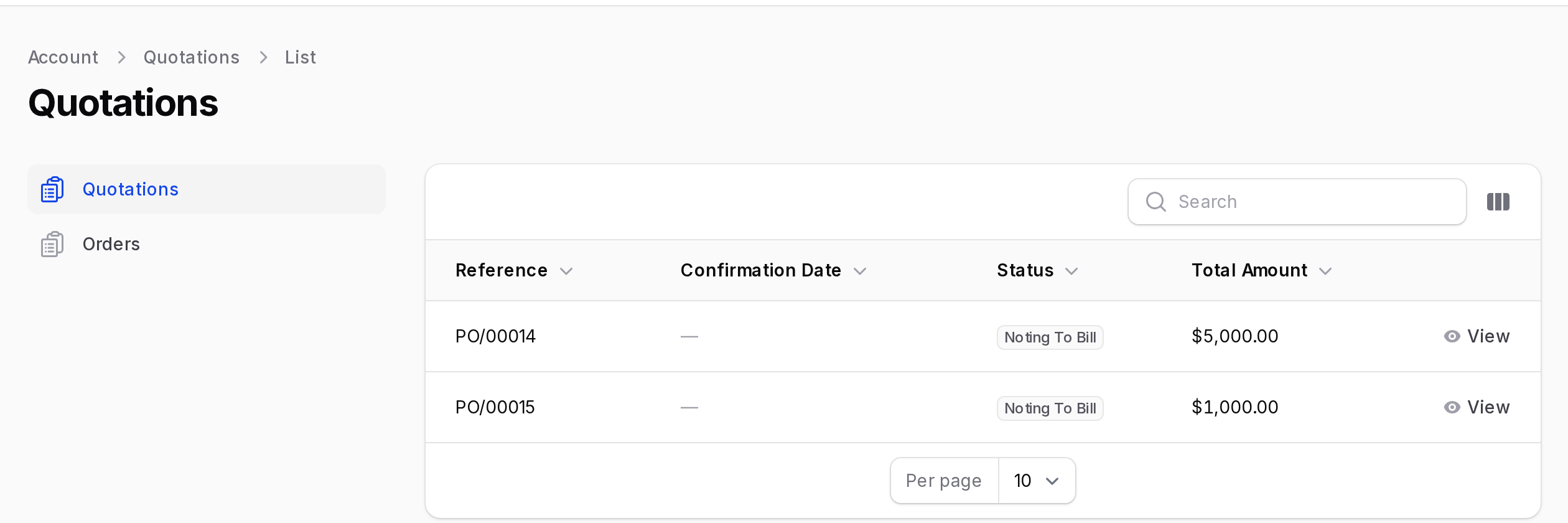
- Reference: The order number, such as PO/00014.
- Confirmation Date: Empty until you confirm the order.
- Status: The billing status of the order.
- Total Amount: The order total.
Click View on a row to open the RFQ.
INFO
The vendor sees only the orders that belong to this vendor.
Answer the RFQ
The RFQ page shows the total, the buyer, the order date, your company address and the product lines. The chatter at the bottom shows the email you sent.
The left card has three buttons.
- Accept: The vendor agrees to the request.
- Decline: The vendor refuses it.
- Download/Print: Saves the RFQ as a PDF.
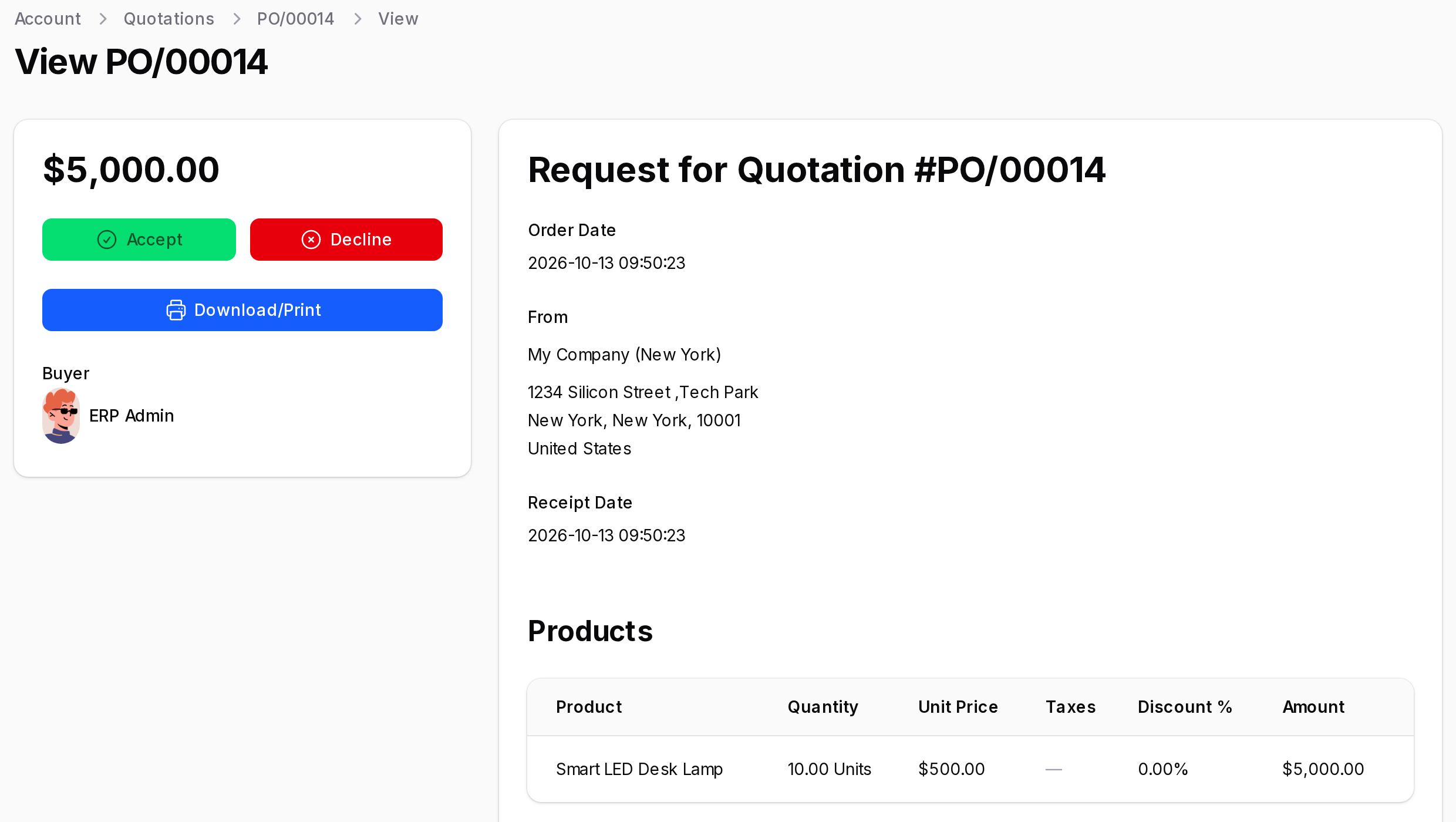
The Accept and Decline buttons show only while the order is RFQ Sent. When the vendor clicks Accept, a message says Quotation Accepted.
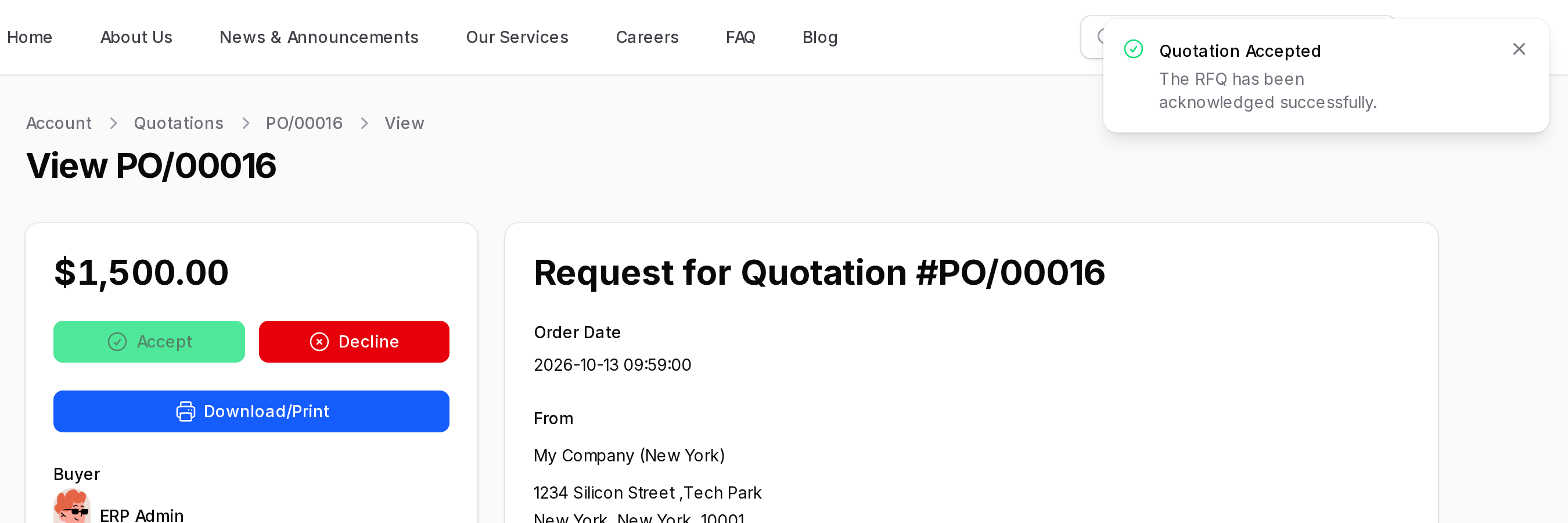
When the vendor clicks Decline, a message says Quotation Declined.
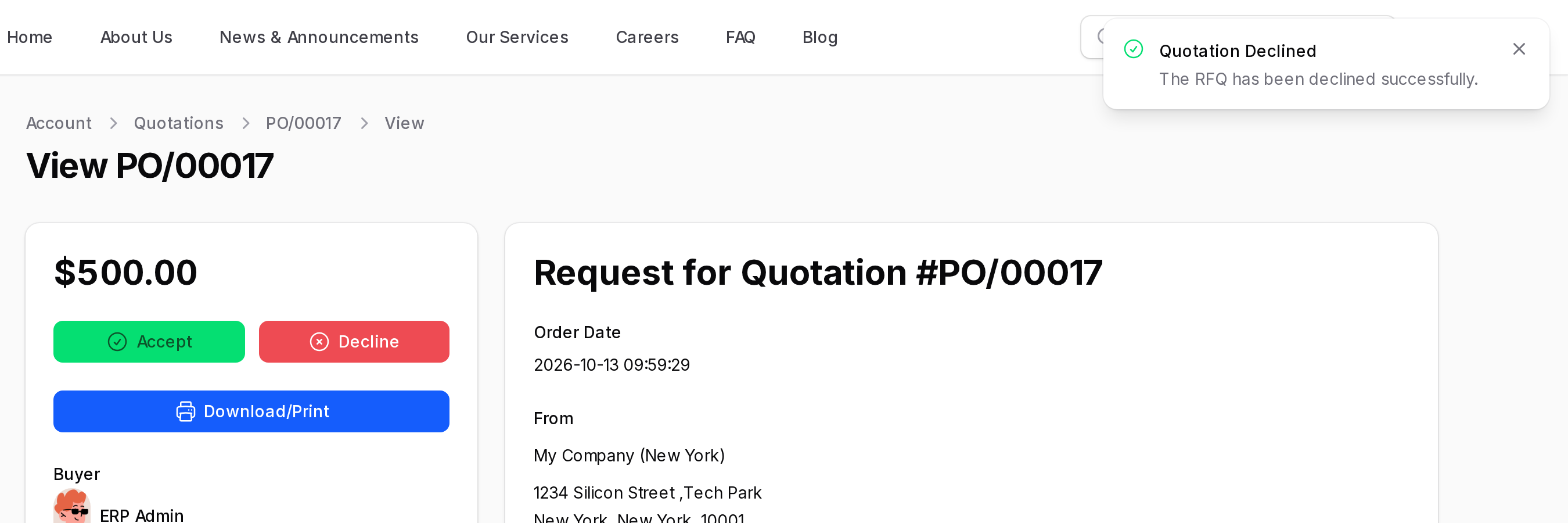
After an answer, that button turns grey and cannot be clicked again.
What you see in Aureus
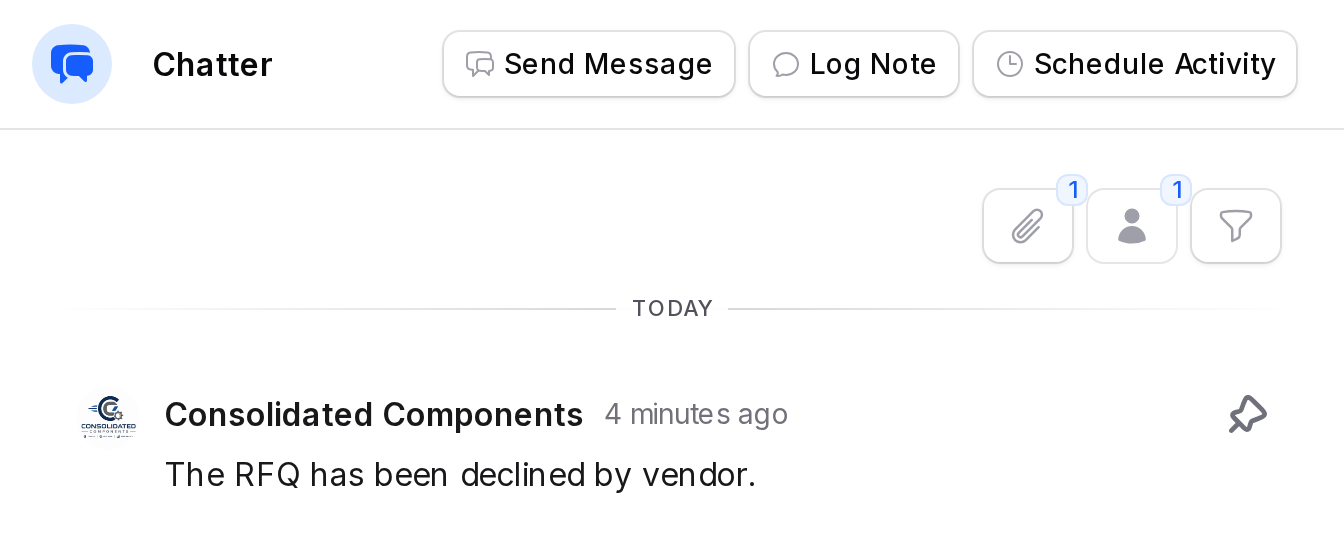
Open the RFQ in Purchase → Orders → Request for Quotation and click the chatter button at the top. The vendor's answer is a comment.
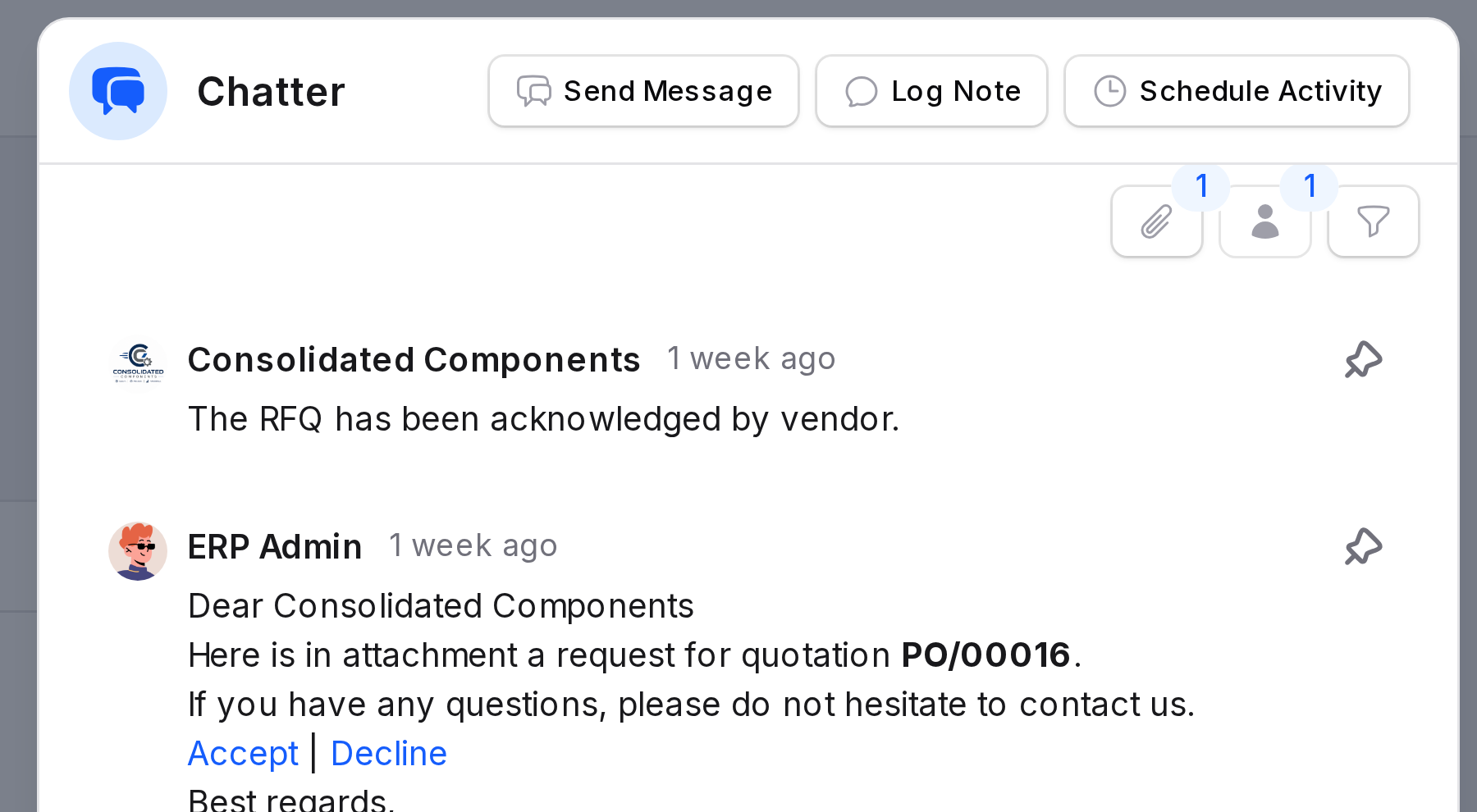
A refusal shows as The RFQ has been declined by vendor.
WARNING
The answer does not change the status. The order stays RFQ Sent. You still decide what to do next.
Confirm the order
If the vendor accepted, click Confirm Order. The order becomes a Purchase Order and the receipt is planned. See Purchase orders.

If the vendor declined, you can cancel the RFQ, edit it and send it again, or call the vendor.
The email link
The email you send also has Accept and Decline links. A vendor without portal access can use them. The page shows Quotation Accepted or Quotation Declined and adds the same comment to the chatter. The status also stays the same.
Behind the scenes
- The portal reads the same order record that you edit. Changes to prices or lines show to the vendor at once.
- The answer is saved as a comment from the vendor contact. It is not a status change.
- Download/Print makes a quotation PDF while the order is RFQ Sent. After confirmation it makes a purchase order PDF.
- After you confirm, the order moves to the Orders page of the portal.