

Set up a register
A register is one till, such as the counter of a shop or the floor of a restaurant. Its form holds every rule for that till: which payment methods it takes, how prices show, what receipts say and where stock comes from. You build the register once, then open a session on it each day.
In simple words: A register is a till with its own rules. Fill in its form once, then sell.
Minimum to open your first session
A register needs a receivable account, at least one payment method, a cash journal and tax accounts. A missing item stops the session from opening.
Before you start, create the items the register needs: payment methods, coins and bills and, for a restaurant, floors.
The register list
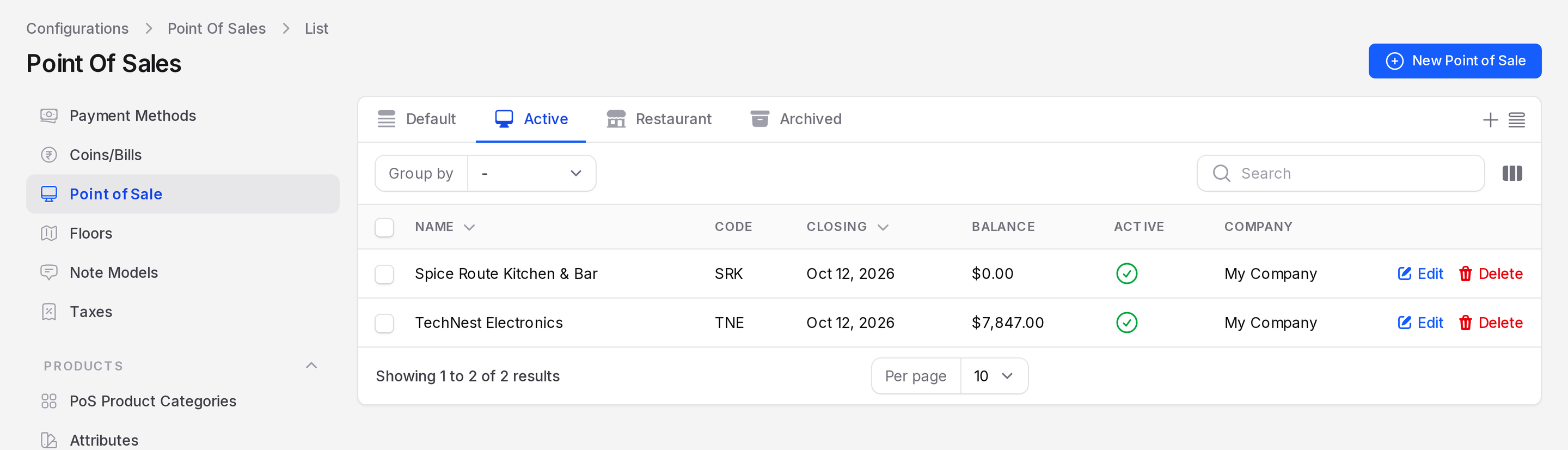
Go to Point of Sale → Configurations → Point of Sale. The list shows each register with Name, Code, Closing, Balance, Active and Company. Tabs split the list into Default, Active, Restaurant and Archived. You can group rows by Warehouse or Company.
Create a register
Go to
Point of Sale → Configurations → Point of Sale.Click New Point of Sale.
Fill the General section.
- Point of Sale: The register name, for example TechNest Electronics.
- Short Code: A prefix of up to 16 characters, for example TNE. POS uses it for order and session numbers.
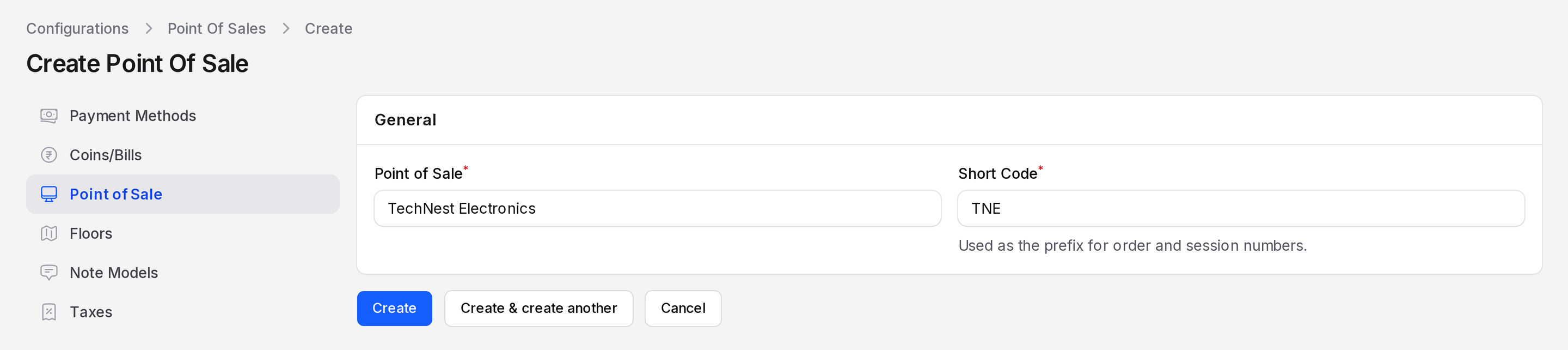
Click Create. The page reopens with the Configurations section and its tabs.
Fill each tab as described below, then click Save changes.
The configuration tabs
The tabs run down the left side of the Configurations section.
Restaurant Mode
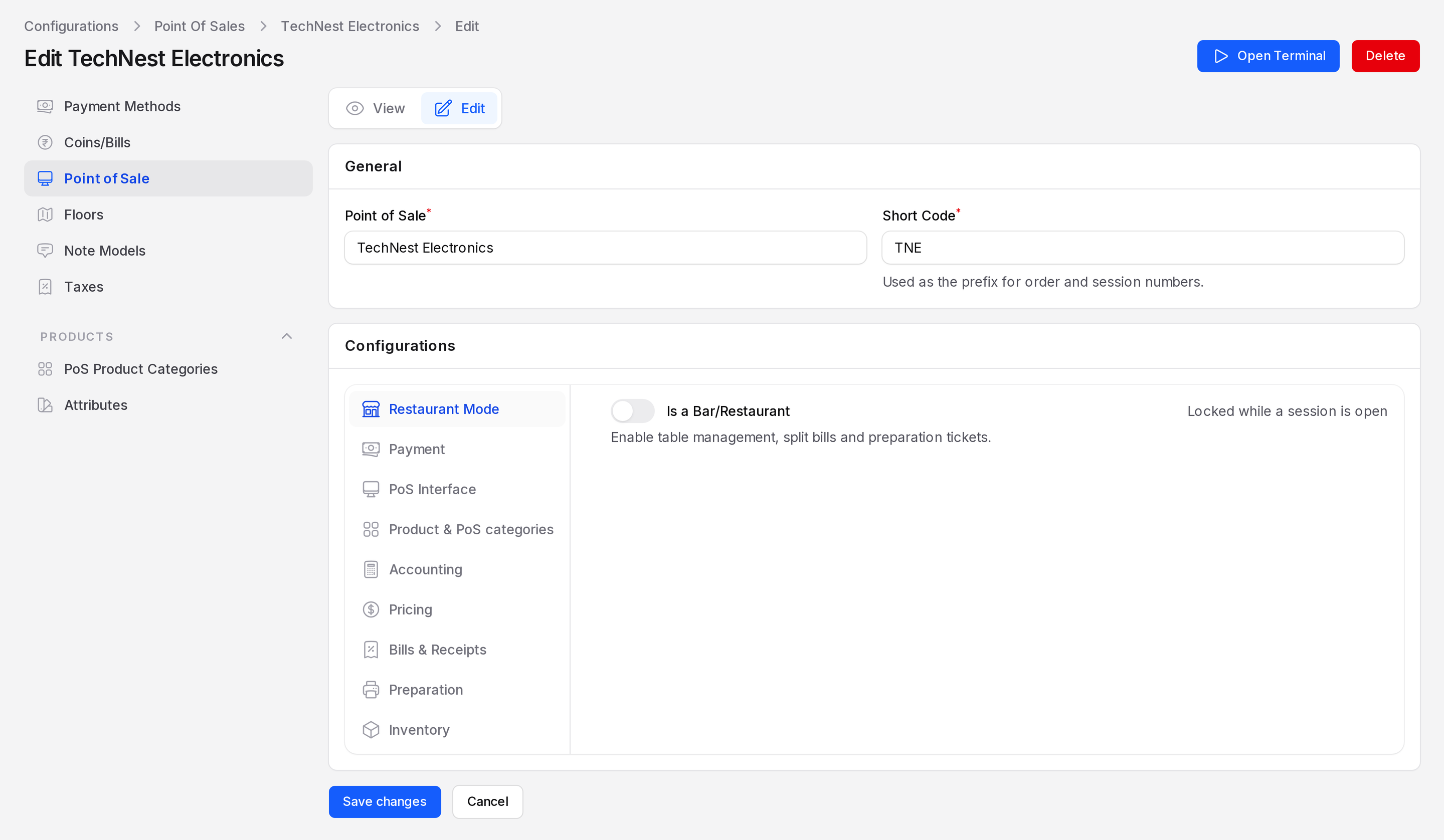
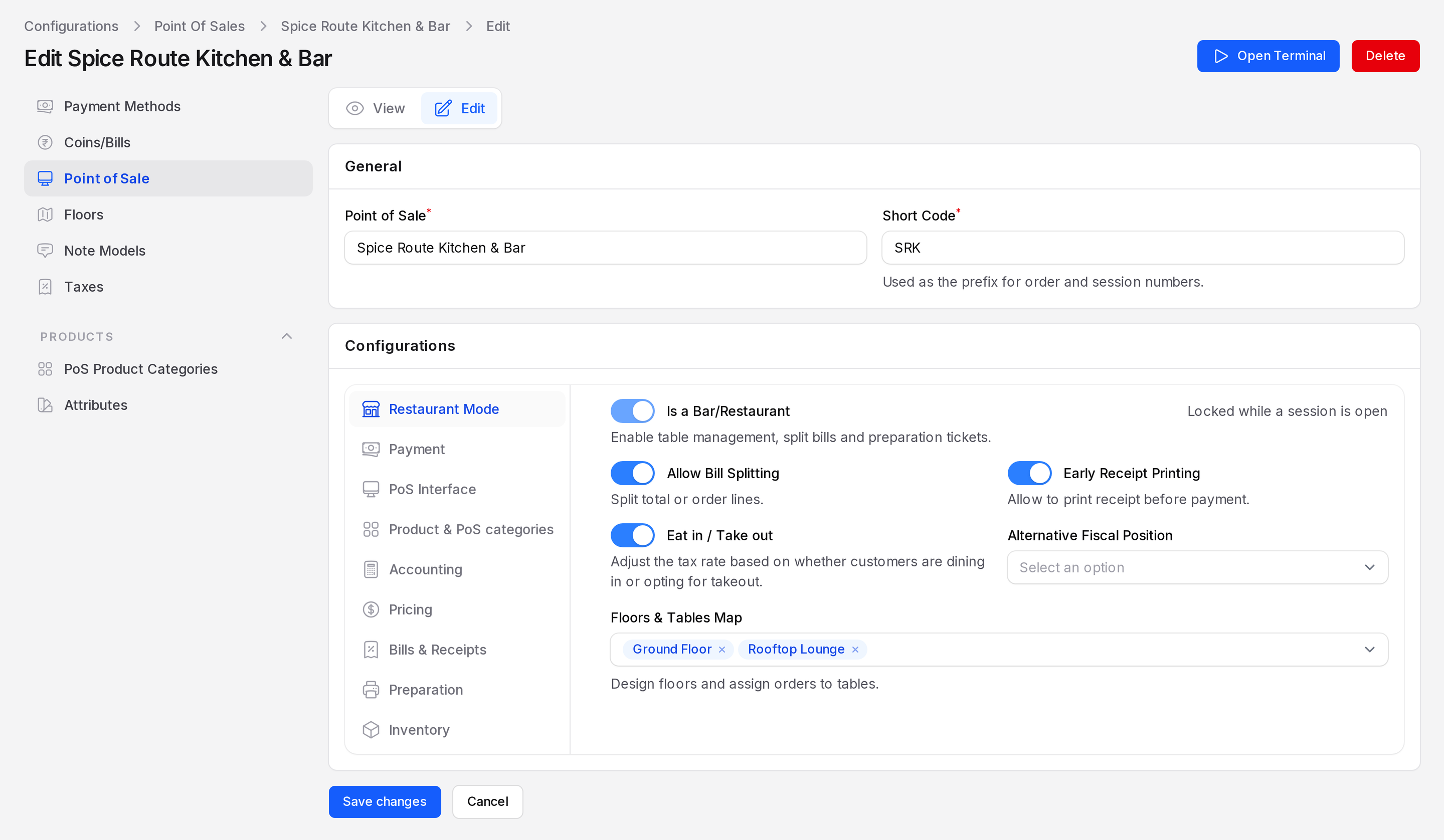
- Is a Bar/Restaurant: Turns on tables, split bills and preparation tickets. Keep it off for a shop.
- Allow Bill Splitting: Lets the cashier split the total or order lines.
- Early Receipt Printing: Lets the cashier print a receipt before payment.
- Eat in / Take out: Changes the tax rate by service type. A new field, Alternative Fiscal Position, then appears. Pick the position used for take out.
- Floors & Tables Map: The floors for this register, such as Ground Floor and Rooftop Lounge.
The last four options show only when Is a Bar/Restaurant is on.
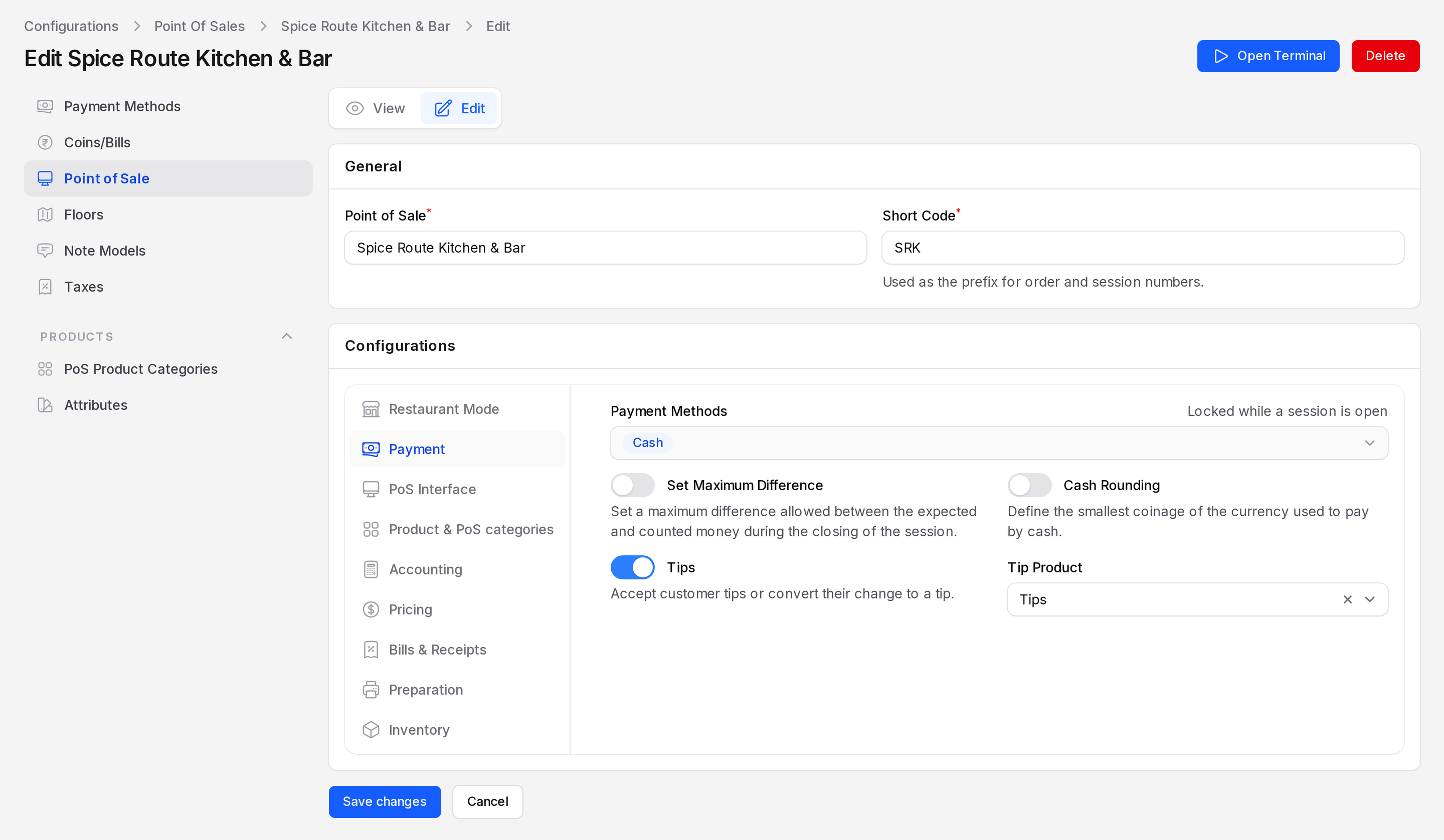
Payment
- Payment Methods: The methods the cashier can choose, such as Cash or Bank.
- Set Maximum Difference: Limits the gap allowed between expected and counted money at closing. Then enter Maximum Difference.
- Cash Rounding: Rounds cash payments to the smallest coin. Then pick a Rounding Method. Turn on Only apply rounding on cash to leave other methods exact.
- Tips: Lets the cashier accept tips. Then pick a Tip Product, which must be a service.
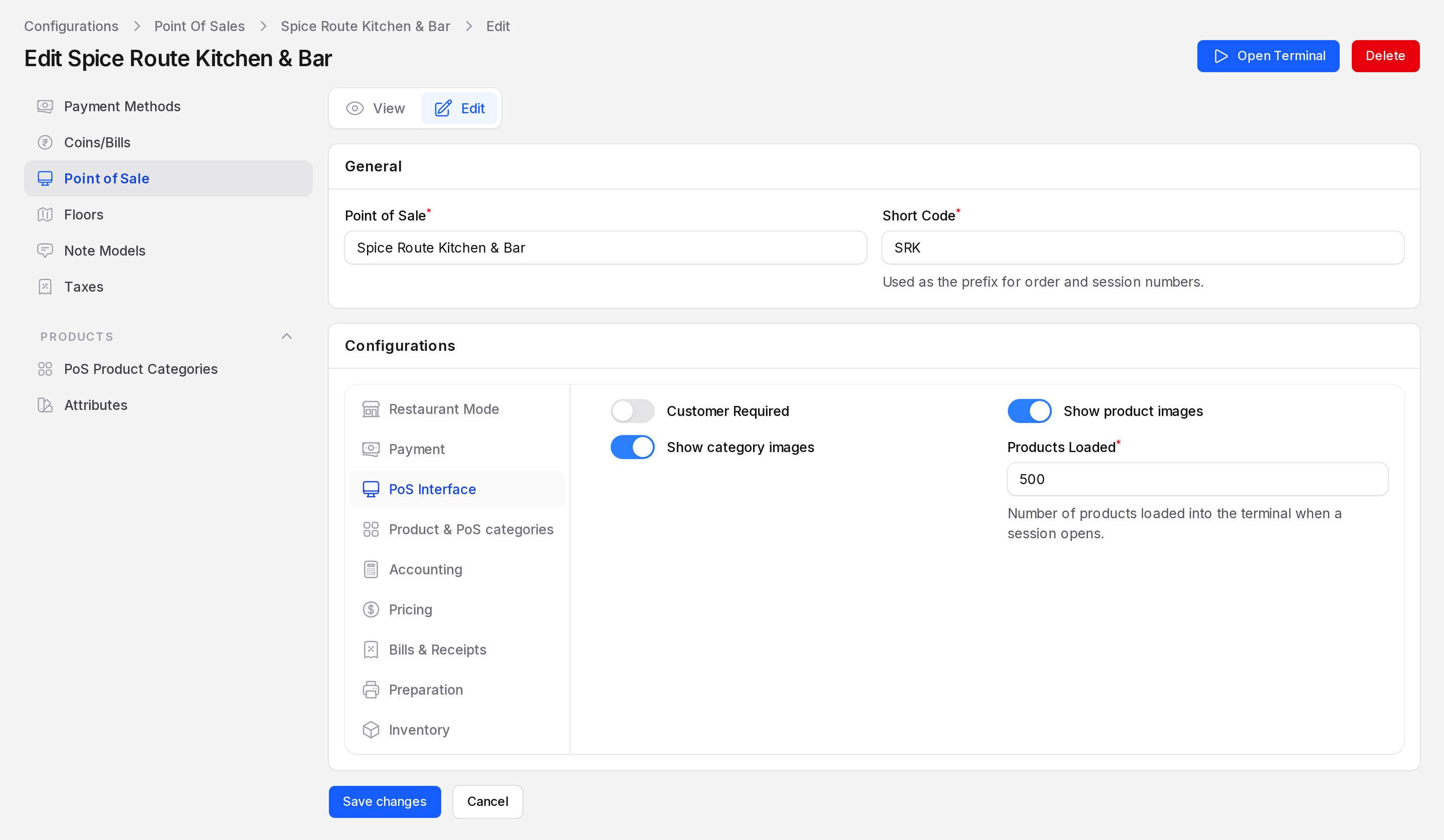
PoS Interface
- Customer Required: The cashier must pick a customer before payment.
- Show product images: Shows pictures on product tiles.
- Show category images: Shows pictures on category tiles.
- Products Loaded: How many products load when a session opens. The default is 500.
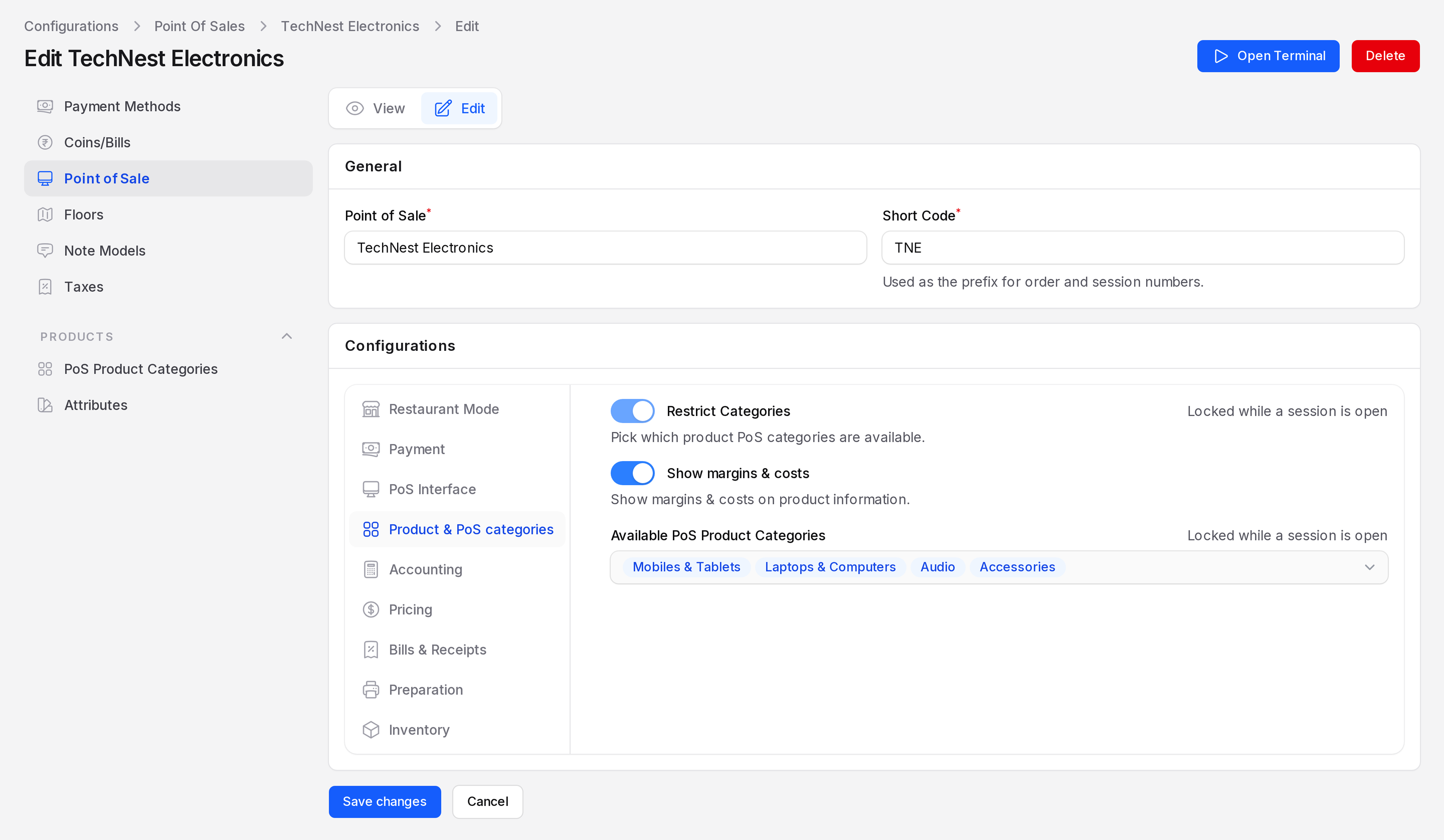
Product & PoS categories
- Show margins & costs: Shows margin and cost on product information.
- Restrict Categories: Limits the register to chosen categories. Then pick them in Available PoS Product Categories.
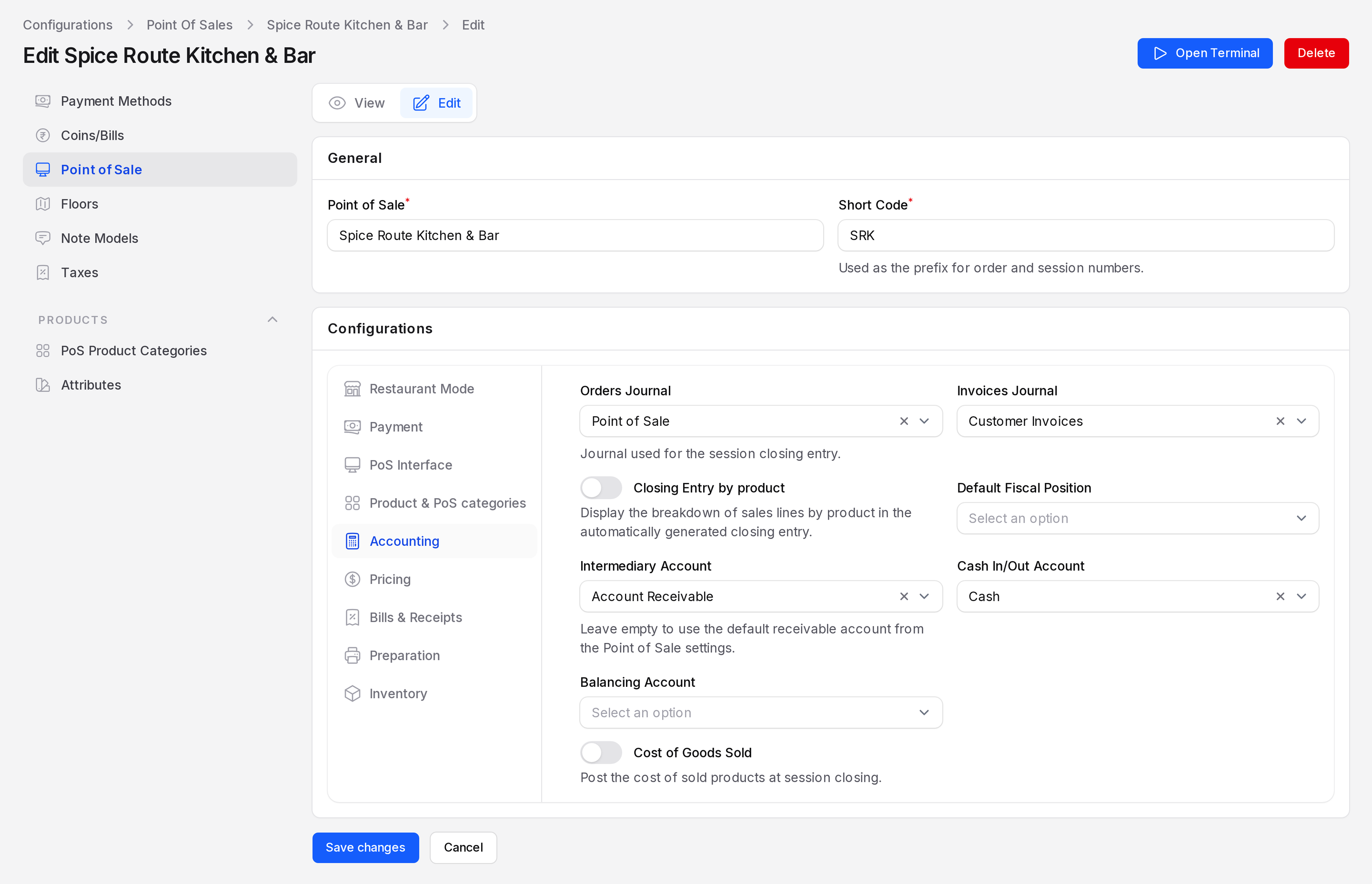
Accounting
- Orders Journal: The journal for the session closing entry.
- Invoices Journal: The sales journal for invoices made from POS orders.
- Closing Entry by product: Lists sales by product in the closing entry.
- Flexible Taxes: Lets orders use different fiscal positions. Then pick a Default Fiscal Position and the allowed Fiscal Positions.
- Intermediary Account: Receivable account used between payment and closing. Leave empty to use the default from POS settings.
- Cash In/Out Account: Account for cash moved in or out of the drawer.
- Balancing Account: Account for a cash difference at closing.
- Cost of Goods Sold: Posts the cost of sold items when you close. Then pick a Cost of Goods Sold Journal and a Stock Output Account.
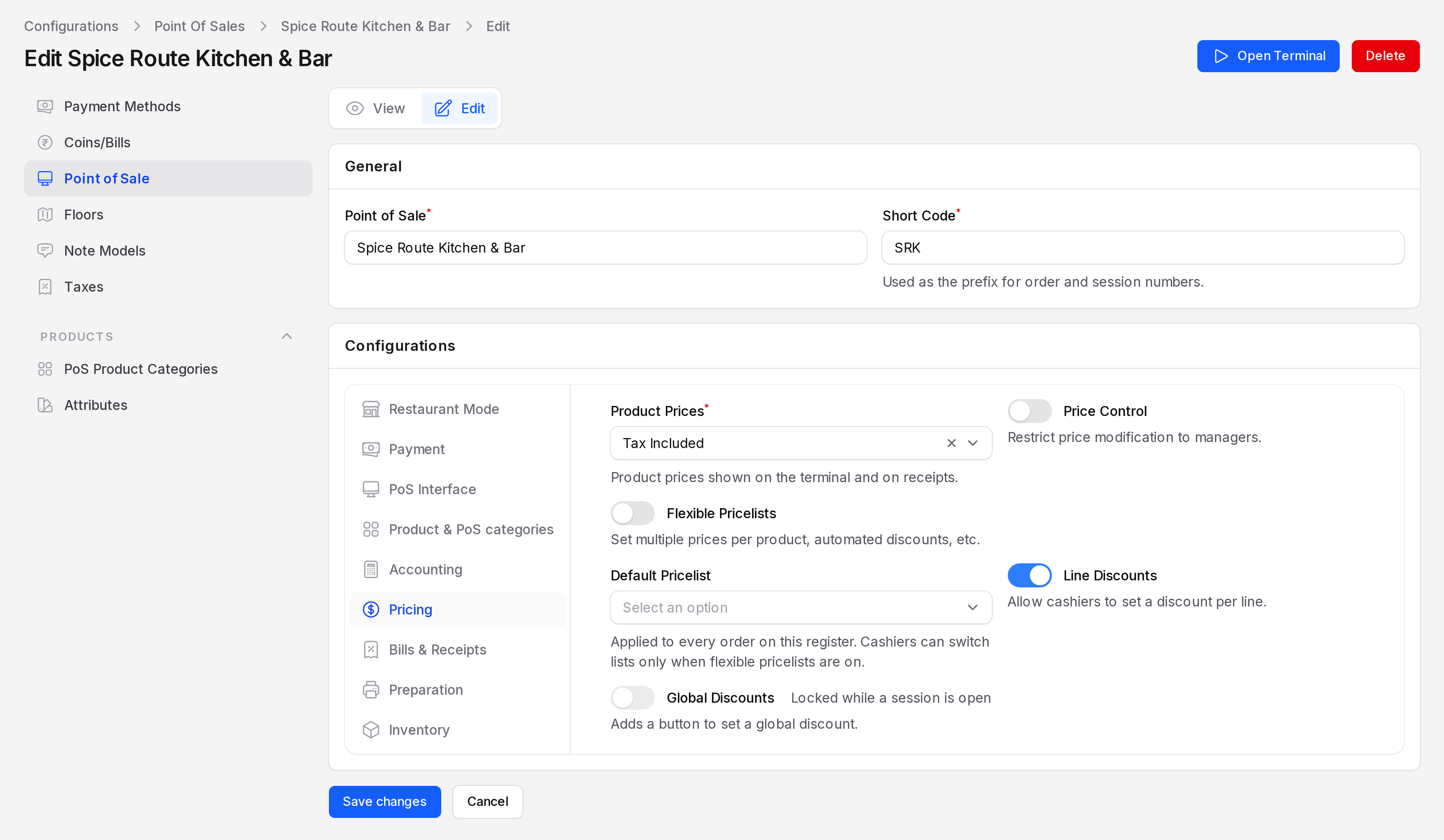
Pricing
- Product Prices: Choose Tax Excluded or Tax Included. This sets how prices show on the terminal and receipts.
- Price Control: Only managers can change a price.
- Flexible Pricelists: Allows several price lists. Pick the Available Pricelists.
- Default Pricelist: The list applied to every order. Cashiers can switch lists only when flexible pricelists are on.
- Line Discounts: Cashiers can give a discount on one line.
- Global Discounts: Adds a button for a whole-order discount. Then pick a Discount Product (a service) and the default Discount %.
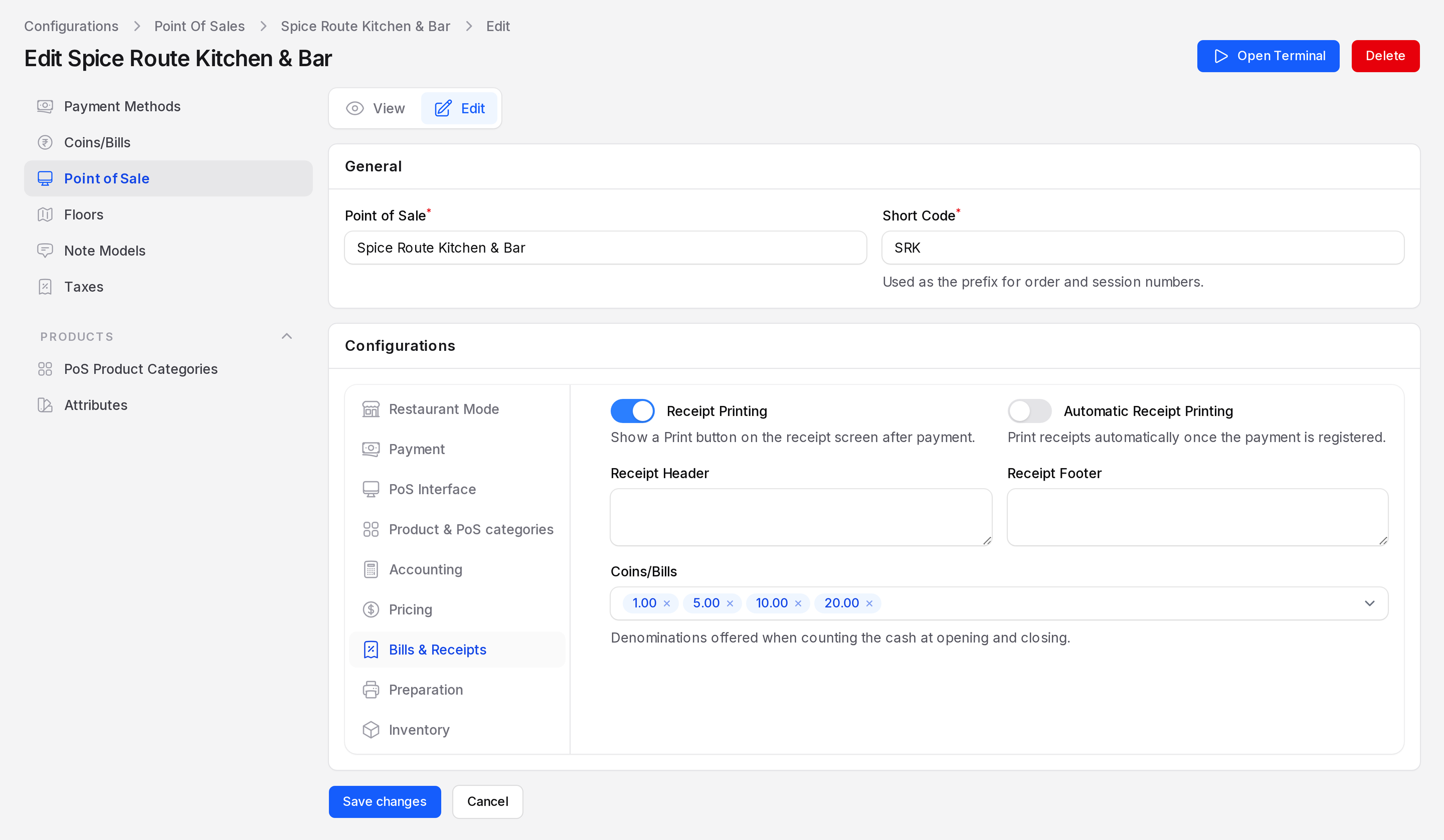
Bills & Receipts
- Receipt Printing: Shows a Print button on the receipt screen.
- Automatic Receipt Printing: Prints the receipt as soon as payment is registered.
- Receipt Header: Text at the top of the receipt, for example your shop address.
- Receipt Footer: Text at the bottom, for example "Thank you for shopping at TechNest".
- Coins/Bills: The denominations offered when counting cash at opening and closing.
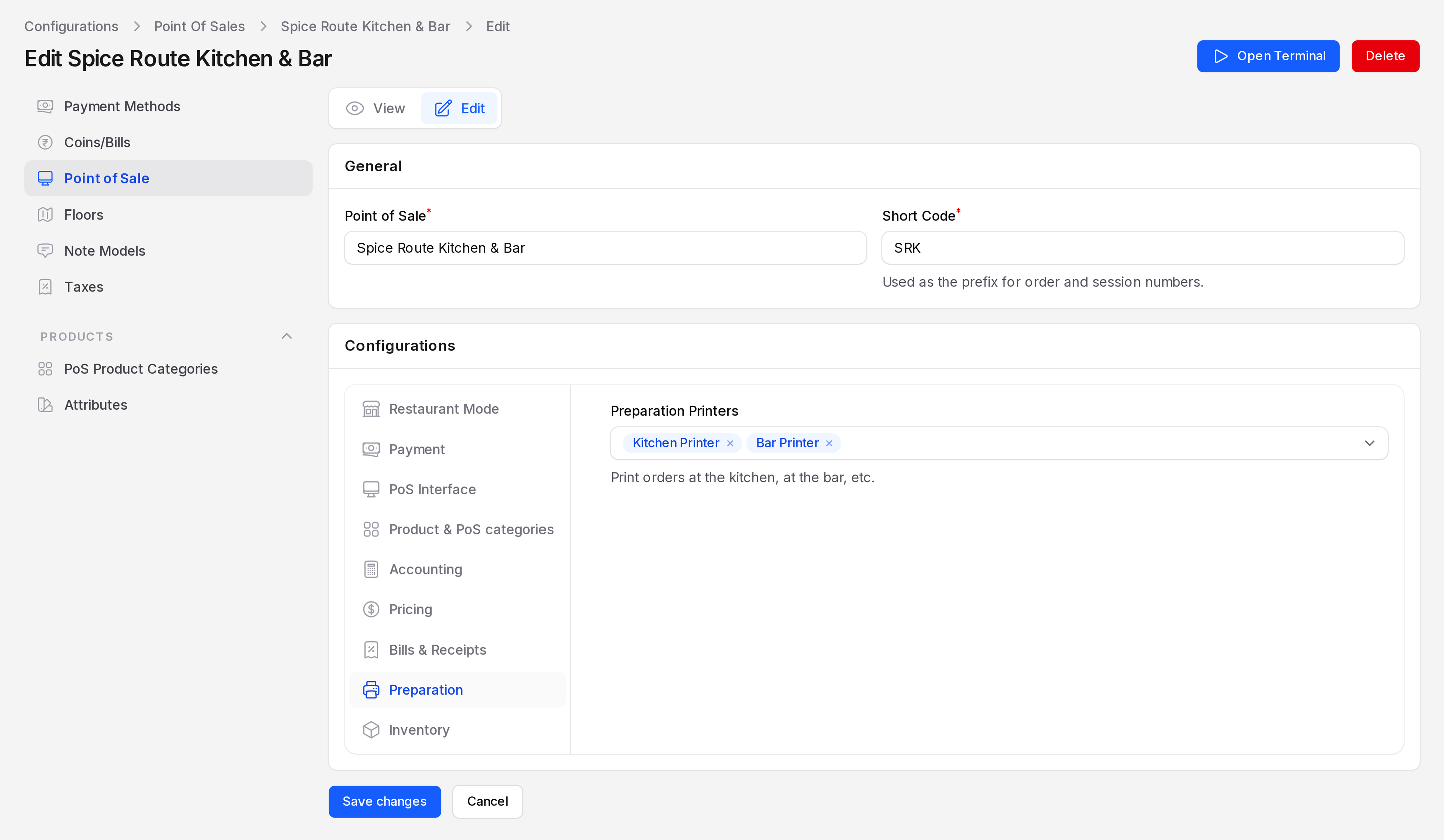
Preparation
- Preparation Printers: The printers that receive kitchen or bar tickets. See Preparation printers.
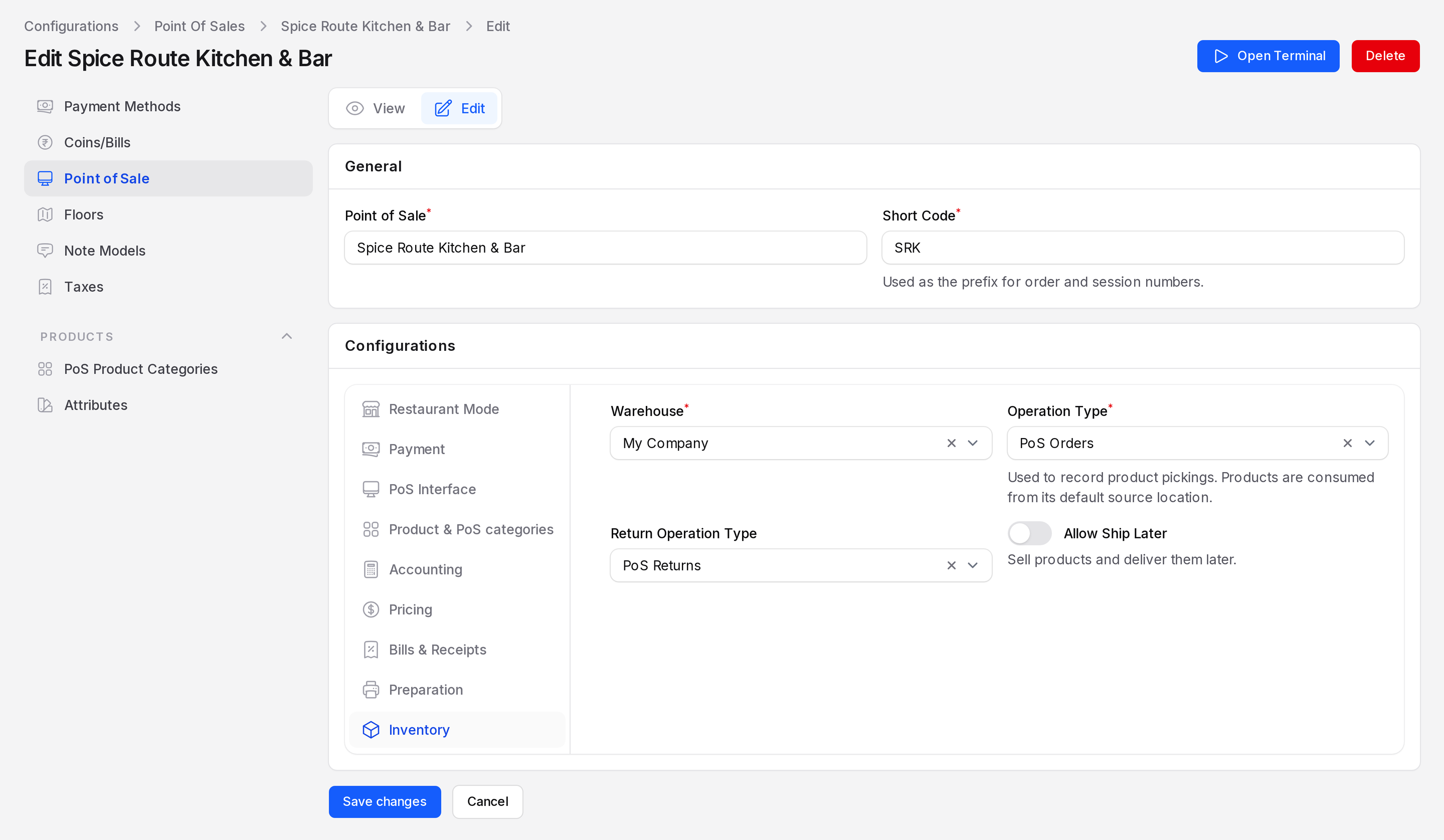
Inventory
- Warehouse: The warehouse stock comes from. Required.
- Operation Type: The outgoing operation used to record product pickings.
- Return Operation Type: The incoming operation used for returns.
- Allow Ship Later: Sell now and deliver later. Then choose a Specific Route and a Shipping Policy: As soon as possible or When all products are ready.
Two worked examples
TechNest Electronics (retail). Leave Is a Bar/Restaurant off. Pick Cash and Bank. Turn on Customer Required and Line Discounts. Set Product Prices to Tax Included and choose the main warehouse.
Spice Route Kitchen & Bar (restaurant). Turn on Is a Bar/Restaurant, Allow Bill Splitting and Early Receipt Printing. Pick Ground Floor and Rooftop Lounge. Add a kitchen printer in Preparation.
Actions and statuses
- Open Terminal: In the page header. It opens the cashier terminal for this register.
- Save changes: Saves the form.
- Delete: Archives the register. A register with sessions or orders cannot be deleted permanently, so archive it.
WARNING
While a session is open, these fields are locked: Is a Bar/Restaurant, Payment Methods, Restrict Categories, Available PoS Product Categories and Global Discounts. Close the session to change them.
TIP
Before the first session, POS checks the register. It needs a receivable account, payment methods, a cash journal and tax accounts. A missing item stops the session from opening.