

Inventory adjustments
An inventory adjustment is a physical count. You walk the shelves, enter what you find, and Aureus works out the difference from what the system expected. When you apply the count, the stock numbers are corrected.
In simple words: Type what you counted, check the difference, then click Apply.
Open it from Inventory → Operations → Adjustments → Quantities. The page title is Quantity Adjustments.
Before you start
The Location, Lot / Serial Numbers and Package columns appear only when the matching settings are on. Check Inventory → Settings → Manage Warehouses → Locations, Manage Traceability → Lots & Serial Numbers and Manage Operations → Packages.
Settings
The scheduled date of a count comes from the annual inventory date. Set it in Inventory → Settings → Manage Operations.
- Annual Inventory Day: the day of the month, for example 31.
- Annual Inventory Month: the month, for example December.
With 31 and December, new count rows get the scheduled date 31 December.
Overview
The list shows one row per product, location, lot and package. It has these tabs:
| Tab | Shows |
|---|---|
| Default | All rows |
| Internal Locations | Stock inside your own warehouse |
| Transit Locations | Stock in transit locations |
| On Hand | Rows with a quantity above zero |
| To Count | Rows whose scheduled date is still ahead |
| To Apply | Rows that already have a counted quantity |
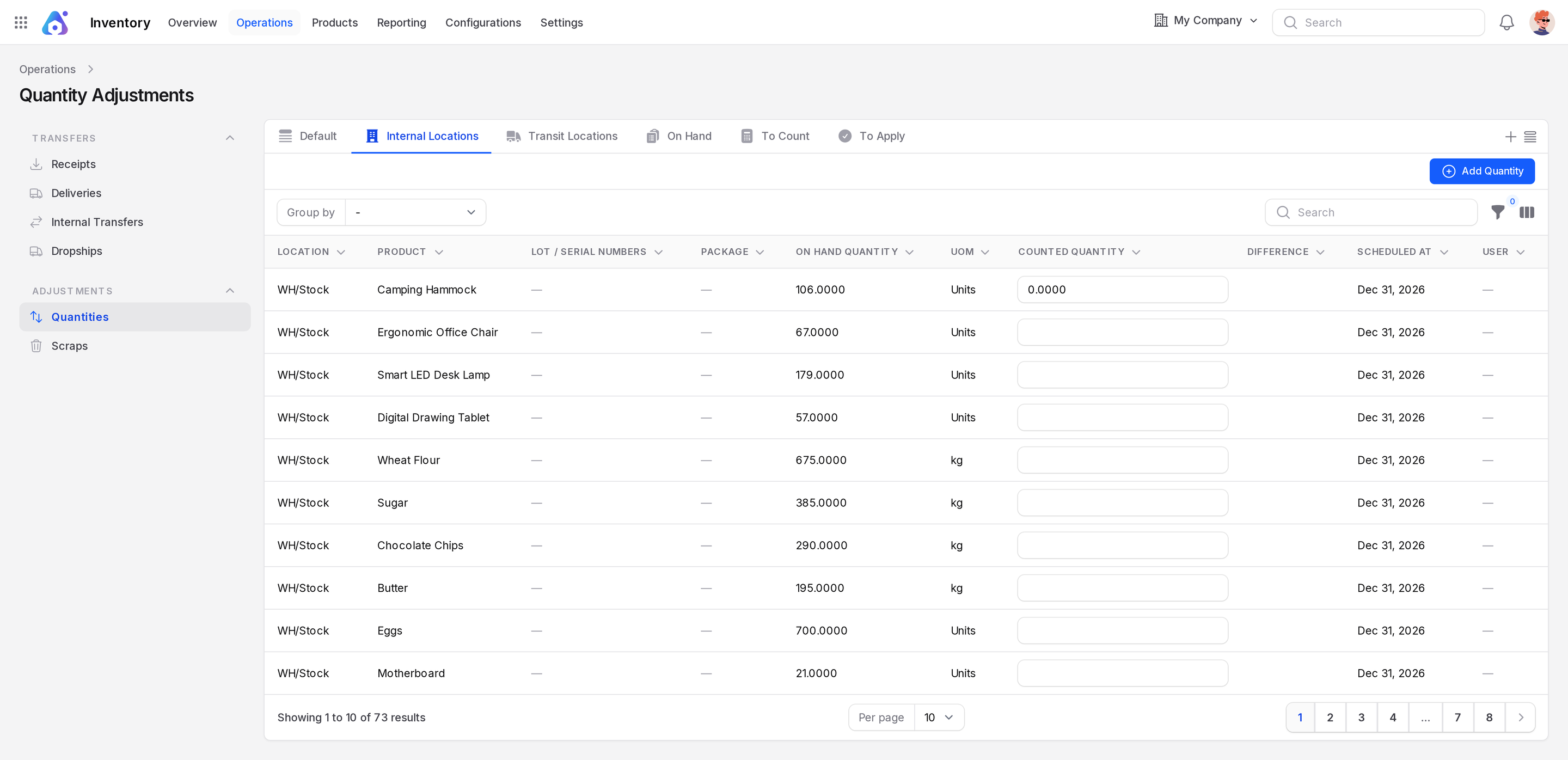
Columns
- Location, Product, Lot / Serial Numbers, Package: where the stock is and what it is.
- On Hand Quantity: what the system believes is there.
- Counted Quantity: what you found. You type it in the row.
- Difference: counted minus on hand. It stays empty until you count.
- Scheduled At: the date the count is due.
- User: who is responsible.
You can also show Storage Category, Product Category, Available Quantity and Company. Use Group by for Product, Product Category, Location, Storage Category, Lot / Serial Numbers, Package or Company.
Count an existing row
The company counts Camping Hammock at WH/Stock. The system says 106.
- Open
Inventory → Operations → Adjustments → Quantities. - Search for Camping Hammock.
- Click the Counted Quantity box on the
WH/Stockrow. - Type 104 and leave the box. The row shows Change saved.
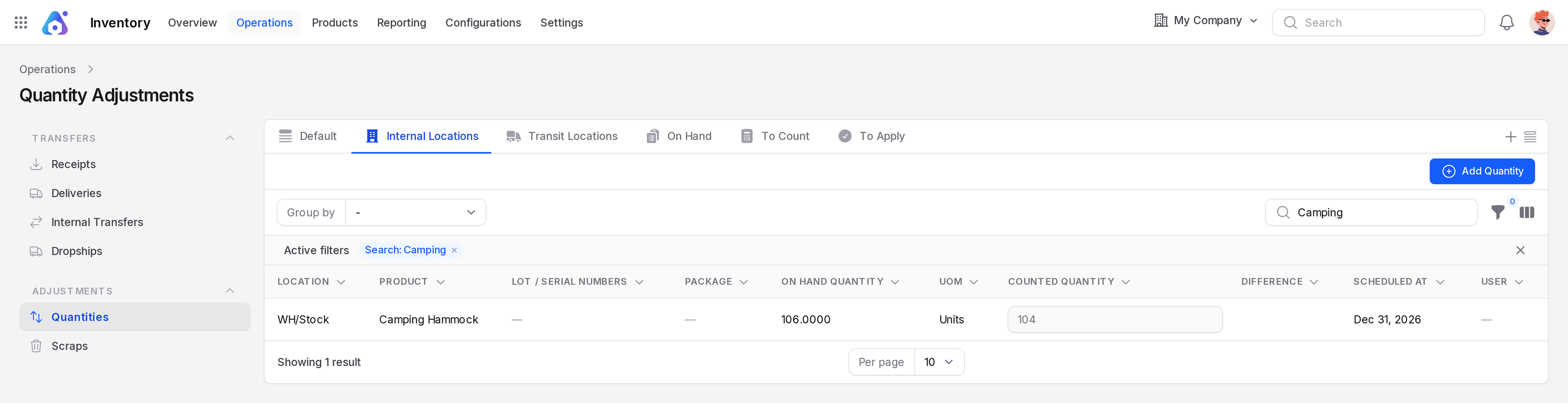
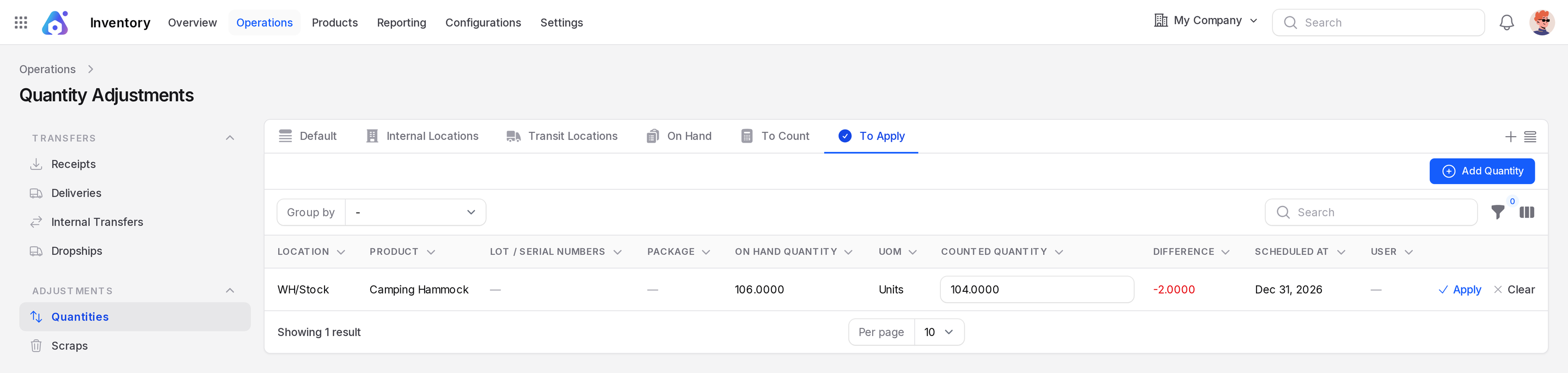
The Difference now reads -2. The row also appears in the To Apply tab.
Apply or clear the count
Two row actions appear once a count exists.
- Click Apply to write the count into stock. A message says Quantity changes applied. On hand becomes 104.
- Click Clear to throw the count away instead. A message says Quantity changes cleared. On hand stays 106.
TIP
Review the To Apply tab before you apply. It lists every pending count in one place.
Add a quantity
Use Add Quantity when a product has no row at that location yet, for example after finding unrecorded stock.
- Click Add Quantity. The Create Product Quantity window opens.
- Fill in the fields.
- Click Create.
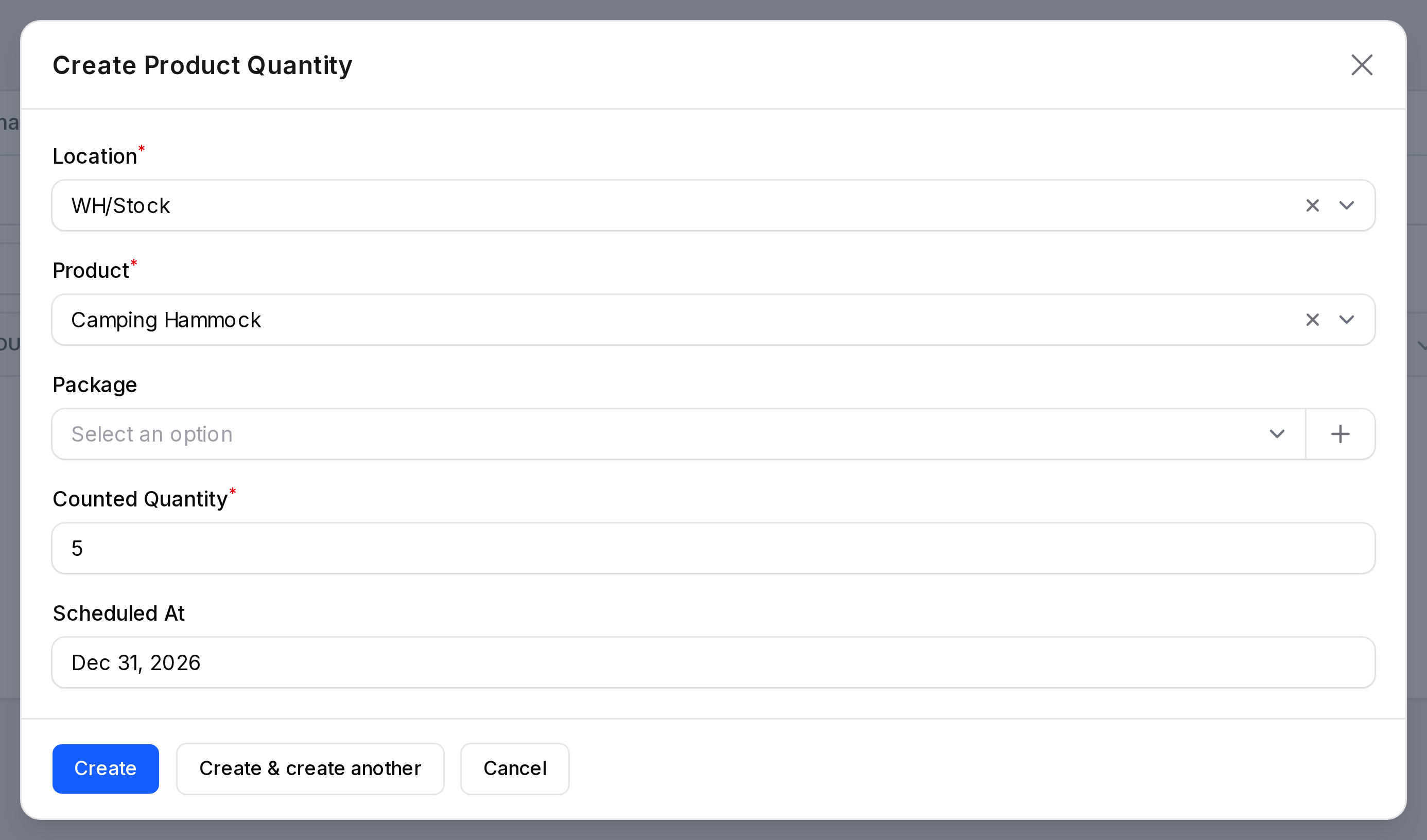
- Location: required. Default is
WH/Stock. - Product: required.
- Package: optional. Pick it when the goods sit in a package.
- Counted Quantity: required. Default is 0.
- Scheduled At: the due date. It defaults to the annual inventory date.
A message says Quantity added. If a row for the same product and location already exists, Aureus warns you to update the existing quantity instead.
Behind the scenes
When you apply a count, Aureus creates a stock move for the difference. For a loss of 2 units, the stock leaves WH/Stock and goes to Virtual Locations/Inventory Adjustment. For a gain, the move runs the other way. You can see it in Moves history.
Actions and statuses
| Action | Where | Effect |
|---|---|---|
| Type a Counted Quantity | Row | Saves the count and fills Difference |
| Apply | Row with a count | Corrects stock and clears the count |
| Clear | Row with a count | Removes the count, stock unchanged |
| Add Quantity | Page header | Creates a new stock row |