

Two-factor authentication
Two-factor authentication adds a second step to your sign-in. After your password, you enter a 6-digit code from an authenticator app on your phone. Even if someone learns your password, they cannot sign in without your phone.
In simple words: To sign in you need two things: your password and your phone.
Before you start
Install an authenticator app on your phone. Any app that makes 6-digit time-based codes works.
Turn on two-factor authentication
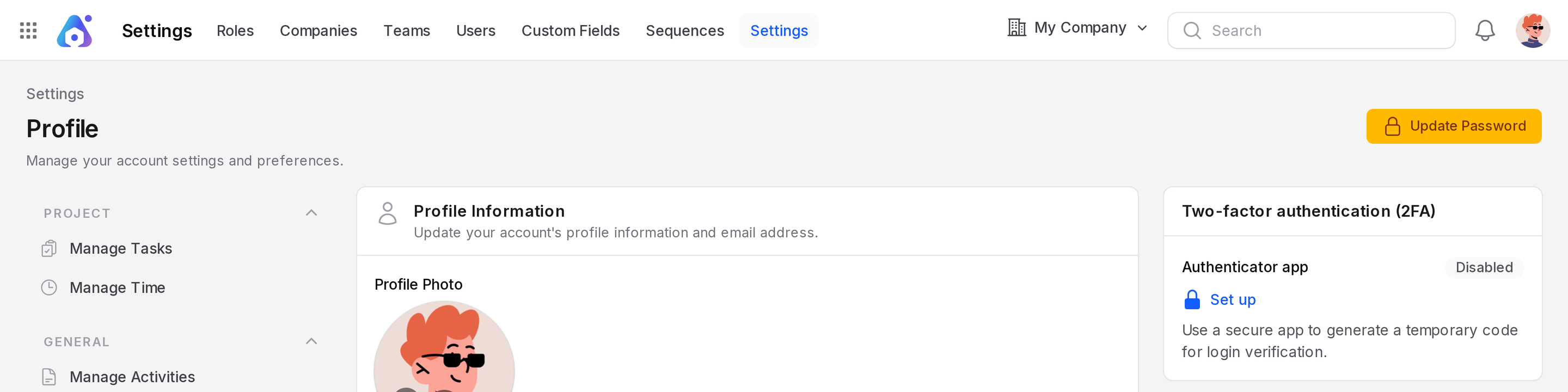
- Open your profile.
- In the Two-factor authentication (2FA) card, click Set up under Authenticator app. The status shows Disabled until you finish.
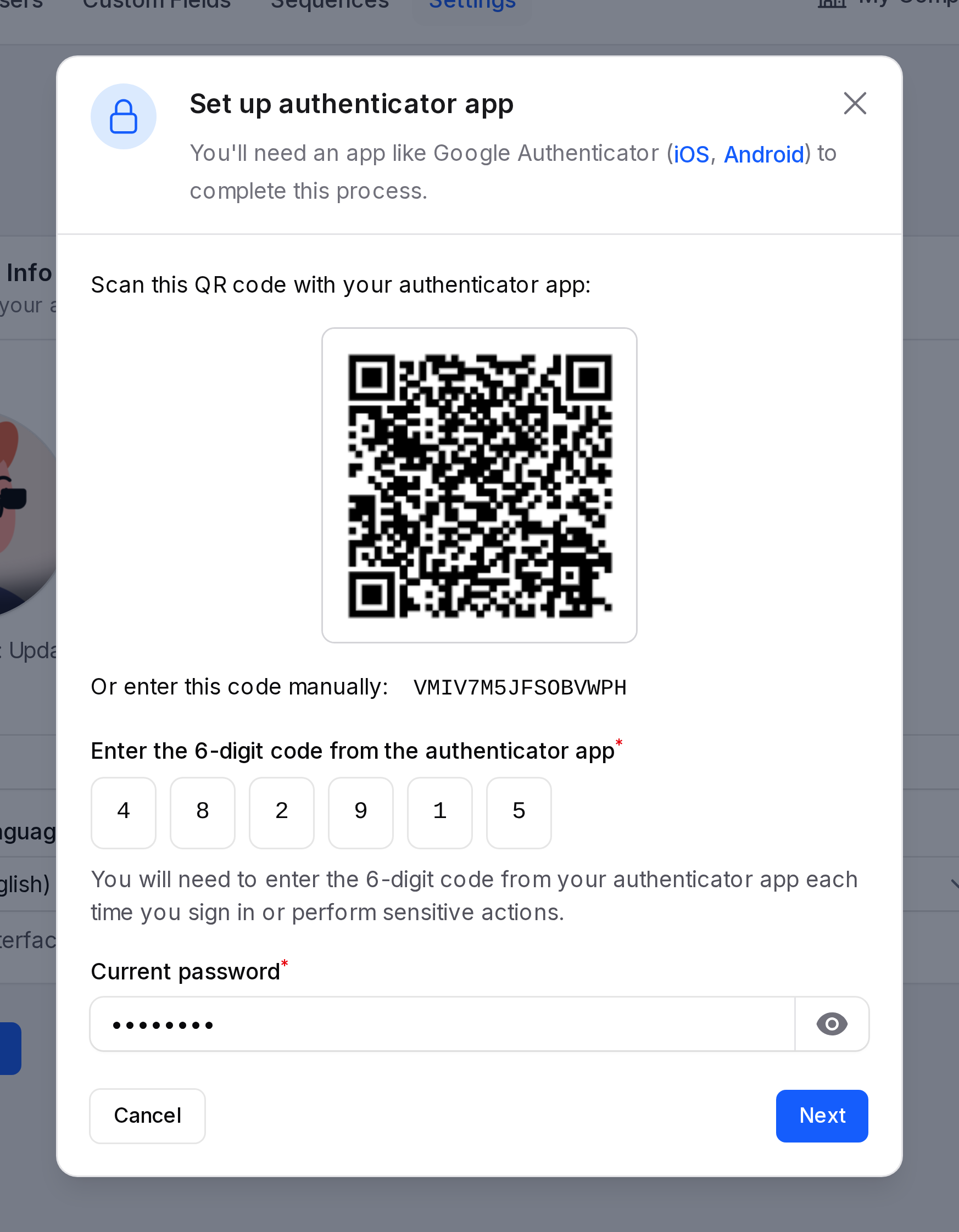
- Scan the QR code with your authenticator app. If you cannot scan it, enter the code shown under the picture by hand.
- Enter the 6-digit code that the app shows.
- Enter your Current password, then click Next.
- Save your recovery codes in a safe place. Aureus shows them only once.
The status changes to Enabled.
WARNING
Recovery codes are your way back in if you lose your phone. Store them somewhere safe. Aureus shows them only once.
Sign in with a code
- Enter your email and password as usual.
- When Aureus asks, enter the 6-digit code from your authenticator app.
If you cannot use your phone, click Use a recovery code instead and enter one of your recovery codes.
Get new recovery codes
- Open your profile.
- In the Authenticator app section, click Regenerate recovery codes.
- Enter the 6-digit code from your app, or your current password.
- Click Regenerate recovery codes.
- Save the new codes. The old codes stop working at once.
Turn off two-factor authentication
- Open your profile.
- In the Authenticator app section, click Turn off.
- Enter the 6-digit code from your app, or click Use a recovery code instead.
- Click Disable authenticator app.
INFO
Turning it off removes the extra layer of security from your account. Keep it on unless you have a reason to turn it off.