

Plan and schedule
Planning gives every work order a real time slot. Aureus looks at the working hours of each work center and books the first free slot. It also checks the alternative work centers and picks the one that finishes earliest. Planning is how you see when an order can really finish.
In simple words: Plan means "put each work order on the calendar of its work center".
Open the MO at Manufacturing → Operations → Manufacturing Orders and use the Plan button.
Settings
Plan books work orders, so Work Orders must be on in Manufacturing → Settings → Manage Operations. See Manufacturing settings.
Each work center needs a Working Hours calendar. It is a required field on the work center form. See Work centers.
Plan an order
Scenario: plan MO/2, 2 Business Laptops. It has Assemble Components at Assembly Station and Test & Pack at Quality & Packing. Both use Standard 38 hours/week.
- Open MO/2. It is Confirmed.
- Click Plan.
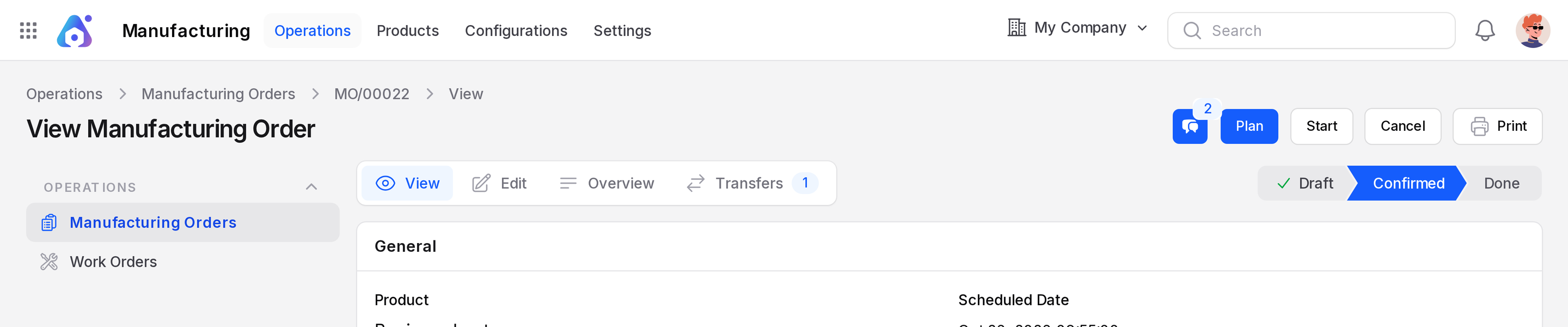
- Aureus shows Manufacturing order planned.
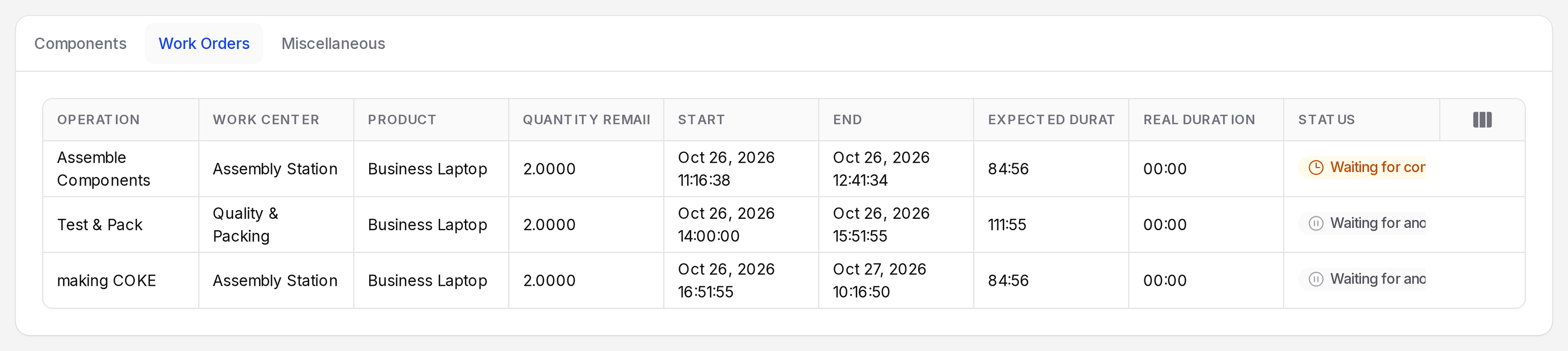
- Open the Work Orders tab. Each row now has a Start and an End.
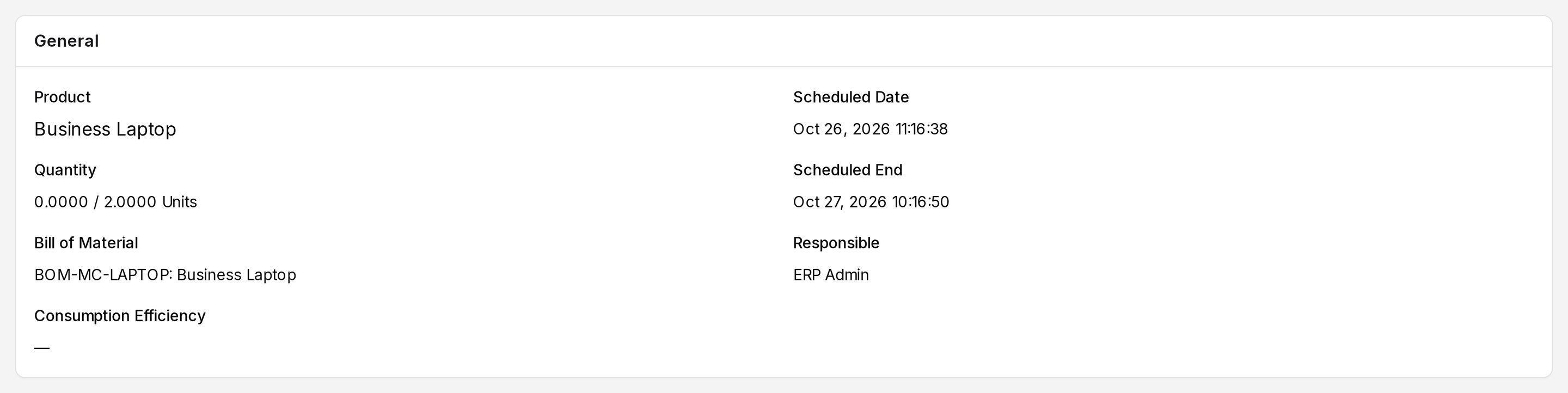
- Check the top of the form. Scheduled Date and Scheduled End show the full span of the plan.
The order now appears under the Planned tab of the list. The header shows Unplan in place of Plan.
How Aureus picks a slot
Start = later of (Scheduled Date, now)
For each work order, in sequence:
  try the work center and each alternative work center
  find the first free slot inside Working Hours
  keep the one that finishes earliest
Next work order starts after the previous one ends- The slot length is the Expected Duration of the work order.
- Time outside the Working Hours calendar is skipped. A 60 minute task started late Friday can finish on Monday.
- With Work Order Dependencies on, a work order waits for the ones in Blocked By. See Work order dependencies.
Alternative work centers
Add Alternative Work Centers on the work center form. Plan compares them with the main one. If an alternative finishes earlier, the work order moves there. Its Work Center and Expected Duration update.
TIP
Give alternative work centers their own Working Hours. Plan then uses whichever team is free first.
Expected duration
The length of a slot comes from the work order Expected Duration. It starts from the duration set on the operation. See Operations.
Unplan an order
Click Unplan to remove the booked slots. The Start and End of the work orders are cleared. Aureus shows Manufacturing order un-planned.
WARNING
You cannot unplan once work has begun. If a work order is finished, Aureus says "Some work orders are already done, so you cannot un-plan this manufacturing order." If one is in progress, it says "Some work orders have already started, so you cannot un-plan this manufacturing order."
Errors
| Message | Cause | Fix |
|---|---|---|
| There is no defined calendar on work center :name. | The work center has no Working Hours. | Open the work center, pick Working Hours, save. |
| Impossible to plan the work order. Please check the work center availabilities. | No free slot found on the work center or its alternatives. | Extend the working hours or add an alternative work center. |
The name of the work center replaces :name in the first message.
Behind the scenes
Plan creates one booking on the work center calendar for each work order. Unplan deletes those bookings. Plan changes no stock. Components stay reserved from Confirm.