

Stages
Stages are the steps of your hiring process. Every applicant sits in one stage at a time. You move the applicant forward as the hiring goes on. Each stage also carries labels for the applicant state, and a flag that marks the stage as hired.
In simple words: A stage is one step in your hiring process, such as First Interview or Contract Signed.
Open Recruitments → Configuration → Stages.
Prerequisite
Job positions are optional on a stage. If you want to link them, create them first. See Job positions.
Overview
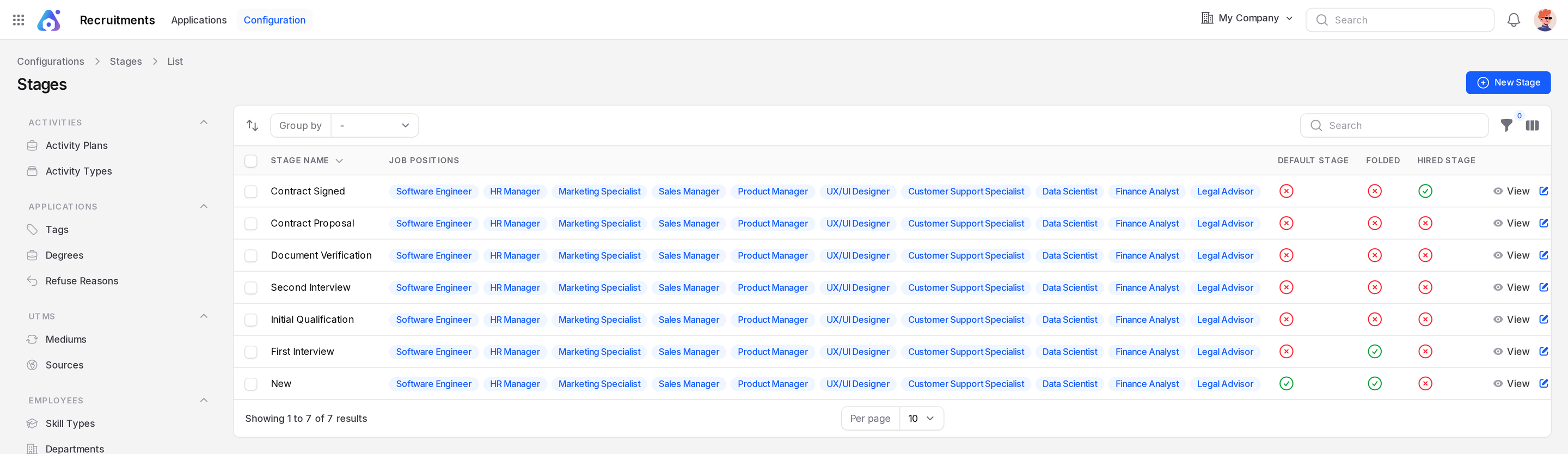
The list shows the columns Stage Name, Job Positions, Default Stage, Folded and Hired Stage. Each flag shows as an icon. A green tick means yes. A red cross means no. New is the default stage. Contract Signed is the hired stage. The stage bar on an applicant shows the order from left to right: New, First Interview, Initial Qualification, Second Interview, Document Verification, Contract Proposal, Contract Signed.
Drag a row to change the order. Use the filter to find a stage by name or job position. Group the list by name or label.
Create a stage
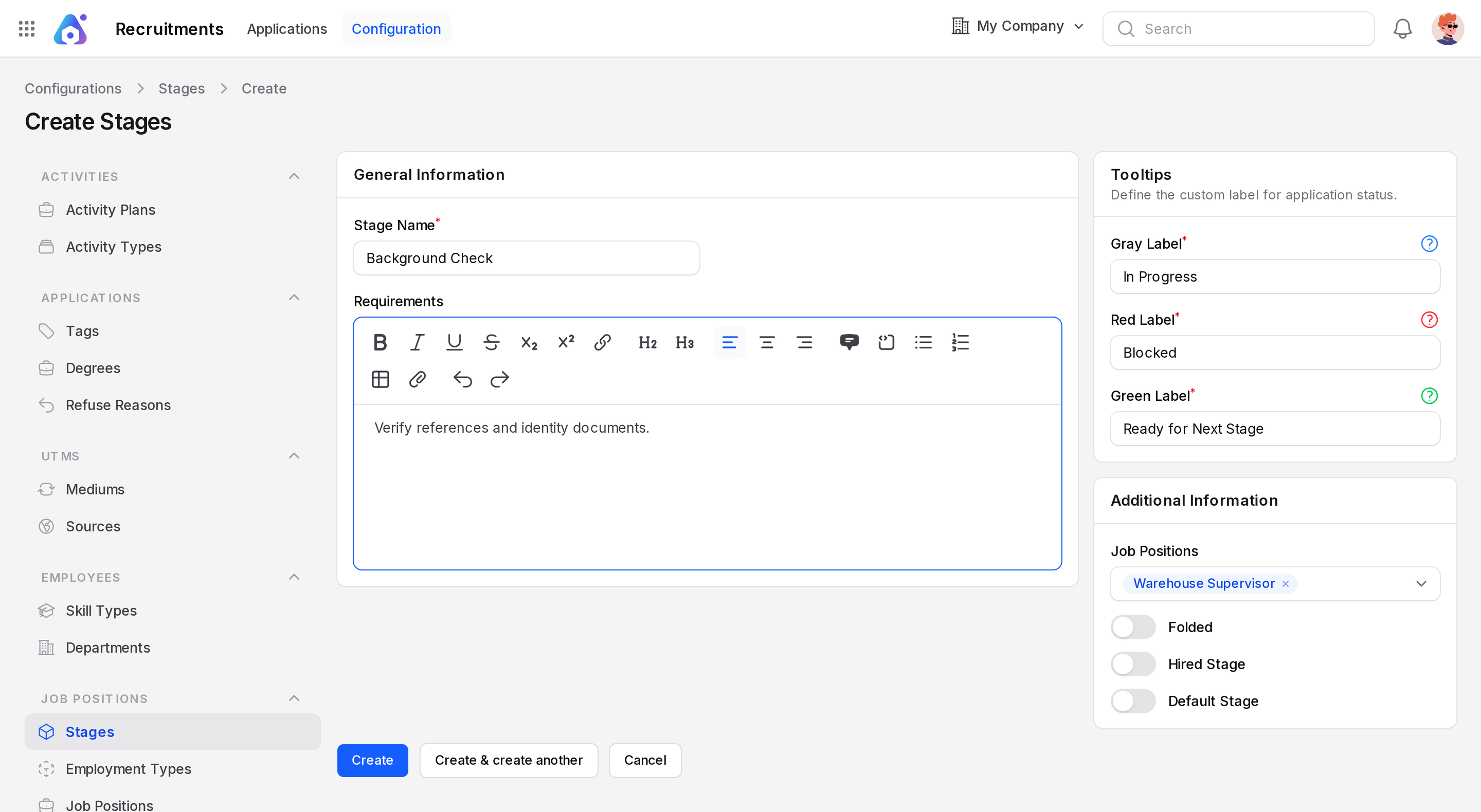
This example adds a stage named Background Check.
- Open
Recruitments → Configuration → Stages. - Click New Stage. A full page titled Create Stages opens.
- Fill in the fields below.
- Click Create.
General Information
- Stage Name: (required) the name shown on the stage bar.
- Requirements: a short note about what must happen in this stage.
Tooltips
These three labels name the states an applicant can have in this stage. They show as the tooltip text on the State button.
- Gray Label: (required) starts as In Progress.
- Red Label: (required) starts as Blocked.
- Green Label: (required) starts as Ready for Next Stage.
You can rename them per stage. For example, use Waiting for documents in a verification stage.
Additional Information
- Job Positions: link the stage to the positions that use it.
- Folded: a toggle. It starts off.
- Hired Stage: a toggle. When on, an applicant who enters this stage is marked Hired.
- Default Stage: a toggle. When on, new applicants start in this stage.
WARNING
In the sample data, New is the default stage and Contract Signed is the hired stage. If you turn Hired Stage off on Contract Signed, applicants who reach it are no longer marked hired.
Actions
Each row has View, Edit and Delete. Use the select boxes to delete many rows at once. Move the applicants out of a stage before you delete it.
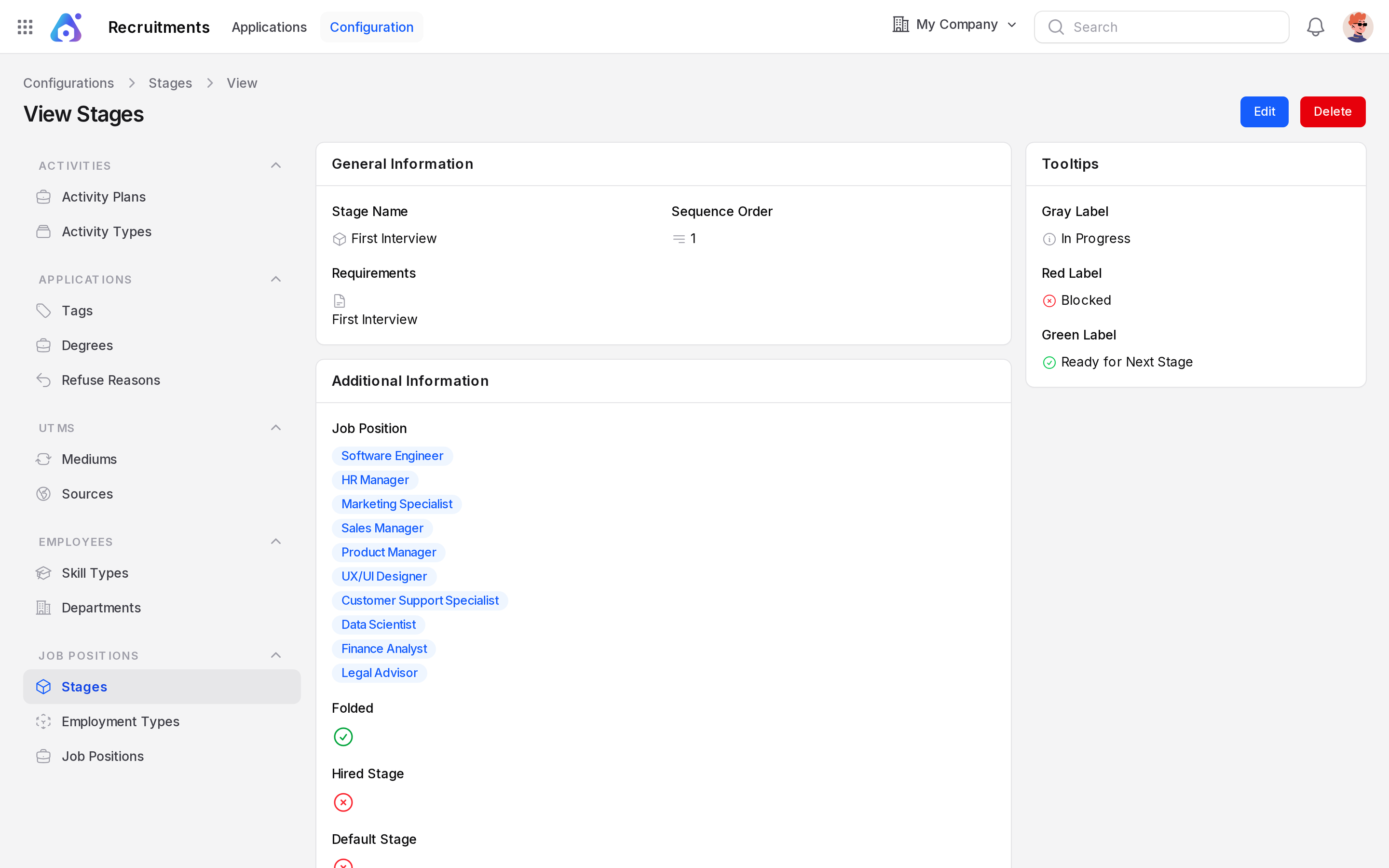
The view page is titled View Stages. It has Edit and Delete buttons at the top right. It also shows Sequence Order, the position of the stage in the pipeline.
Behind the scenes
When you click a stage on the stage bar of an applicant, Aureus saves the move at once. If the stage has Hired Stage on, the applicant is marked Hired. Leaving it reopens the application. The state returns to the first label, In Progress.