

Attributes and packagings
Attributes and packagings describe how one product comes in different forms. An attribute makes variants, such as a lamp in red or blue. A packaging sets a pack size, such as a pack of 10. Both change how you order and move stock.
In simple words: Attributes answer "which kind?". Packagings answer "how many in a pack?".
Settings
Go to Inventory → Settings → Manage Products and turn on:
- Variants to show
Configurations → Products → Attributes. - Packagings to show
Configurations → Products → Packagings.
See Inventory settings.
Attributes
An attribute is a choice with a list of options. Examples from the sample data are Size (Select), Material (Select), Lense Type (Radio) and Speaker Color (Color).
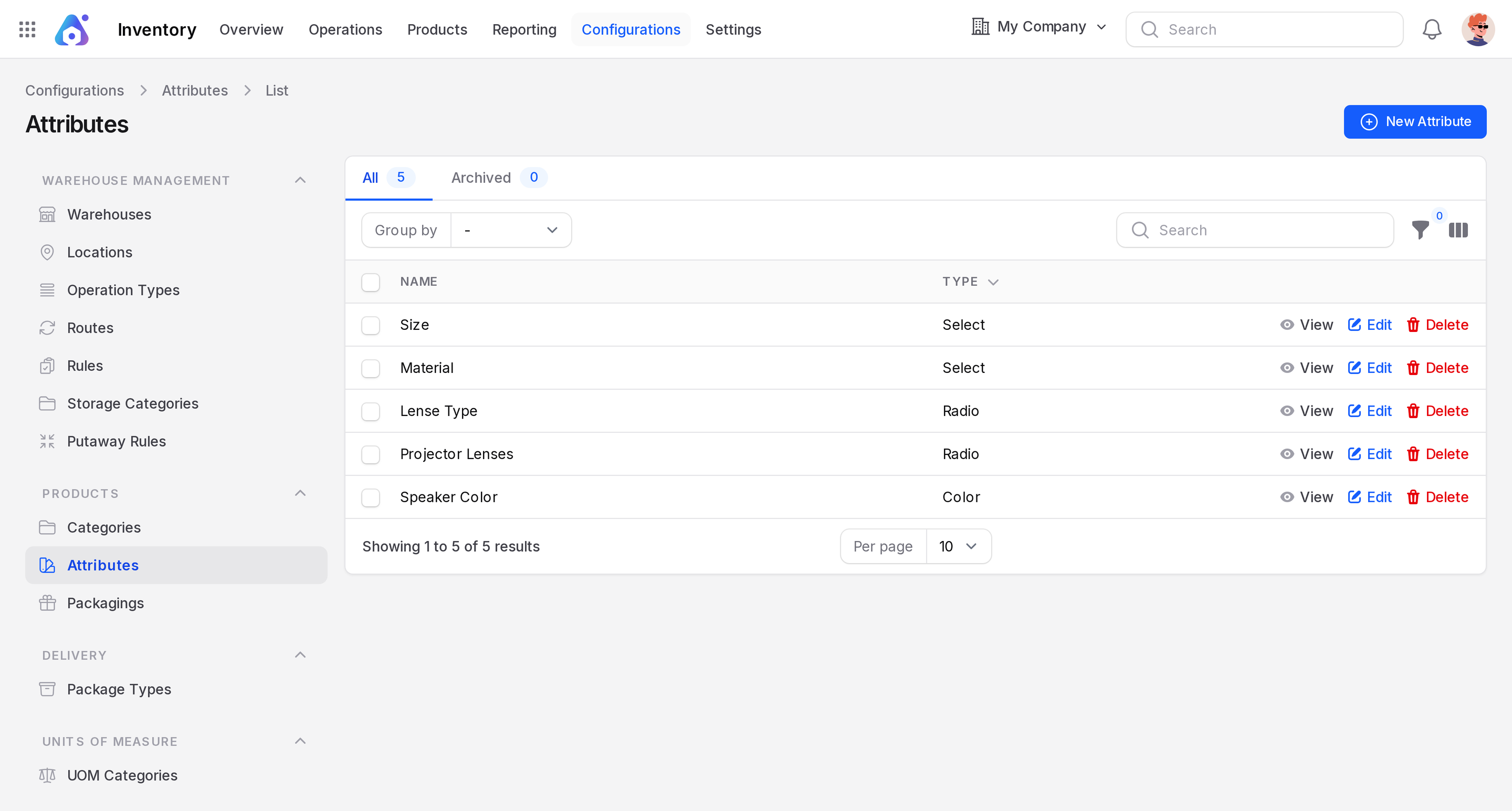
Create an attribute
- Go to
Inventory → Configurations → Products → Attributes. - Click New Attribute.
- Fill the fields.
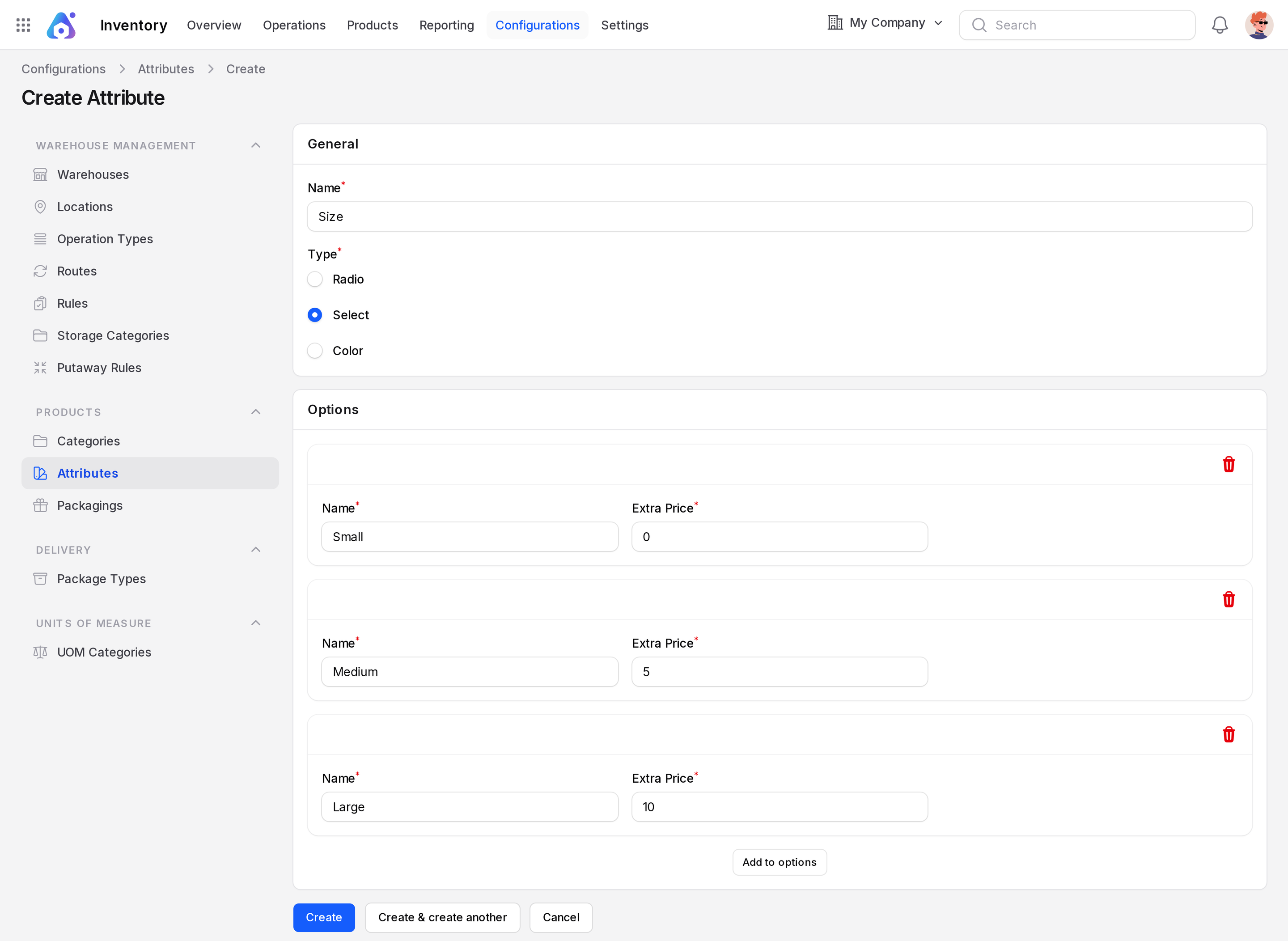
- Name: Required. The attribute name, such as Size.
- Type: Radio, Select or Color. It decides how a buyer picks the option.
- Options: Click Add to options. For each option set Name*, Color (for the Color type) and Extra Price* (default 0).
- Click Create.
Use an attribute on a product
Open the product, go to the Attributes tab and click Add Attribute. Pick the attribute and its values. Aureus creates one variant per combination. Each variant has its own On Hand and Forecasted quantity.
WARNING
Adding or deleting attributes on a product deletes and recreates its variants. Custom changes on those variants are lost. Do this before you receive stock.
For the full variant walkthrough, see Product variants.
Packagings
A packaging is a named pack size for one product. Stock still counts in units. The packaging helps on order lines and in scanning.
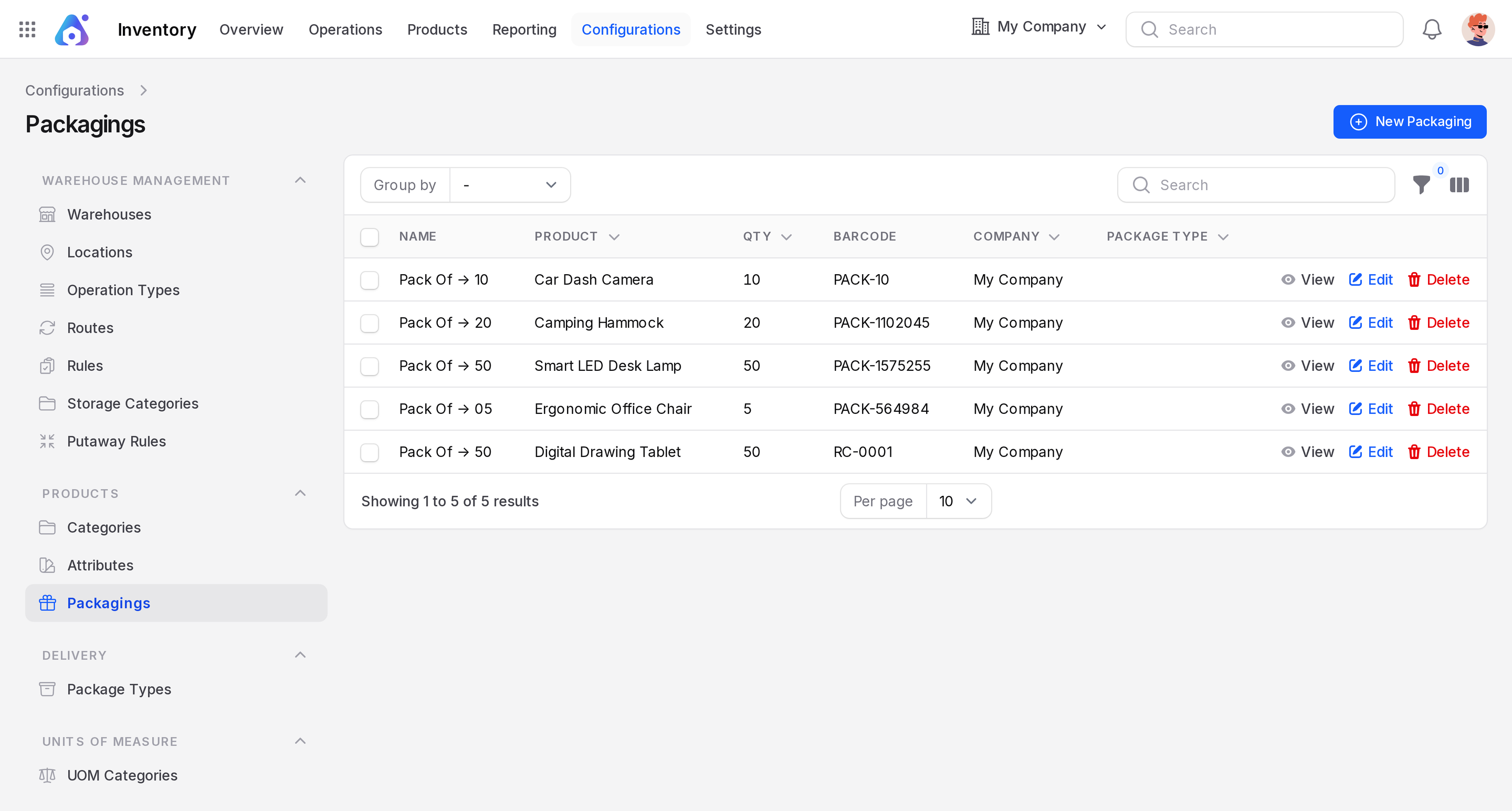
Create a packaging
- Go to
Inventory → Configurations → Products → Packagings. - Click New Packaging. A window opens.
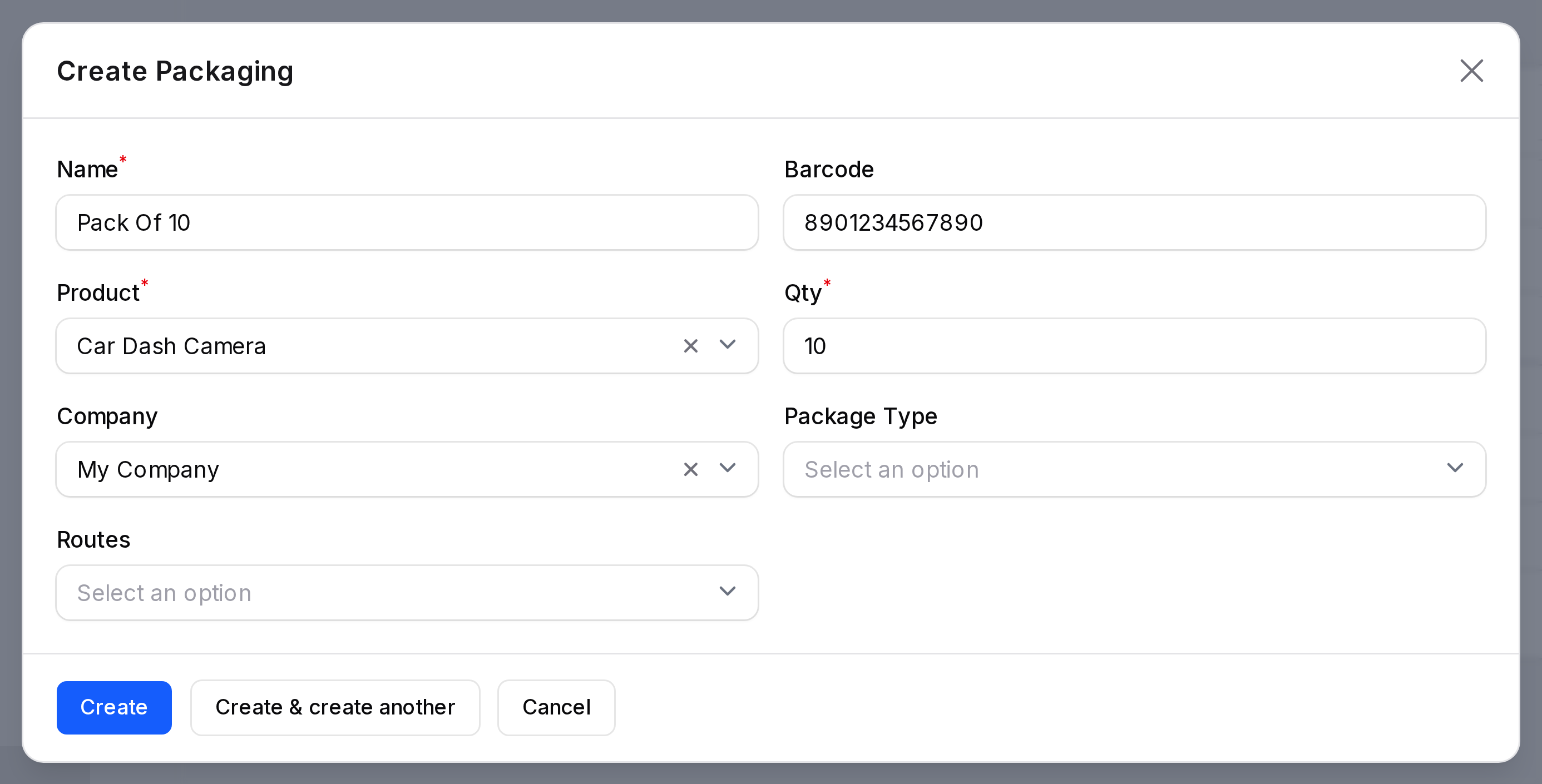
- Name: Required. For example Pack Of 10.
- Product: Required. The product this pack belongs to, such as Car Dash Camera.
- Qty: Required. Units in one pack, such as 10.
- Barcode: Scan code for the pack, such as PACK-10.
- Company: Owner company.
- Package Type: A box type, when Packages is on.
- Routes: Routes that apply to this pack.
- Click Create.
On a receipt or delivery, the Packaging column on a move line lets you choose the pack. The Demand then follows the pack quantity.
TIP
A packaging is not the same as a package. A packaging is a pack size. A package is a real box you can track. See Packages.