

Manage payments
The payments list shows every payment you received or sent. You can open one, follow its status, confirm it, cancel it, or create a payment by hand. Most payments are made from an invoice with Pay, but a manual payment helps when no invoice exists yet, for example an advance.
In simple words: The Payments page is your cash diary. Each row is one payment, and the status tells you how far it has come.
Where to find payments
- Customer payments:
Invoices → Customers → PaymentsorAccounting → Customers → Payments. - Vendor payments:
Invoices → Vendors → PaymentsorAccounting → Vendors → Payments.
Both apps show the same payments. Customer payments have the type Receive. Vendor payments have the type Send.
Overview
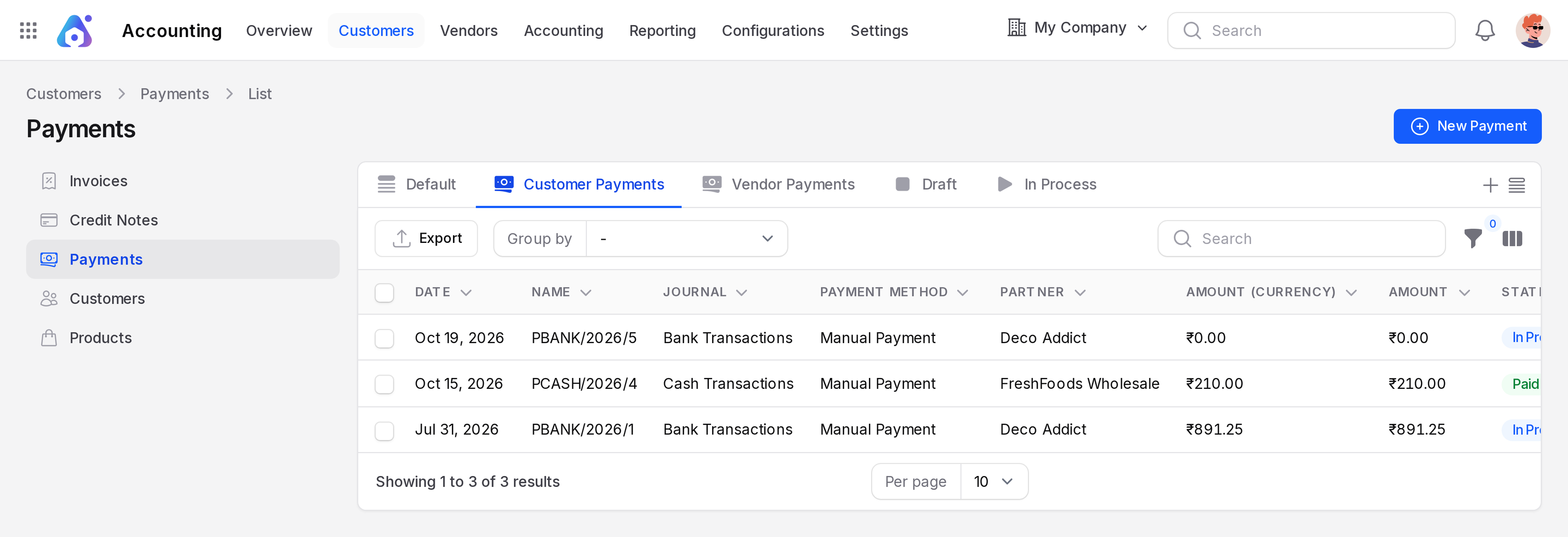
Columns
- Date: The payment date.
- Name: The payment number, for example
PBANK/2026/1. The prefix comes from the journal. - Journal: The journal that holds the money, for example Bank Transactions.
- Payment Method: For example Manual Payment.
- Partner: The customer or vendor.
- Amount (Currency): The amount with a sign. A vendor payment shows a minus, for example -$34,040.00.
- Amount: The amount without a sign.
- State: The status of the payment.
- Company: Hidden by default. Turn it on from the column toggle.
Views
The tabs above the list are saved filters.
- Customer Payments: Only payments from customers.
- Vendor Payments: Only payments to vendors.
- Draft: Payments that are not confirmed yet.
- In Process: Confirmed payments.
- More views are in the view menu: Sent, No Sent, No Bank Matching and Reconciled.
Search, group and filter
- Use the search box to find a payment by name.
- Click Group by to group by Name, Company, Journal, Payment Method Line, Partner, Payment Method, Partner Bank Account, Created At or Updated At.
- Click the filter button to filter by journal, company, bank account, payment method, currency, partner or dates.
See Search, filter and group records.
Export
Click Export above the list to download the payments. Pick the columns you need.
Create a payment by hand
- Open the payments list and click New Payment.
- Fill in the form.
- Click Create.
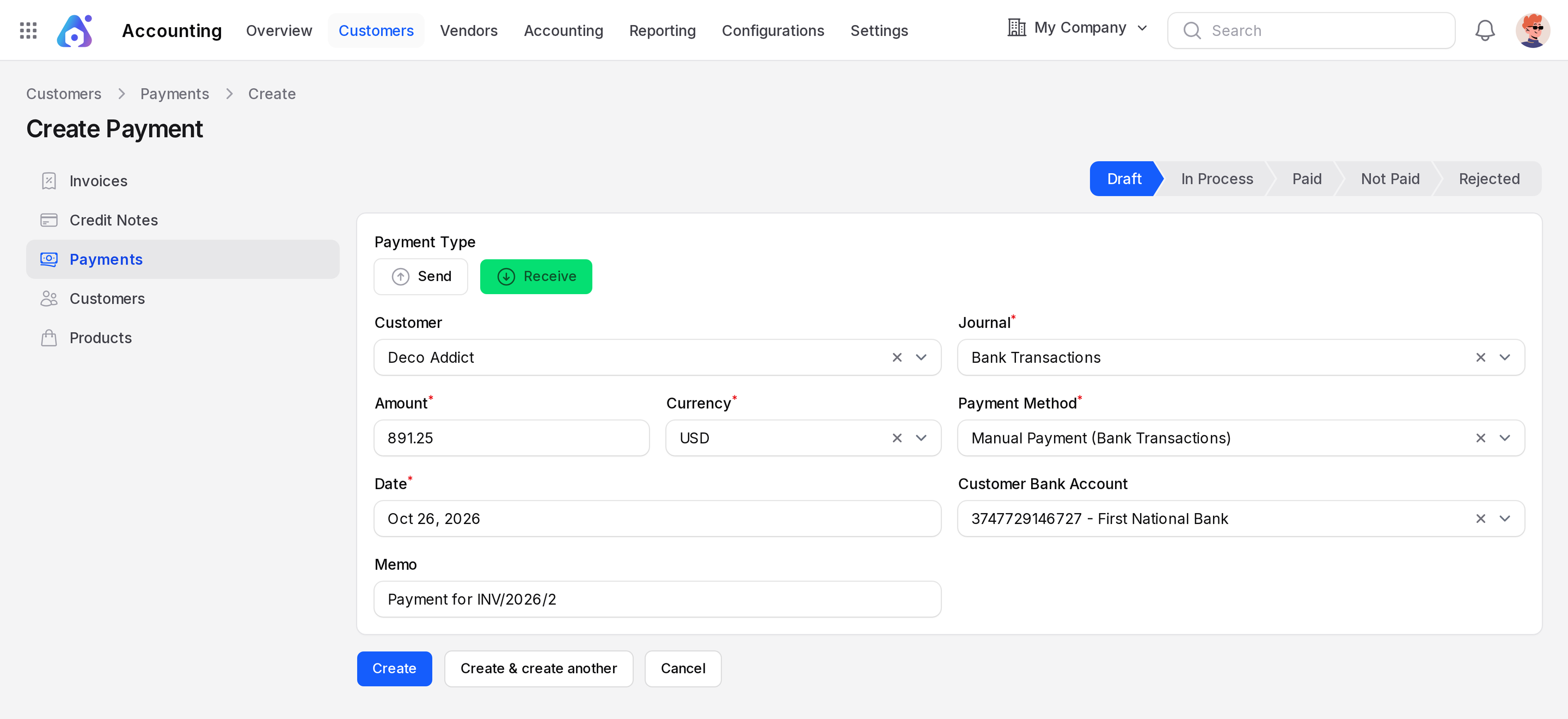
The form has a status bar at the top. A new payment starts as Draft.
Fields
- Payment Type: Receive for money in, Send for money out. The label of the partner field follows this choice.
- Customer or Vendor: The partner who pays or is paid. Choosing a partner fills the bank account and the method if they are known.
- Amount: The money moved. It must be zero or more.
- Currency: Starts with your company currency.
- Date: Starts as today.
- Memo: A free note, up to 255 characters. Use the invoice number or a bank reference.
- Journal: A bank, cash or credit card journal. Aureus picks the first one.
- Payment Method: The list depends on the journal and on the payment type.
- Customer Bank Account or Vendor Bank Account: The partner bank account. It shows only for the method Manual Payment on a non-cash journal. Pick from the accounts of the chosen partner. See Bank accounts.
INFO
A payment is editable only while it is a Draft. After you confirm it, the form is read only.
Statuses
The status bar shows these steps:
- Draft: Just created.
- In Process: Confirmed and posted.
- Paid: Fully completed.
Two more statuses appear only when they apply: Not Paid and Cancelled.
Actions and statuses
The buttons are in the top bar of the payment page.
- Confirm: Visible on a Draft. Aureus posts the payment and creates its journal entry. The status becomes In Process. A payment on a cash journal becomes Paid.
- Cancel: Visible on a Draft. The status becomes Cancelled.
- Reset to Draft: Visible once the payment is no longer a draft. The status goes back to Draft and the journal entry returns to draft.
- Mark as Sent and Unmark as Sent: Visible on an In Process payment with the method Manual Payment. Use it to track that you sent the payment details to the partner. The button toggles.
- Delete: Removes the payment.
You also find Chatter in the top bar. See Chatter.
The linked invoices or bills
A payment page has an extra tab: Invoices on a customer payment, and Bills on a vendor payment. It lists the documents this payment settled. Click View to open one. Use it to check which invoice a payment paid.
The journal entry of a payment
Each confirmed payment has a journal entry. It moves the money between the partner account and the outstanding account. In the Accounting app, open Accounting → Journal Entries and look for the payment number. The entry page has a Payment link back to the payment. See Journal entries.
Example
Deco Addict paid invoice INV/2026/2 for $891.25 through a bank journal.
- Open
Customers → Payments. The In Process view shows the payment. - Open it. The type is Receive, the method is Manual Payment, the amount is $891.25.
- Open the Invoices tab. INV/2026/2 is listed.
WARNING
Do not delete a payment that already settled an invoice. Check the Invoices tab first, and keep the records that your accountant needs.