

Vendor bills
A vendor bill is the invoice a supplier sends you after delivery. In Purchase you do not type it in again. You click Create Bill on the order and Aureus builds the bill from what you received. This keeps your books in line with your stock.
In simple words: Receive the goods first. Then click Create Bill and Aureus bills only what has arrived and is not yet billed.
Open the order at Purchase → Orders → Purchase Orders, then click Create Bill.
INFO
Bills are Finance documents. They need the Invoices or Accounting app and a purchase journal. Receipts need the Inventory app. Without Inventory, no receipts are made, so the order has nothing to bill from receipts.
When the Create Bill button shows
The button is on the order header in these states:
| Order state | Create Bill |
|---|---|
| RFQ, RFQ Sent, To Approve | Hidden |
| Purchase Order | Shown |
| Locked | Shown |
| Canceled | Hidden |
The button is grey when there is nothing to bill and blue when there is.
Create a bill from PO/3
Order PO/3 from Consolidated Components has two lines: 15 SSD 512GB and 10 Laptop Battery. You validated the receipt WH/IN/11, so both lines show a Received quantity.
- Open
Purchase → Orders → Purchase Ordersand click PO/3. - Check the Received and Billed columns on the Products tab. After the bill exists, Billed matches Received.
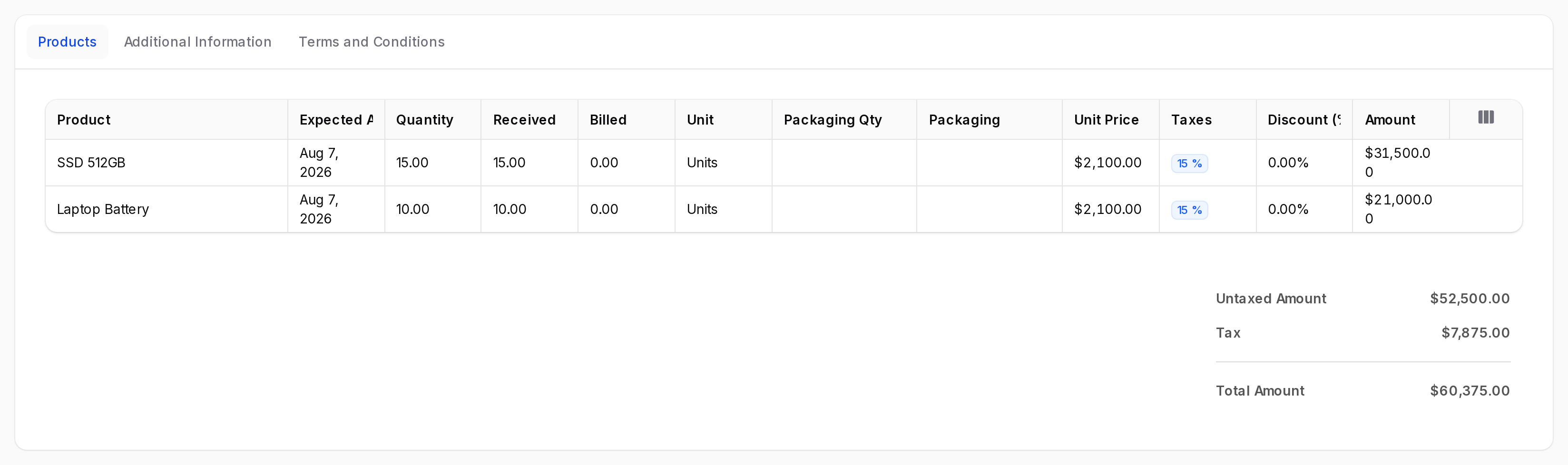
- Click Create Bill in the header.

- Read the message Bill created. The bill is a draft in Finance.
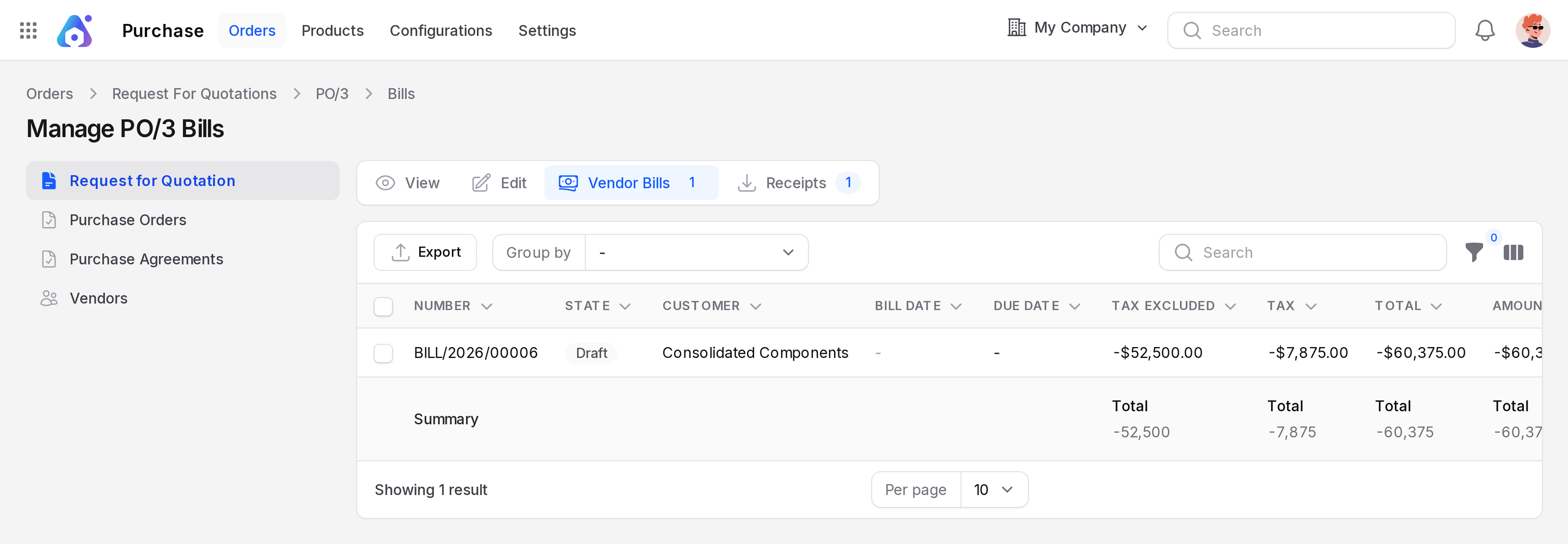
- Click Vendor Bills in the switcher at the top of the order. The new bill is listed.
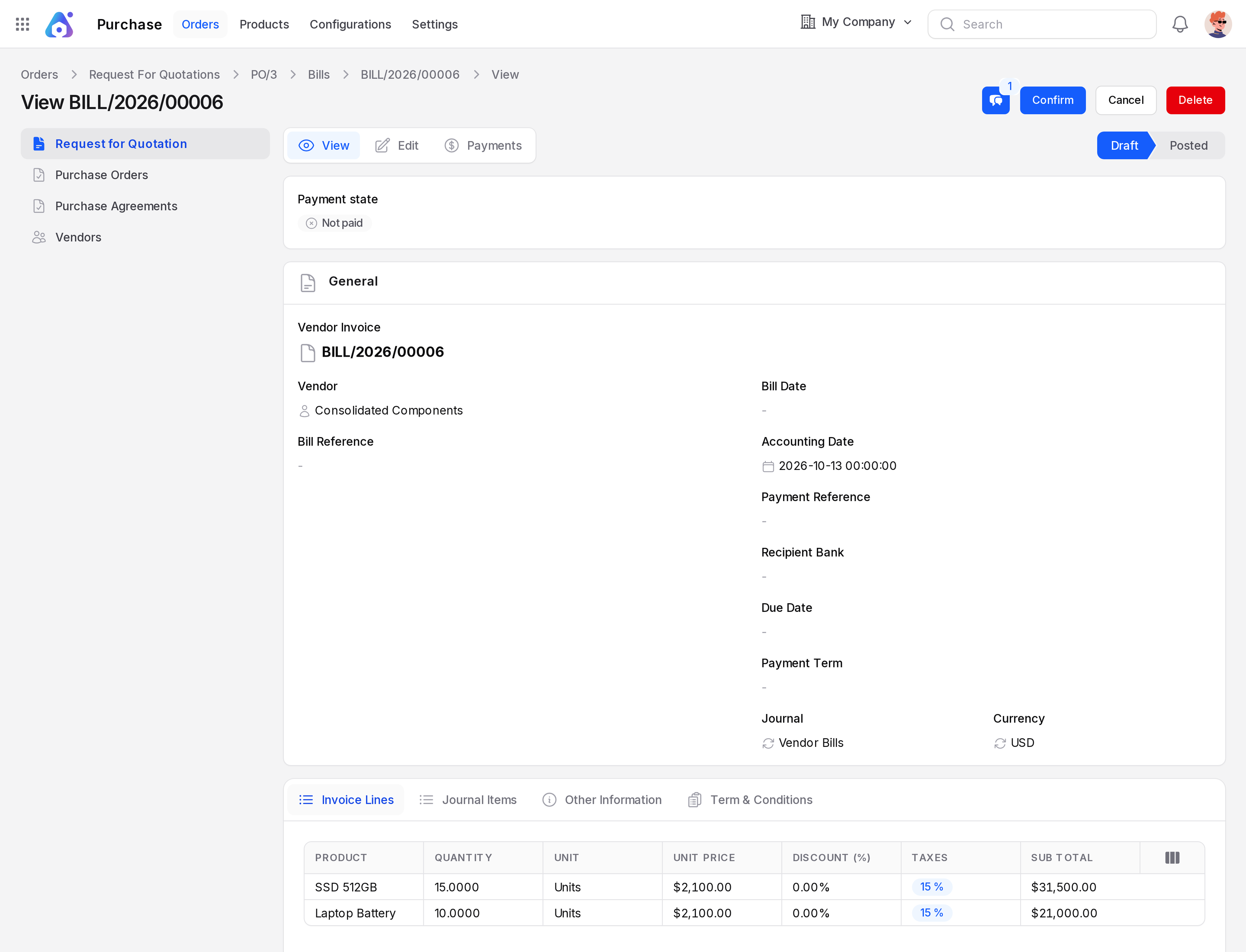
- Click the bill to open it. Check the lines, then click Confirm in Finance.
How the quantity is chosen
For each line, Aureus bills received quantity minus billed quantity. Partly delivered orders therefore get a bill for the delivered part only.
Received 15  -  Billed 0   =  bill 15
Later, received 5 more, so received 20  -  billed 15  =  bill 5
The bill copies the price, discount and taxes of each order line. It uses the order's vendor, currency and payment term.
If the total to bill is below zero, for example after a return, Aureus makes a vendor refund instead of a bill.
Messages you may see
| Message | Meaning | What to do |
|---|---|---|
| Bill created | The bill was made. | Open it from the Vendor Bills tab. |
| No invoiceable lines | Nothing is received, or everything is already billed. | Validate the receipt first. See Receipts. |
| Accounting is not set up | No purchase journal is available. | Set up Accounting, then try again. |
TIP
Click Create Bill again after each new delivery. Each click bills only what is new.
The Bills tab
Open the order and click Vendor Bills. The page is named Manage PO/3 Bills. The badge on the tab shows how many bills exist.
| Column | Meaning |
|---|---|
| Number | The bill number |
| State | Draft, Posted or Canceled |
| Customer | The vendor on the bill |
| Bill Date | The date on the bill |
| Due Date | The date payment is due |
| Tax Excluded | Amount before tax |
| Tax | Tax amount |
| Total | Amount including tax |
| Amount Due | What is still unpaid |
| Payment State | Paid, partly paid or not paid |
Billing status
Every order has a billing status. It tells you where billing stands.
| Status | Meaning |
|---|---|
| Nothing to bill | Nothing is received yet, or the order is not confirmed. |
| Waiting Bills | Some received goods have no bill yet. |
| Fully Billed | Everything received is billed. |
The status updates after each receipt and each bill. On the order list, the Waiting Bills and Bills Received tabs help you find orders to chase.
Cancel rules
You cannot cancel an order that still has bills which are not canceled. The message is The order cannot be canceled. You must first cancel their related vendor bills. Cancel the bills in Finance, then cancel the order.
Behind the scenes
Create Bill adds a vendor bill in Finance. The bill is linked to the order, and its origin shows the order name, such as PO/3. The order's Billed column grows when the bill is posted. Paying the bill is done in Finance.