

Invoicing processes
An invoice asks a customer to pay for what you sold. In Aureus an invoice can start in three ways: from a sales order, by hand, or as a credit note from an existing invoice. This page shows each way, then follows an invoice from its first draft to the day it is paid.
In simple words: Pick the way that matches your sale, check the draft, confirm it, send it and record the payment.
You can do all of this in the Invoices app or in the Accounting app. The screens are identical. Each page names both menu paths, for example Invoices → Customers → Invoices or Accounting → Customers → Invoices.
Process 1: invoice from a sales order
Use this process when the sale started in the Sales app. You do not retype anything. Aureus copies the customer and the lines from the order.
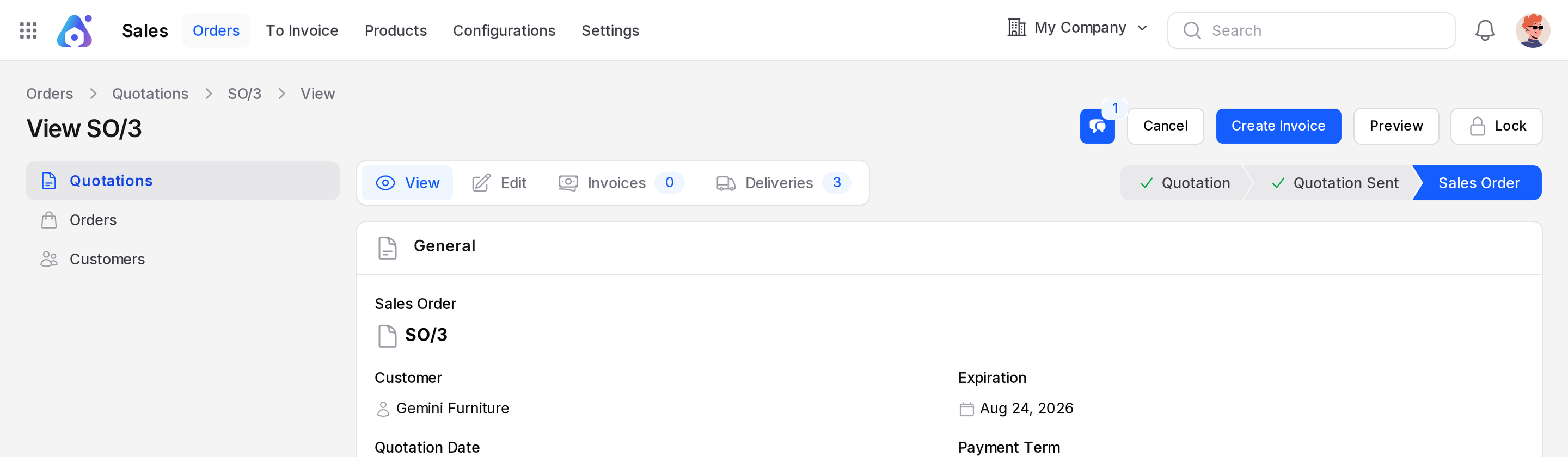
- Open the confirmed sales order.
- Click Create Invoice.
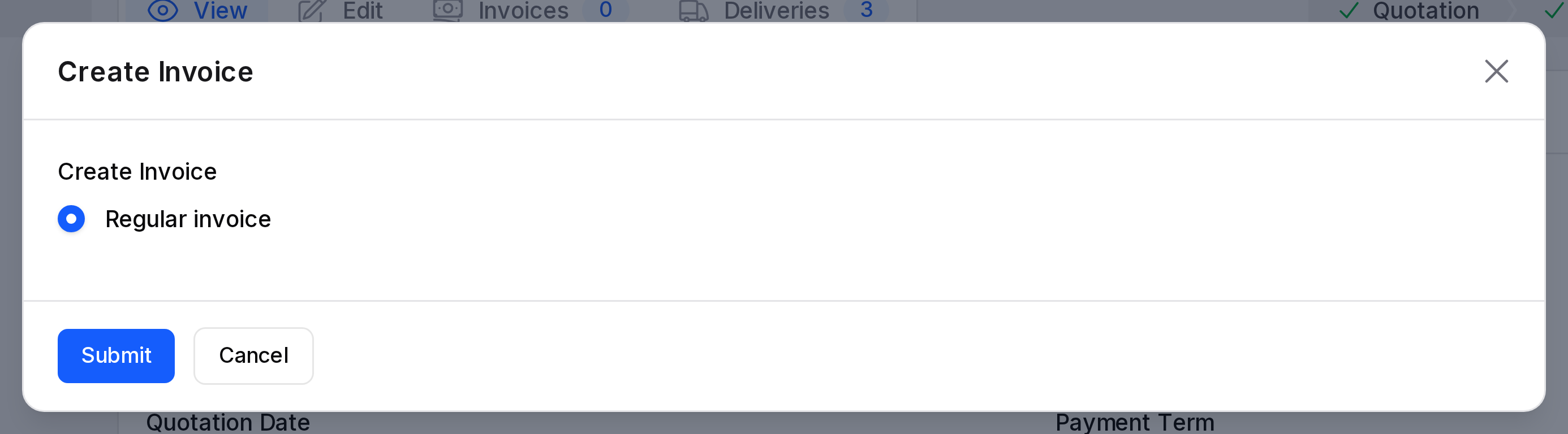
- Choose Regular invoice. This is the only type Aureus offers.
- Click Submit.
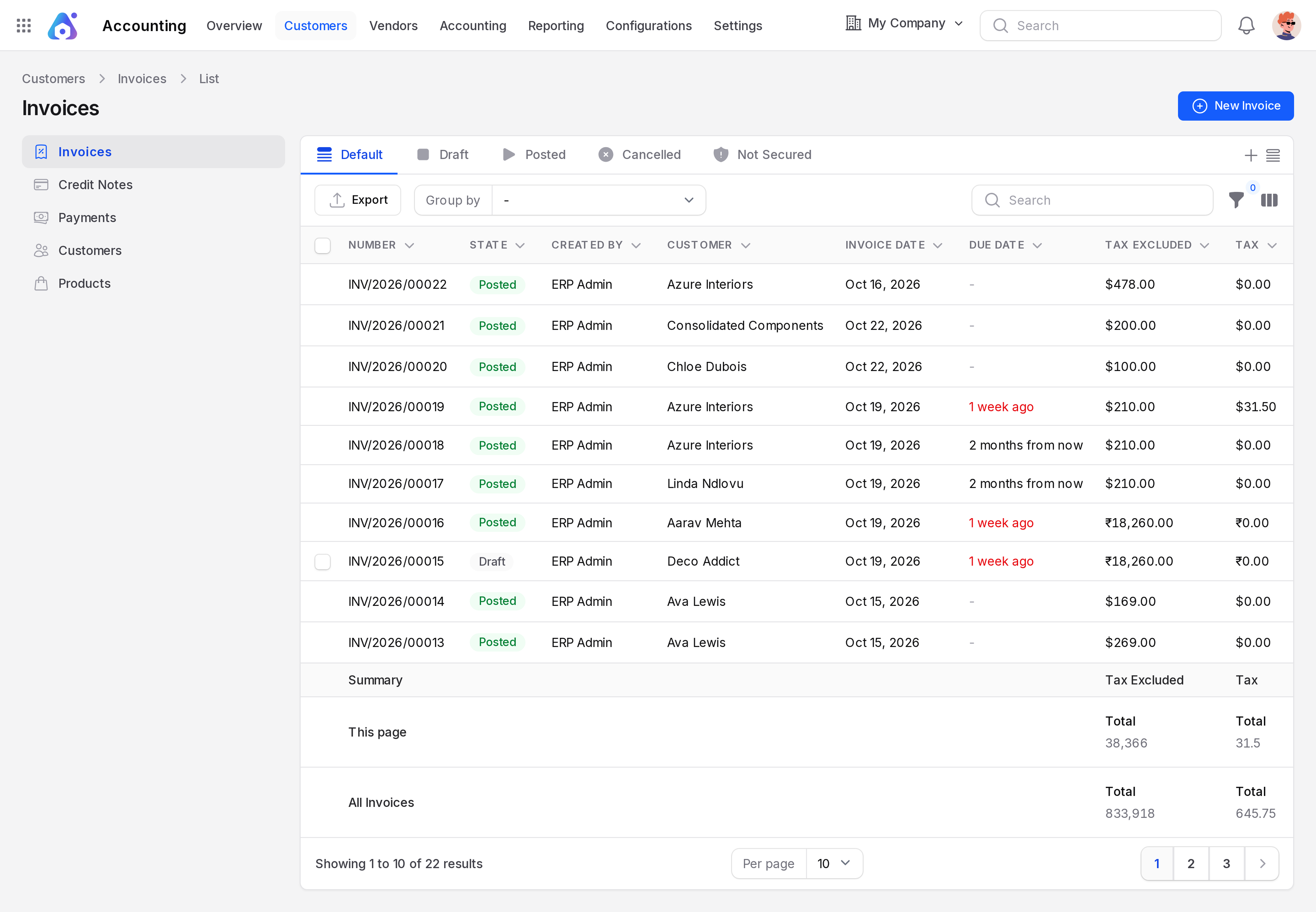
- Aureus creates a Draft invoice and links it to the order. The order number shows in Source Document.
- Open the invoice, check the lines and click Confirm.
See Manage orders for the order itself and Order to invoice for the full flow.
Process 2: invoice by hand
Use this process for a sale that has no order, such as a service you bill directly.
- Go to
Invoices → Customers → InvoicesorAccounting → Customers → Invoices. - Click New Invoice.
- Pick the Customer, add the Invoice Lines and click Create.
- Click Confirm.
The customer must already exist. To add one, see Contacts and Manage customers. The full form is in Create an invoice.
Process 3: credit note from an invoice
Use this process when a posted invoice is wrong, or when goods come back.
- Open the posted invoice.
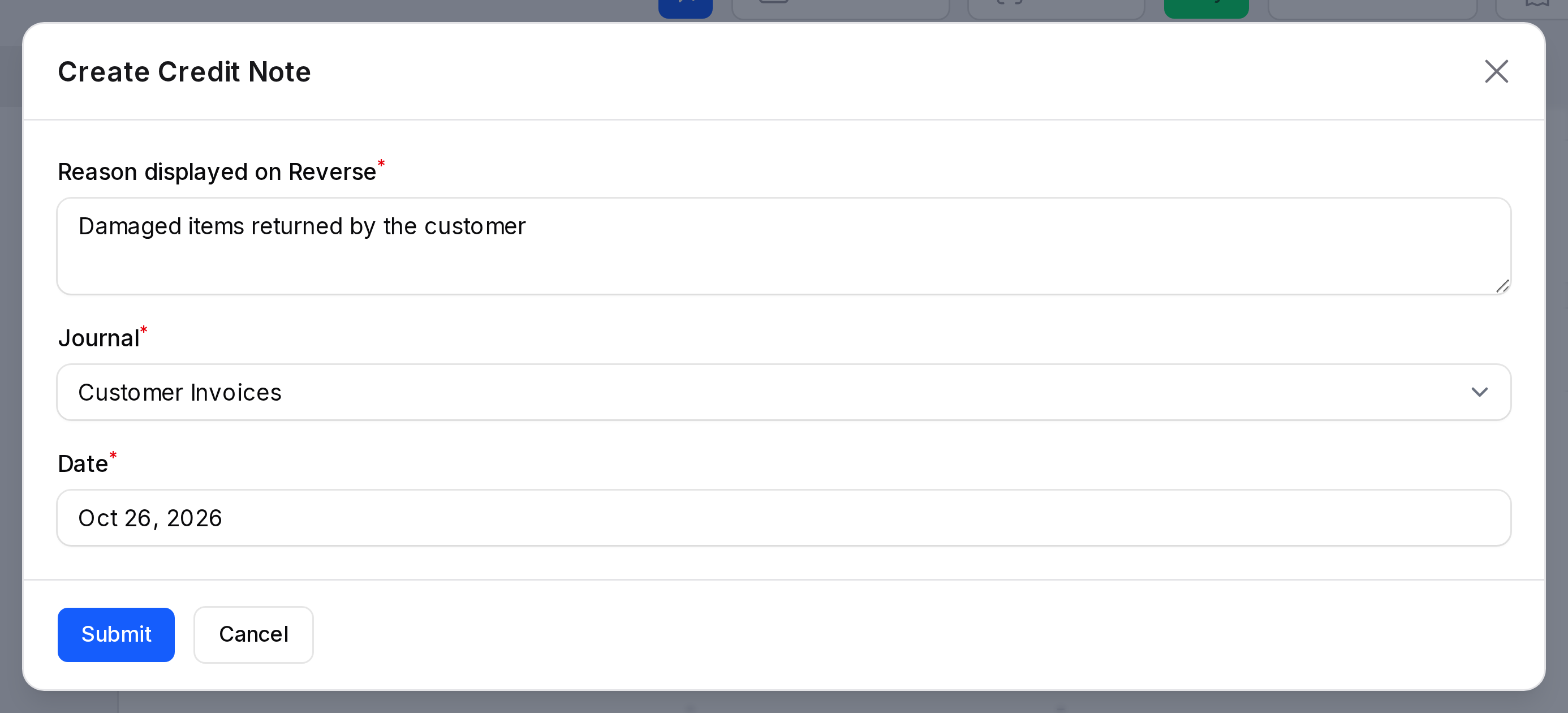
- Click Credit Note.
- Fill in Reason, Journal and Date, then submit.
- Aureus creates a Draft credit note with the same lines. Edit it if the credit is partial.
- Click Confirm.
The life of an invoice
The State tells you where the invoice is in its life.
- Draft: You are still working. You can change everything. Nothing is recorded in your accounts.
- Posted: You confirmed it. It is a real accounting document and most fields are locked.
- Cancelled: You cancelled a draft. It stays in the list for your records.
Buttons in each state
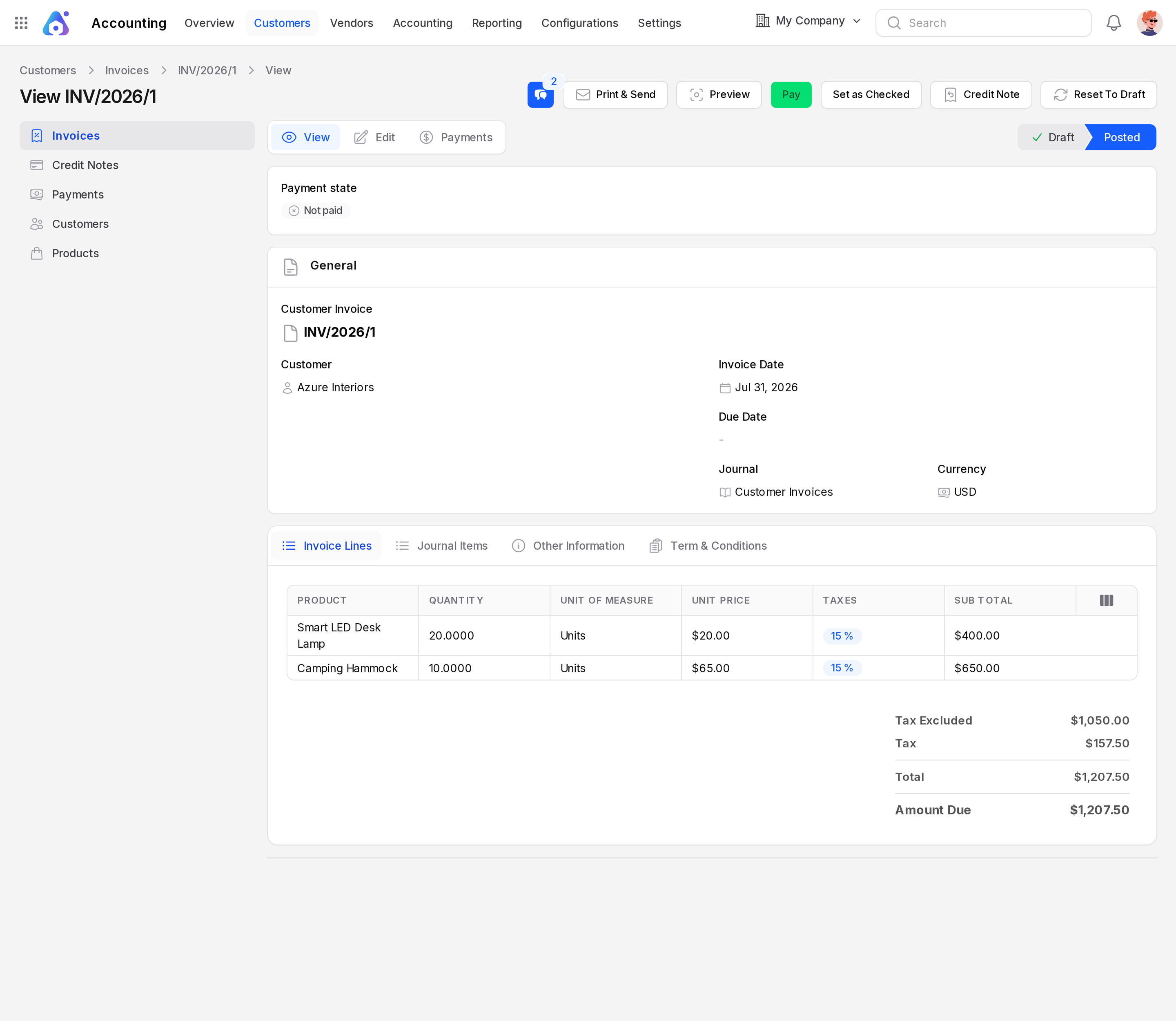
| State | Buttons |
|---|---|
| Draft | Confirm, Cancel, Delete |
| Posted | Print & Send, Preview, Pay, Set as Checked, Credit Note, Reset To Draft |
| Cancelled | Reset To Draft |
What posting does
When you click Confirm, Aureus checks the invoice, fills the invoice date if it is empty, and creates the journal entry. The customer balance goes up. Your income and tax accounts are credited. The invoice number does not change. See Invoice sequence and Journal entries.
Payment state
A posted invoice also has a Payment State.
- Not paid: Nothing is paid yet.
- Partial: The customer paid part of the total. Amount Due shows what is left.
- In payment: A payment is recorded but not yet fully processed.
- Paid: The Amount Due is zero.
- Reversed: The invoice was reversed, for example by a credit note.
How a payment settles the invoice
- Click Pay on the posted invoice.
- Enter the amount, date and journal, then confirm.
- Aureus matches the payment with the invoice. The Amount Due falls and the Payment State changes.
- The Payments tab lists the payment.
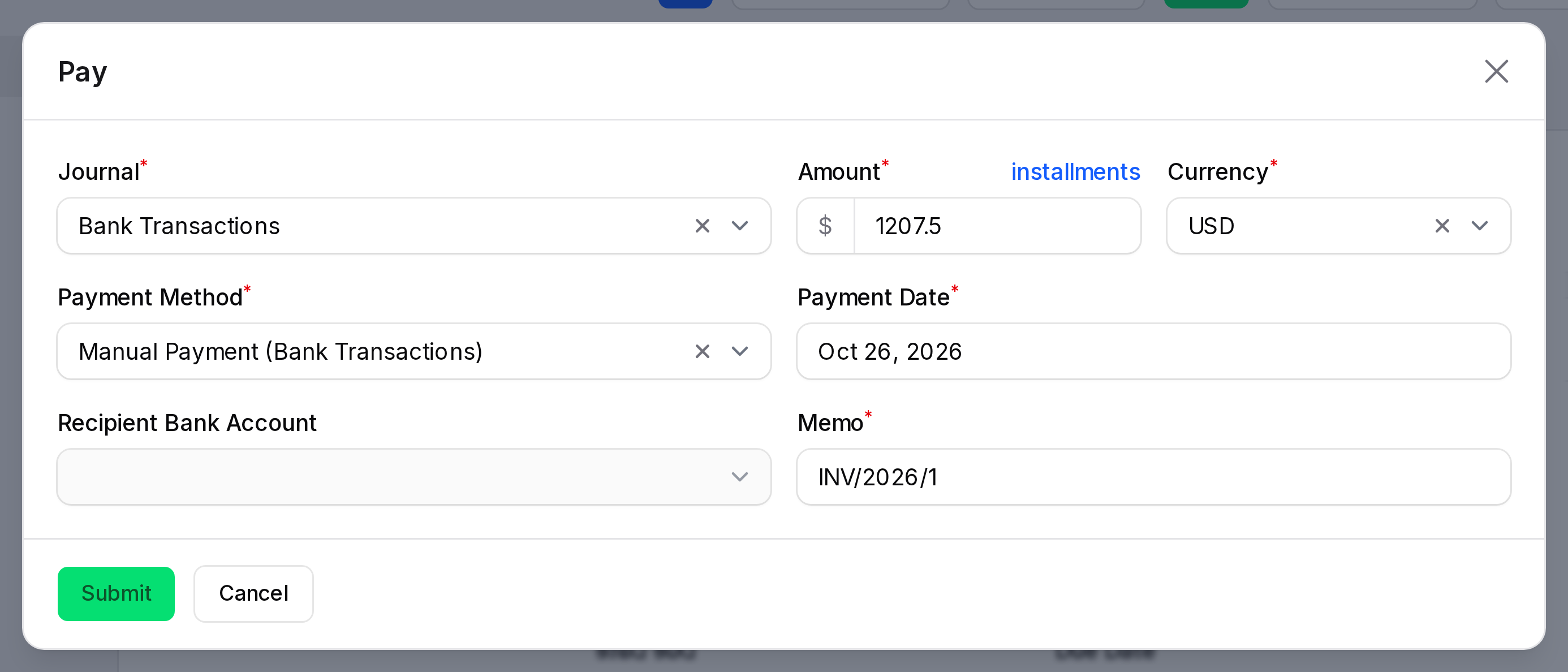
See Register a payment.
TIP
Use the Draft view in the invoice list every morning. It shows the invoices that still wait for you to confirm them.
Pages in this group
- Create an invoice: the full invoice form, buttons and tabs.
- Credit notes and refunds: reduce or cancel a posted invoice or bill.
- Payment terms: rules such as "pay within 30 days".
- Incoterms: delivery terms you can print on an invoice.
- Invoice sequence: how document numbers are built.