

Stock moves and lots
Each line in a transfer is a stock move. A move says "this product, this quantity". The move can be split into several lines when goods come from or go to different places, lots or packages. The Manage Stock Moves window is where you do that split.
In simple words: The Operations table says how many you expect. Manage Stock Moves says exactly where each unit comes from, goes to and which lot it carries.
Open any transfer, click the Edit tab of the View / Edit / Moves switcher and go to the Operations tab.
Settings
- Lot and serial fields need Lots & Serial Numbers on in
Inventory → Settings → Manage Traceability. - The package field needs Packages on in
Inventory → Settings → Manage Operations. - Pick From and Store To need Locations on in
Inventory → Settings → Manage Warehouses.
See Lots and serial numbers and Packages.
The Operations table
Columns: Product, Packaging, Demand, Quantity, Unit and Picked.
- Demand is what you plan to move.
- Quantity is what you actually move.
- Picked is a toggle switch. Turn it on when the line is physically done.
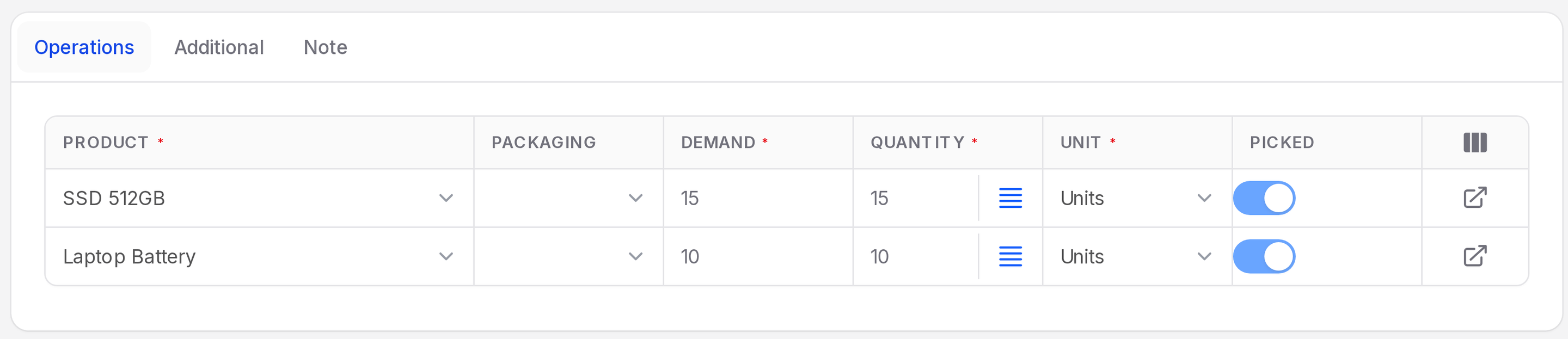
Open Manage Stock Moves
- Open the Edit tab of the transfer.
- On the product line, click the small list icon next to Quantity. Its tooltip reads Manage Stock Moves. It is an icon, not a button.
- The window Manage Stock Moves opens with a list called Lines.
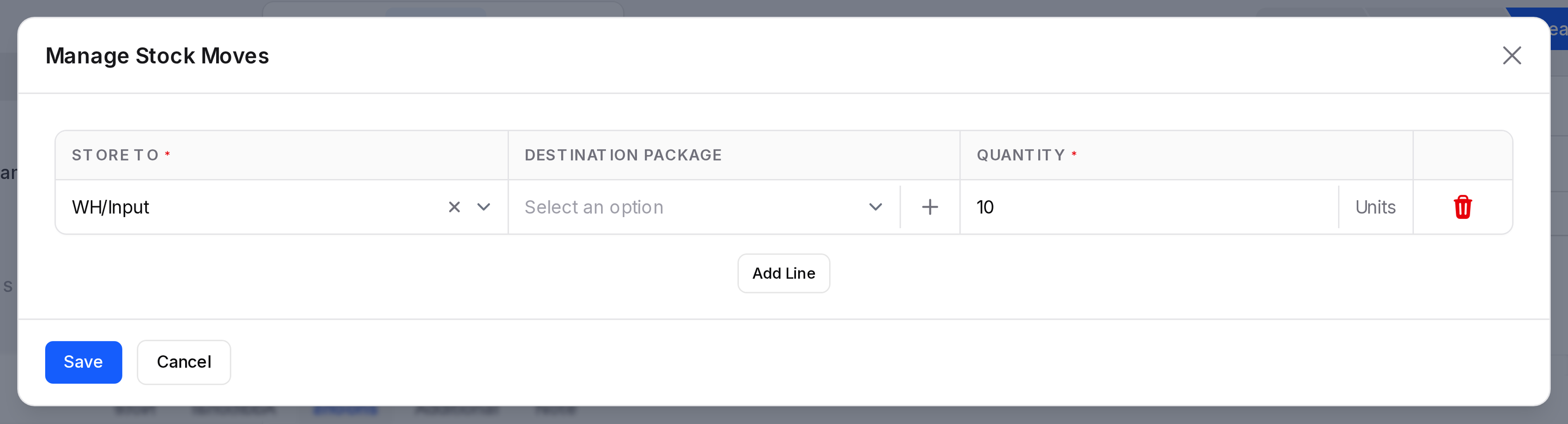
Fields in each line
On a receipt with a product that has no tracking, the columns are Store To, Destination Package and Quantity. There is no Pick From column and no lot field.
- Store To: Required. Where the goods end up. For receipts the default is WH/Input.
- Pick From: Where the goods are taken from. Shown on deliveries and internal moves, not on receipts.
- Lot/Serial Number: Shown for products that track lots or serial numbers. It is the first column. Click the + next to the field to create a lot.
- Destination Package: The package the goods go into. It is a searchable select with a + button. It lists existing packages only.
- Quantity: Required. Shown with the unit.
Click Add Line to split a move. Example: 15 SSD split into 10 for WH/Input and 5 for a second shelf. Click Save when done, or Cancel to close the window without changes.
Lot and serial wizards
For tracked products, two links sit in the window header: Generate Serials/Lots and Import Serials/Lots.
Generate Serials/Lots
Use it when the numbers follow a pattern.
- Click Generate Serials/Lots. The window Generate Serials/Lots opens.
- Fill First Lot Number, for example LOT0001. It is required.
- Check Quantity per Lot and Quantity Received. Both are prefilled, and Quantity Received is required.
- Turn on the Keep current lines toggle if you want to keep existing lines.
- Click Submit.
Aureus fills the line with the lot, the quantity and the transfer unit. It does not save yet. Click Save in the Manage Stock Moves window.
Import Serials/Lots
Use it when you have a list, such as a scanner export.
- Click Import Serials/Lots.
- The window Import Serials/Lots opens. Paste the numbers into Lot/Serial Numbers. It is required, and the helper text reads "One lot/serial number per line."
- Turn on the Keep current lines toggle if needed.
- Click Submit, then Save in the Manage Stock Moves window.
Validation warnings
Aureus checks the lines on Validate:
- Supply Lot/Serial Number: a tracked product has no number.
- Serial Number Already Assigned: the serial is used elsewhere.
- Can not move same package content: a package would move to its own place.
WARNING
Serial numbers are unique. Use one line per serial with a quantity of 1.