

Dropships
In a dropship the vendor ships goods straight to your customer. You never hold the stock. You sell the product, buy it from the vendor, and the vendor delivers. Use it for items you do not want to store.
In simple words: The customer orders from you, you order from the vendor, and the vendor sends it directly.
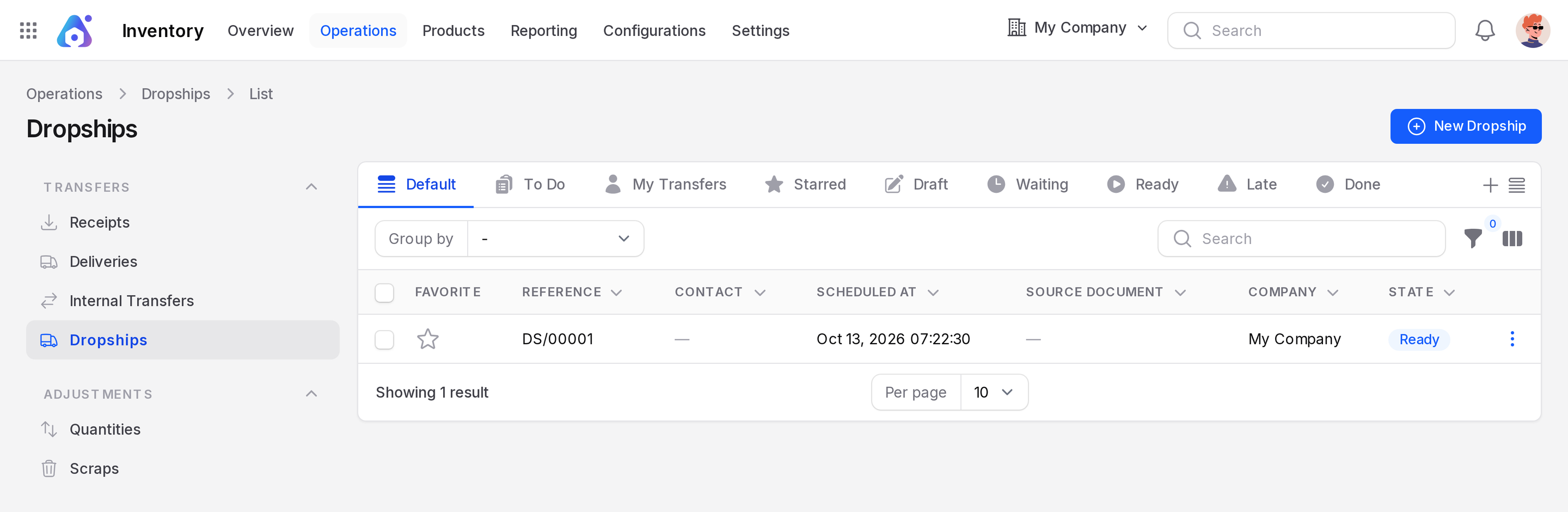
Open Inventory → Operations → Transfers → Dropships.
Settings
- Go to
Inventory → Settings → Manage Logistics. - Turn on Dropshipping.
- Click Save changes.
Then open the product, go to its inventory settings and select the Dropship route. See Configure a product.
The flow
This is the general idea of a dropship.
Sales order SO  ──confirm──>  Purchase quotation PO  ──confirm──>  Dropship DS
(customer) (vendor, customer address) Vendors to Customers- Create and confirm a sales order for a product with the Dropship route. See Manage orders.
- A purchase request for quotation is raised for the vendor. The goods are meant to go to the customer, not to your warehouse.
- Confirm the purchase order. See Purchase orders.
- Open
Inventory → Operations → Transfers → Dropships. The dropship document is listed there. The list is empty until a dropship exists.
- When the vendor confirms shipment, open the dropship and click Validate.
Create a dropship by hand
- Click New Dropship. The form has no Contact field.
- Add the product lines and click Create. You stay on the Edit page.
- The first record is numbered DS/00001. A hand-made dropship has no Source Document.
- Click Mark as Todo. The state goes to Ready.
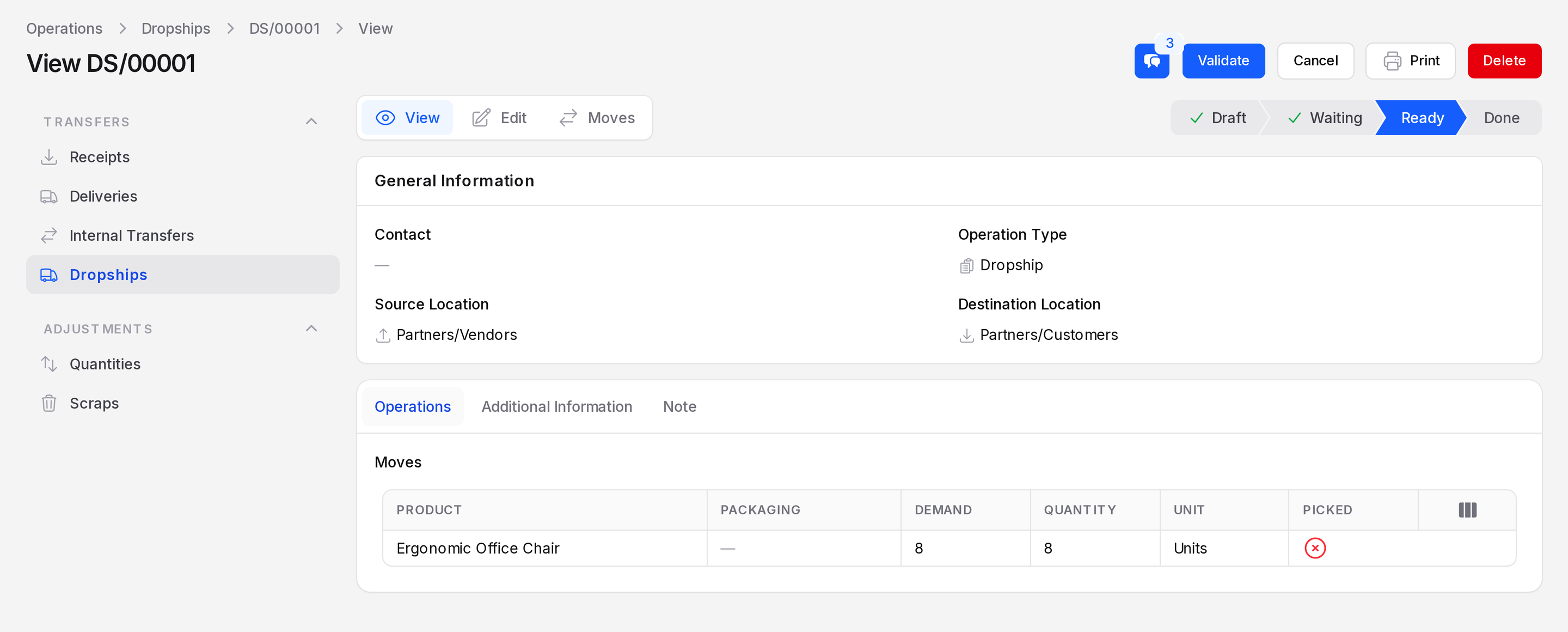
- The buttons are Validate, Cancel, Print and Delete. Click Validate to finish.
Fields
- Operation Type: Required. Dropship, prefix DS.
- Source Location: Required. Partners/Vendors.
- Destination Location: Required. Partners/Customers.
- There is no contact field. The order carries the partner details.
Behind the scenes
Stock moves from Partners/Vendors straight to Partners/Customers. No warehouse location is touched, so your on-hand quantity does not change. The sales order shows the product as delivered and the purchase order as received.
TIP
Invoice the customer from the sales order and pay the vendor from the purchase order as usual.
Actions and statuses
The buttons are the same as other transfers: Mark as Todo on a Draft, then Validate, Cancel, Print and Delete on a Ready dropship. See Transfers.