

Credit notes and refunds
A credit note and a refund are the same idea on two sides. A customer credit note reduces what a customer owes you. A vendor refund reduces what you owe a supplier. A posted invoice or bill cannot be edited, so these documents are the correct way to fix it.
In simple words: A credit note or refund is a "negative invoice". It says that part or all of an earlier document no longer counts.
Why you issue one
- Goods or services come back.
- You charged the wrong price or quantity.
- You must cancel a posted invoice or bill.
- You give a goodwill discount after the sale.
Credit note or refund?
| Customer side | Vendor side | |
|---|---|---|
| Document | Credit note | Refund |
| Original | Customer invoice | Vendor bill |
| Button | Credit Note | Refund |
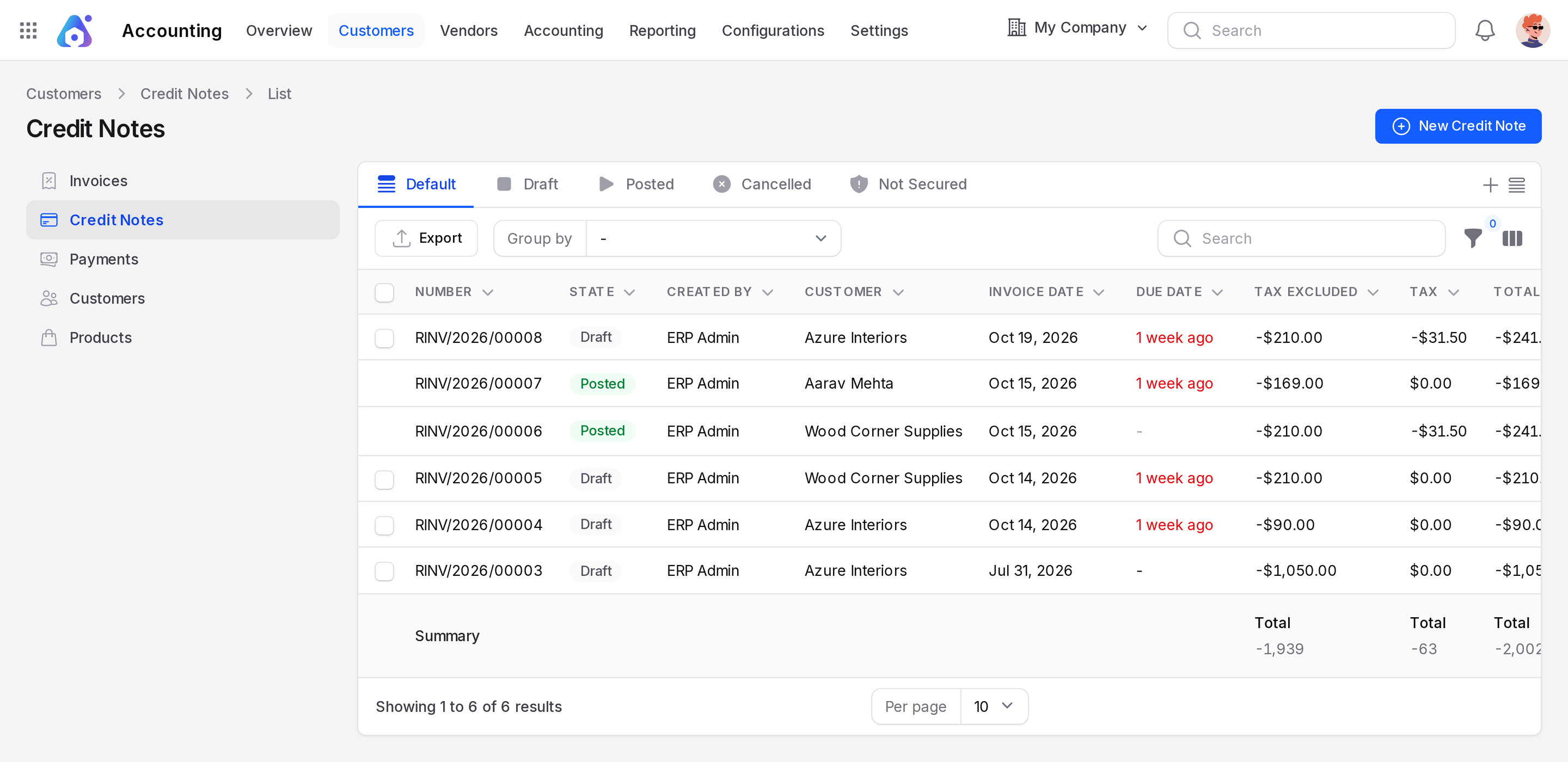
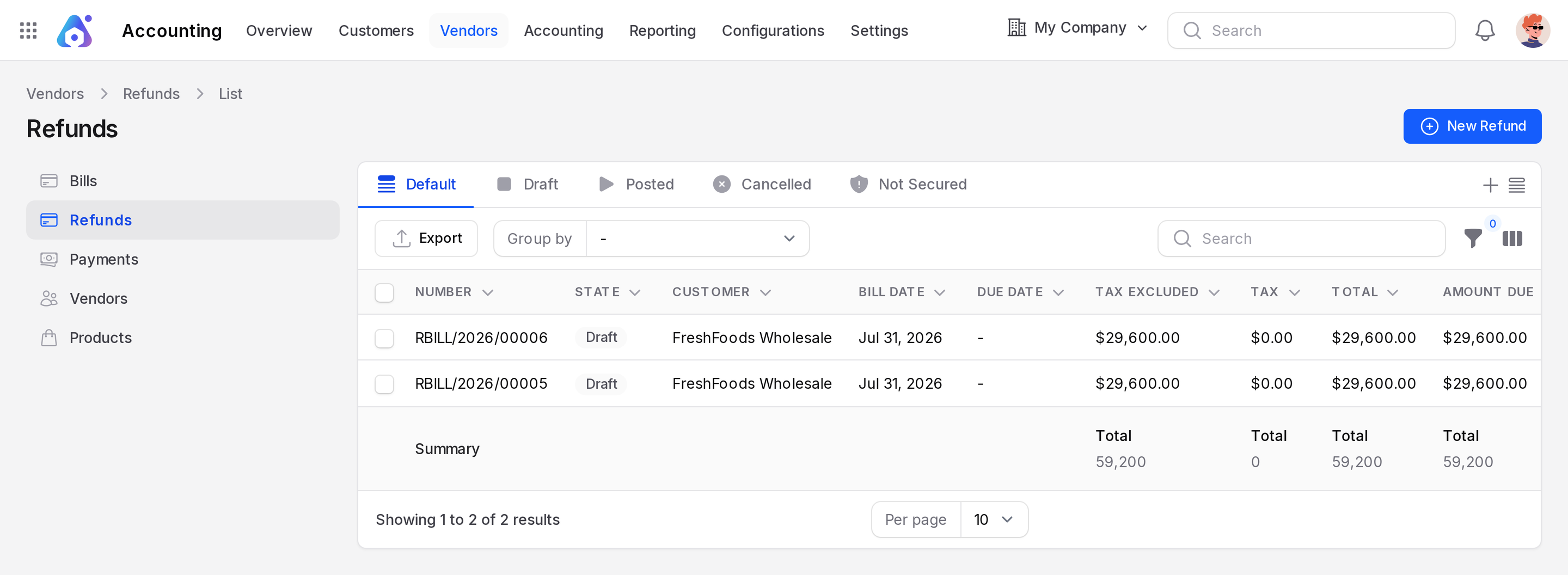
| Invoices app | Invoices → Customers → Credit Notes | Invoices → Vendors → Refunds |
| Accounting app | Accounting → Customers → Credit Notes | Accounting → Vendors → Refunds |
Both apps show the same screens. Both lists have the views Default, Draft, Posted, Cancelled and Not Secured. The columns match the invoice and bill lists, including Total, Amount Due and Payment State. See Create an invoice and Create a vendor bill.
Way 1: from a posted invoice or bill (recommended)
Use this way to correct an existing document. The new document is linked to the original, so Aureus can settle the two against each other.
- Open the posted document. For example, open invoice INV/2026/1 of Azure Interiors, or bill BILL/2026/4 of FreshFoods Wholesale.
- Click Credit Note on an invoice, or Refund on a bill.
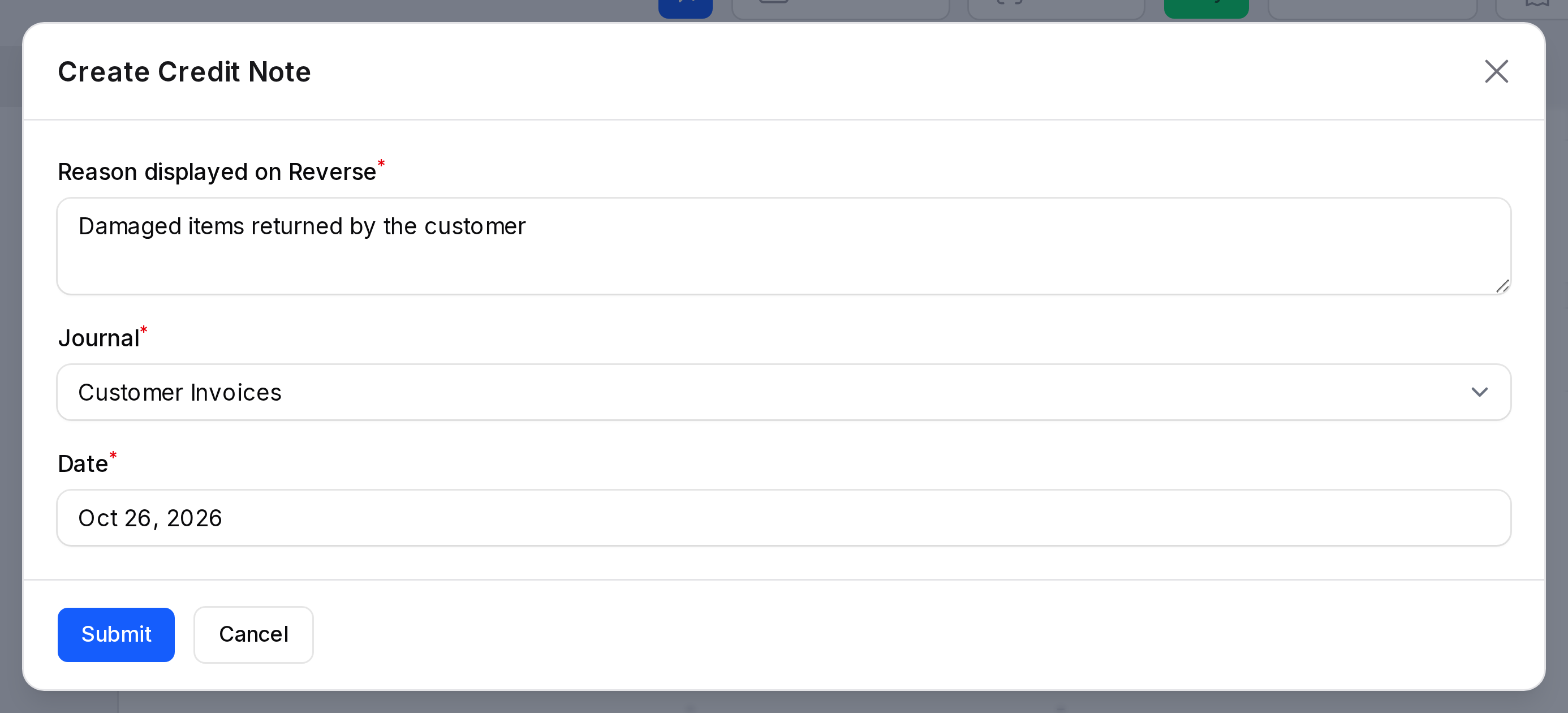
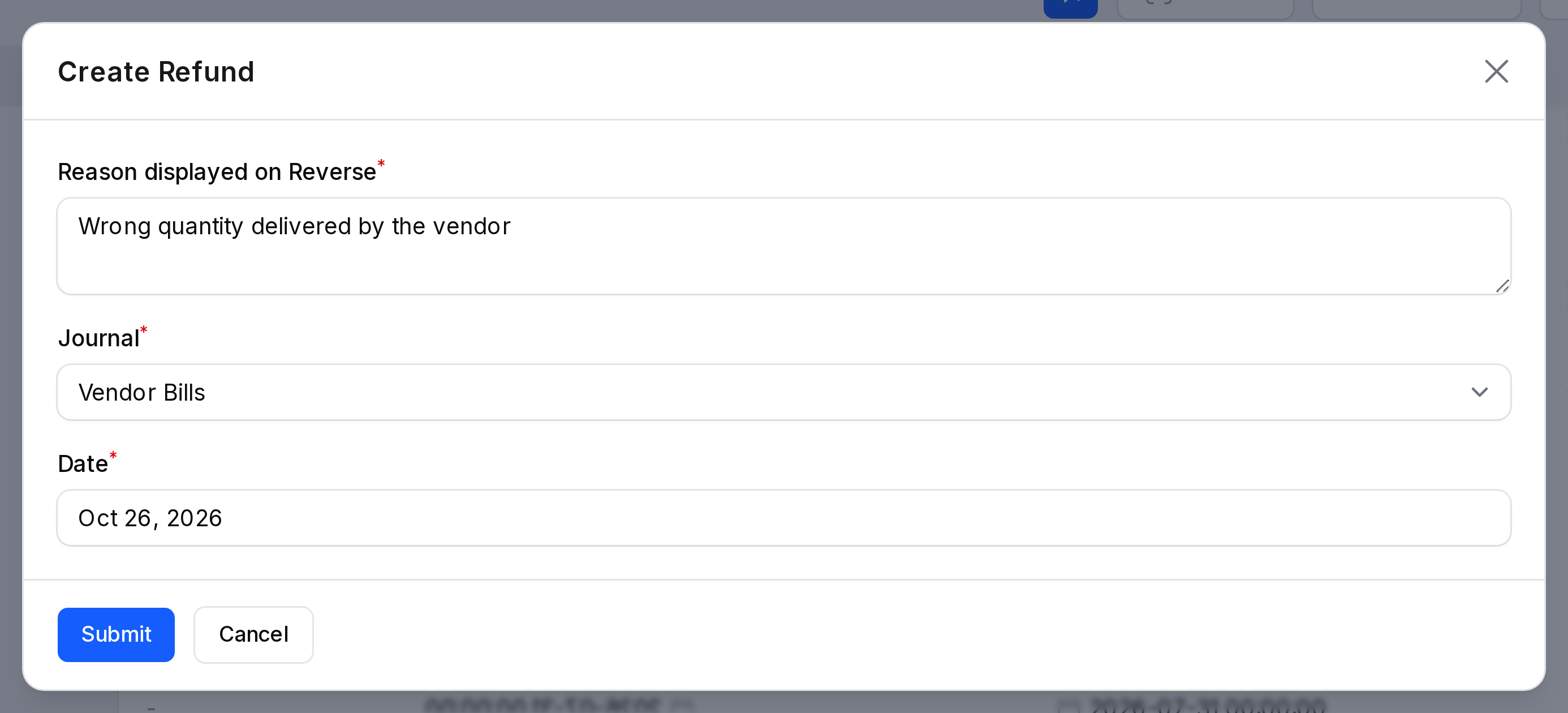
- Fill in the window:
- Reason displayed on Reverse: Why you issue it. Required. For example "Customer returned 2 Camping Hammocks". It can have up to 245 characters.
- Journal: It starts as the journal of the original. Only that journal is offered.
- Date: It starts as today.
- Submit the window.
Aureus creates a Draft and opens it. The reference of the draft starts with "Reversal of:" and the original number.
What the draft contains
The draft copies the lines of the original. Each line keeps its product, quantity, taxes and price. For example, the credit note for INV/2026/1 shows the same lines with a total of 1,050.00 before tax. The refund for BILL/2026/4 shows 29,600.00 before tax.
Edit the draft for a partial credit
To credit everything, change nothing. To credit part of the document:
- Open the draft and click Edit.
- Lower the Quantity of a line, or delete the lines you do not credit.
- Click Save changes and check the Total.
Way 2: manually from the list
Use this way when there is no original to link, such as a goodwill credit or a credit note sent by a supplier.
- Go to the Credit Notes or Refunds list.
- Click New Credit Note or New Refund.
- Fill in the form like an invoice or a bill: customer or vendor, dates, Journal, Currency and the Invoice Lines. For a refund, keep the supplier's credit note number in Bill Reference.
- Click Create.
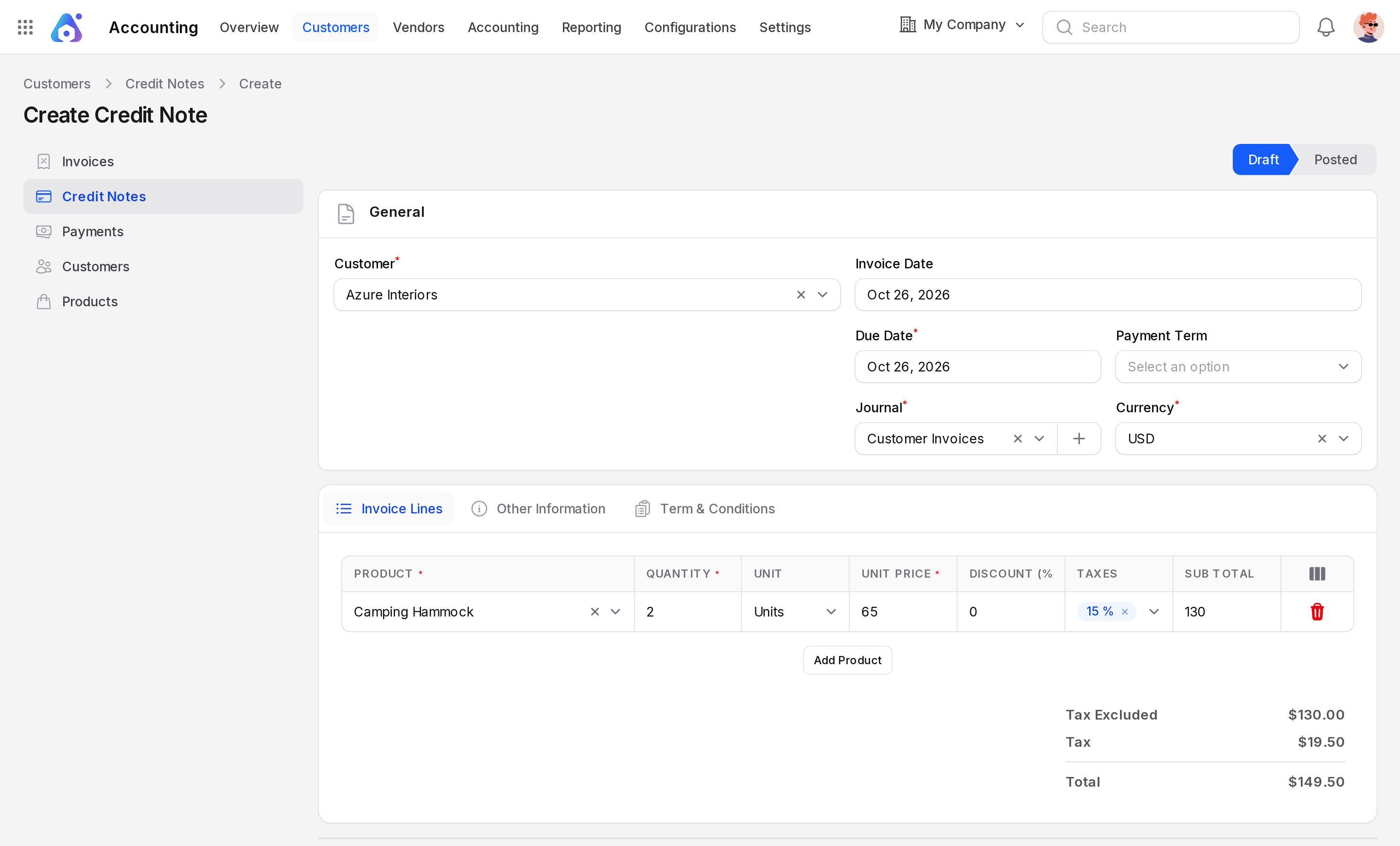
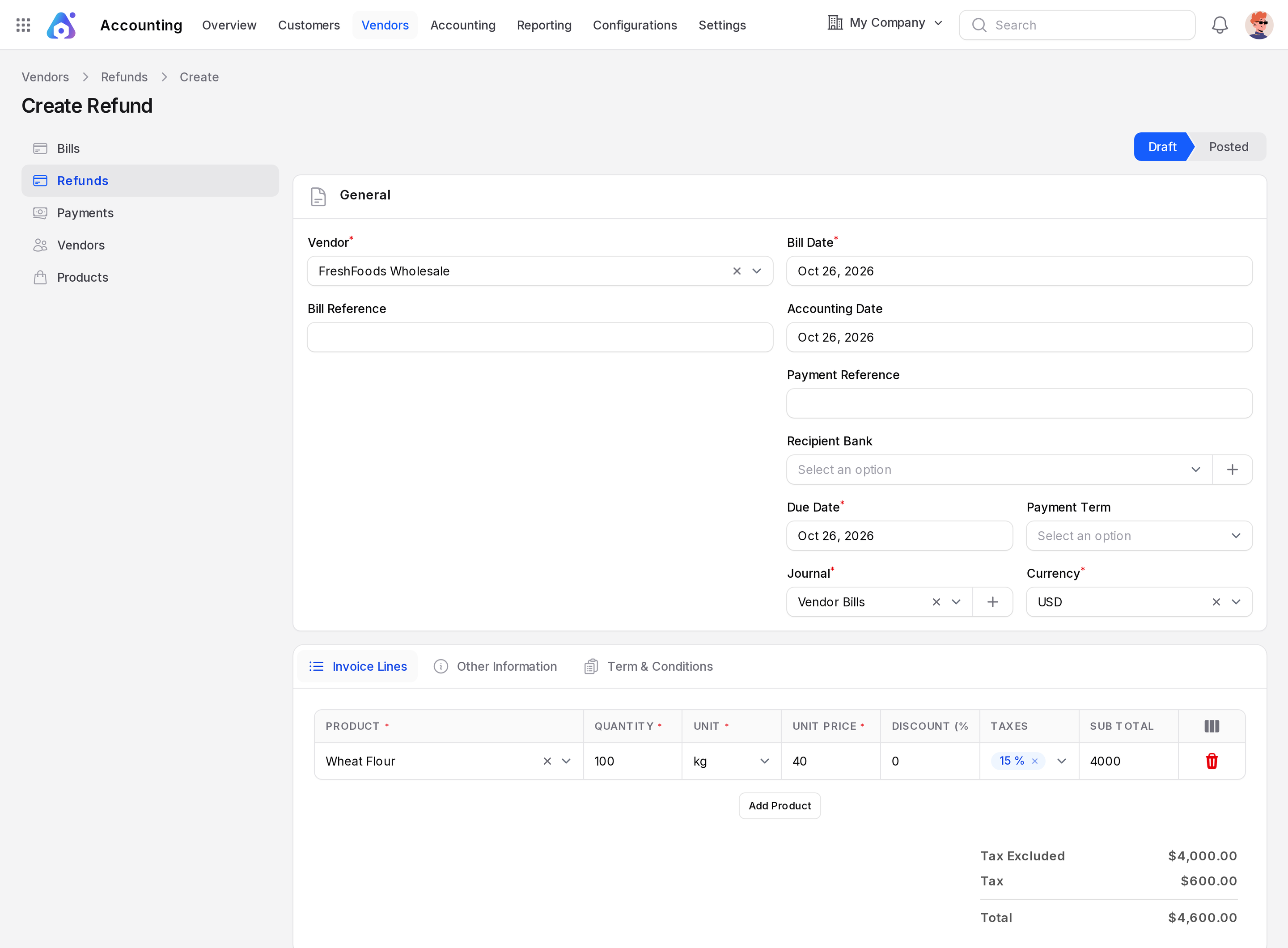
INFO
A manual document is not linked to an original. To use it against an invoice, open a posted invoice of the same customer. An outstanding credit shows under the totals with an Add button. Click Add to apply it. Click Unlink to undo.
Confirm it
- Open the draft and check the lines and the Total.
- Click Confirm. The state becomes Posted.
When the document was created from a posted invoice or bill, Aureus matches it against the original on confirm. The Amount Due of the original falls by the amount of the credit note or refund. A full credit leaves nothing to pay.
Example: Invoice INV/2026/1 is $1,207.50 and not paid. You issue a credit note for the full amount and confirm it. The invoice has nothing left to pay.
If money must move, use Pay on the credit note or refund. See Register a payment.
Statuses and buttons
A credit note or refund has the same states as an invoice.
- Draft: You are still editing. Nothing is recorded in your accounts.
- Posted: You confirmed it. It now counts in your accounts.
- Cancelled: You cancelled the draft.
It also has a Payment State, such as Not paid, Paid or Reversed.
Buttons:
- Confirm: Posts a draft.
- Cancel: Cancels a draft.
- Delete: Removes a draft. A posted document cannot be deleted.
- Pay: Records a payment on a posted document.
- Preview: Shows the printable document.
- Print & Send: Emails a credit note to the customer.
- Set as Checked: Marks a posted refund as reviewed.
- Reset To Draft: Moves a posted or cancelled document back to draft. Linked payments are unlinked.
The Credit Note and Refund buttons do not appear on a credit note or refund itself.
Numbering
When the journal has Dedicated Credit Note Sequence turned on, the number starts with R. A credit note in the INV journal is RINV/2026/00004. A refund in the BILL journal is RBILL/2026/00005. The number appears when the draft is created. See Invoice sequence.
What happens in the accounts
A credit note posts the opposite of the invoice. Take INV/2026/1 for Azure Interiors.
- The invoice raised the customer balance and credited income and tax.
- The credit note lowers the customer balance and debits income and tax.
A refund does the same on the vendor side. For BILL/2026/4, the refund lowers what you owe FreshFoods Wholesale and reduces the expense and tax. Open the Journal Items tab of the document to see the lines. See Journal entries.
Tips
- Always write a clear Reason. It helps your accountant and the other party.
- To fix a small mistake, credit the whole document, then create a new correct one.
- Avoid Reset To Draft on a posted invoice the customer already received. A credit note leaves a clear trail.
- Credit before you pay when possible. It keeps the Amount Due simple.