

Maintenance request list
The list shows all your maintenance requests in one table. Use it to find work, see what is late and act on many requests at once. Tabs filter the table, so you reach the right set in one click.
In simple words: Pick a tab, search by title, and click a row to open it.
Open Maintenance → Maintenance Requests. The page title is Maintenance Requests.
Before you start
Requests come from Create a maintenance request or the calendar.
Tabs
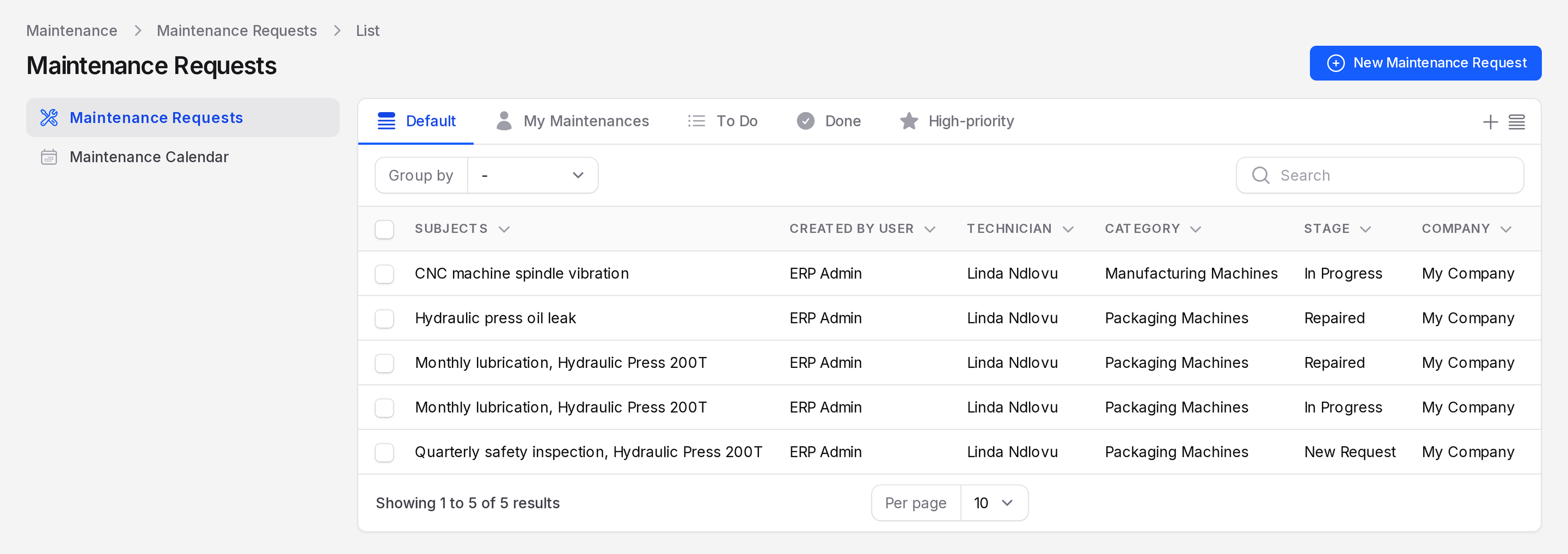
When the page opens, the To Do tab is selected.
- Default: every request.
- My Maintenances: requests where you are the Responsible person.
- To Do: requests not yet in a Done stage. This is the open work.
- Done: requests in a Done stage, such as Repaired or Scrap.
- High-priority: requests with a Priority above 0, whatever their stage. A Repaired request with priority above 0 still appears here.
Example: Hydraulic press oil leak (priority 2) moves to Done after it is Repaired. It also stays in High-priority, because that tab only checks the Priority value.
More views
Click the three-dot menu titled Views next to the tabs.
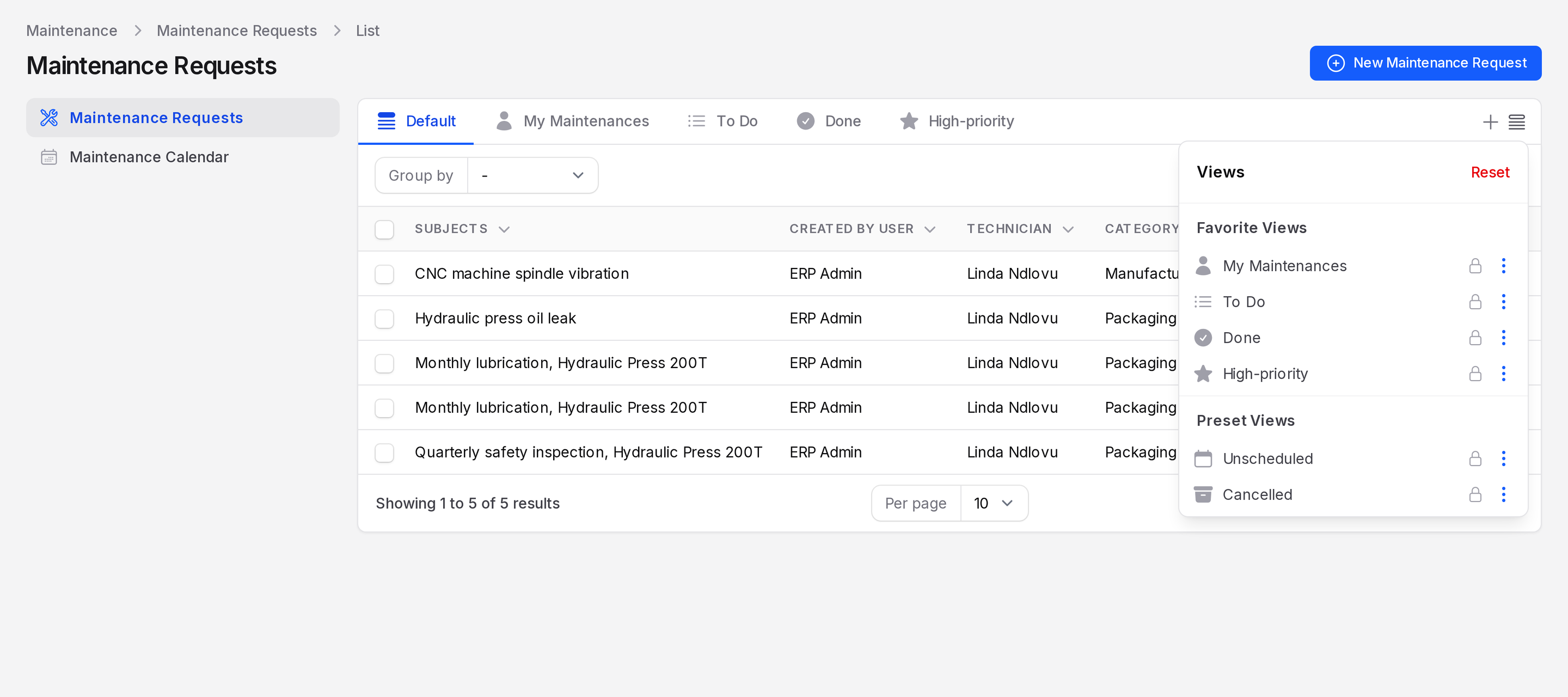
- Preset Views: Unscheduled (no scheduled date) and Cancelled (deleted requests). Click Apply View.
- Add to Favorites: pins a view to the tab bar.
- Remove from Favorites: takes a view off the tab bar.
- Add New: saves your own view.
- Reset: returns the views to their start.
Columns
- Subjects
- Created by User
- Technician
- Category
- Stage
- Company
Click a column heading to sort. An empty value shows a dash. Choose 5, 10, 25 or 50 rows with Per page.
Search and group
Type in the search box to find a request by its title.
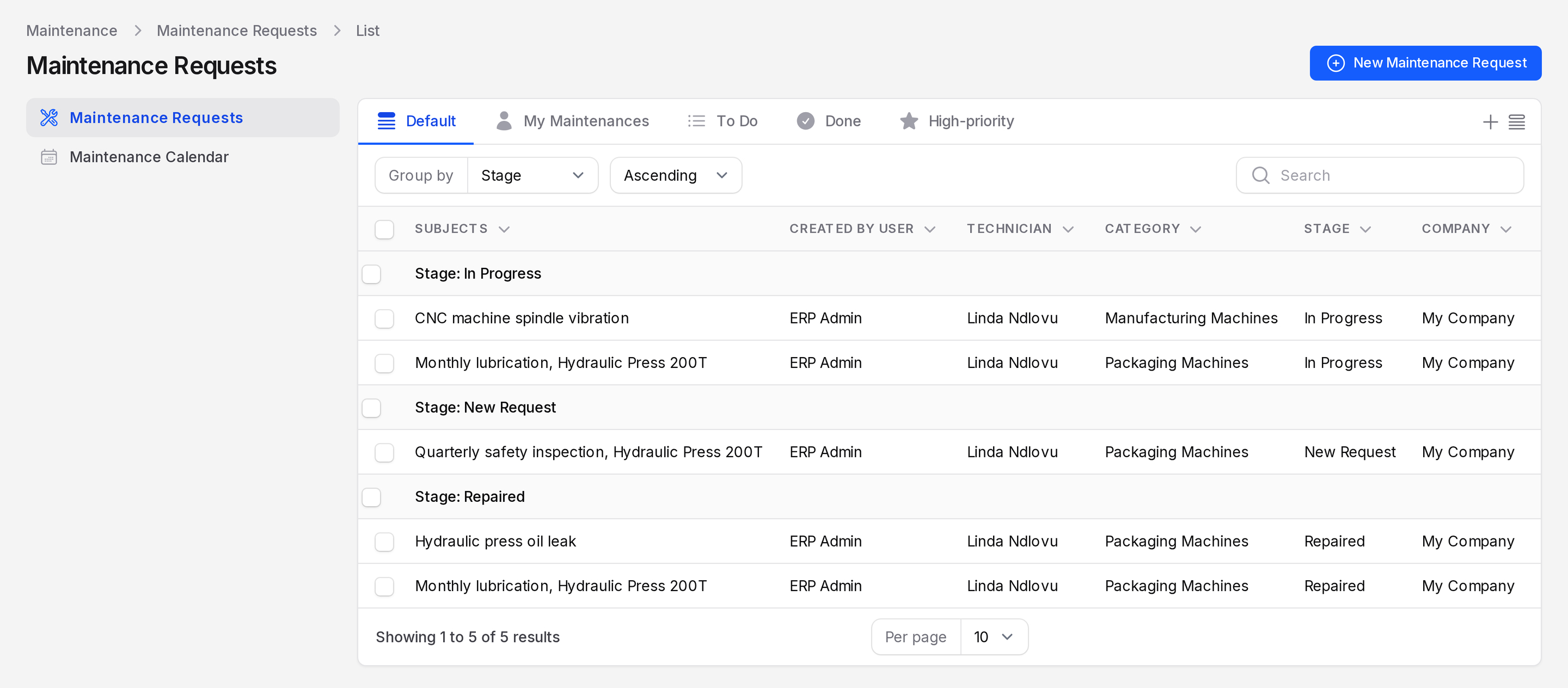
Open Group by to group rows by Stage, Assigned to, Category or Created By. Choose Ascending or Descending for the order.
Row actions
- Clock icon (Schedule Activity): plan a task for the request.
- Three-dot menu: View, Edit and Delete.
- Click the row: open the request.
Bulk actions
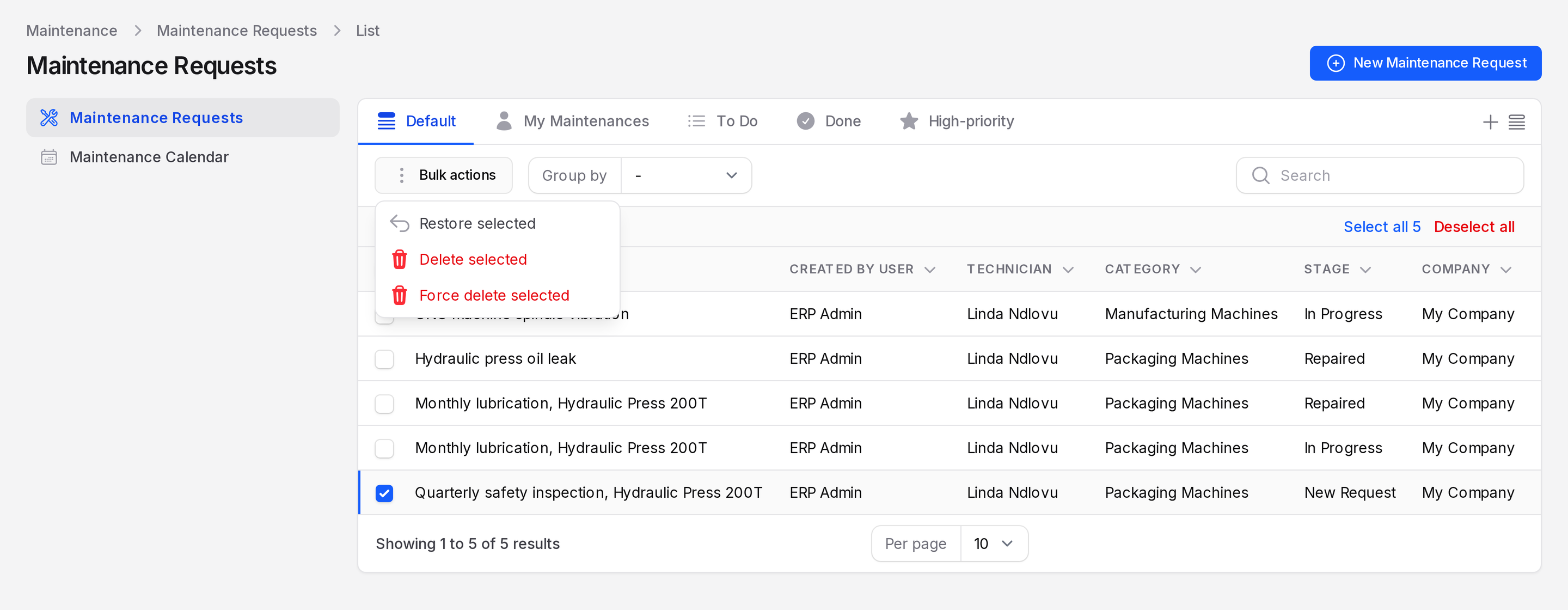
Tick one or more rows. Open Bulk actions.
- Restore selected: bring back deleted requests.
- Delete selected: move requests to Cancelled.
- Force delete selected: remove them for good.
Use Select all to tick every row and Deselect all to clear.
WARNING
Force delete cannot be undone. Use Delete selected if you may need the request later.
Find overdue or unscheduled work
- Unscheduled work: open the three-dot menu and apply Unscheduled.
- Late work: stay on To Do and open the calendar. It shows each scheduled job by date, so you spot dates already past.
- Urgent work: click High-priority.
- Your own work: click My Maintenances.