

Work orders
A work order is one step of a manufacturing order, run at one work center. If an MO says "make 5 laptops", the work orders say "assemble the parts at Assembly Station" and "test and pack at Quality & Packing". Operators use them to start, pause and finish each step. Aureus records the time spent.
In simple words: A work order is one to-do item of an MO, with a timer.
Open Manufacturing → Operations → Work Orders.
Settings
The Work Orders menu and the Work Orders tab on the MO need Work Orders on in Manufacturing → Settings → Manage Operations. The Blocked By order rules need Work Order Dependencies too. See Manufacturing settings.
You do not create work orders by hand. Aureus builds one for each operation of the bill of materials when the MO is created. See Operations.
Overview
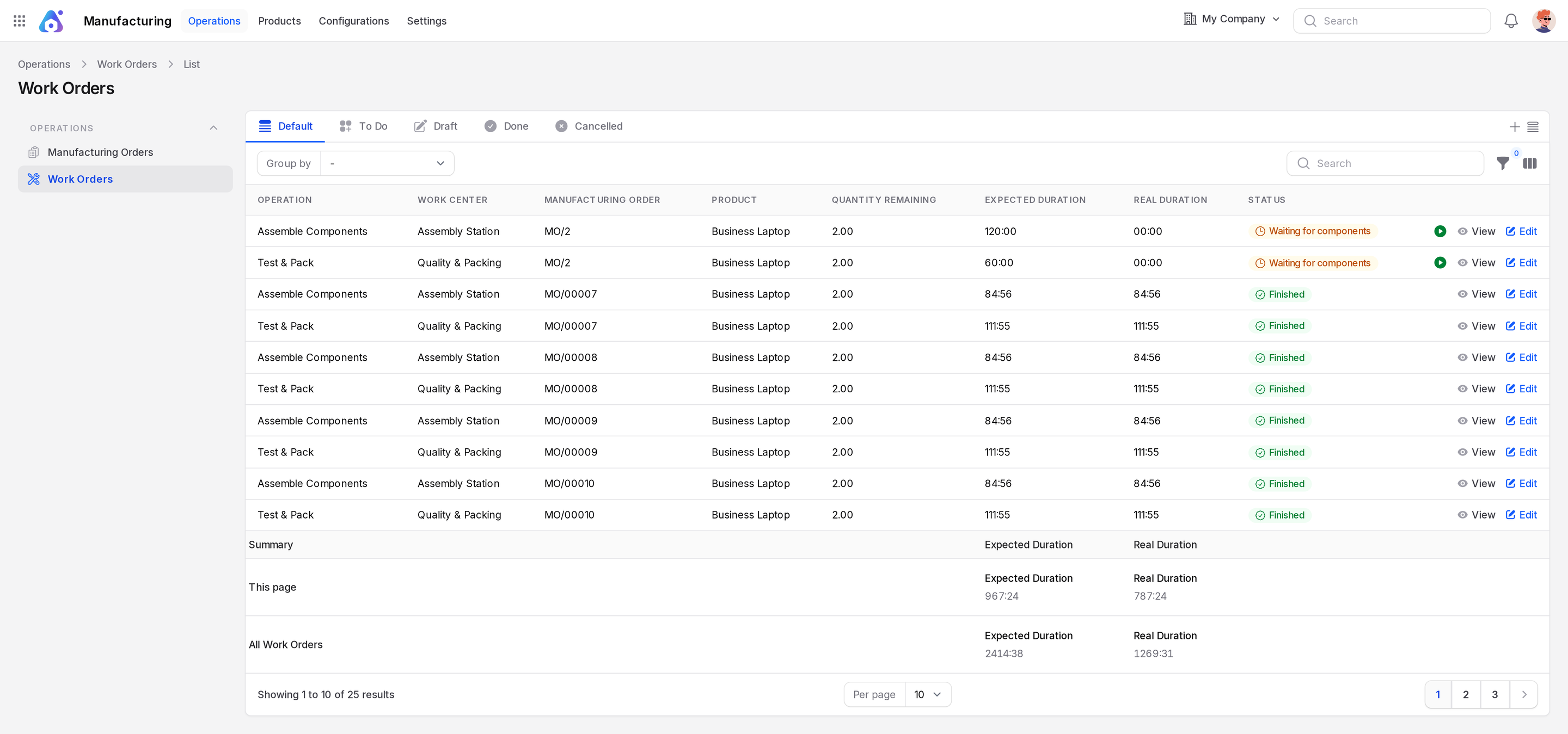
- Tabs: Default, To Do, Draft, Done, Cancelled.
- Columns: Operation, Work Center, Manufacturing Order, Product, Quantity Remaining, Expected Duration, Real Duration, Status. A summary row adds up the durations.
- Row actions: View, Edit. Icon buttons start, pause and finish the work order.
There is no create button.
States
| State | Meaning |
|---|---|
| Waiting for another work order | An earlier work order in Blocked By is not finished. |
| Waiting for components | Components are not reserved yet. |
| Ready | You can start. |
| In Progress | The timer runs. |
| Finished | The step is complete. |
| Cancelled | The MO was cancelled. |
Waiting for another work order → Waiting for components → Ready → In Progress → FinishedRun a work order
Scenario: run Assemble Components of MO/2.
- Open
Manufacturing → Operations → Work Orders. - Find the row Assemble Components that is Ready.
- Click the Start icon. Status becomes In Progress and the MO becomes In Progress.
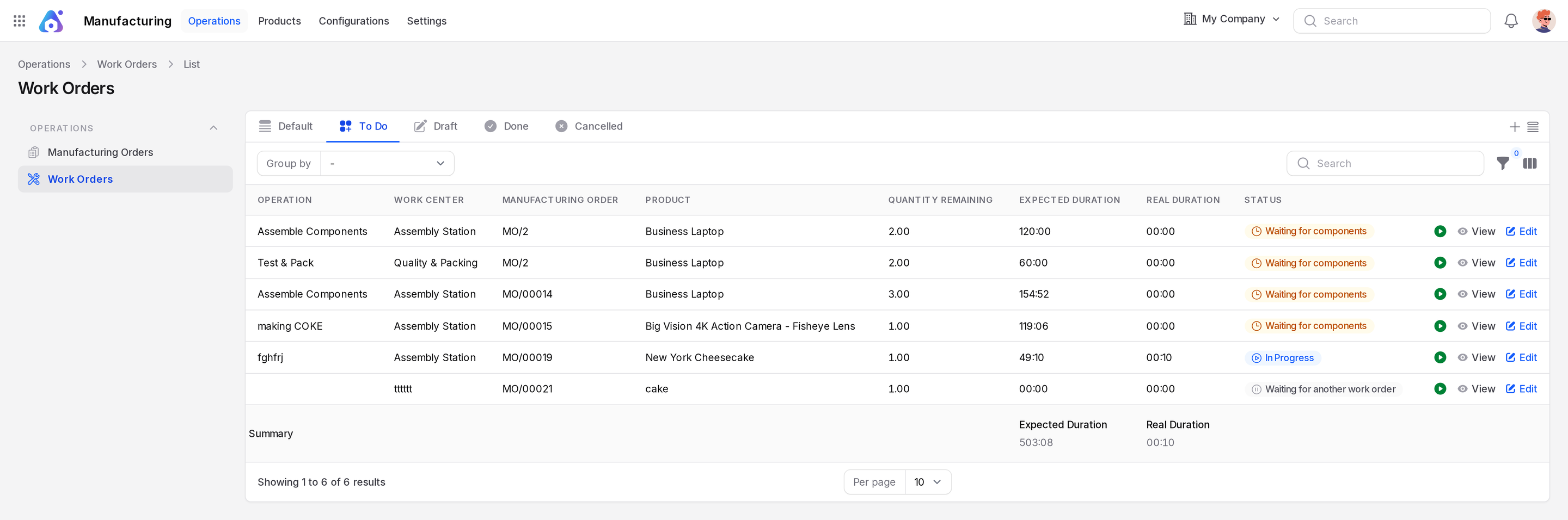
- Click the Pause icon for a break. The time log closes. Click start to resume.
- Click the Done icon when the step is complete. Status becomes Finished.
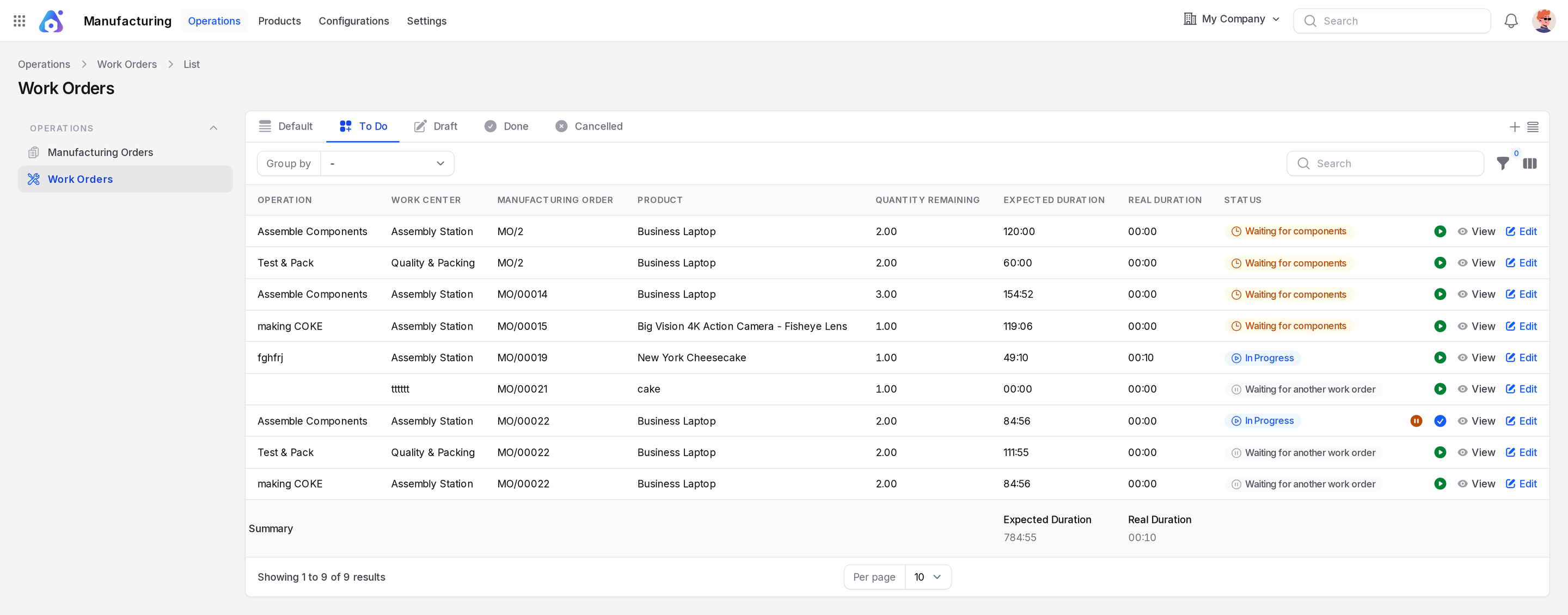
WARNING
If the work center is blocked, Aureus refuses to start. It says "Please unblock the work center to start the work order."
The same icons are on the Work Orders tab of the MO.
View a work order
Click View on a row.
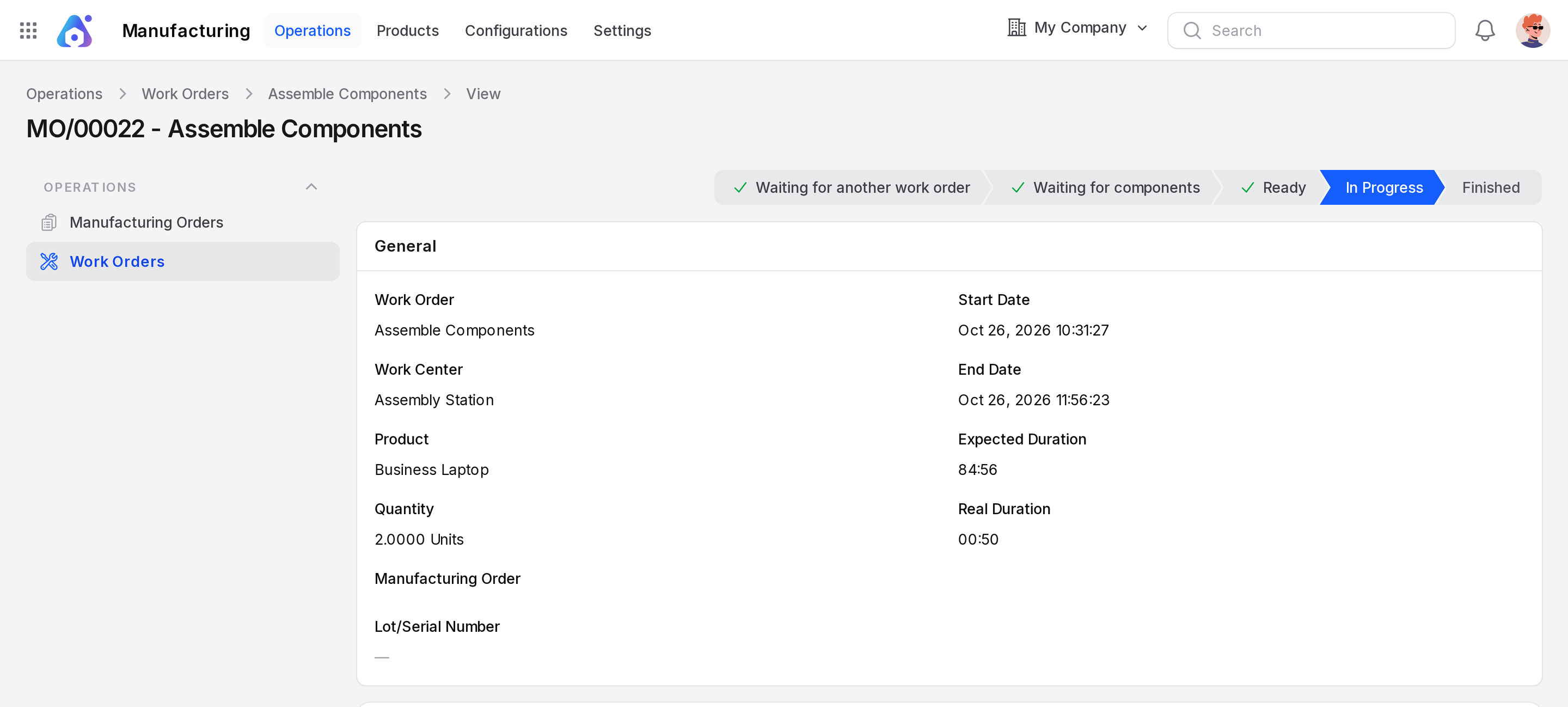
The General section shows:
- Work Order: The operation name.
- Work Center: Where it runs.
- Product: The product you make.
- Quantity: The quantity to process.
- Manufacturing Order: The parent MO.
- Lot/Serial Number: The lot or serial, if the product is tracked.
- Start Date and End Date: The planned window. See Plan and schedule.
- Expected Duration and Real Duration: Planned and tracked time.
Time Tracking
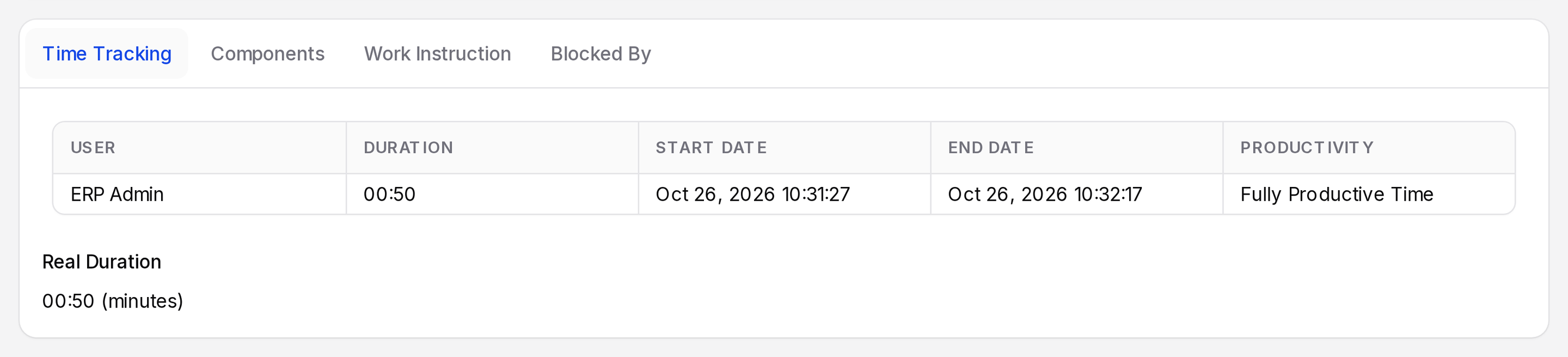
Each start and pause makes a log row: User, Duration, Start Date, End Date, Productivity. Real Duration adds them up.
Components
Lists the components used by this step.
Work Instruction
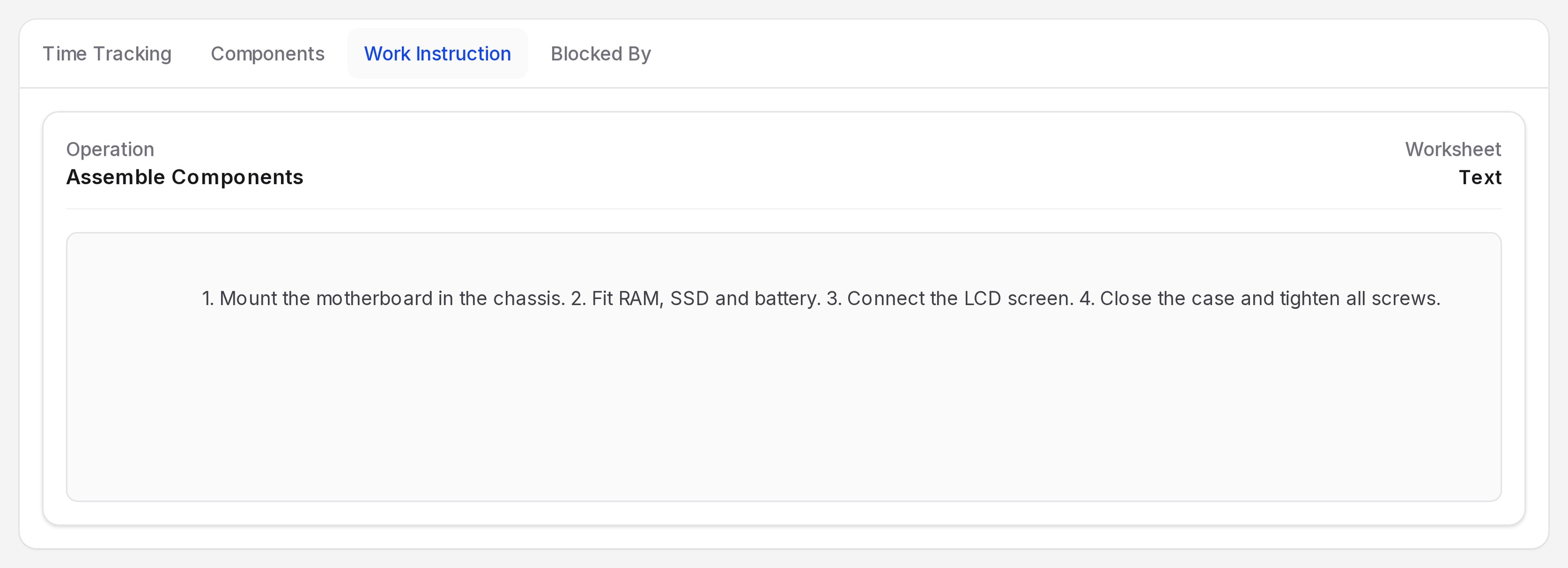
Shows the worksheet of the operation: a PDF, a Google Slide or text. Set it on the operation. See Operations.
Blocked By
Lists the work orders that must finish first. While any of them is open, this one waits.
Expected vs real duration
Expected Duration is the plan. Real Duration is the time your team logged. Compare them to improve the default duration on the operation. See Manufacturing order costs.
Behind the scenes
Start sets the work order and the MO to In Progress. Pause ends the open time log. Done sets Finished.