Website overview
The Website app has one admin menu bar with a few menus and a dashboard. Each menu controls one part of your public site. This page shows every menu, the dashboard and a map from admin option to public result.
In simple words: Know which admin menu changes which part of the site, and you will never hunt for a setting.
Open the app from the app switcher, then choose Website. No setting turns Website on or off. You see the menus your plugins and permissions allow.
INFO
Blog Posts and Configurations need the Blogs plugin. Customer portal actions need the customer portal.
Admin menus
| Menu | Path | Use it to |
|---|---|---|
| Dashboard | Website → Dashboard | See page and blog numbers and charts |
| Blog Posts | Website → Blog Posts | Write and publish posts. See Blog posts |
| Pages | Website → Pages | Build pages and choose header and footer menus. See Create a page |
| Customers | Website → Customers | View customer records and their portal access. See Customers |
| Configurations | Website → Configurations | Manage Categories and Tags. See Categories and tags |
| Settings | Website → Settings → Manage Contacts | Set email, phone and social links. See Manage contacts |

Every list and form has a Locale switcher with English, Arabic, Spanish, Portuguese (Brazil) and French. Titles, content and meta fields can be translated.
The dashboard
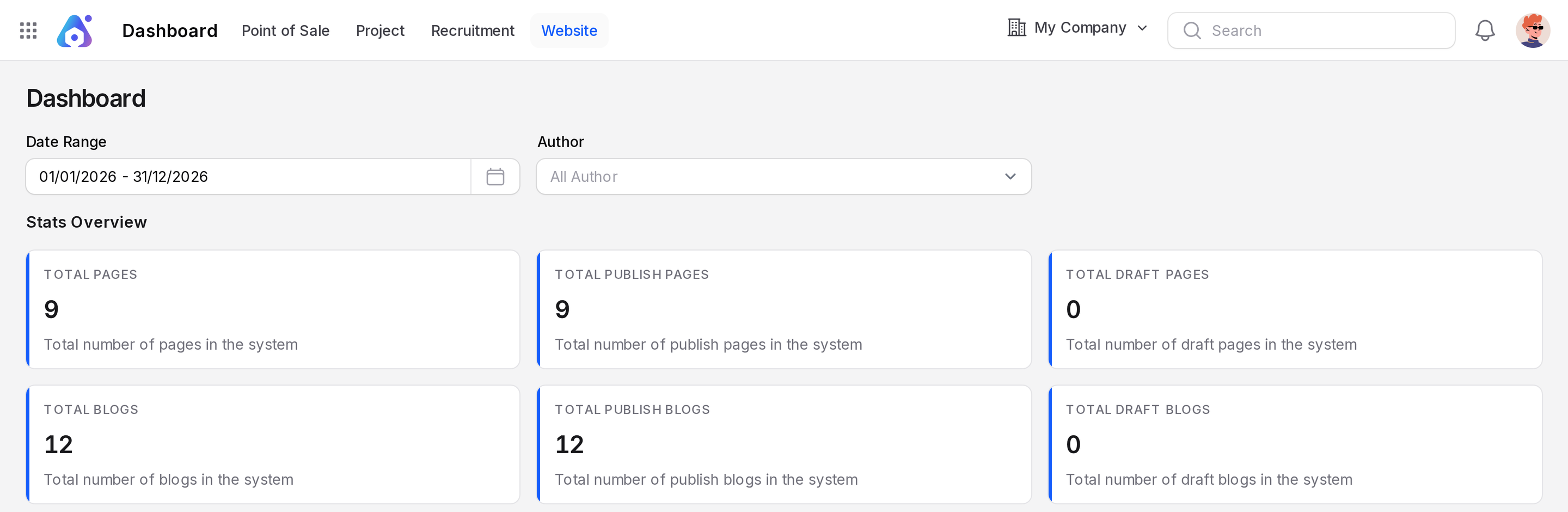
Open Website → Dashboard. Two filters sit at the top.
Date Range: Limits the blog numbers and charts to a period.
Author: Shows blog numbers for one author. The default is All Author.
Stats
| Stat | Meaning |
|---|---|
| Total Pages | All pages |
| Total Publish Pages | Pages that are live |
| Total Draft Pages | Pages not yet published |
| Total Blogs | All posts |
| Total Publish Blogs | Posts that are live |
| Total Draft Blogs | Posts not yet published |
The page counts ignore the filters. The blog counts follow them.
Widgets
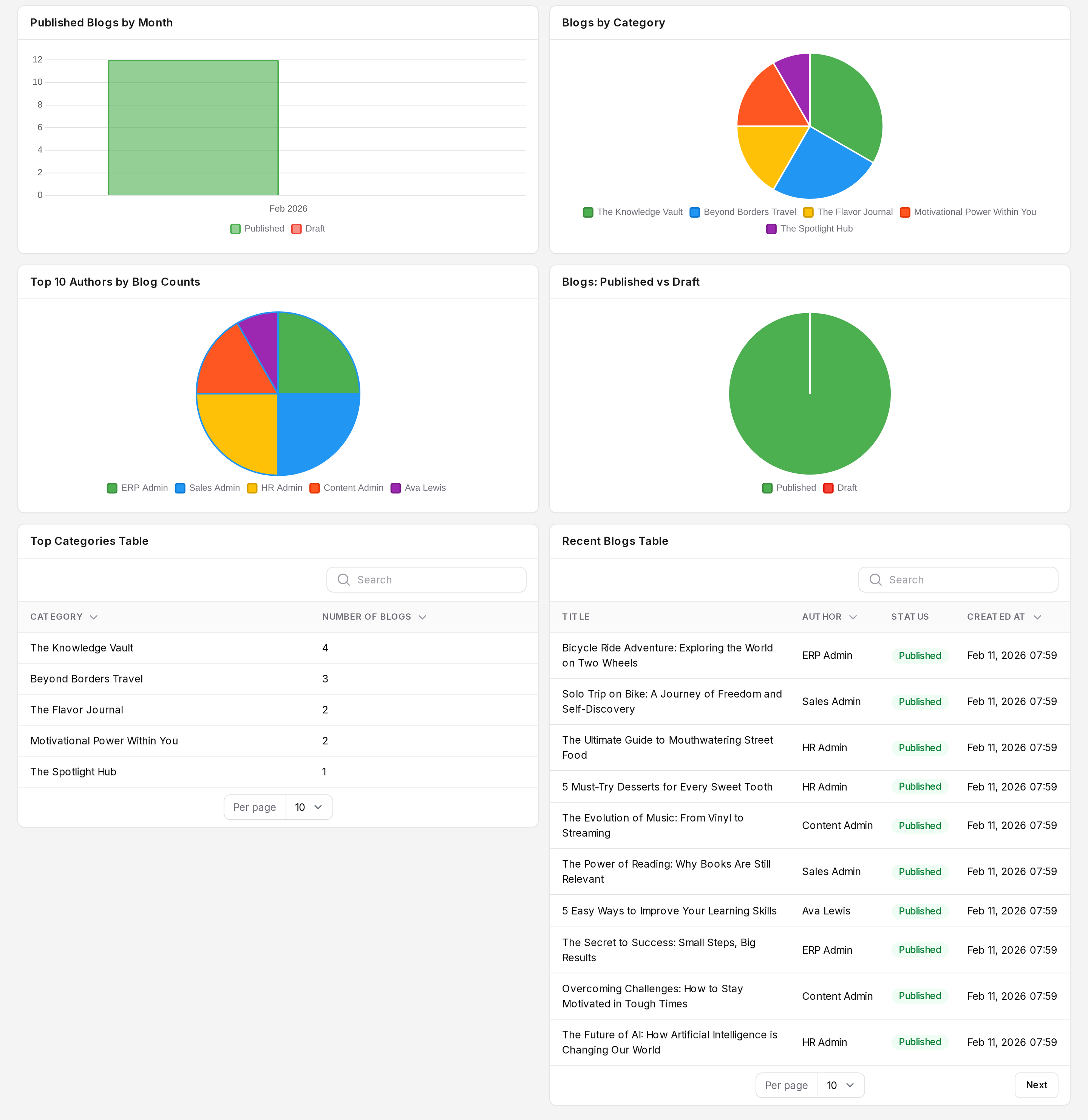
| Widget | Shows |
|---|---|
| Published Blogs by Month | Posts published each month |
| Blogs by Category | Posts per category |
| Top 10 Authors by Blog Counts | Most active authors |
| Blogs: Published vs Draft | The share of live and draft posts |
| Top Categories Table | Categories ranked by post count |
| Recent Blogs Table | The latest posts |
Admin option to public site
This is the map. Each row names an admin option and the part of the public site it changes.
| Public site part | Controlled by | Where |
|---|---|---|
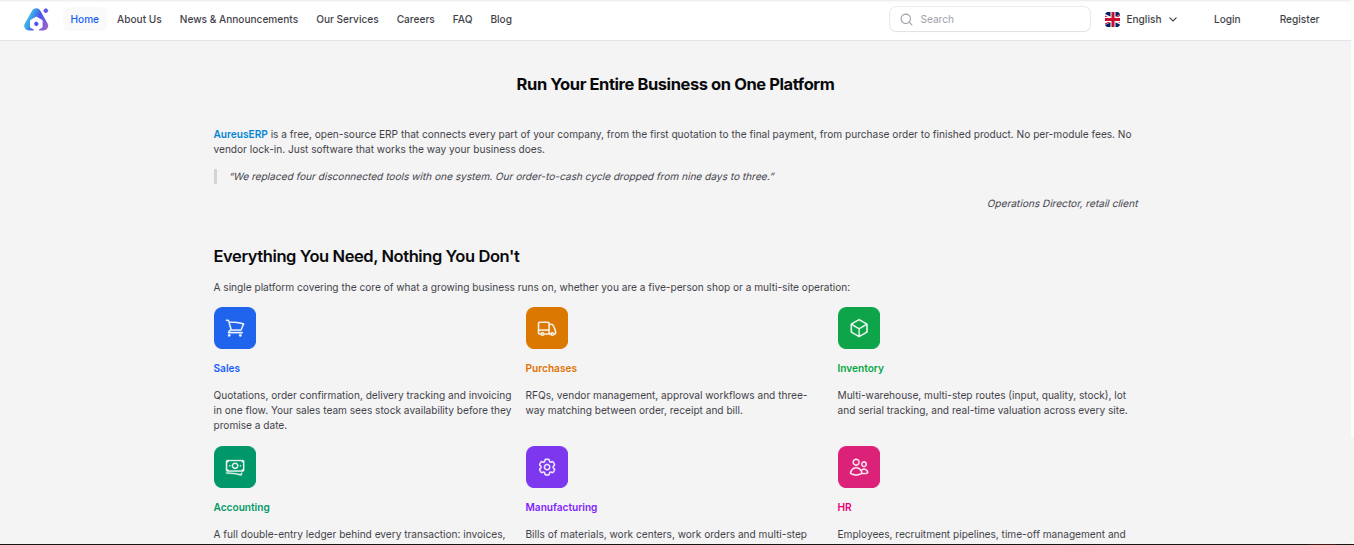
| Header menu | Is Visible Header Menu on a page | Website → Pages |
| Footer Useful Links | Home plus pages with Is Visible Footer Menu | Website → Pages |
Home (/) | The page with the slug home | Website → Pages |
Any page (/pages/{slug}) | Page content, once published | Website → Pages |
Blog list (/blog) | Published posts, categories and tags | Website → Blog Posts, Configurations |
| Footer Contact Us | Email and Phone | Website → Settings → Manage Contacts |
| Footer Follow Us icons | Social links | Website → Settings → Manage Contacts |
| Language list | The built in languages, shown in the site header | Fixed |
| Login and Register | Customer accounts | Portal and sign in |
Pages ─────────► header menu, footer Useful Links, Home, /pages/{slug}
Blog Posts ────► /blog and post pages
Manage Contacts ► footer Contact Us and Follow Us
Customers ─────► login and register
TIP
A page must be published to appear. A draft page gives a not found error to visitors. See Publish and draft.
What the visitor sees
The site header shows Home, your header pages, Blog, a search box, a language list, Login and Register. The footer shows a short fixed description, Useful Links, Contact Us, Follow Us and a copyright line.