

Journals
A journal is a book in which you record one kind of entry. Sales invoices go in the Customer Invoices journal. Supplier bills go in Vendor Bills. Money in your bank goes in a Bank journal. Every invoice, bill, payment and entry belongs to exactly one journal.
In simple words: A journal is a folder for one kind of accounting entry. Each folder has its own numbering and its own default accounts.
When to use this page
- You open a new bank account or a cash box and need a journal for it.
- You want a separate numbering for credit notes or payments.
- You want to change the account a journal uses by default.
Open the page
Go to Accounting → Configurations → Accounting → Journals. This page exists only in the Accounting app. In the Invoices app you pick journals on documents, but you cannot configure them.
Overview
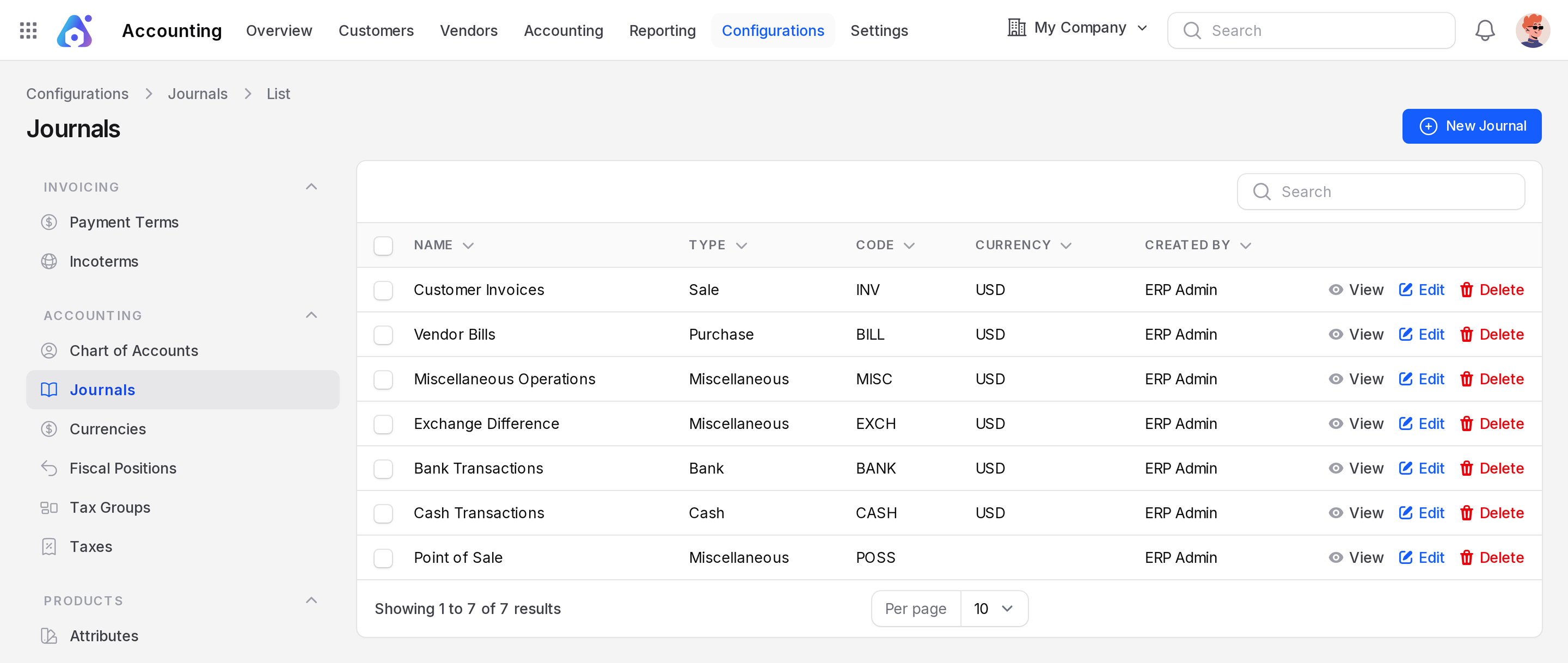
The list shows Name, Type, Code, Currency and Created By. The tabs All, Sales, Purchases, Cash, Bank and Miscellaneous filter by type. A set-up company has six journals:
| Name | Type | Code |
|---|---|---|
| Customer Invoices | Sale | INV |
| Vendor Bills | Purchase | BILL |
| Miscellaneous Operations | Miscellaneous | MISC |
| Exchange Difference | Miscellaneous | EXCH |
| Bank Transactions | Bank | BANK |
| Cash Transactions | Cash | CASH |
Journal types
- Sale: customer invoices and credit notes.
- Purchase: vendor bills and refunds.
- Bank: payments through a bank account.
- Cash: payments in cash.
- Credit Card: payments by company card.
- Miscellaneous: manual entries and exchange differences.
Create a journal
- Go to
Accounting → Configurations → Accounting → Journals. - Click New Journal.
- Fill in General Information on the right, then the tabs on the left.
- Click Create.
General Information
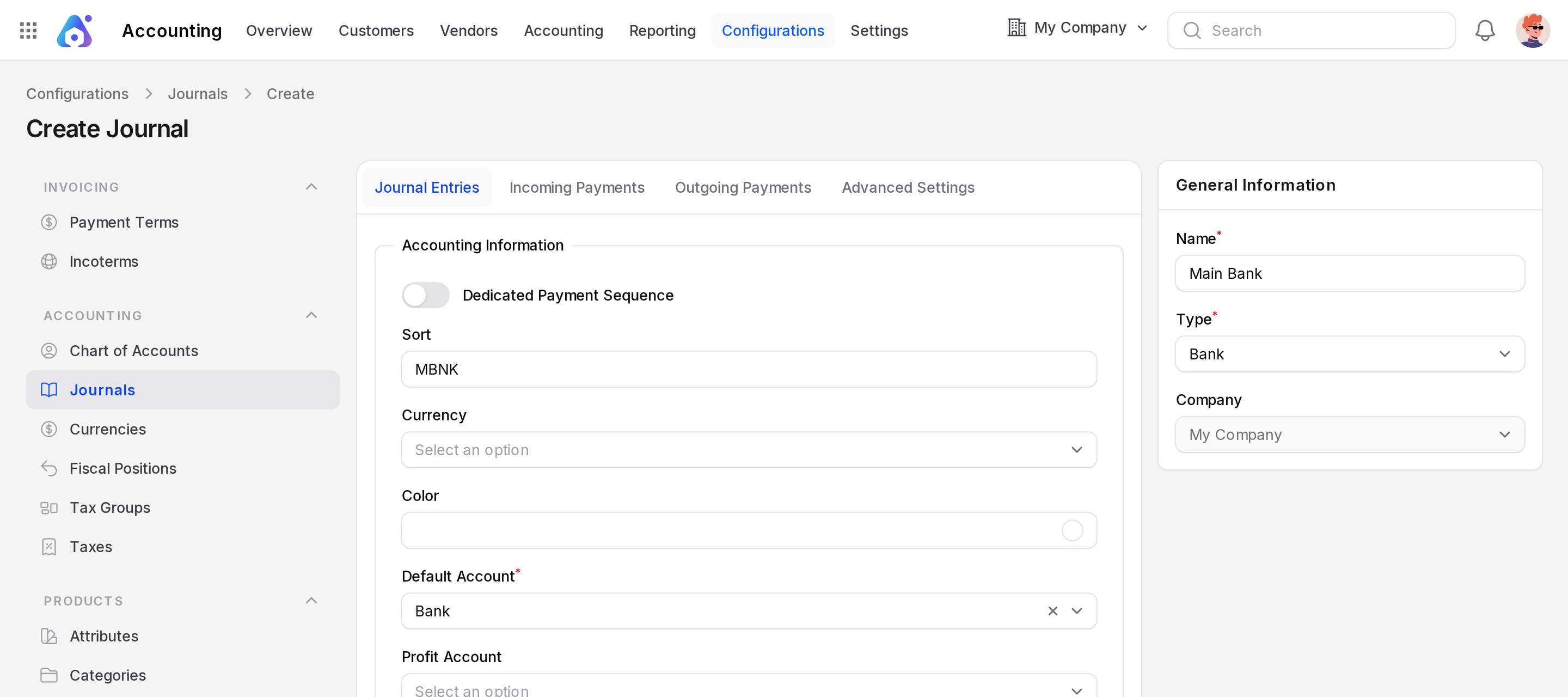
- Name: The name shown on cards and pickers, such as
Main Bank. Required. - Type: Sale, Purchase, Cash, Bank, Credit Card or Miscellaneous. Required. The type decides which other fields appear.
- Company: The current company. You cannot change it.
Journal Entries tab: Accounting Information
- Dedicated Credit Note Sequence: Sale and Purchase journals only. Turn on to number credit notes separately from invoices.
- Dedicated Payment Sequence: Bank, Cash and Credit Card journals only. Turn on to number payments separately from other entries.
- Sort: The short code of the journal, such as
MBNK. The form calls it Sort. The list shows it in the Code column. - Currency: An active currency for the journal. Leave it empty to use the company currency. On Bank, Cash and Credit Card journals, changing it resets the payment lines to the default manual method.
- Color: A colour for the journal.
- Default Account: The account used for the journal's main lines. Required.
- Profit Account: For Sale, Bank and Cash journals. An income account for gains.
- Loss Account: For Purchase, Bank and Cash journals. An expense account for losses.
- Suspense Account: For Bank, Cash and Credit Card journals. A holding account for amounts not yet sorted out.
- Bank Account: Bank journals only, under Bank Account Number. Choose the company's bank account. Add accounts first in Bank accounts.
Incoming Payments and Outgoing Payments tabs
These tabs show for Bank, Cash and Credit Card journals. Click Add Line to add a payment method line.
- Payment Method: The way money moves, for example Manual. Required.
- Display Name: The name people see when they pick the method on a payment. Required.
- Outstanding Receipts Accounts (incoming) or Outstanding Payments Accounts (outgoing): Where the amount waits after you confirm a payment and before it is in the bank.
Advanced Settings tab
- Allowed Accounts: Limit the accounts that can be used in this journal. Leave empty for no limit.
- Auto Check on Post: Mark entries as checked when you post them.
- Communication Type and Communication Standard: Sale journals only. They choose how the payment reference on invoices is built: Open, Base on Partner or Base on Invoice, in the Aureus or European format.
Example
Your company opens a second bank account. Create a journal named Savings Bank, Type Bank, Sort SAV. Pick the savings account as Default Account and the bank account under Bank Account Number. On a payment you can now choose Savings Bank as the journal.
Delete a journal
WARNING
A journal that is in use cannot be deleted. Aureus shows "Journal deletion failed". Keep it, or stop using it.