

Inventory settings
Settings decide which parts of Inventory are switched on. A small shop may need only products and receipts. A larger one adds locations, lots, packages and multi step routes. Turn on only what you use, because every option adds menus and fields.
In simple words: Settings are switches. Each one shows or hides a part of Inventory.
Go to Inventory → Settings. The left list holds five pages: Manage Operations, Manage Products, Manage Warehouses, Manage Traceability and Manage Logistics. Every page has a Save changes button. Toggle an option, then click Save changes.
Manage Operations
Inventory → Settings → Manage Operations
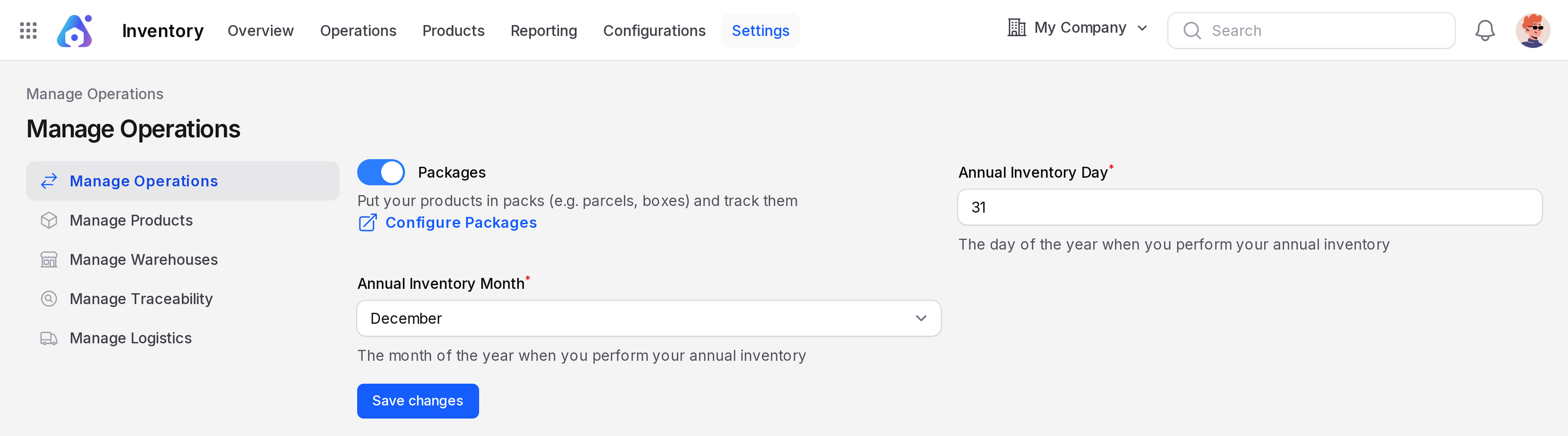
- Packages: Put products in packs, such as parcels or boxes, and track them. Turns on
Inventory → Products → PackagesandConfigurations → Package Types. A Configure Packages link opens the list. - Annual Inventory Day (required): The day of the month for your yearly count. Example: 31.
- Annual Inventory Month (required): The month for your yearly count. Example: December.
The day and month fill the default Scheduled At date on count lines, for example Dec 31.
Manage Products
Inventory → Settings → Manage Products
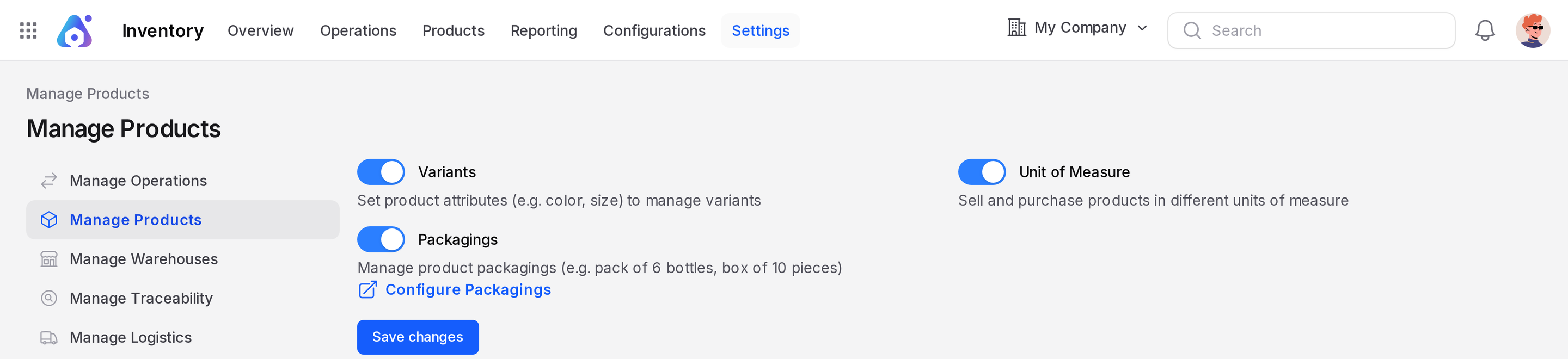
- Variants: Give products attributes such as colour or size. Turns on
Configurations → Attributes. - Unit of Measure: Buy and sell in different units. Turns on
Configurations → UOM Categoriesand unit fields. - Packagings: Define pack sizes, such as a pack of 10. Turns on
Configurations → Packagings. A Configure Packagings link opens the list.
Manage Warehouses
Inventory → Settings → Manage Warehouses
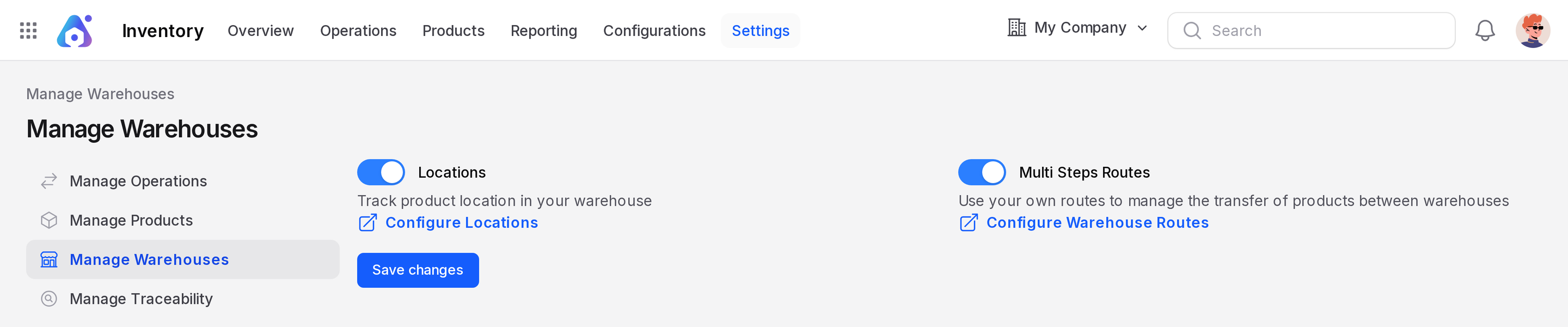
- Locations: Track where products sit inside the warehouse. Turns on
Configurations → Locationsand location fields on transfers and operation types. - Multi Steps Routes: Use your own routes to move products between steps and warehouses. Turns on Routes and Rules, and shows the Settings block on a warehouse where you pick one, two or three steps.
WARNING
You cannot turn off Locations when you have more than one warehouse. Save shows a warning and keeps it on.
Manage Traceability
Inventory → Settings → Manage Traceability
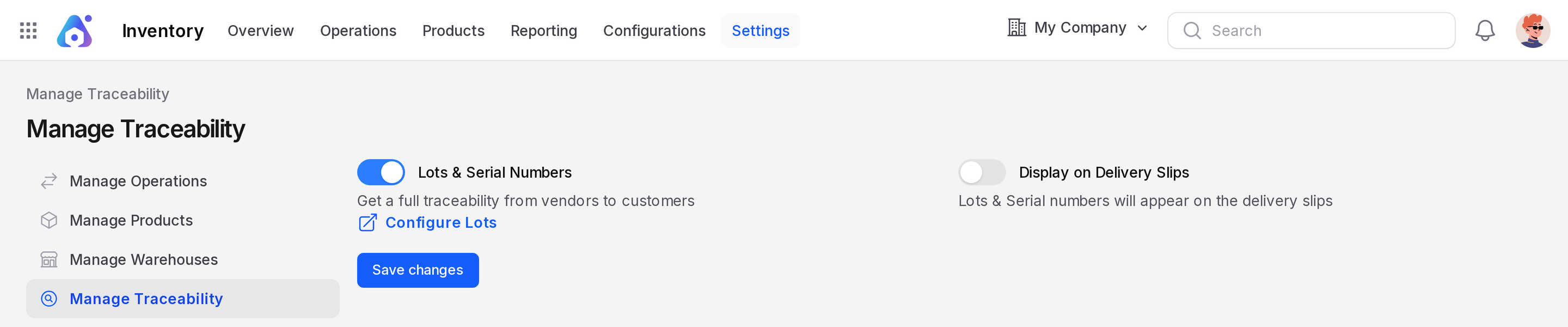
- Lots & Serial Numbers: Trace products from vendor to customer. Turns on
Products → Lots / Serial Numbersand the Track By field on products. - Display on Delivery Slips: Shows only when lots are on. Prints lot and serial numbers on the delivery slip.
WARNING
Before you turn off Lots & Serial Numbers, switch off tracking on every product that still has stock with lots or serials. Otherwise Save shows an error and the setting stays on.
Manage Logistics
Inventory → Settings → Manage Logistics
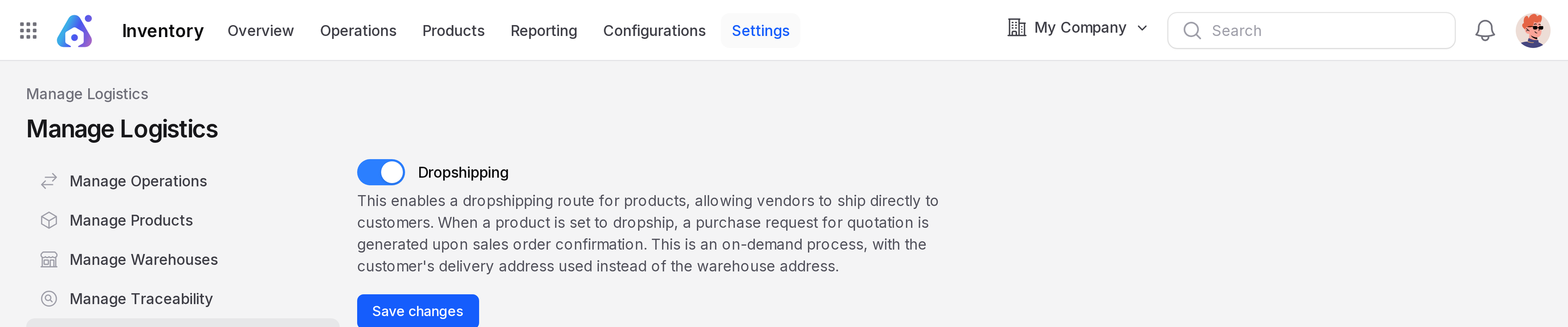
- Dropshipping: Let a vendor ship straight to your customer. Turns on
Operations → Dropships. When a product is set to dropship, confirming the sales order creates a request for quotation. The customer address replaces the warehouse address.
Quick table
| Setting | Page | Reveals |
|---|---|---|
| Packages | Manage Operations | Packages, Package Types |
| Variants | Manage Products | Attributes |
| Unit of Measure | Manage Products | UOM Categories |
| Packagings | Manage Products | Packagings |
| Locations | Manage Warehouses | Locations |
| Multi Steps Routes | Manage Warehouses | Routes, Rules, warehouse steps |
| Lots & Serial Numbers | Manage Traceability | Lots, Track By |
| Dropshipping | Manage Logistics | Dropships |
TIP
Turn settings on before you create records that depend on them. For example, enable Lots & Serial Numbers before you receive tracked products.