

Manufacturing order costs
Every manufacturing order has a cost. It is the price of the components plus the cost of the work done at the work centers. Aureus shows this cost on two pages before you make anything: the BoM Overview and the MO Overview. You can then check that a product earns a margin.
In simple words: Parts cost plus work cost, shown per order and per unit.
Settings
Operation costs need Work Orders on in Manufacturing → Settings → Manage Operations. Each work center also needs a value in Cost per Hour. See Manufacturing settings.
Where costs come from
| Part | Source |
|---|---|
| Components | The cost of each product, times the quantity in the BoM |
| Operations | Minutes in the operation, times the cost of its work center |
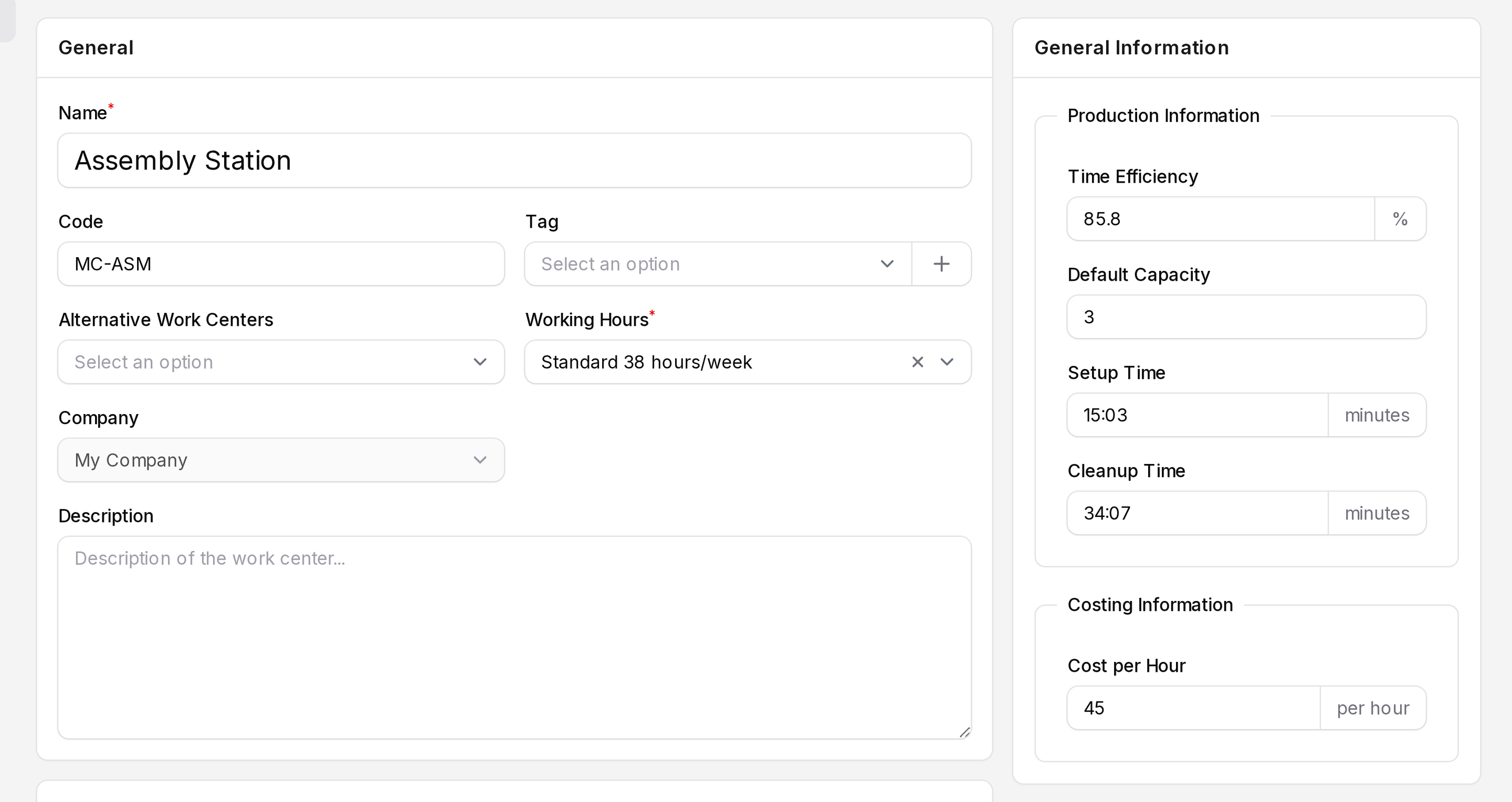
Set the work center cost here: Manufacturing → Configurations → Work Centers, open a work center and fill Cost per Hour in the Costing Information section. See Work centers.
BoM Overview
The BoM Overview shows what one recipe costs before any order exists.
- Open
Manufacturing → Products → Bills of Materials. - Click BOM-MC-LAPTOP, then the Overview tab.
- Use the Quantity and Variant filters to change the size.
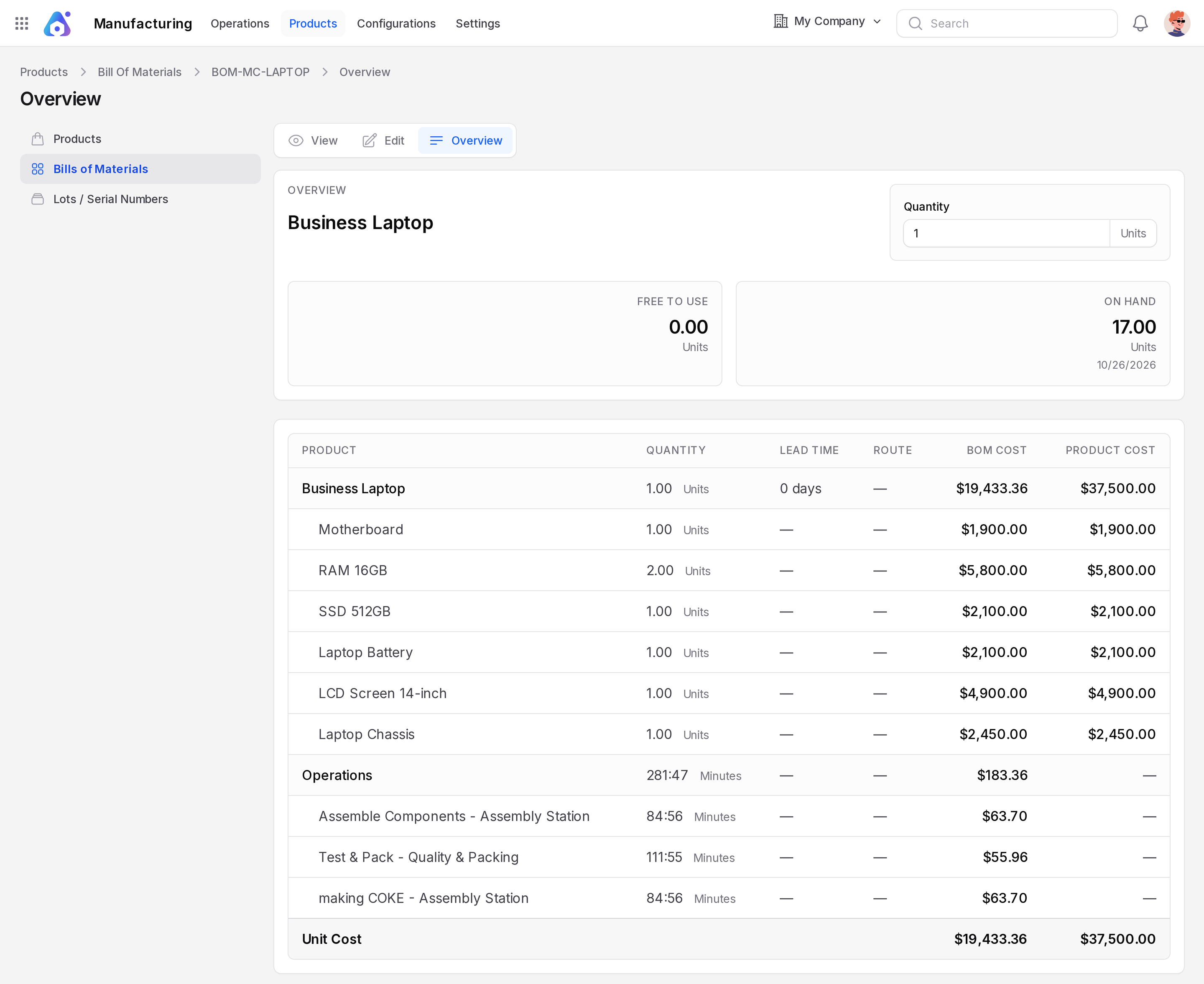
The page shows Free to Use, On Hand and Total Cost. The table lists each component with BoM Cost and Product Cost. Operations appear as minutes.
MO Overview
The MO Overview shows costs for one order.
- Open
Manufacturing → Operations → Manufacturing Orders. - Click MO/2, then the Overview tab.
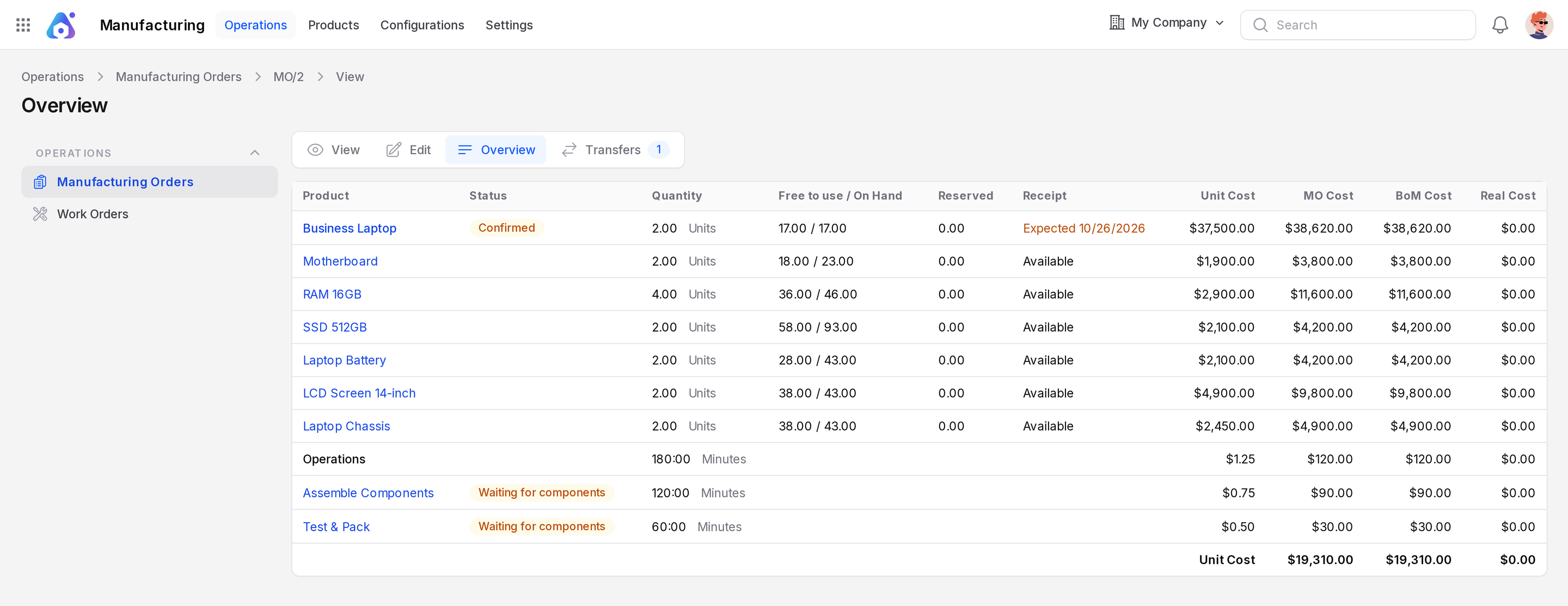
Columns:
- Status: Whether the item is confirmed, and whether stock is available.
- Quantity: The amount this order needs.
- Free to use / On Hand: Stock you can still reserve, and stock in the warehouse.
- Reserved: Stock already held for this order.
- Receipt: Available or an expected date.
- Unit Cost: Cost of one unit of the line.
- MO Cost: Cost planned for this order.
- BoM Cost: Cost taken from the recipe.
- Real Cost: Cost recorded when the work is done.
BoM cost, MO cost and real cost
| Cost | Meaning |
|---|---|
| BoM Cost | What the recipe says it should cost |
| MO Cost | The same recipe for the quantity on this order |
| Real Cost | What the order actually cost |
Real Cost shows $0.00 while the order is only confirmed. The two planned costs match when nothing was changed on the order.
Expected and real duration
Each operation has an Expected Duration in minutes. It comes from the operation, times the quantity. The Real Duration is the tracked time on the work order. Compare them in the Work Orders tab of the order. See Work orders.
Worked numbers: MO/2
MO/2 makes 2 Business Laptop units.
| Line | MO Cost |
|---|---|
| Motherboard (2 × 1,900) | 3,800 |
| RAM 16GB (4 × 2,900) | 11,600 |
| SSD 512GB (2 × 2,100) | 4,200 |
| Laptop Battery (2 × 2,100) | 4,200 |
| LCD Screen 14-inch (2 × 4,900) | 9,800 |
| Laptop Chassis (2 × 2,450) | 4,900 |
| Components total | 38,500 |
| Assemble Components (120 minutes) | 90 |
| Test & Pack (60 minutes) | 30 |
| Operations total (180 minutes) | 120 |
| MO Cost | 38,620 |
The Unit Cost row divides the MO cost by the quantity: 38,620 ÷ 2 = 19,310.
The operation minutes come from the defaults: 60 minutes for Assemble Components and 30 for Test & Pack, each times 2 units.
TIP
If the unit cost looks wrong, check Cost per Hour on the work centers and the cost on each component product.