

Sequences
A sequence is the rule that builds the number of a document, such as INV/2026/00001. It holds a prefix, a suffix, a counter and a padding. The app takes the next number from the sequence each time a document is created, so numbers never repeat.
In simple words: A sequence is a numbering machine. You set how the number looks, and the app counts for you.
INFO
The app creates most sequences by itself. A sequence for a journal, a warehouse or an operation type appears when you create that record. You mostly edit them here.
Overview
Open Settings → Sequences to see all sequences.
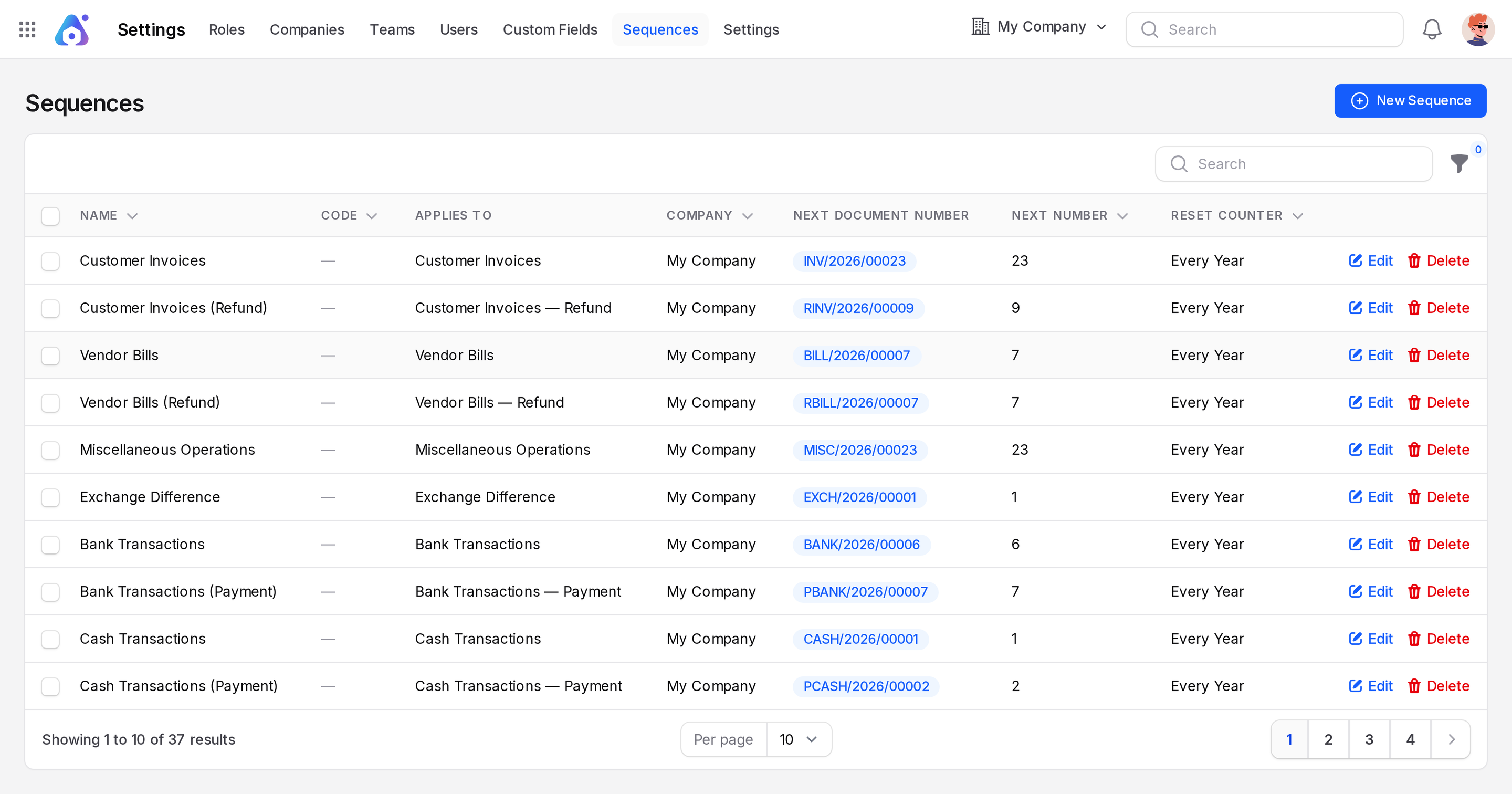
The list shows these columns:
- Name: The name of the sequence.
- Code: The technical identifier that documents use.
- Applies To: The record the sequence belongs to, for example a journal. It can end with a variant: Refund, Payment or Refund + Payment.
- Company: The company the sequence belongs to.
- Next Document Number: A preview of the next number the app will give.
- Next Number: The counter value.
- Reset Counter: When the counter starts again.
You can search by Name or Code, and sort most columns. Use the Company filter to see the sequences of one company. The list is sorted by Code.
Create a sequence
Create a sequence yourself only for a custom code. Documents that need one create it for you.
- Go to
Settings → Sequences. - Click New Sequence. A Create Sequence window opens.
- Fill in the window.
- Click Create.
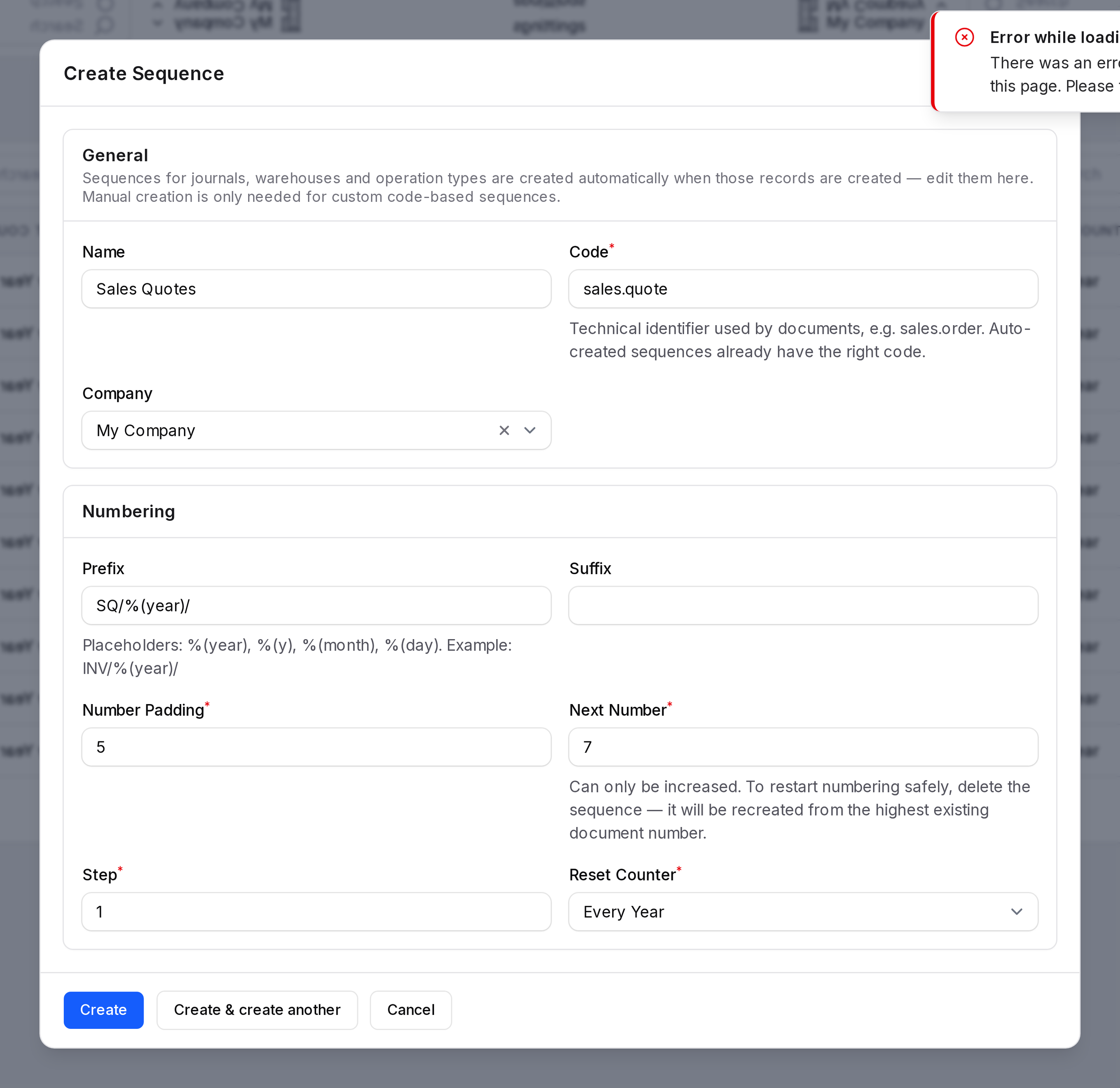
General
- Name: A name that helps you find the sequence. Optional.
- Code: The technical identifier used by documents, for example
sales.order. This is required. It must be unique within the company. - Company: Choose the company the sequence is for. Leave it empty to use it for all companies.
Numbering
- Prefix: Text placed before the number. You can use
%(year)(2026),%(y)(26),%(month)(10) and%(day)(14). For example,INV/%(year)/. - Suffix: Text placed after the number. The same placeholders work here.
- Number Padding: How many digits the number has. The app adds zeros on the left. Use a value from 1 to 12. The default is 5.
- Next Number: The number the next document gets. The default is 1.
- Step: How much the counter grows each time. The default is 1.
- Reset Counter: When the counter goes back to 1. Choose Never, Every Year or Every Month.
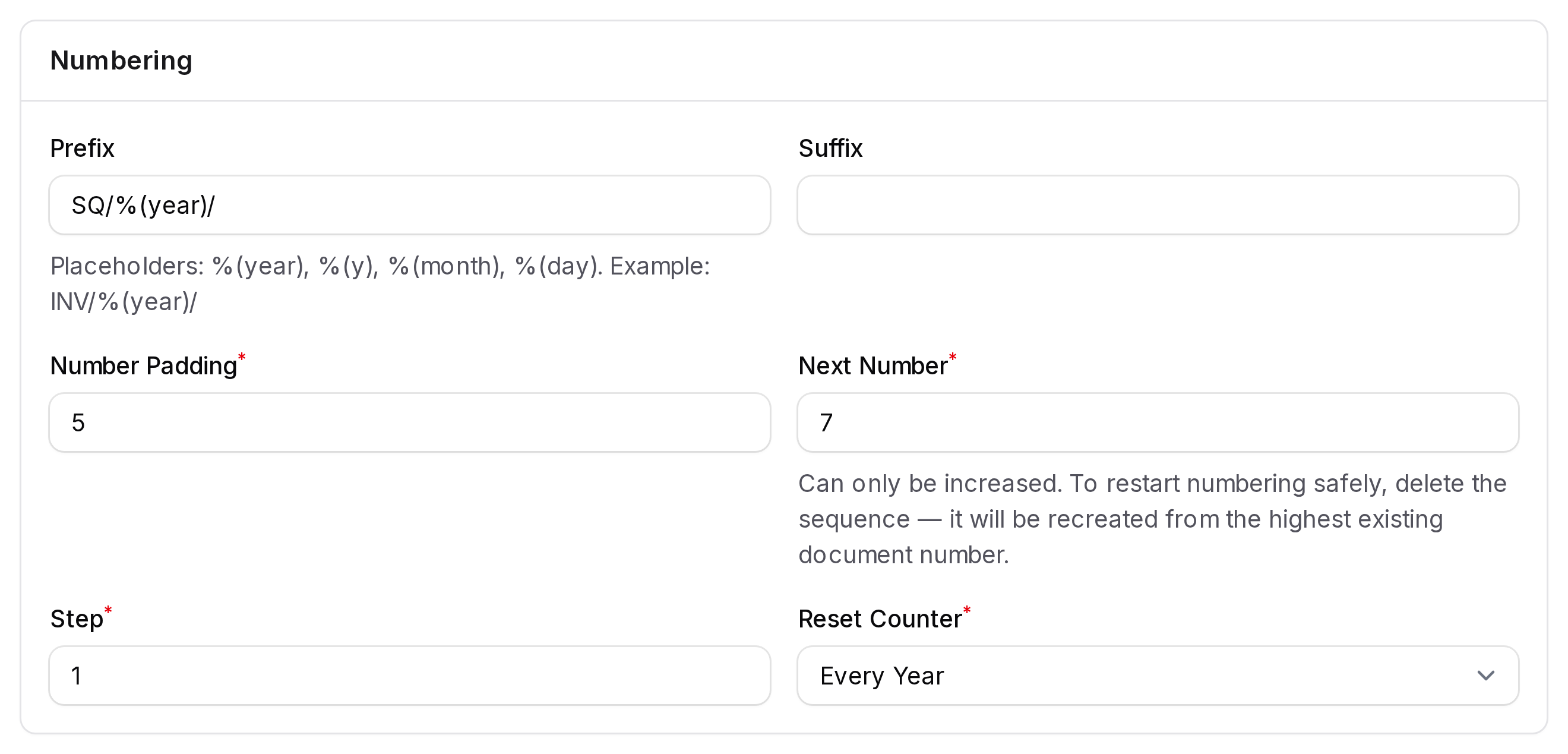
Example
With the prefix INV/%(year)/, padding 5 and next number 7, the next document number is INV/2026/00007.
Edit a sequence
- Click Edit on a row.
- Change the Name, Prefix, Suffix, Number Padding, Next Number, Step or Reset Counter.
- Click Save changes.
You cannot change the Code or the Company of an existing sequence. A sequence made by the app also shows Applies To.
WARNING
You can only raise Next Number. You cannot lower it. This stops two documents from getting the same number.
TIP
Delete does not restart at 1. The app creates the sequence again after the highest document number that exists.
Old documents keep their numbers when you change a sequence.
When you change Reset Counter, the app starts a new period for the counter.
Delete a sequence
Click Delete on a row, or select several rows and use the bulk delete. The app shows a confirmation message when it is done.
Actions and statuses
- New Sequence: Opens the create form.
- Edit: Opens the edit form of a sequence.
- Delete: Removes the sequence.