

Manage equipment
The equipment list shows every item you maintain. Use it to find a machine, see who is responsible and clean up items you no longer use. Tabs, filters, grouping and search help you narrow a long list quickly.
In simple words: The list is your asset register. Search it, slice it, and archive items you stop using.
Path: Maintenance → Equipment
Overview
The list opens on the My Equipment tab. It shows only items where you are the Owner, so it can be empty. Click Default to see all equipment.
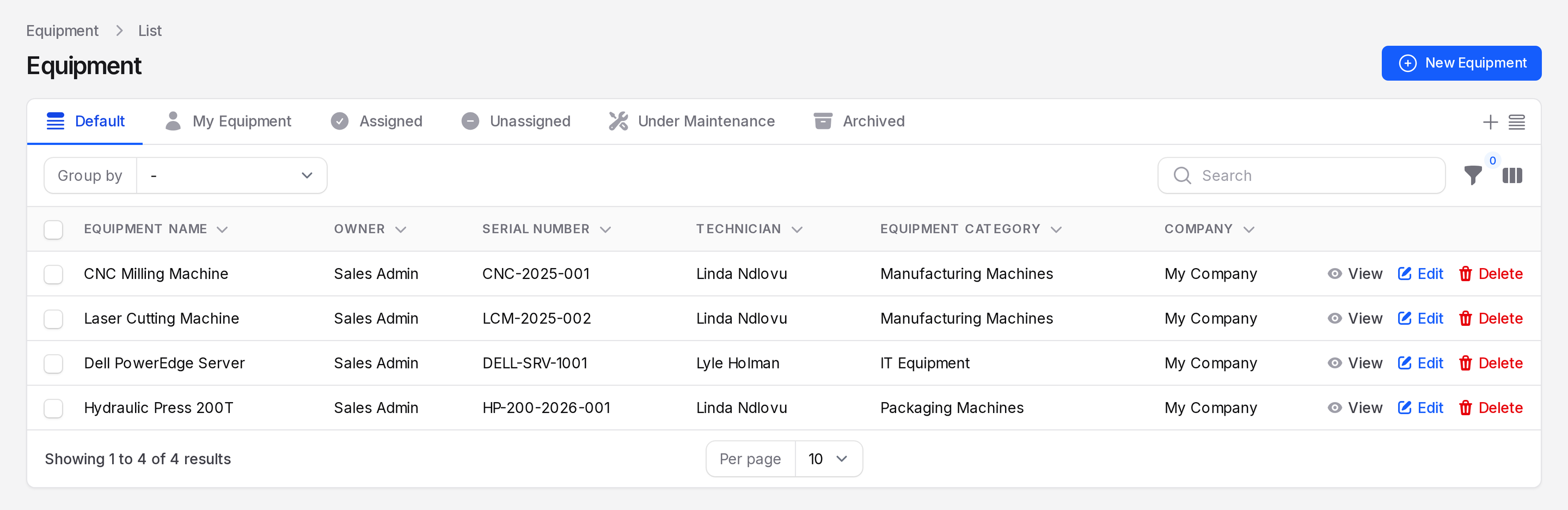
Tabs
- Default: All active equipment.
- My Equipment: Items where you are the Owner. This tab is selected when the page opens.
- Assigned: Items that have an Owner.
- Unassigned: Items with no Owner. Owner is not the same as Technician.
- Under Maintenance: Items with open maintenance requests.
- Archived: Items you archived.

Columns
The list shows Equipment Name, Owner, Serial Number, Technician, Equipment Category and Company. Use the column toggle to add Created At.
Find equipment
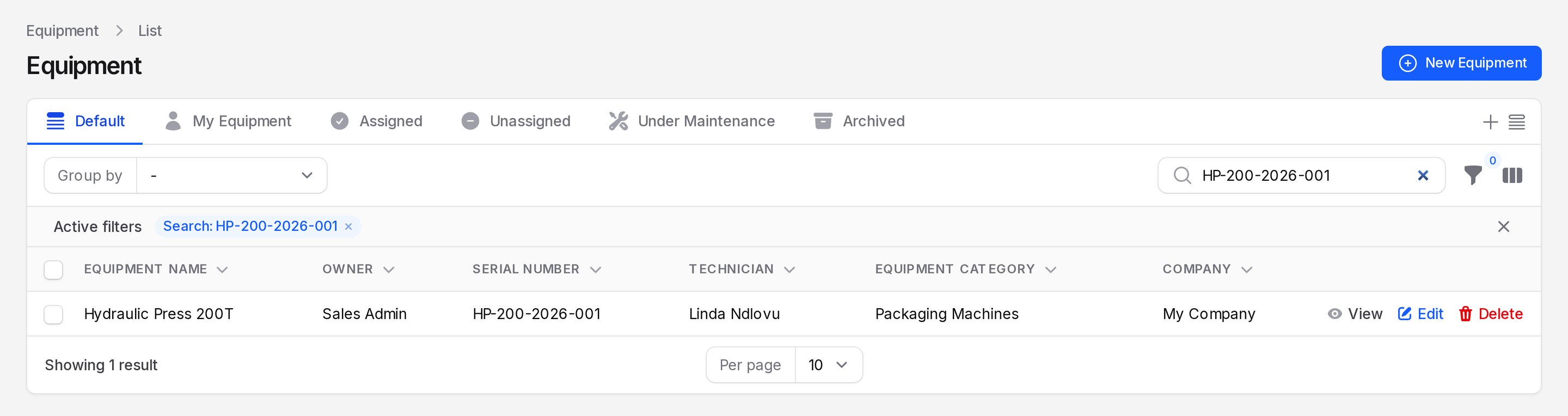
Search
Type in the search box. It matches the equipment name and the serial number. For example, search HP-200-2026-001.
Filters
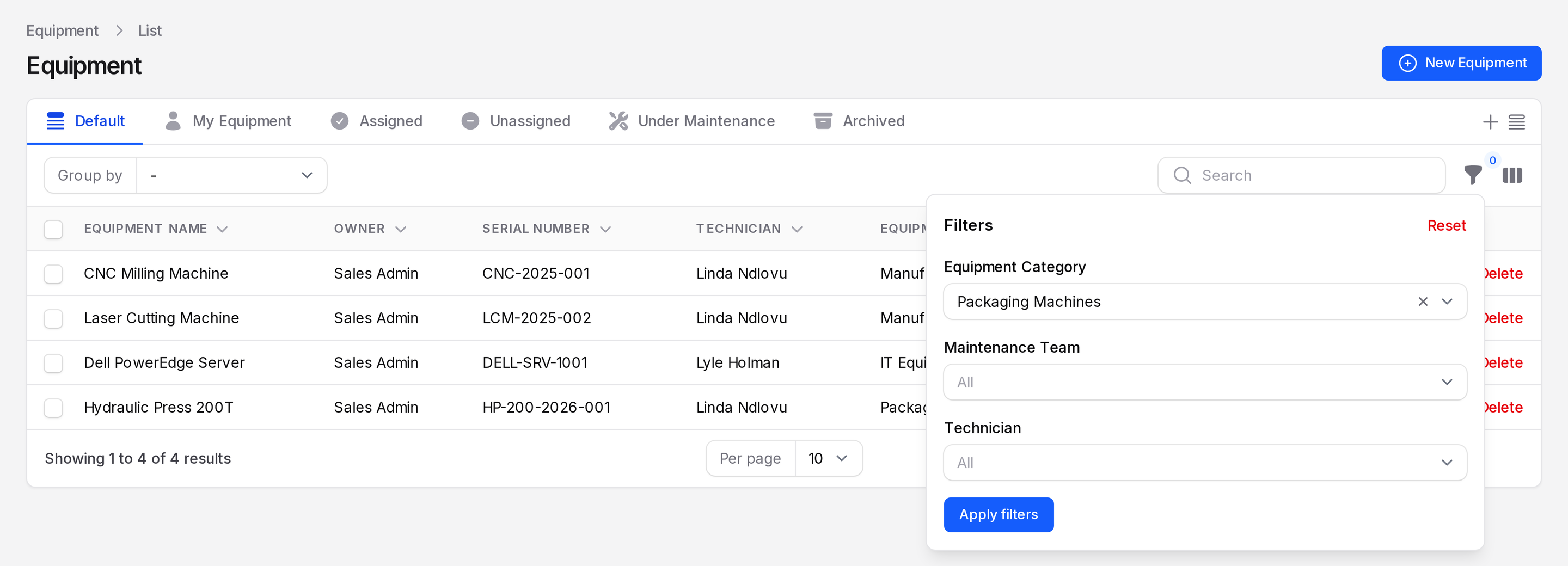
- Click the filter icon.
- Choose Equipment Category, Maintenance Team or Technician.
- Click Apply filters. Click Reset to clear them.
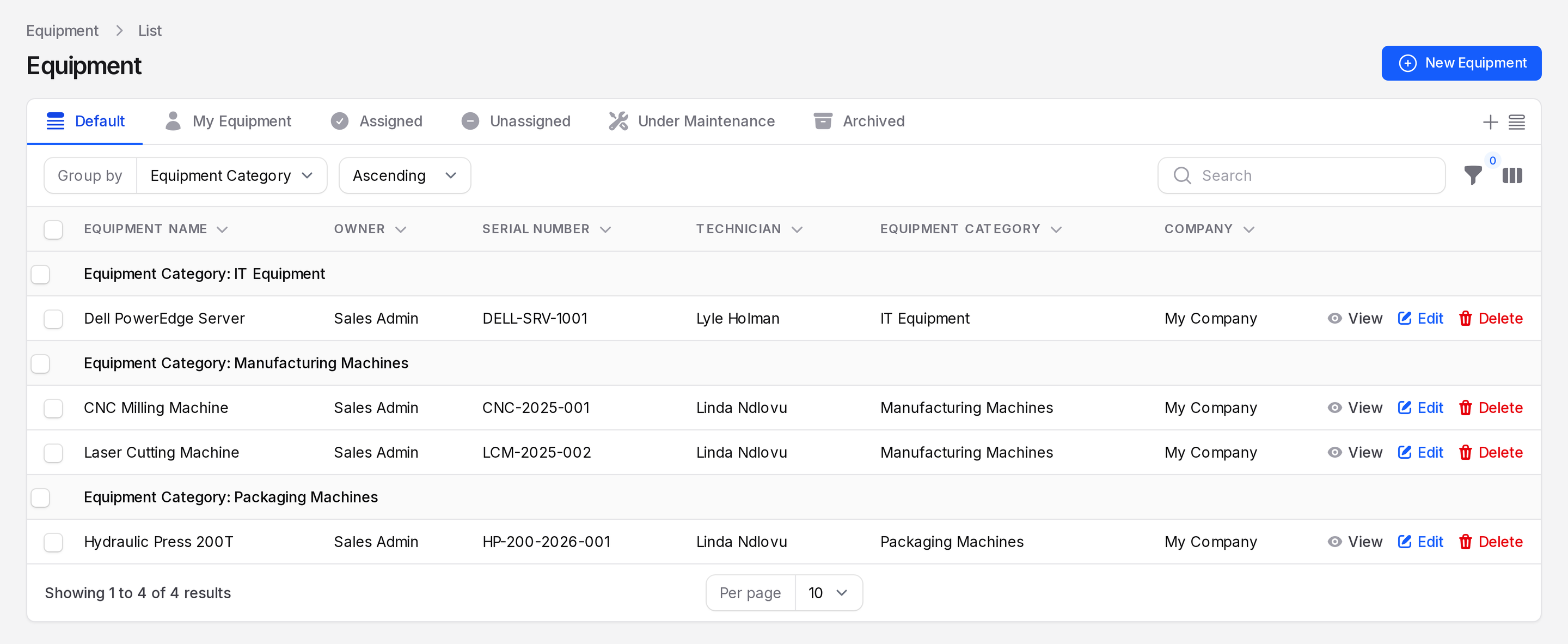
Group by
Open Group by and choose Technician, Equipment Category, Owner or Vendor. Set the direction to Ascending or Descending.
TIP
Use the saved views menu next to the tabs to pin your favourite tabs, or to add your own view with Add New.
Row actions
Click a row to open its View page. Each row has these actions:
- View: Opens the read-only page.
- Edit: Opens the form so you can change values.
- Delete: Archives the equipment.
Archive, restore and delete
Archiving hides equipment that you no longer use, but keeps its history.
Use a test item
Create a test item first, for example Old Forklift. Do not archive Hydraulic Press 200T. The other pages need it.
- On the row of the equipment, click Delete.
- A window titled with the equipment name, for example "Delete Old Forklift", asks "Are you sure you would like to do this?". Click Delete. Click Cancel to stop.
- Open the Archived tab. The item is listed there.
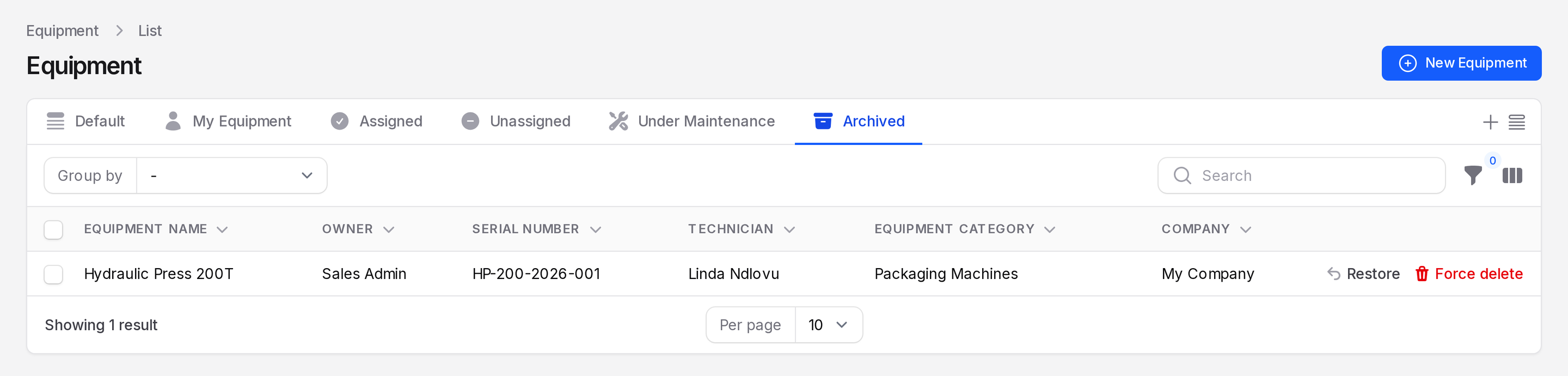
On the Archived tab, each row shows two links:
- Restore: Opens a window titled with the equipment name and with Cancel and Restore. After you confirm, the message "Equipment restored" appears with "The equipment has been restored successfully."
- Force delete: Removes the item for good. The message "Equipment deleted" appears.
WARNING
Force delete cannot be undone. If a request or other record still uses the equipment, deletion stops with "Equipment could not be deleted". Archive the item instead.
Bulk actions
Tick one or more rows to open Bulk actions. You can choose Delete selected (archive), Restore selected or Force delete selected. Use Select all to tick every row on the page.