

Three-step manufacturing
Three-step manufacturing is the most controlled setup. You pick the components, manufacture, then store the finished product in a second transfer. Each handover is a separate document. Use it for larger warehouses or when you need a full audit trail.
In simple words: Pick the parts, build, then put the product away. Three steps, three records.
Settings
The Manufacturing radio needs Multi Steps Routes and Locations on in Inventory → Settings → Manage Warehouses. See One-step manufacturing for the full gate.
Choose three steps
- Open
Inventory → Configurations → Warehouse Management → Warehouses. - Click your warehouse, then the Edit tab.
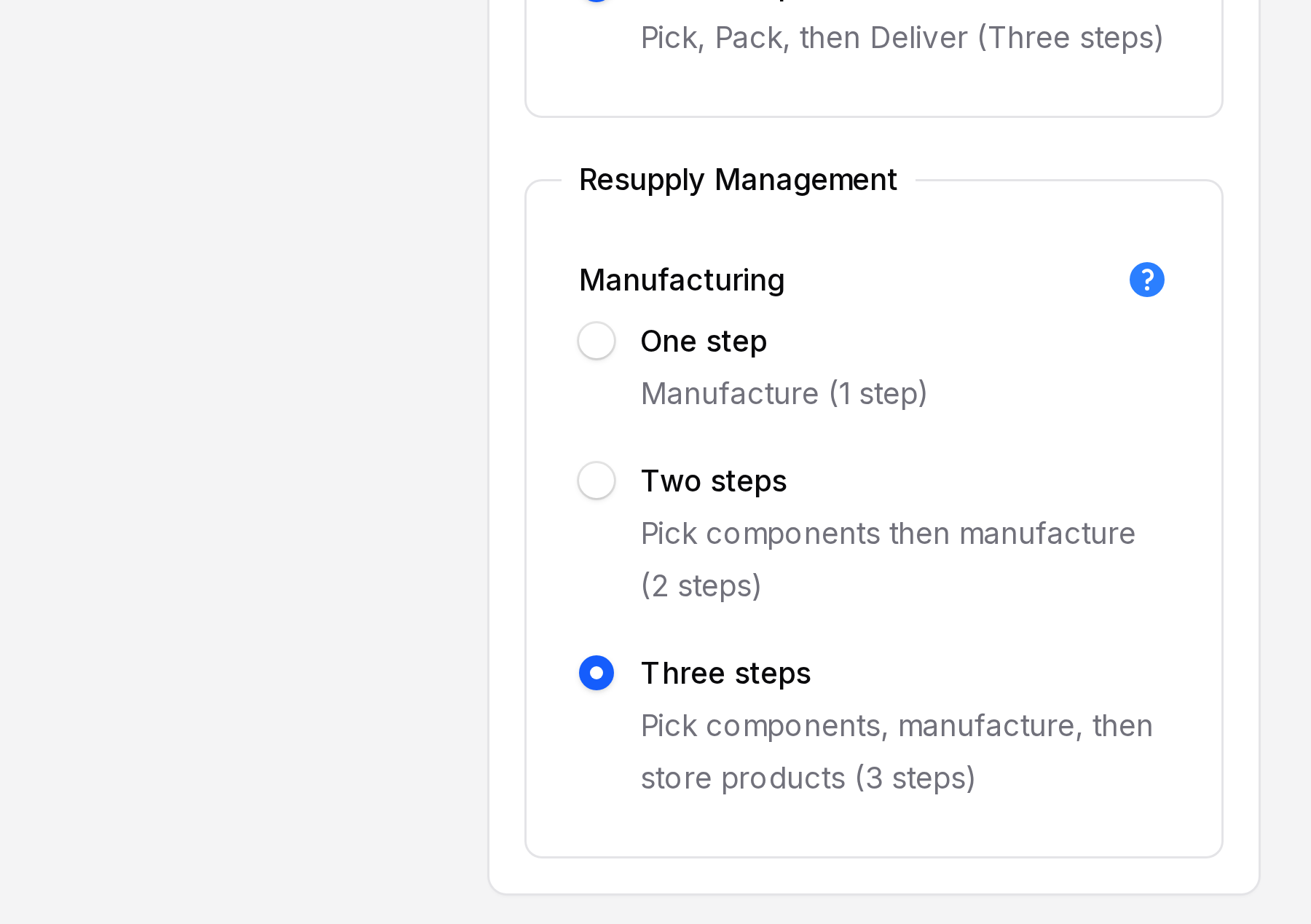
- In Resupply Management, select Pick components, manufacture, then store products (3 steps) in the Manufacturing radio.
- Click Save changes.
INFO
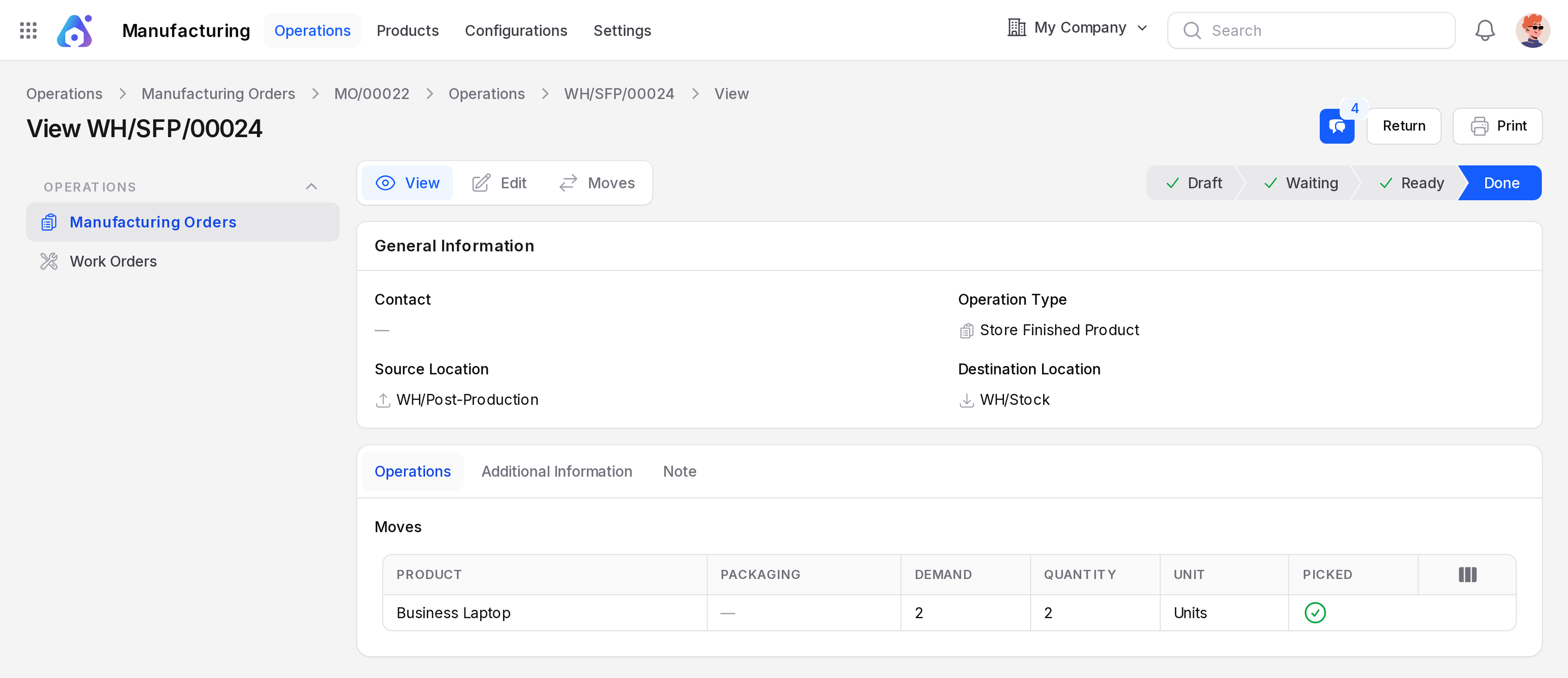
The warehouse now has the locations Pre-Production and Post-Production. It also has the operation types Pick Components (PC) and Store Finished Product (SFP).
How the stock moves
Stock ─► Pre-Production ─► Production ─► Post-Production ─► Stock
 pick (WH/PC)           manufacture                    store (SFP)
Post-Production holds finished products until a storekeeper puts them away.
Walk through a manufacturing order
This is the same order as in the other two pages: MO/2, Business Laptop, 2 units.
- Create the order in
Manufacturing → Operations → Manufacturing Ordersand click Confirm. - Open the Transfers sub page. The pick transfer WH/PC/… is Ready.
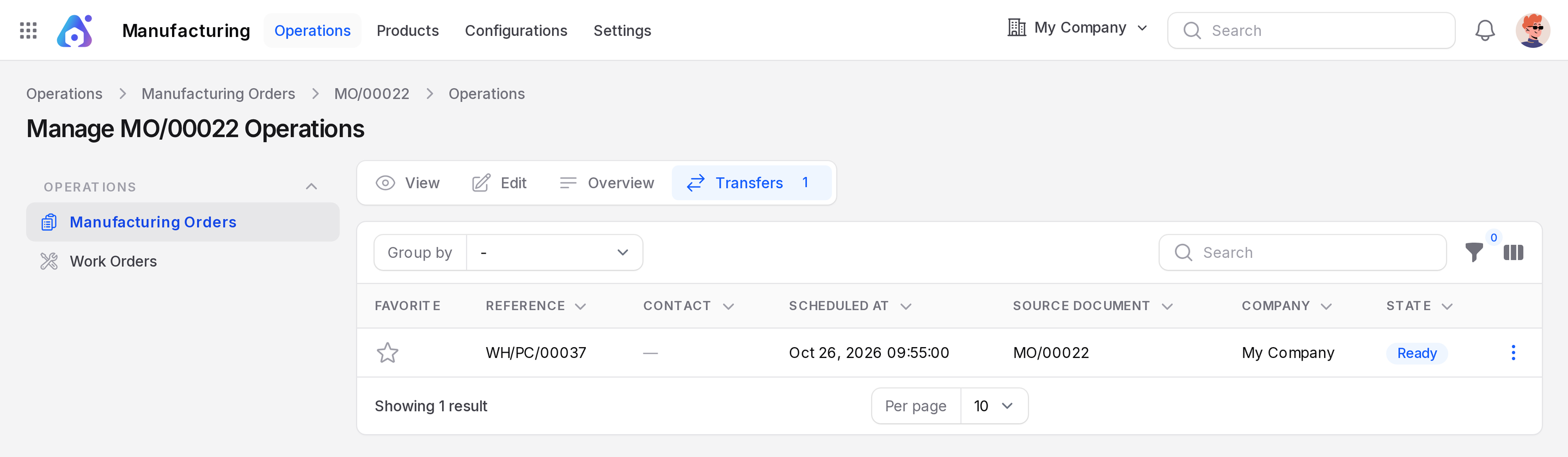
- Open the pick transfer and click Validate.
- Back on the order, click Produce All. The state becomes Done.
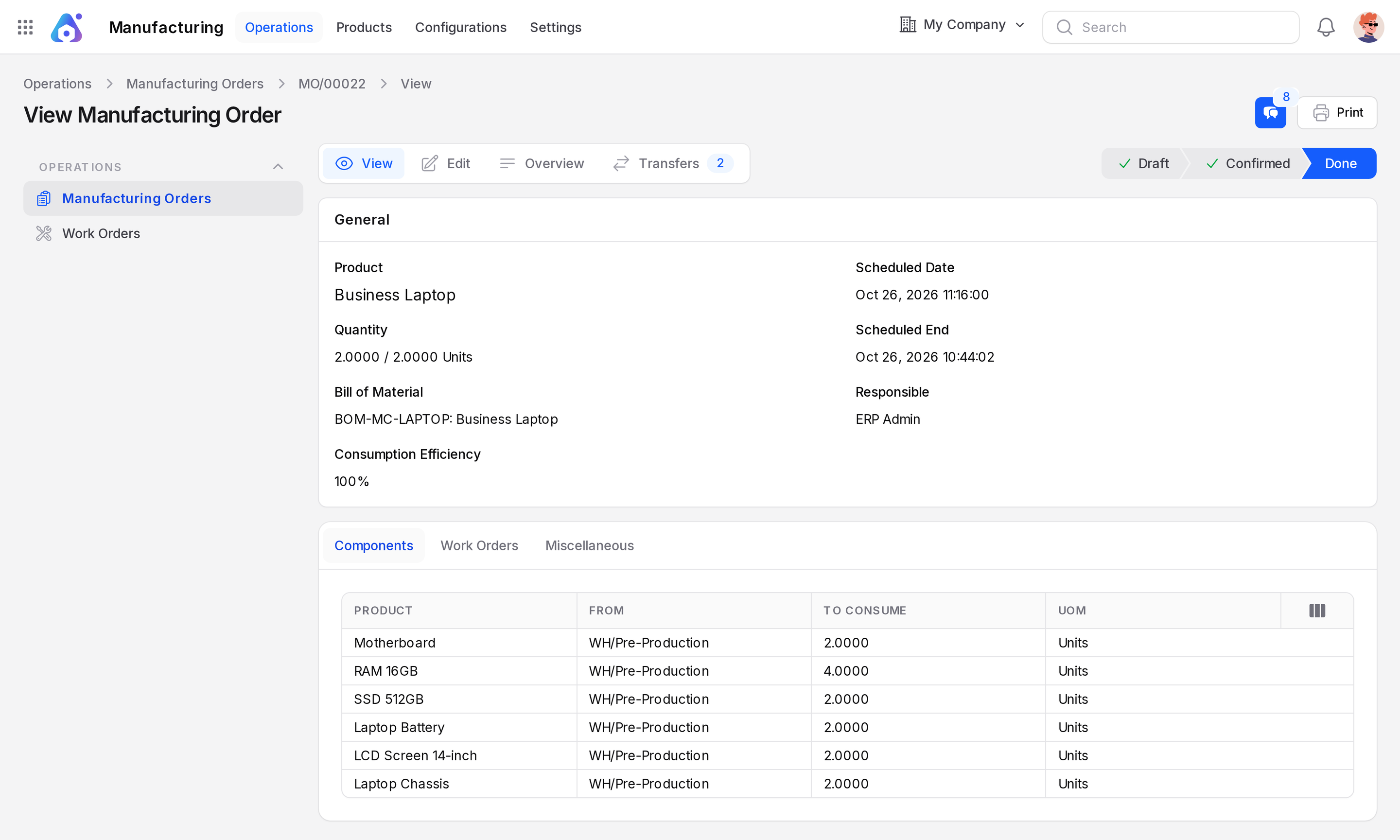
- Open Transfers again. A second transfer with the prefix SFP now exists.
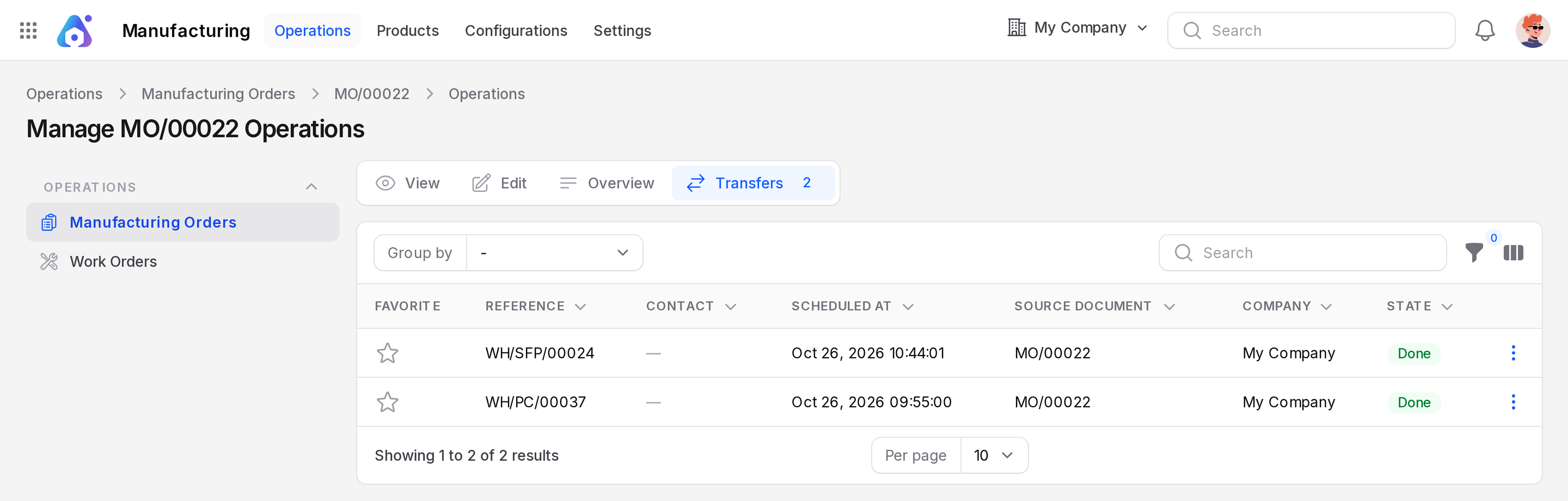
- Open the SFP transfer and click Validate. The finished laptops enter Stock.
Actions and statuses
| Moment | What happens |
|---|---|
| Confirm | Creates the pick transfer WH/PC/…. |
| Validate (pick) | Components move Stock to Pre-Production. |
| Produce All | Components consumed. Finished product goes to Post-Production. State Done. |
| Validate (SFP) | Finished product moves to Stock and can be sold. |
WARNING
The order is Done before the SFP transfer is validated. The product is not in Stock until you validate it.
Compare the three options
| One step | Two steps | Three steps | |
|---|---|---|---|
| Extra documents | None | Pick | Pick and store |
| Staging locations | None | Pre-Production | Pre-Production, Post-Production |
| Finished goods in stock | At Done | At Done | After SFP validate |