

Tax settings
The Manage Taxes page holds the company-wide rules for taxes: which taxes are the defaults, how tax amounts are rounded, and whether the prices you type already include tax.
In simple words: These are the global tax switches. Decide them before your first invoice.
This page exists only in the Accounting app.
Open the page
Accounting → Settings → Manage Taxes
If the page only shows a warning box, run Set up accounting first.
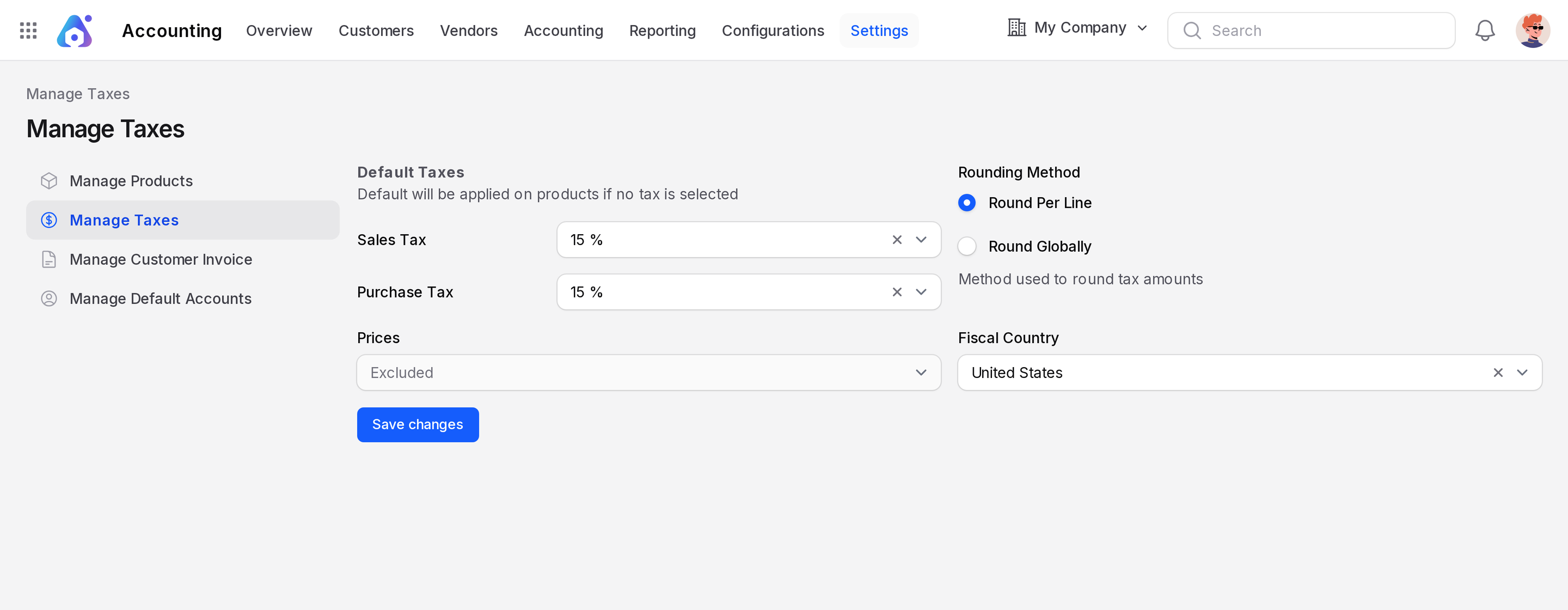
Change the settings
- Open
Accounting → Settings → Manage Taxes. - Change the fields below.
- Click Save changes.
Default Taxes
The page says: "Default will be applied on products if no tax is selected."
- Sales Tax: One of your Sale taxes. Sample:
15 %. - Purchase Tax: One of your Purchase taxes. Sample:
15 %.
Rounding Method
"Method used to round tax amounts."
- Round Per Line: Aureus rounds the tax of each invoice line to the currency precision, then adds the lines up.
- Round Globally: Aureus adds the exact amounts and rounds at the end.
Per line matches what a customer sees on each line. Globally avoids small rounding gaps on invoices with many lines.
Prices
Choose Default, Included or Excluded. It sets whether the prices you enter on products and invoices already contain tax.
WARNING
This field is locked once the company has at least one invoice. Decide before you start.
Fiscal Country
The country where your company pays its taxes.
Tax included and tax excluded
A price is tax excluded when the tax is added on top. A price is tax included when the tax is already inside it.
Example with a 15 % tax and a price of 115:
| Tax excluded | Tax included | |
|---|---|---|
| Untaxed amount | 115.00 | 100.00 |
| Tax | 17.25 | 15.00 |
| Total | 132.25 | 115.00 |
Two places control this:
- The Included in Price option on each tax. Included makes that tax price included.
- The Prices setting on this page, as the company-wide choice.
Use the option on the tax when one tax differs from the rest, for example when only your retail prices include tax.