

Log time
Logging time means adding a timesheet entry. You do it from the Timesheets page, where you pick the project and the task. Each task then shows its own time.
In simple words: Pick who worked, on what, on which day and for how many hours. Save, and the task totals update.
Open Project → Timesheets.
Prerequisites
- Enable Timesheets is on.
- The project has Allow Timesheets.
- The project has at least one task.
See Timesheet settings.
Add a timesheet from the Timesheets page
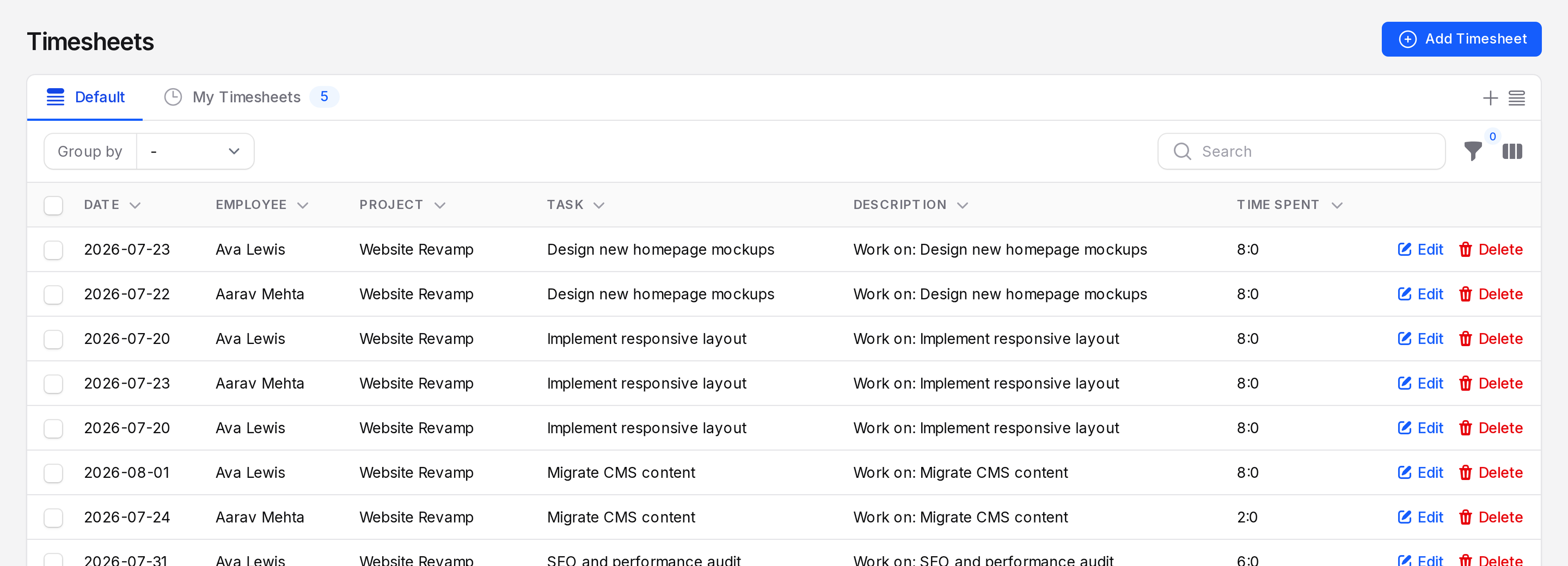
- Open
Project → Timesheets. - Click Add Timesheet. The Create Timesheet window opens.
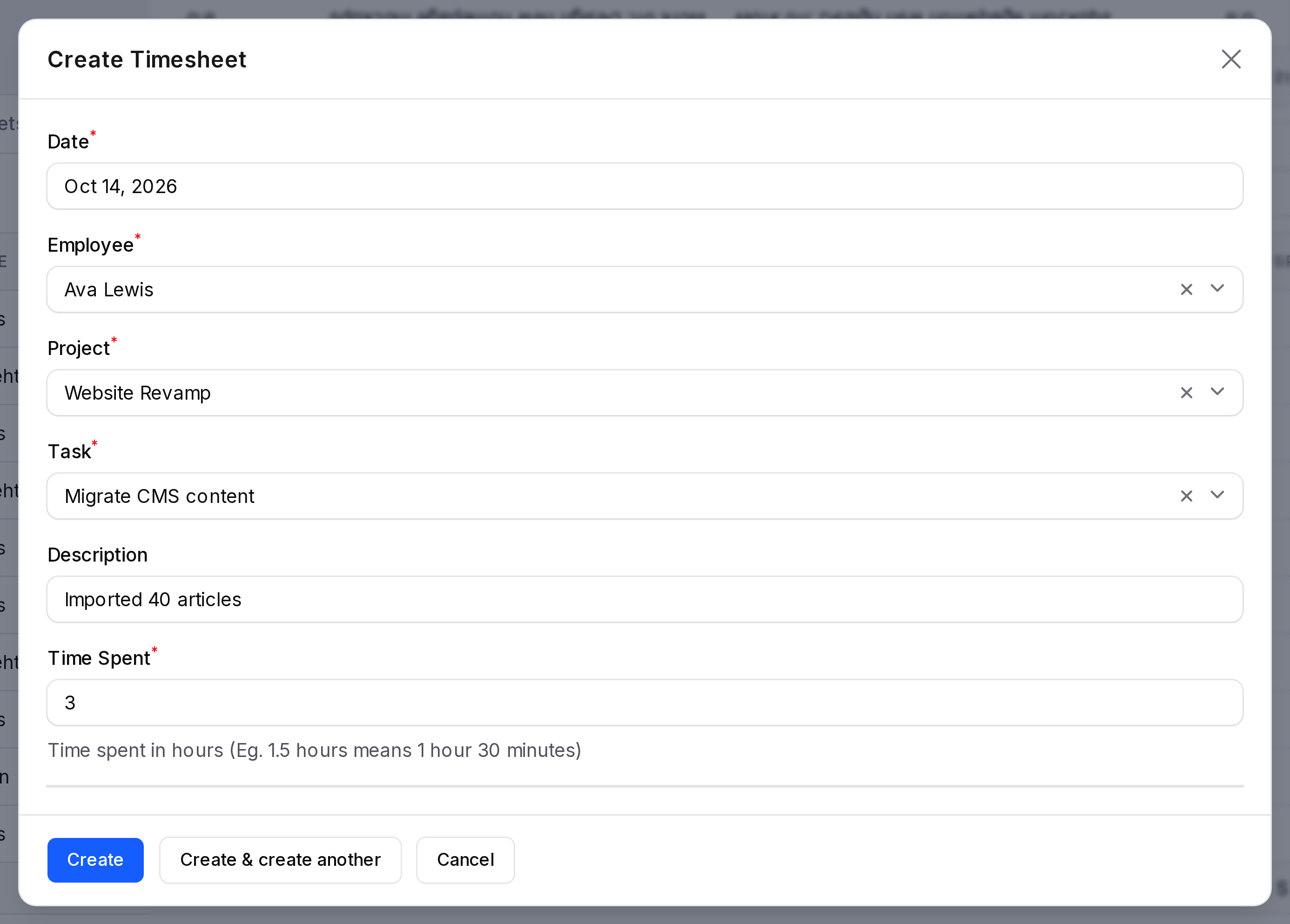
- Fill in the form.
- Date: The day the work was done. Required.
- Employee: The person who did the work. Required. The list shows users with an Aureus login, not records from the Employees app. It does not fill in by itself, so choose your own name when you log your own time.
- Project: The project the work belongs to. Required. Only projects of your company are listed.
- Task: The task that received the work. Required. Choose a project first, because the list shows only tasks of that project.
- Description: A short note on what was done.
- Time Spent: Hours as a decimal number. Required. It cannot be below 0.
Project then task
The Task list depends on the Project. If you change the project, the task is cleared. Pick the task again.
- Click Create. A message confirms the timesheet was created.
Enter hours as decimals
Type time in hours. A quarter hour is 0.25. Half an hour is 0.5.
| You want | Type |
|---|---|
| 1 hour 30 minutes | 1.5 |
| 2 hours 15 minutes | 2.25 |
| 45 minutes | 0.75 |
Example
Ava Lewis imported 40 articles on 14 Oct 2026. Enter these values:
- Date: 14 Oct 2026
- Employee: Ava Lewis
- Project: Website Revamp
- Task: Migrate CMS content
- Description: Imported 40 articles
- Time Spent: 3
Aureus sets the Creator to you. This is useful when you log time for someone else. You can group or filter by Creator in the list.
See the time on a task
Every task shows its entries in a Timesheets tab. Use it to check the time of one task.
- Open
Project → Tasksand open the task, for example Migrate CMS content. - Scroll down the View page and click the Timesheets tab.
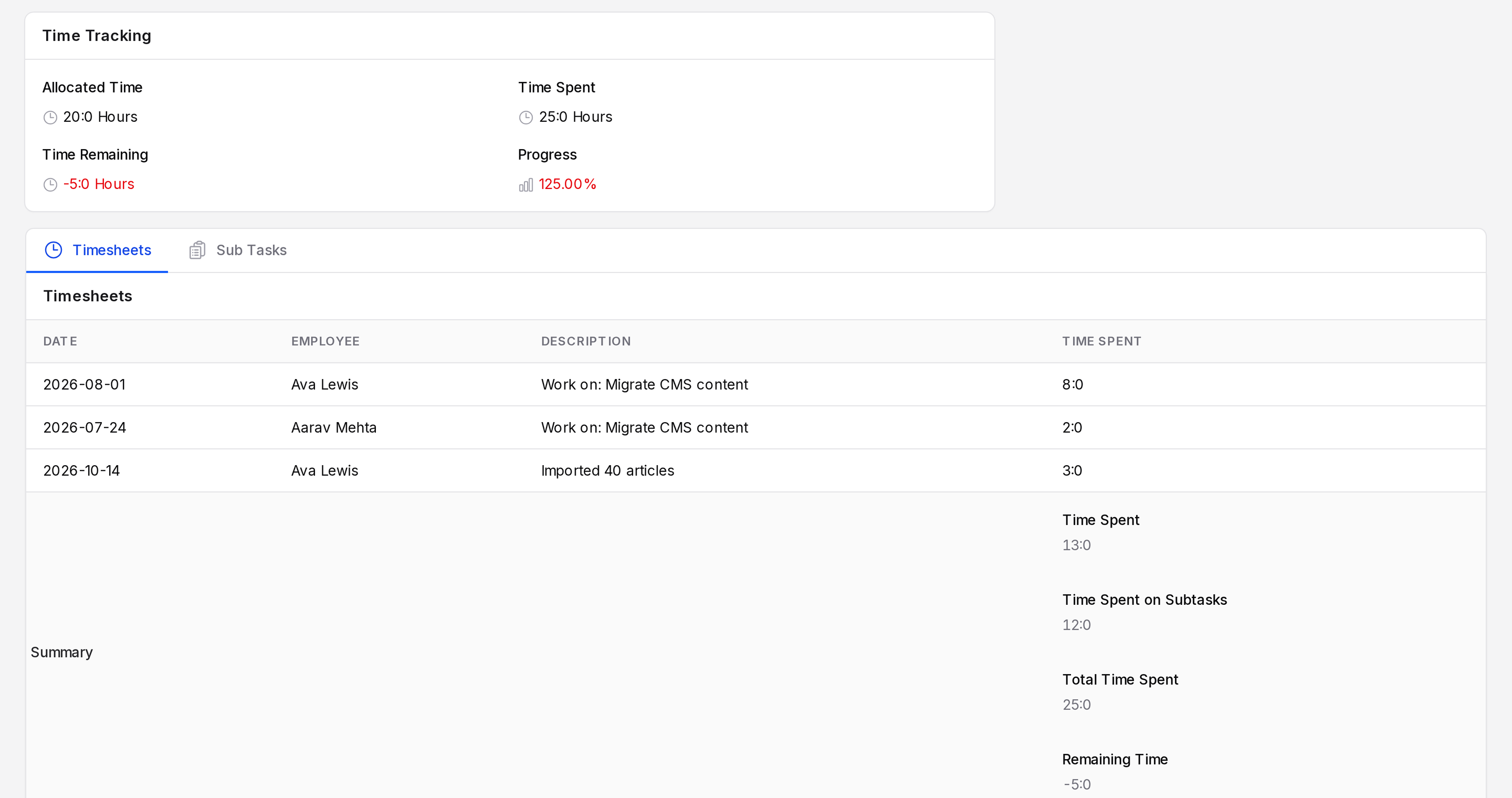
The tab lists Date, Employee, Description and Time Spent. Rows at the bottom show the totals. See Timesheet settings.
Add a timesheet from the task
- In the Timesheets tab, click Add Timesheet.
- Fill in Date, Employee, Description and Time Spent. There is no Project or Task field. Aureus takes them from the task.
- Click Create. The totals on the task update.
INFO
The Timesheets tab appears only when Enable Timesheets is on and the project has Allow Timesheets. A task with no project also shows it.
See your own time
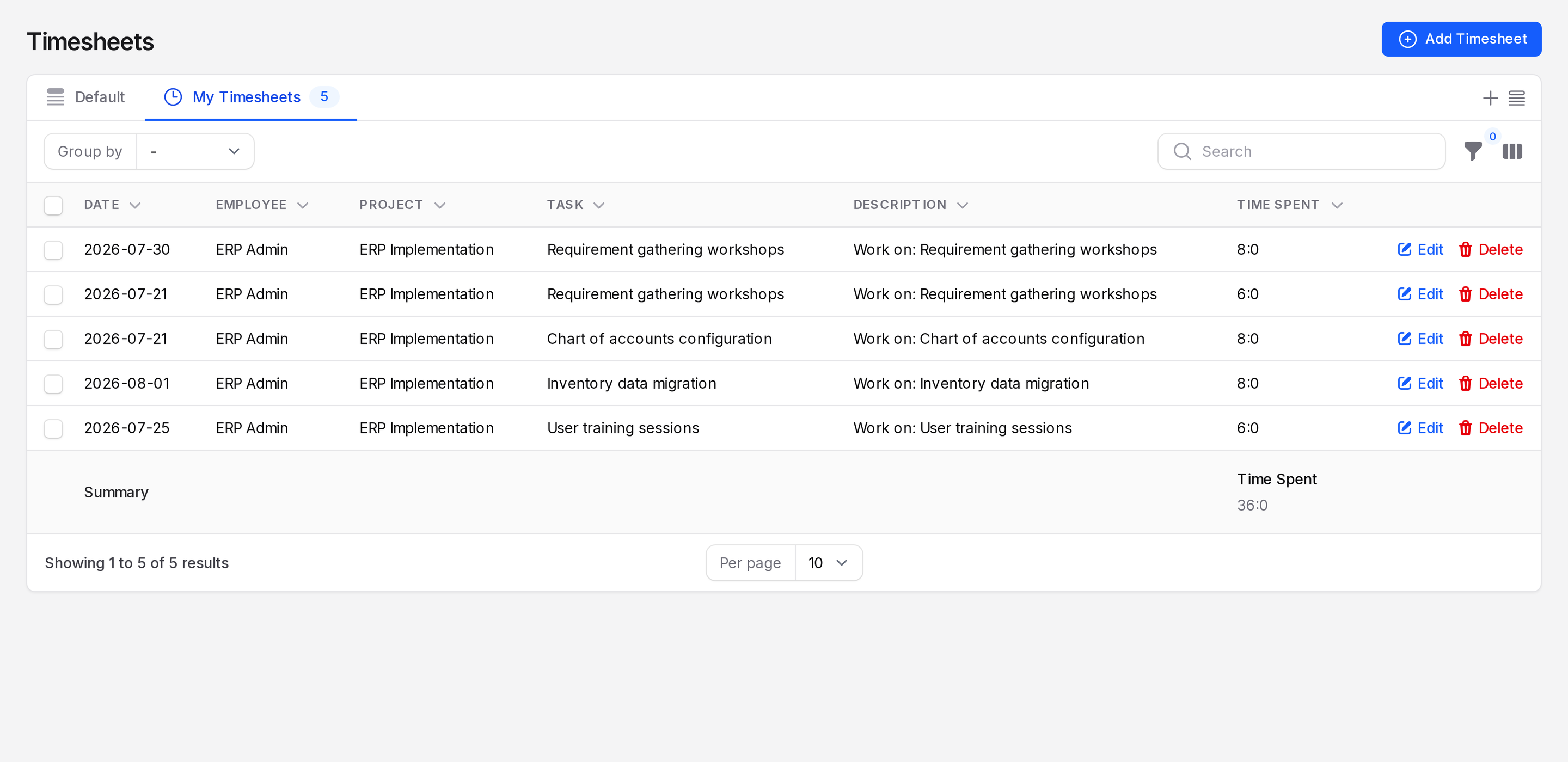
On the Timesheets page, click the My Timesheets tab. It shows only entries where Employee is you. A number on the tab counts those entries.
Edit an entry
- Find the entry in the Timesheets list.
- Click Edit at the end of the row.
- Change the values and save. A message confirms the timesheet was updated.
Task totals are recalculated after the save.
Delete an entry
- Click Delete at the end of the row.
- Confirm. A message confirms the timesheet was deleted.
Task totals are recalculated after the delete. To remove many entries at once, see Timesheet list and filters.
Actions and statuses
| Action | Result |
|---|---|
| Add Timesheet | Opens the form. Create saves the entry and adds its hours to the task. |
| Edit | Changes an entry and recalculates the task. |
| Delete | Removes an entry and recalculates the task. |
Timesheet entries have no status. They are saved as soon as you click Create.