

Vendor bills
A vendor bill is the invoice you receive from a supplier. You record it in Aureus so your books show what you owe and when it is due. This group follows the bill from the first entry to the final payment.
In simple words: A bill is the supplier's invoice, entered on your side. You confirm it, then pay it.
The screens exist in both apps. Use Invoices → Vendors → Bills or Accounting → Vendors → Bills. Each page names both paths.
Record what you owe
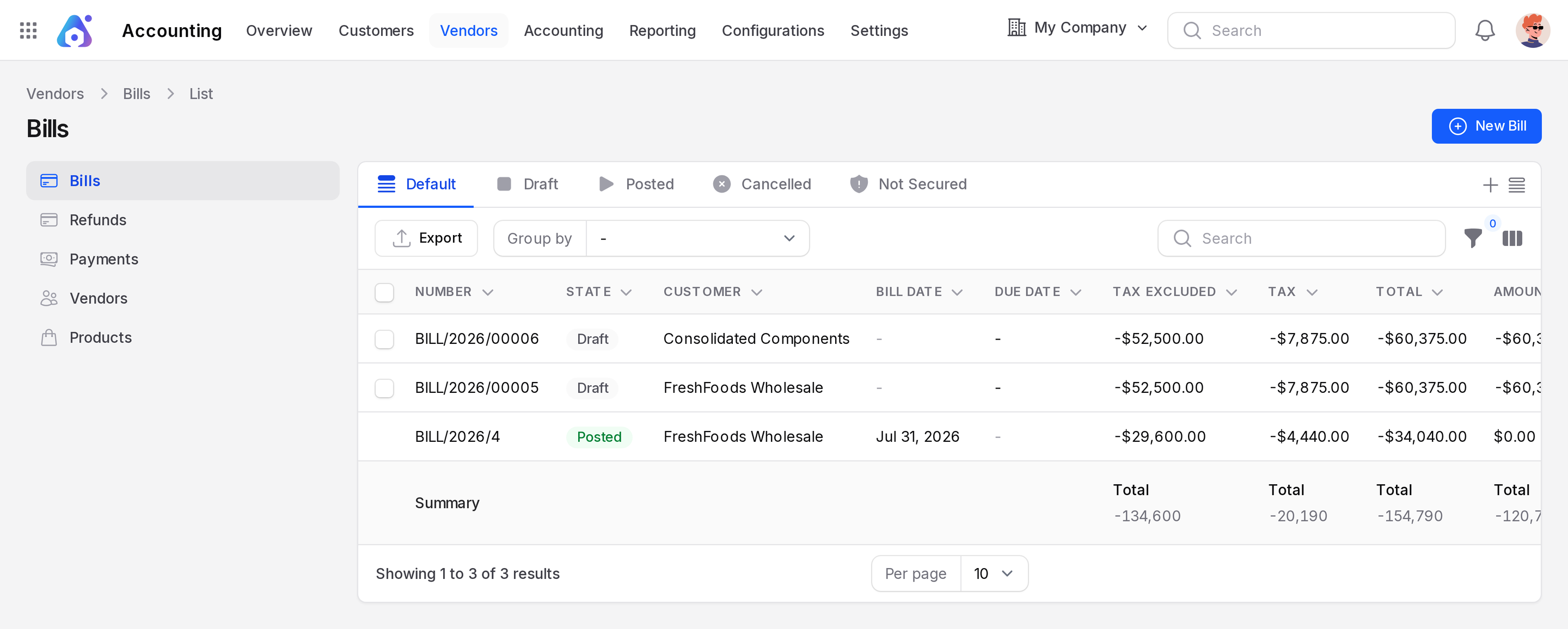
- Create the bill. Click New Bill and copy the data from the supplier's document. The bill starts as a Draft.
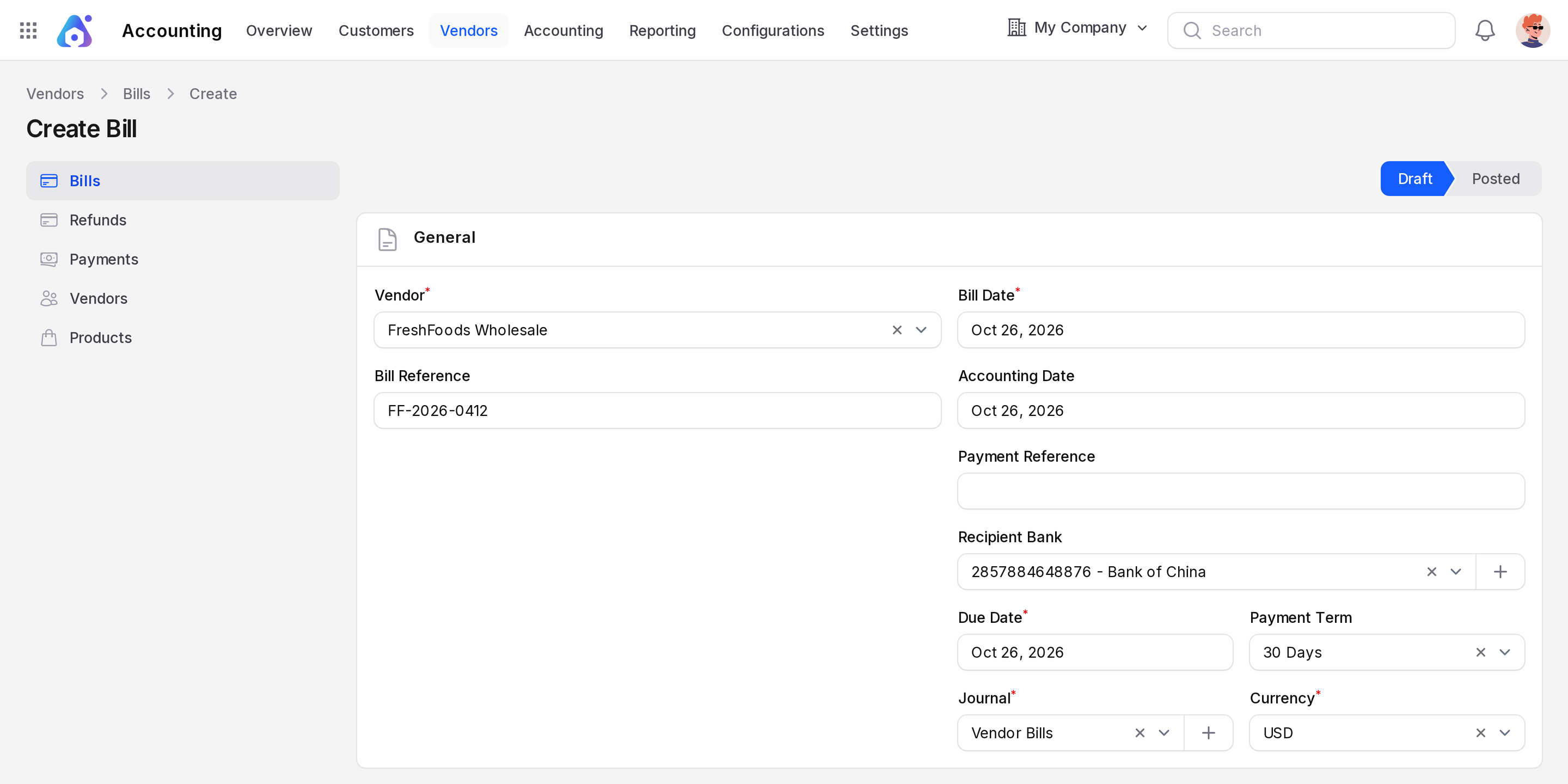
- Complete the details. Fill in the Vendor, Bill Date, Bill Reference, Payment Term and the invoice lines.
- Confirm it. Click Confirm. The bill becomes Posted and the amount you owe is recorded.
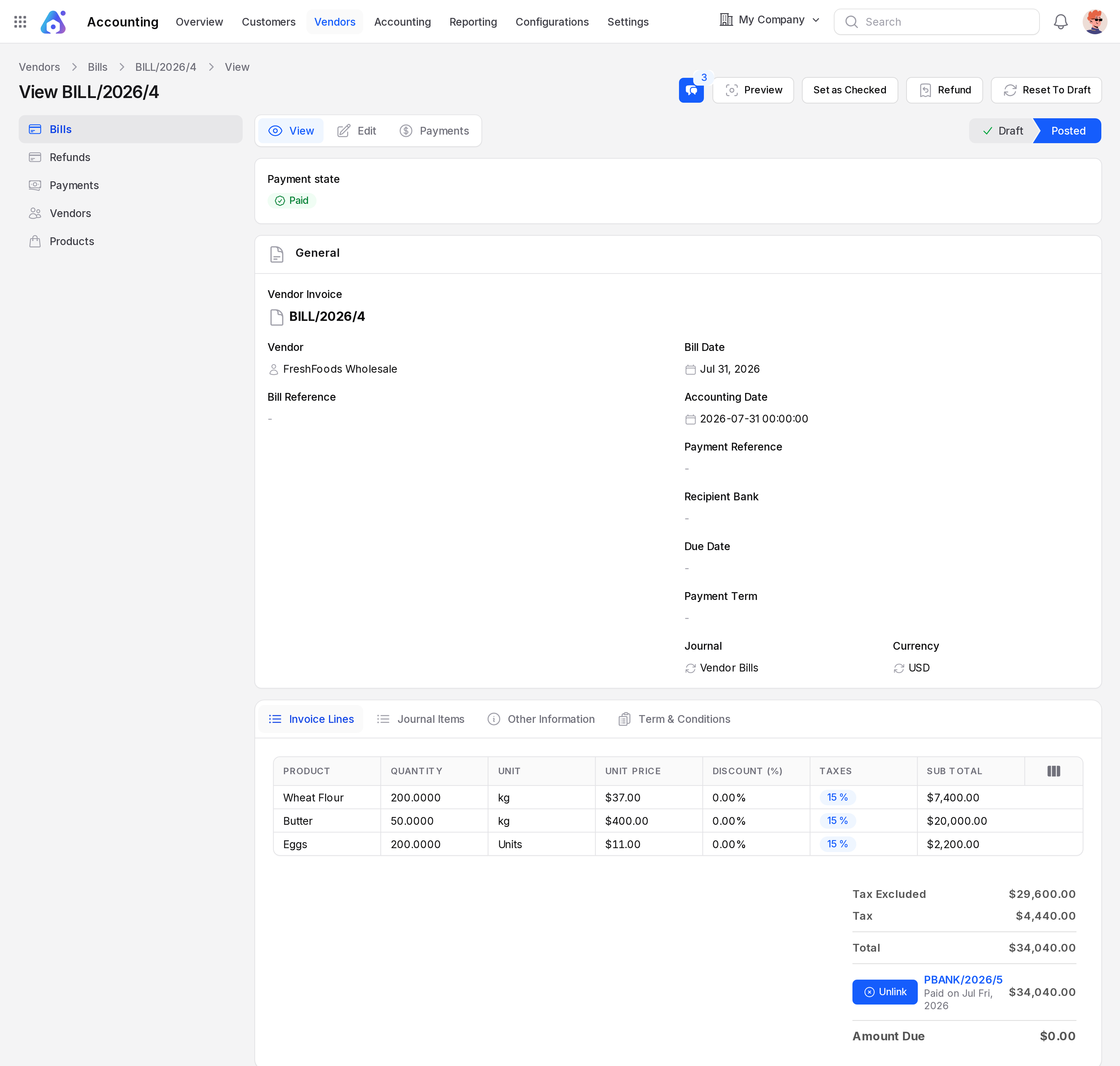
- Pay it. Click Pay and register the payment. See Register a payment.
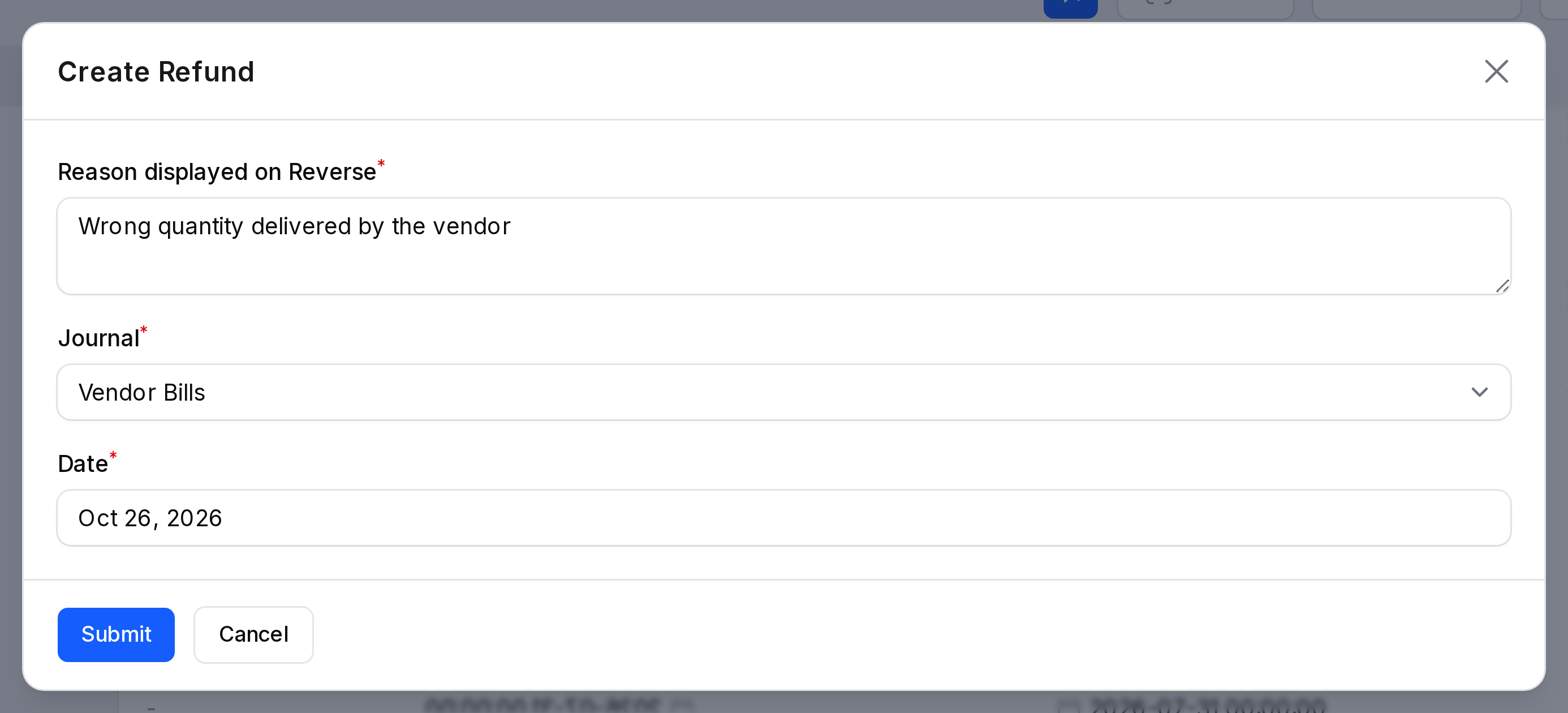
- Credit it, if needed. If the supplier credits you, use Refund. See Credit notes and refunds.
You can also start a bill from a purchase order. Open a confirmed order and click Create Bill. Aureus fills the bill from the order lines. See Purchase orders.
The vendor must exist before you create the bill. See Vendors and Contacts.
States of a bill
- Draft: You are still entering data. You can change anything.
- Posted: You confirmed it. Most fields are locked.
- Cancelled: You cancelled a draft bill.
A posted bill also has a Payment State.
- Not paid: Nothing is paid yet.
- In Payment: A payment is registered and is on its way.
- Partial: Part of the amount is paid.
- Paid: The Amount Due is zero.
- Reversed: A refund cancelled the bill.
The Amount Due column shows what is left to pay.
Buttons by state
| State | Buttons |
|---|---|
| Draft | Confirm, Cancel, Delete |
| Posted | Preview, Pay, Set as Checked, Refund, Reset To Draft |
| Cancelled | Reset To Draft, Delete |
- Confirm: Posts the bill and creates its journal entry.
- Pay: Registers a full or partial payment.
- Set as Checked: Marks the bill as reviewed.
- Refund: Creates a draft refund copied from the bill.
- Reset To Draft: Reopens the bill for editing. Linked payments are unlinked.
What is different from a customer invoice
- You type the Bill Reference, which is the number on the supplier's document.
- The Bill Date is required. Aureus does not fill it in for you.
- The Accounting Date sets the period in which the bill is recorded.
- The journal is Vendor Bills, and bill numbers look like
BILL/2026/4. See Bill sequence.
Pages in this group
- Create a vendor bill: the bill form, buttons and tabs.
- Bill sequence: how bill and refund numbers are made.
TIP
Use the Unpaid and Overdue views of the bill list to plan your payments each week.
To see all open bills by age, open the Aged payable report in the Accounting app.