

Operations
An operation is one step in making a product, such as assembling or testing. Each operation belongs to a bill of materials and runs at a work center. When you confirm a manufacturing order, Aureus turns every operation into a work order.
In simple words: An operation is a named step with a place and a time.
Open Manufacturing → Configurations → Operations.
Settings
Gate
Operations is hidden until Work Orders is on in Manufacturing → Settings → Manage Operations. Ordering steps needs Work Order Dependencies as well. See Work order dependencies.
Overview
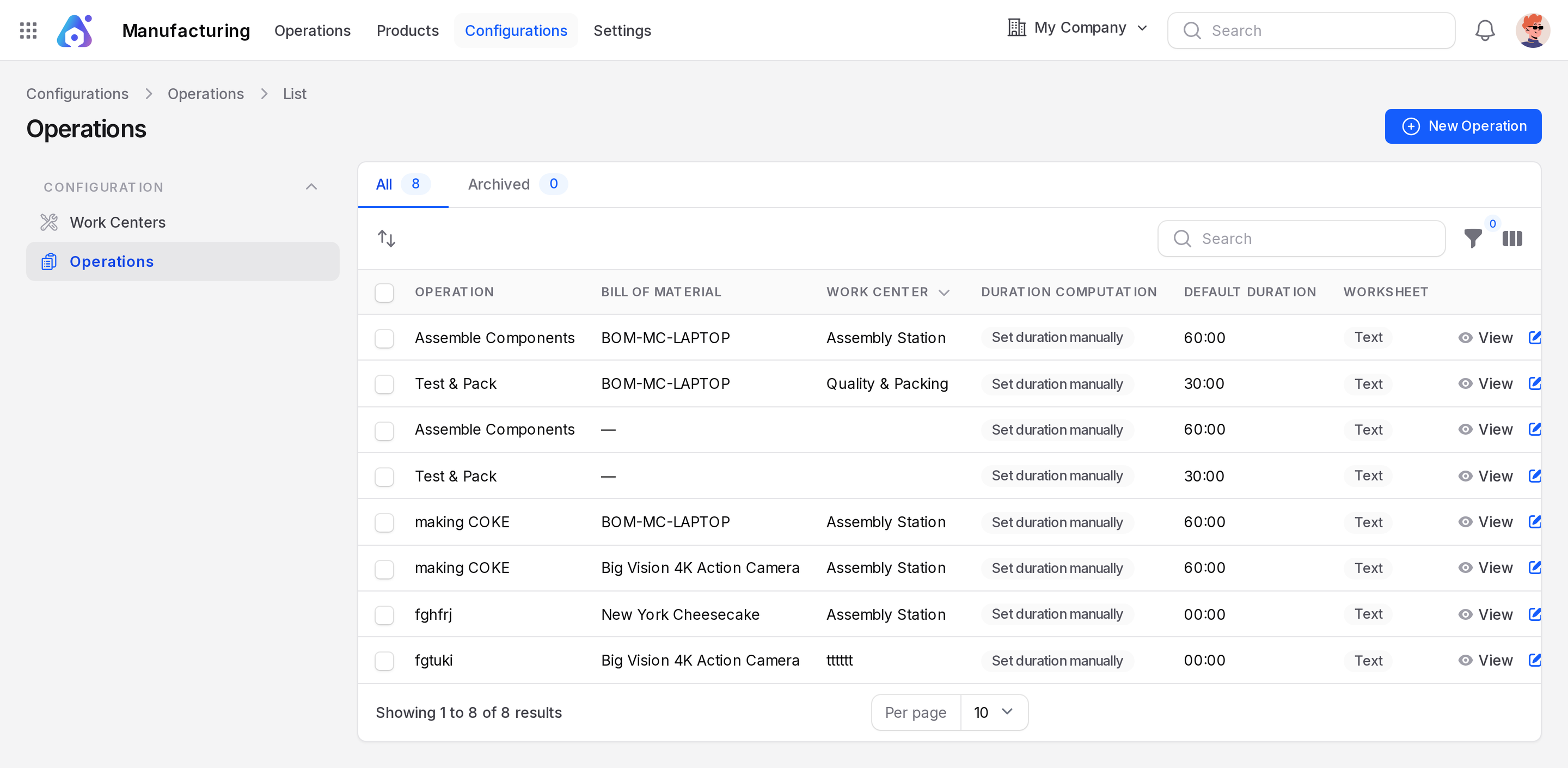
- Tabs: All and Archived.
- Columns: Operation, Bill of Material, Work Center, Duration Computation, Default Duration, Worksheet.
- New Operation: opens the create form.
Create an operation
Scenario: add Test & Pack to BOM-MC-LAPTOP. It runs at Quality & Packing and takes 30 minutes.
- Open
Manufacturing → Configurations → Operationsand click New Operation.
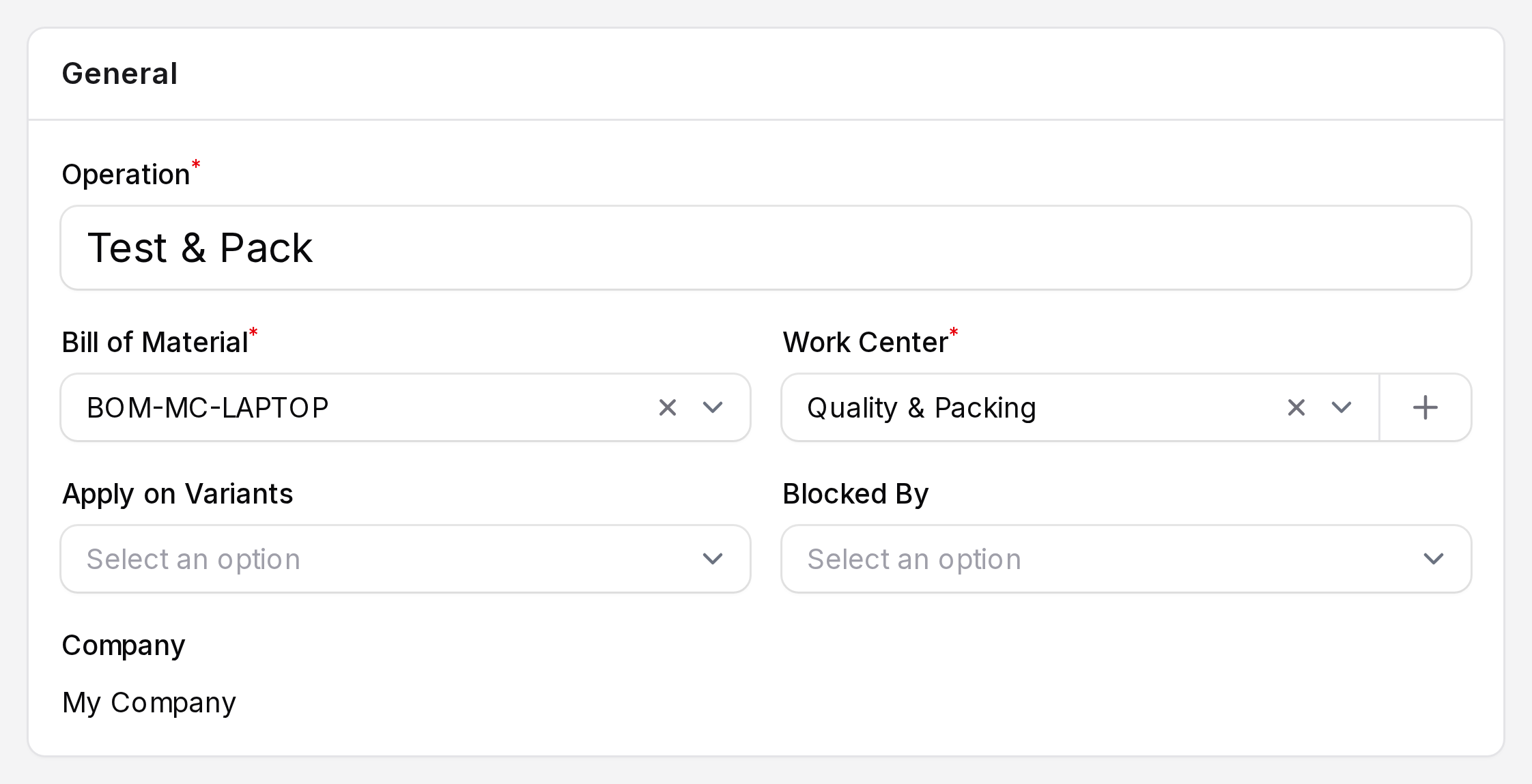
General
- Operation: The step name. Required.
- Bill of Material: The BoM this step belongs to. Required.
- Work Center: Where the step runs. Required. You can create a new work center from this field.
- Apply on Variants: Limit the step to chosen variant values of the BoM product. Leave it empty to use the step for every variant. See BoM variants.
- Company: Shown from the BoM. You cannot change it here.
Work Sheet
A worksheet holds the instructions for the person doing the step.
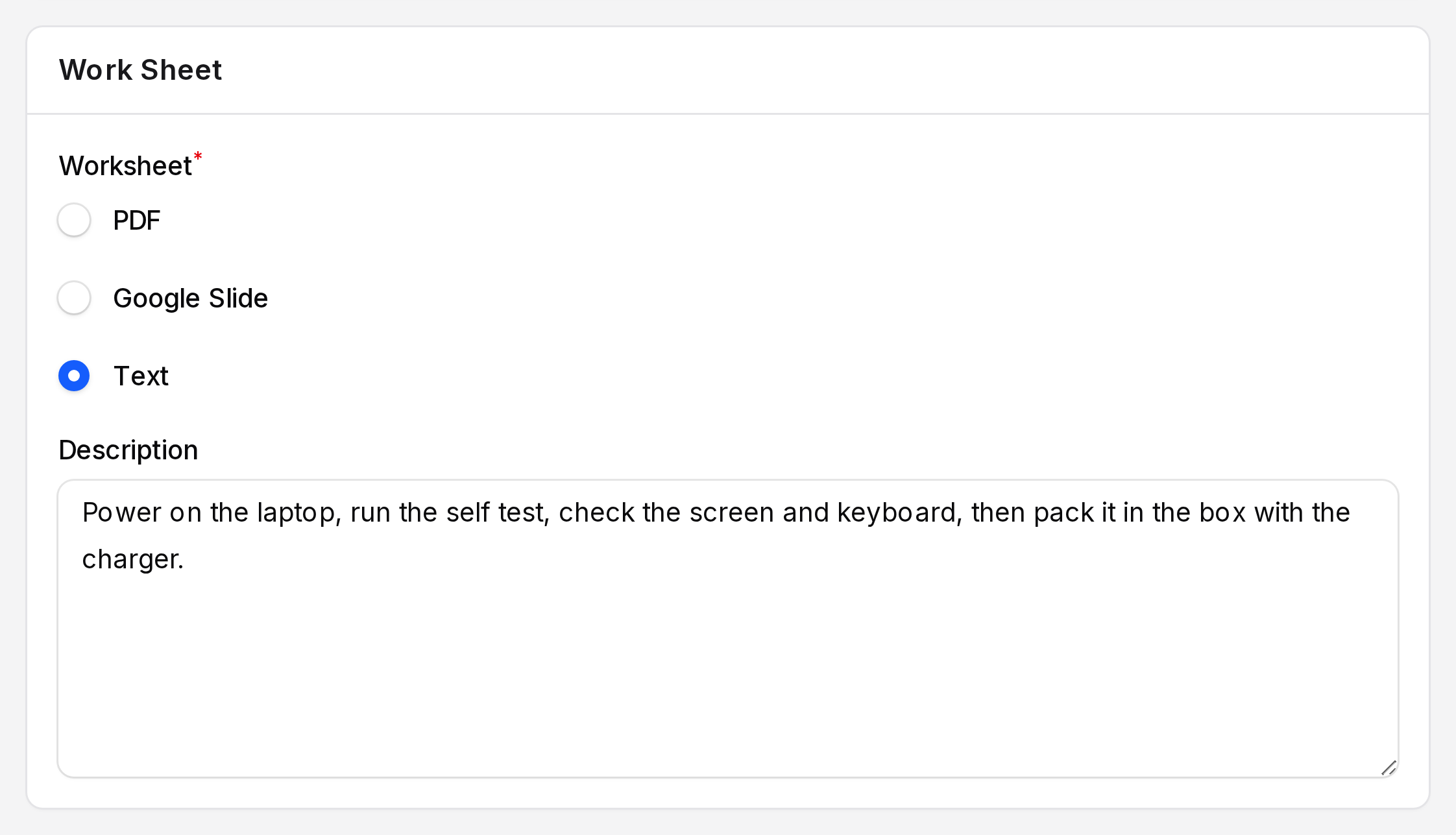
- Worksheet: Choose a type. Required. The default is Text.
- PDF: A PDF upload field appears. Upload the instruction file.
- Google Slide: A Google Slide link field appears. Paste the URL.
- Text: A Description box appears. Type the instructions.
Settings
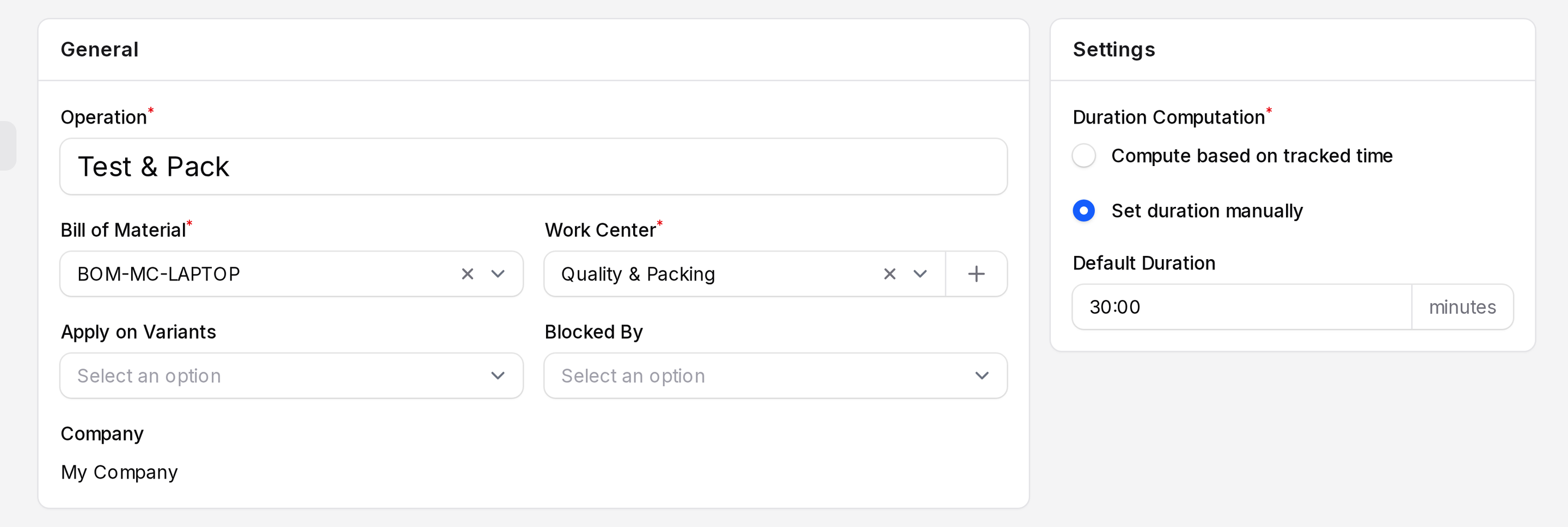
- Duration Computation: How Aureus finds the time for one cycle. Required.
- Set duration manually: Aureus always uses Default Duration.
- Compute based on tracked time: Aureus averages the real time of recent finished work orders. A Based on last ... work orders field appears. The default is 10. If no work orders are finished yet, it uses Default Duration.
- Default Duration: Minutes for one cycle, shown as hours and minutes. The default is 60:00.
- Click Create.
TIP
Start with Set duration manually. Switch to tracked time after a few work orders are finished.
Add steps from the BoM
You can also add steps on the Operations tab of the BoM. It lists each step with its work center and duration. The tab has Edit Operation, Copy Existing Operations and Add a line. See Bill of materials.
What a step becomes
Operation "Assemble Components"  ->  work order on Assembly Station
Operation "Test & Pack"          ->  work order on Quality & Packing
The work order copies the work center and the expected duration. It uses the capacity and efficiency of the work center. See Work centers.
Actions and statuses
- View and Edit show or change the step.
- Delete archives it. Archived steps are listed on the Archived tab and are no longer used on new orders.
- Work orders already created keep their own data.