

My allocation
My Allocation lists the day balances granted to you and lets you ask for more days. You use it when a leave type needs an allocation and you want to request days yourself. Aureus fills in the employee for you.
In simple words: Open My Allocation, fill a short form, and wait for approval. Approved days appear on your balance cards.
Open Time Off → My Time → My Allocation.
Before you start
The leave type must exist. See Leave types. Your user also needs a linked employee.
Overview
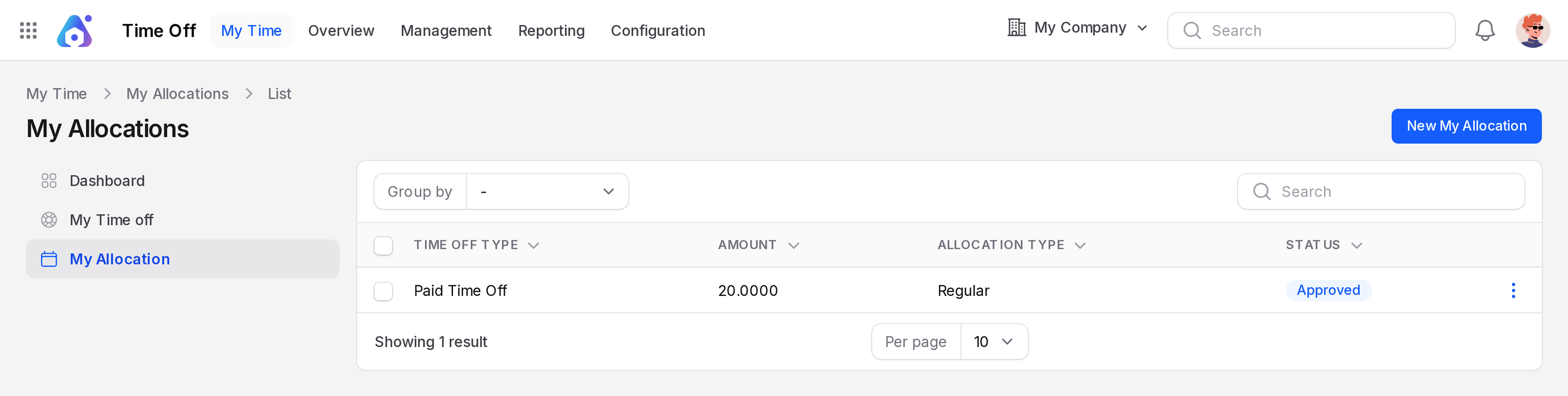
The page is titled My Allocations. Each row shows one allocation.
- Time Off Type: The kind of leave, for example Paid Time Off.
- Amount: The number of days, for example
20.0000. The form calls this field Allocation. - Allocation Type: Shows Regular.
- Status: To Approve, Approved or Refused.
Use Group by to group rows by Employee Name, Time Off Type, Allocation Type, Status or Start Date. Type in the search box to find a row.
Request an allocation
- Open
Time Off → My Time → My Allocation. Click New My Allocation.
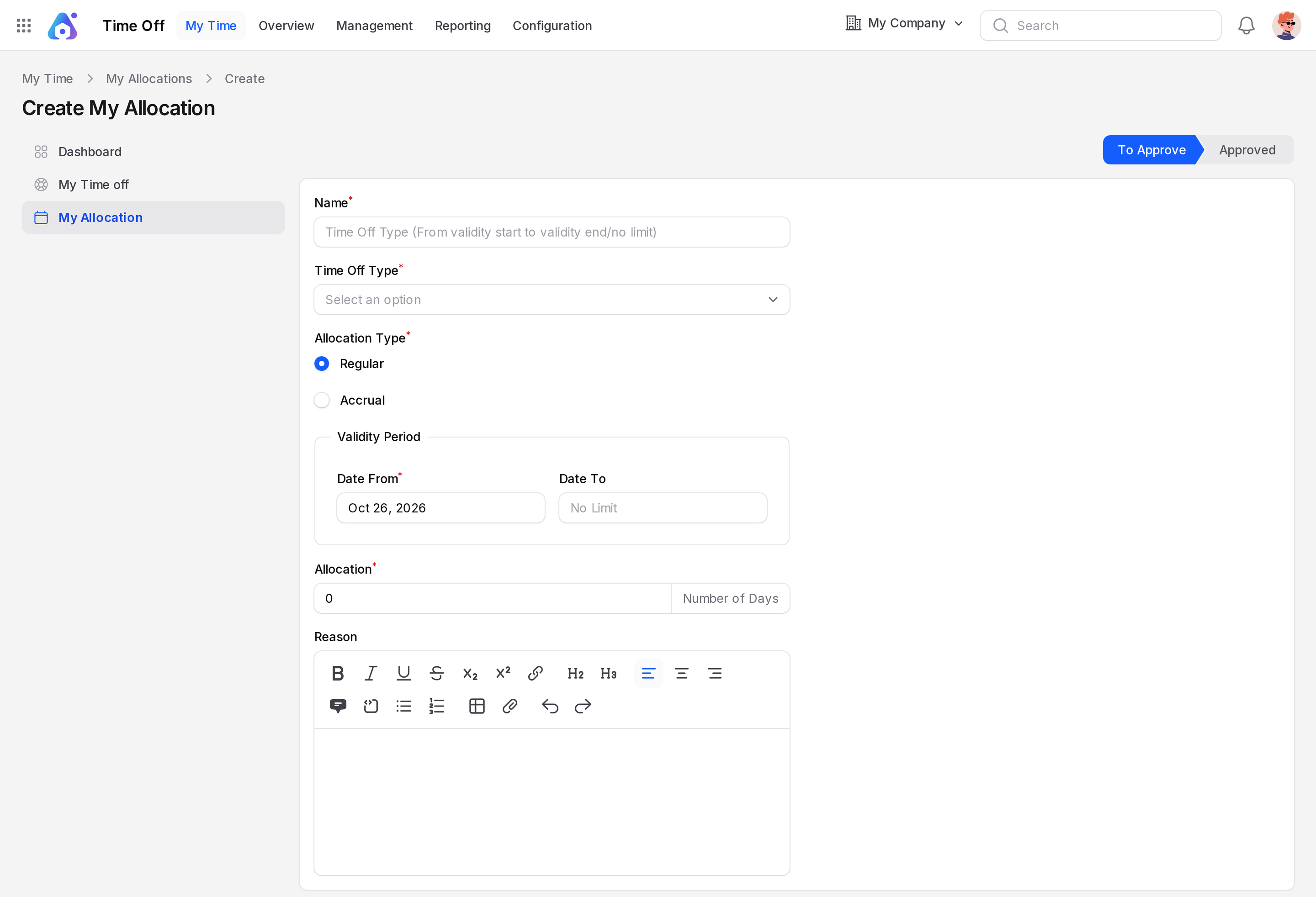
- Look at the State bar. It starts on To Approve. You cannot change it.
Allocation details
- Type a Name. Type
Annual leave 2026 top-up. - Choose a Time Off Type, for example Paid Time Off.
- Leave Allocation Type on Regular.
- Name: Required. A short label for the allocation.
- Time Off Type: Required. The leave type that receives the days.
- Allocation Type: Required. Keep Regular.
Validity period
- Check Date From. It is today by default. Change it if the days start later.
- Leave Date To empty for an open ended allocation. The field shows No Limit.
- Date From: Required. The first day the allocation is valid.
- Date To: Optional. The last valid day. Leave it empty to keep the allocation open ended.
Days and reason
- Type the number of days in Allocation. The field shows Number of Days. Type
5. - Explain the request in Reason. Type
Extra days for a family trip.
- Allocation: Required. The number of days. The default is 0.
- Reason: Optional. Tell the approver why you need the days.
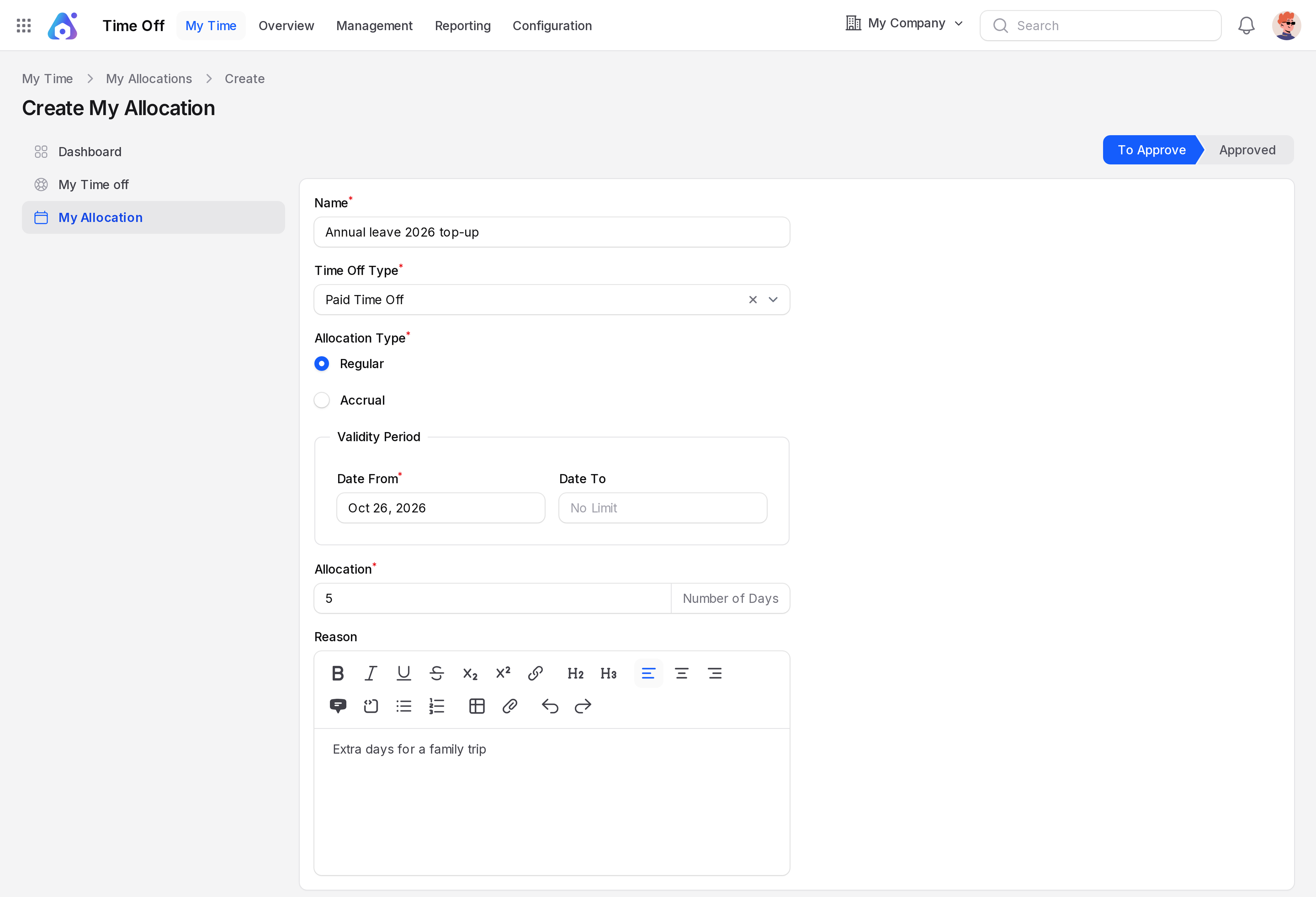
- Click Create. Click Create & create another to add a second one.
Actions and statuses
A new allocation gets the status To Approve. It adds nothing to your balance yet. A manager approves it in Manage allocations. Then the status becomes Approved. The days then count on your balance card.
A manager can also refuse it. A refused allocation never adds days.
TIP
Your user must be linked to an employee. Without one, Aureus asks you to contact your administrator.