

Pay and receipt
Payment closes the sale. You choose how the customer pays, enter the amount, and click Validate. The terminal then shows the receipt, ready to print.
In simple words: Pick the payment method, type what the customer hands over, click Validate, and give the receipt.
Open the payment screen
Click Payment at the bottom right of the order panel. The button is active only when the order has lines.
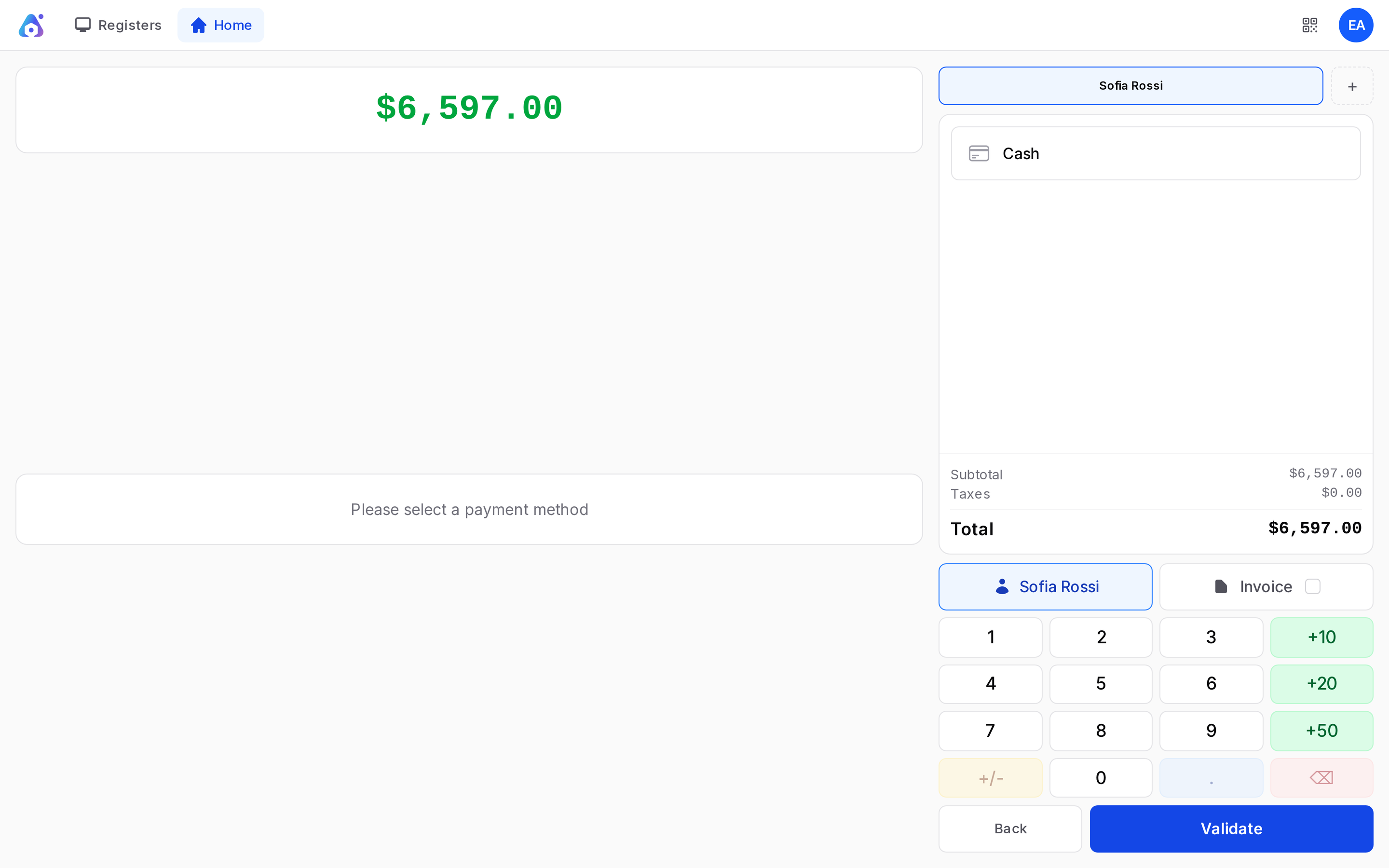
The screen shows:
- The big total to pay at the top left.
- The list of payment methods on the right, such as Cash.
- The customer button and the Invoice checkbox.
- The number pad with +10, +20 and +50.
- Back and Validate buttons.
Payment methods come from your register. See Payment methods.
Take a cash payment
- Click Cash. A payment line appears with the amount due.
- Type the amount the customer gives, for example 7000. Use +10, +20 and +50 to add to the amount fast.
- Check the Change panel. It shows what you give back.
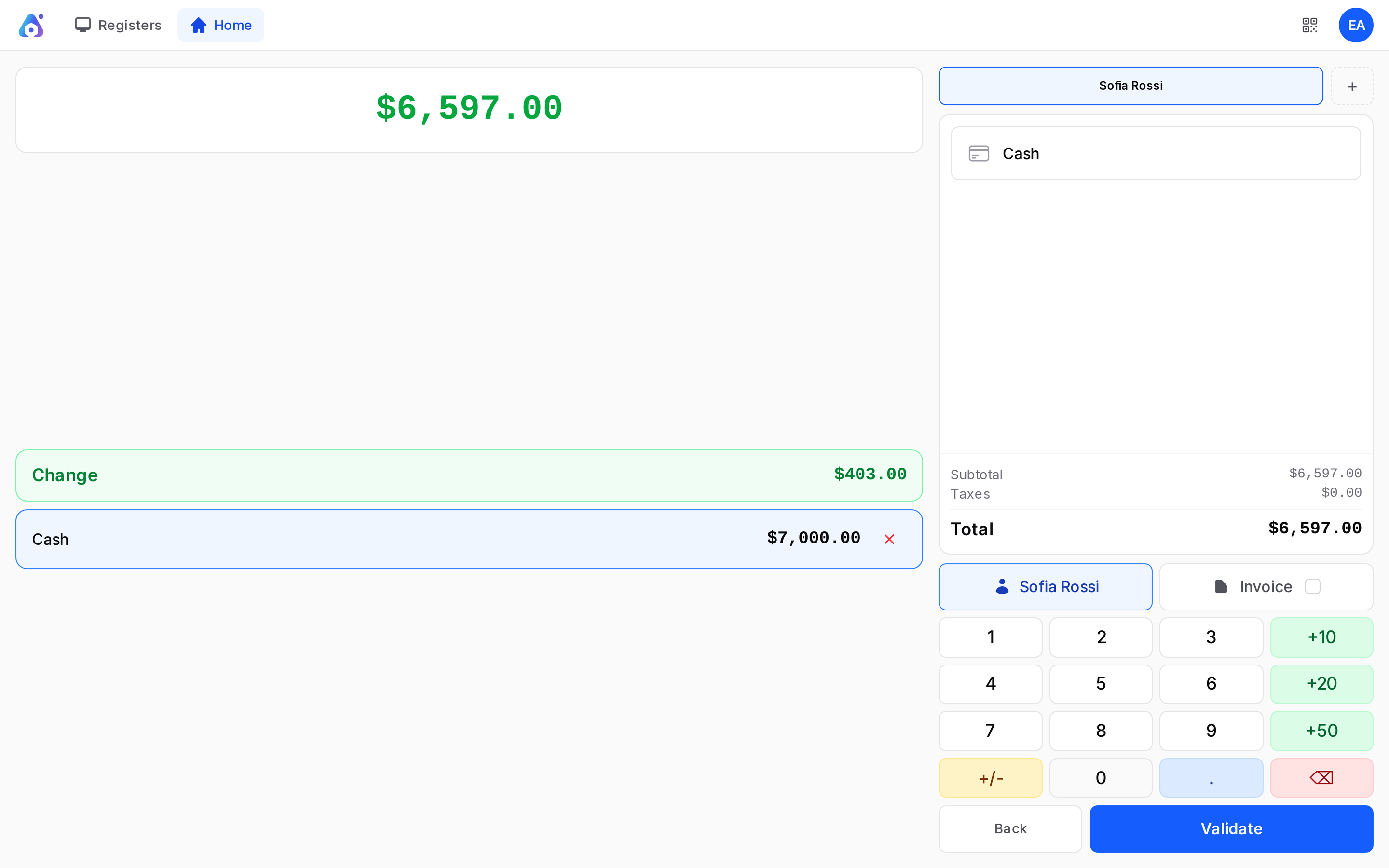
Example: Sofia Rossi's order is 6,597. She hands over 7,000. The screen shows Change 403.
Click the red X on a payment line to remove it.
Pay with more than one method
Add a second method and enter its amount. The first line shows what is still due. Together the payments must cover the total.
Rules the screen applies
- You cannot validate until a payment method covers the total. The message is "Payment method required".
- Without a cash method, a payment cannot be higher than the amount due.
- If Customer Required is on, or a method needs a customer, pick one first. See Notes and customers.
Invoice option
Tick Invoice if the customer wants a customer invoice. You need a customer on the order. See Invoice a POS order.
Validate
Click Validate. The order becomes Paid and the receipt screen opens.
The receipt screen
The receipt shows the company, Served by, the tracking number, the customer, each line, the Untaxed amount, the TOTAL, each payment, the Change and the order number with date.
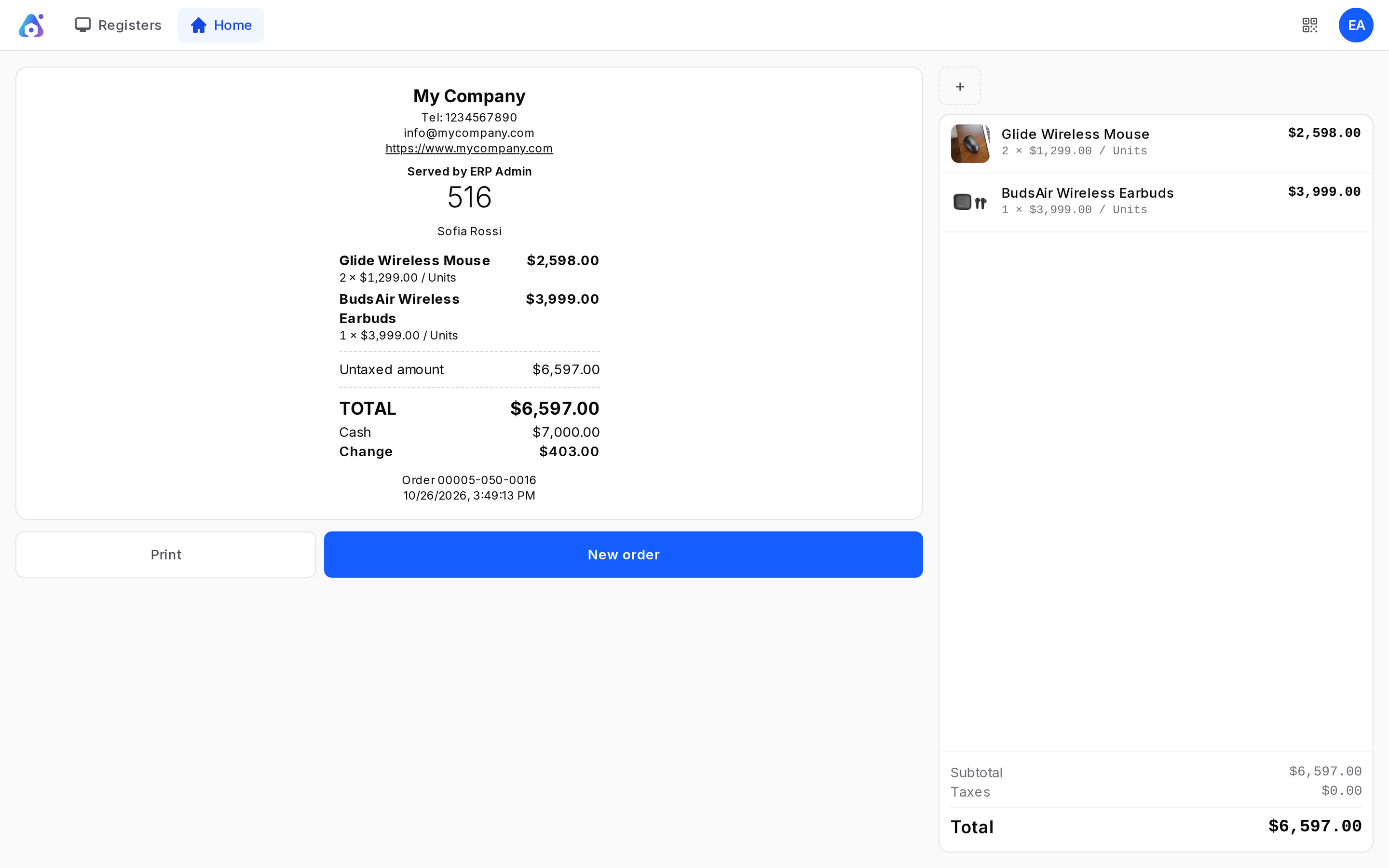
- Print: Prints the receipt.
- New order: Starts a fresh order.
The receipt number has three parts: register, session and order. For TechNest the receipt is 00004-009-0001. The order number is TNE/00001.
TIP
Your register can print receipts by itself after payment. The setting is in the Bills & Receipts tab of the register.
Actions and statuses
- Back: Returns to the order without paying.
- Validate: Settles the order. Status Paid.
- After the session closes, the order becomes Posted.
- If you invoice it, the status becomes Invoiced.
WARNING
You cannot change a paid order. To return products, use a refund. See Refunds.