

Purchase templates
A purchase template is a saved set of product lines for a vendor. You build it once, then reuse it whenever you reorder the same items. It has no validity dates and no quantity limit.
In simple words: A template is a ready-made shopping list for a vendor. Pick it on a new RFQ and the lines appear.
Open Purchase → Orders → Purchase Agreements and click the Purchase Templates tab.
Settings
Templates share the Purchase Agreements setting with blanket orders. Go to Purchase → Settings → Manage Orders and switch on Purchase Agreements. See Purchase settings.
Template or blanket order
| Purchase template | Blanket order | |
|---|---|---|
| Purpose | Reuse the same lines | Commit to a total quantity |
| Valid From, Valid Until | Hidden | Required |
| Ordered column | Hidden | Shows quantity already ordered |
| Quantity limit on RFQs | None | Yes |
| Reference on documents | PT/ and a number | BO/ and a number |
See Blanket orders for the other type.
Create a template
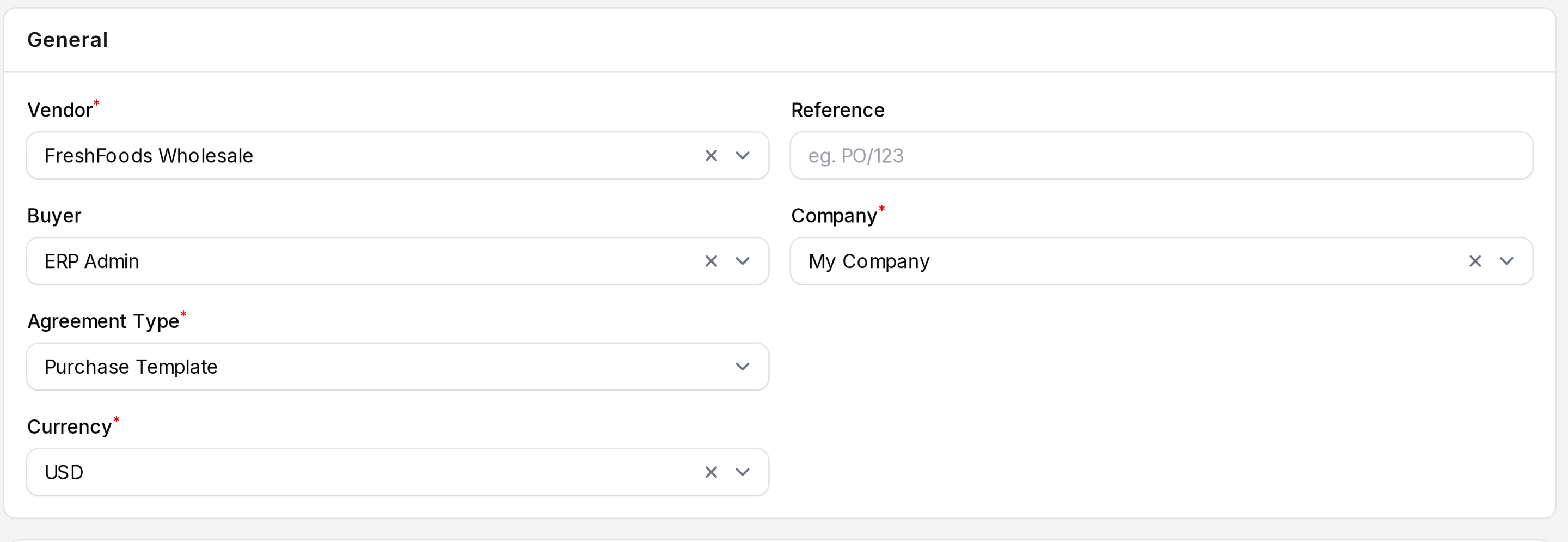
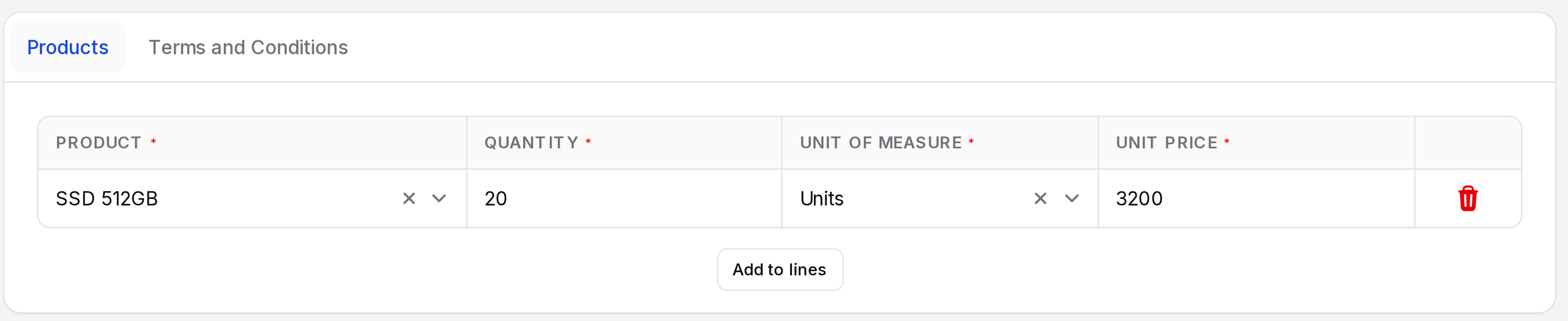
Example: you reorder 20 SSD 512GB from FreshFoods Wholesale every month.
- Click New Purchase Agreement.
- Fill the top section.
- Vendor: Required. The supplier you buy from.
- Buyer: The user in charge.
- Agreement Type: Required. Choose Purchase Template. The date fields disappear.
- Currency: Required. Starts with your company currency.
- Reference: Your own note.
- Company: Required. Starts with your current company.
- On the Products tab, add a line for each product.
- Product: Required. Goods products only.
- Quantity: Required. The quantity you usually buy.
- Unit of Measure: Shown only when Unit of Measure is on in Manage Products.
- Unit Price: Required. The price you expect to pay.
- Click Create. The template starts as Draft.
Confirm and use a template
- Open the template and click Confirm. It needs at least one line.
- Click New RFQ and pick the same Vendor.
- Open the Agreement list and choose the template. It offers confirmed agreements only.
- Aureus fills the product lines and the Currency. Change quantities if you need to.
- Click Create and continue as with any request for quotation.
Actions and statuses
A template uses the same states and buttons as a blanket order: Draft, Confirmed, Closed, Canceled. The buttons are Confirm, Close, Cancel, Print and Delete. See Blanket orders.
TIP
Use Close when a template is out of date. Close is blocked while related RFQs are still open.