

Backorders and returns
Real life is rarely perfect. A vendor ships fewer goods than ordered, or a customer sends products back. Aureus handles the first with backorders and the second with returns.
In simple words: A backorder is the leftover part of a transfer for later. A return is a new transfer that undoes a finished one.
Backorders
A backorder is a new transfer for the quantity that was not processed. If WH/IN/00018 expects 10 SSD 512GB and only 6 arrive, the missing 4 can wait in a new receipt.
The Create Backorder setting
Each operation type has Create Backorder. It decides what happens when you validate with less than the demand.
| Option | Result |
|---|---|
| Ask | A window asks you each time. This is the default. |
| Always | A backorder is created without asking. |
| Never | No backorder. The remaining demand is dropped. |
Point of sale operation types use Never.
The window
With Ask, clicking Validate on a short transfer opens Create Back Order?. If you edited the lines, click Save changes first, then click Validate. The text reads: "Create a backorder if the remaining products will be processed later. If not, do not generate a backorder."
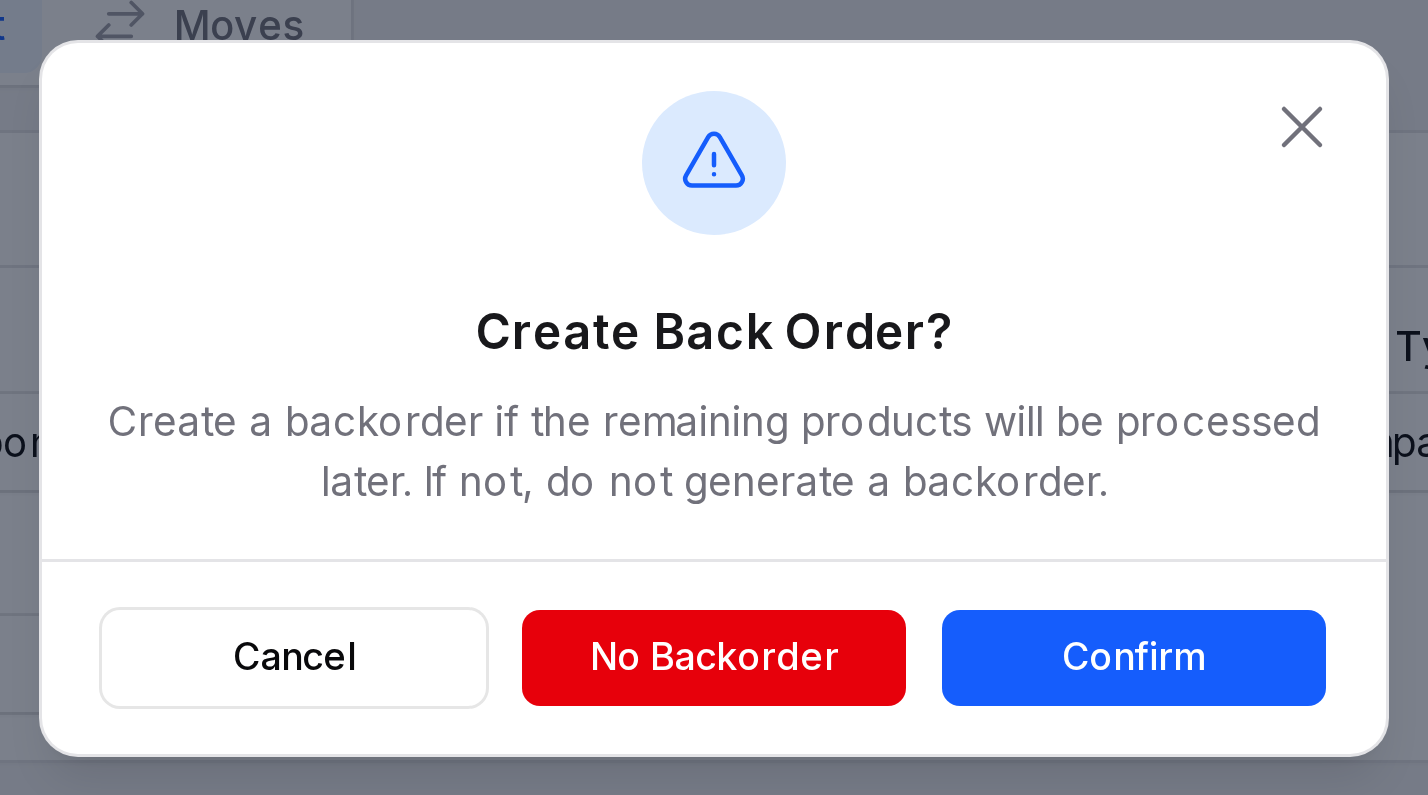
The buttons sit in this order: Cancel, No Backorder (red) and Confirm (blue).
- Cancel: closes the window. Nothing changes.
- No Backorder: processes what you entered and discards the rest.
- Confirm: processes what you entered and creates a backorder for the rest.
TIP
Choose Confirm when the vendor will send the rest. Choose No Backorder when the order is closed.
On the transfers list, the backorder is a new record with the same Source Document. Group by Source Document to see them together.
Returns
A return sends goods back after a transfer is Done. Customers return deliveries. You return receipts to vendors.
- Open the done transfer, for example receipt WH/IN/12.
- Click Return. The window titled Return opens.
- The table has the columns Product, Quantity and UOM, and a red delete icon on each row. For each product, type the Quantity to return (the field shows the placeholder Qty). Click the red icon to remove a row you do not want to return.
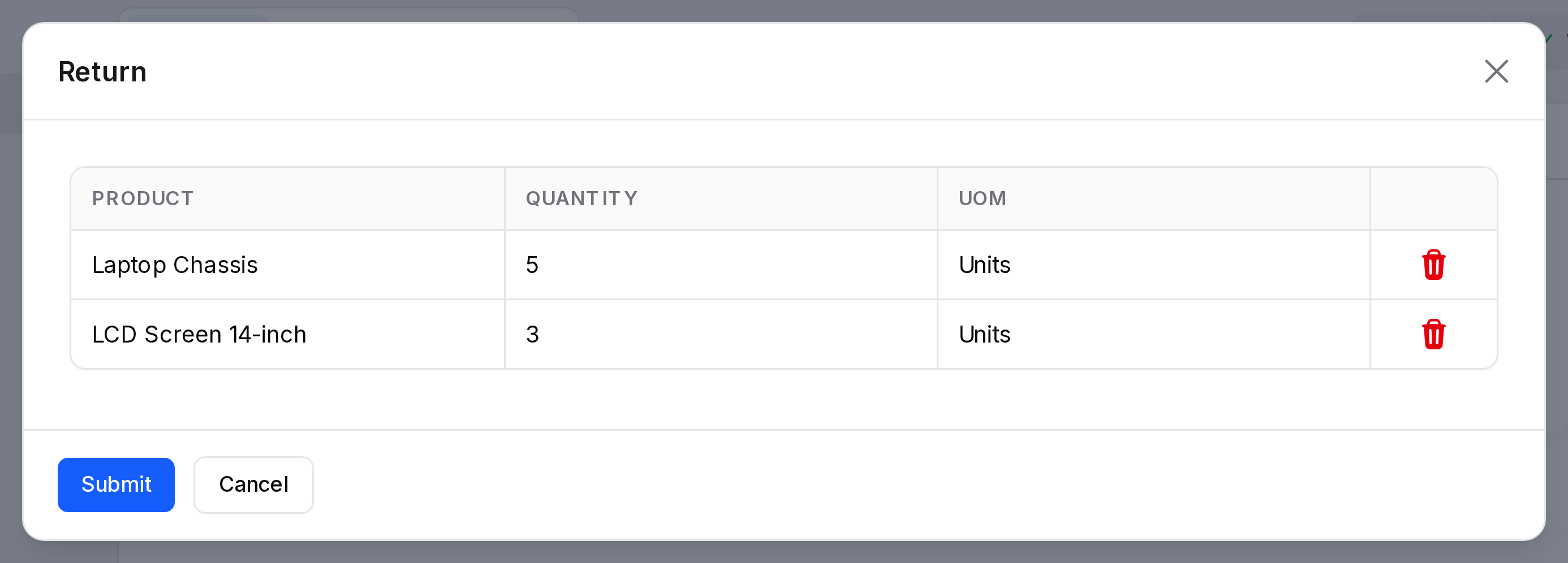
- Click Submit. Click Cancel instead to close the window with no return.
Aureus creates a new transfer in the opposite direction. It uses the Return Type of the original operation type. Receipts return through Delivery Orders, and deliveries through Receipts. Validate that transfer to finish the return.
Limits
- Only lines in Done state that are not fully returned can be returned. Otherwise you see "No products to return".
- You must enter at least one non-zero quantity.
- A quantity above the processed quantity shows a warning tooltip.
Next Transfer
On a done transfer that has a follow-up, the Next Transfer button opens that next document. For example WH/IN/12 leads to its storage step. It does not show when no next document exists.
Actions and statuses
- Validate with Ask can create a backorder.
- Return appears only in Done.
- Next Transfer appears when a follow-up exists.