

Journal entries
A journal entry is the accounting record behind a document or a manual adjustment. The Journal Entries page lists all of them: invoices, bills, payments and entries you type. You use it to check what Aureus booked, and to create entries that no invoice or payment covers.
In simple words: One entry is one balanced set of debit and credit lines. This page is where you read them and write your own.
Journal entries exist in the Accounting app only. Open Accounting → Journal Entries.
Overview
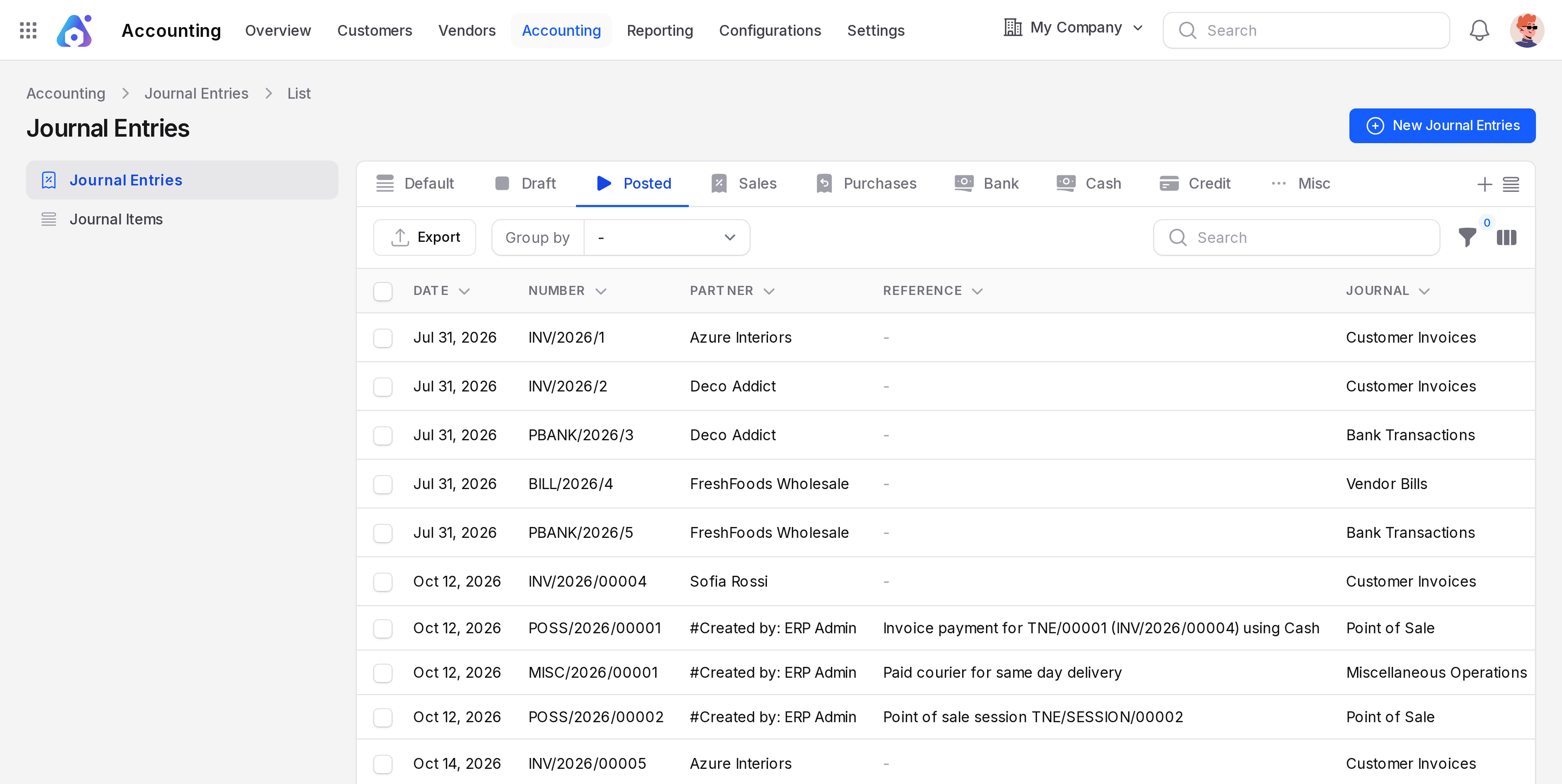
Columns
- Date: The accounting date.
- Number: The entry number, for example
INV/2026/1. - Partner: The customer or vendor.
- Reference: An outside reference, if any.
- Journal: For example Customer Invoices or Bank Transactions.
- Company: The company of the entry.
- Total: The entry amount. A bill shows a minus, for example -$34,040.00. The footer sums the amounts.
- State: Draft, Posted or Cancelled.
- Invoice Date and Checked: Hidden by default. Turn them on from the column toggle.
Views
The tabs are saved filters: Default, Draft, Posted, Sales, Purchases, Bank, Cash, Credit and Misc. The view menu also holds Reversed.
Group, filter and export
- Group by: Partner, Journal, State, Payment Method, Date, Invoice Date or Company.
- Filter: by Number, Invoice Origin, Reference, Invoice Partner Display Name, Invoice Date, Invoice Due Date and dates of creation or update.
- Export: Click Export to download the list.
See Search, filter and group records.
INFO
When you click a row for an invoice or a bill, Aureus opens the invoice or bill page. Other entries open here.
Create a manual entry
- Click New Journal Entries on the list.
- Fill in the General section.
- Add the lines in the Journal Items tab.
- Click Create.
- Open the entry and click Confirm.
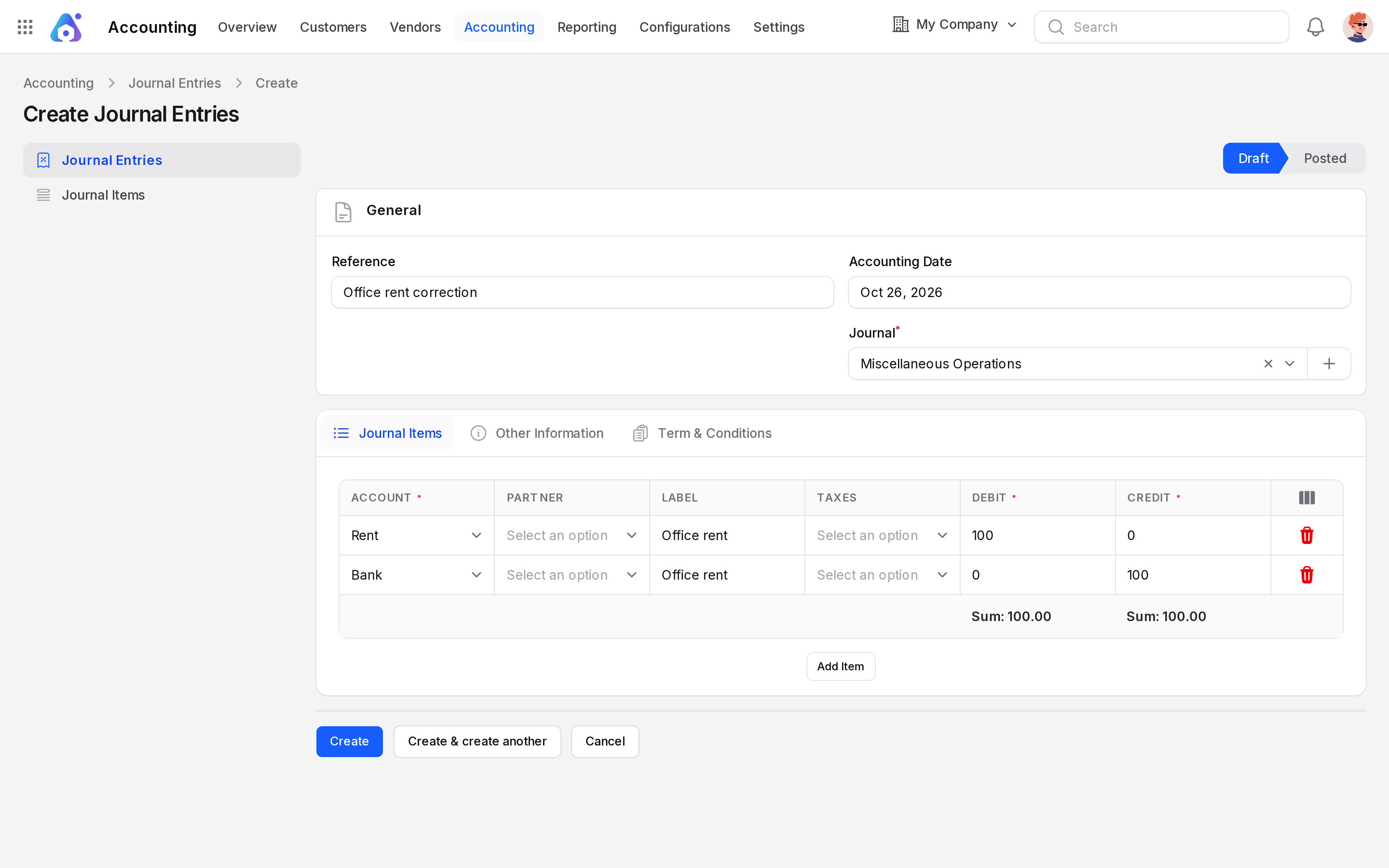
General
- Reference: A free text label. Use it to say why you book the entry.
- Accounting Date: The day the entry counts. It starts as today.
- Journal: Required. Aureus picks your general (miscellaneous) journal. Keep it for manual entries.
Journal Items
The tab holds a table named Items. Click Add Item to add a row. Each row has:
- Account: Required. The account to debit or credit. See Chart of accounts.
- Partner: Optional. Fill it for receivable or payable accounts, so the amount shows in the partner reports.
- Label: A short text for the line.
- Amount (Currency): The amount in the line currency. A positive number is a debit. A negative number is a credit.
- Currency: Required. Starts with the company currency.
- Taxes: Optional. Pick taxes that apply to the line.
- Debit and Credit: Type the amount in one of them. When you type in one, Aureus clears the other and updates Amount (Currency).
The footer of the Debit and Credit columns shows the totals. Make them equal before you confirm.
WARNING
Before you click Confirm, check that the Debit and Credit totals match.
Other Information
- Checked: A switch. Turn it on when someone has reviewed the entry. The journal items view has the saved filter To Check for unchecked entries.
- Company: Starts with your current company.
- Fiscal Position: Adapts taxes and accounts to the partner location. See Fiscal positions.
The Term & Conditions tab holds a free text note.
Actions and statuses
The buttons are in the top bar of the entry.
- Confirm: Visible on a Draft. It posts the entry and the status becomes Posted. Aureus needs at least one line, and the accounts and journal must be active.
- Cancel: Visible on a Draft. The status becomes Cancelled.
- Reverse: Visible on a Posted entry. A window asks for Reason displayed on Reverse, Journal and Date. Aureus creates a new draft entry with debit and credit swapped and opens it. Confirm it to cancel the effect of the first.
- Reset To Draft: Visible on a Posted or Cancelled entry. The status goes back to Draft, so you can edit it.
- Delete: Removes the entry.
A posted entry is read only. Reset it to draft to edit it.
Example 1: a simple entry
Your accountant asks you to move $100.00 from the sales account to the expense account.
- Create an entry with Reference
Move 100 to expenses. - Add item 1: Account
Expenses, Debit100.00. - Add item 2: Account
Product Sales, Credit100.00. - Click Create, then Confirm.
The status is Posted and both reports now show the change.
Example 2: the entry of an invoice
Invoice INV/2026/1 (Azure Interiors, $1,207.50) created this entry when you confirmed it.
| Account | Debit | Credit |
|---|---|---|
| Account Receivable | 1,207.50 | |
| Product Sales | 1,050.00 | |
| Tax Received | 157.50 |
Debit and credit both total $1,207.50. On the invoice page, the Journal Items tab shows the same lines. See Create an invoice.
When Deco Addict paid invoice INV/2026/2, entry PBANK/2026/3 debited Outstanding Receipts with $891.25 and credited Account Receivable with $891.25.