

Tags
Tags are short coloured labels that you stick on leads and opportunities. You use them to group deals by topic, such as product line or kind of service, and to find them again with a filter.
In simple words: A tag is a coloured sticker you put on a deal.
Open CRM → Configuration → Pipeline → Tags.
The tag list
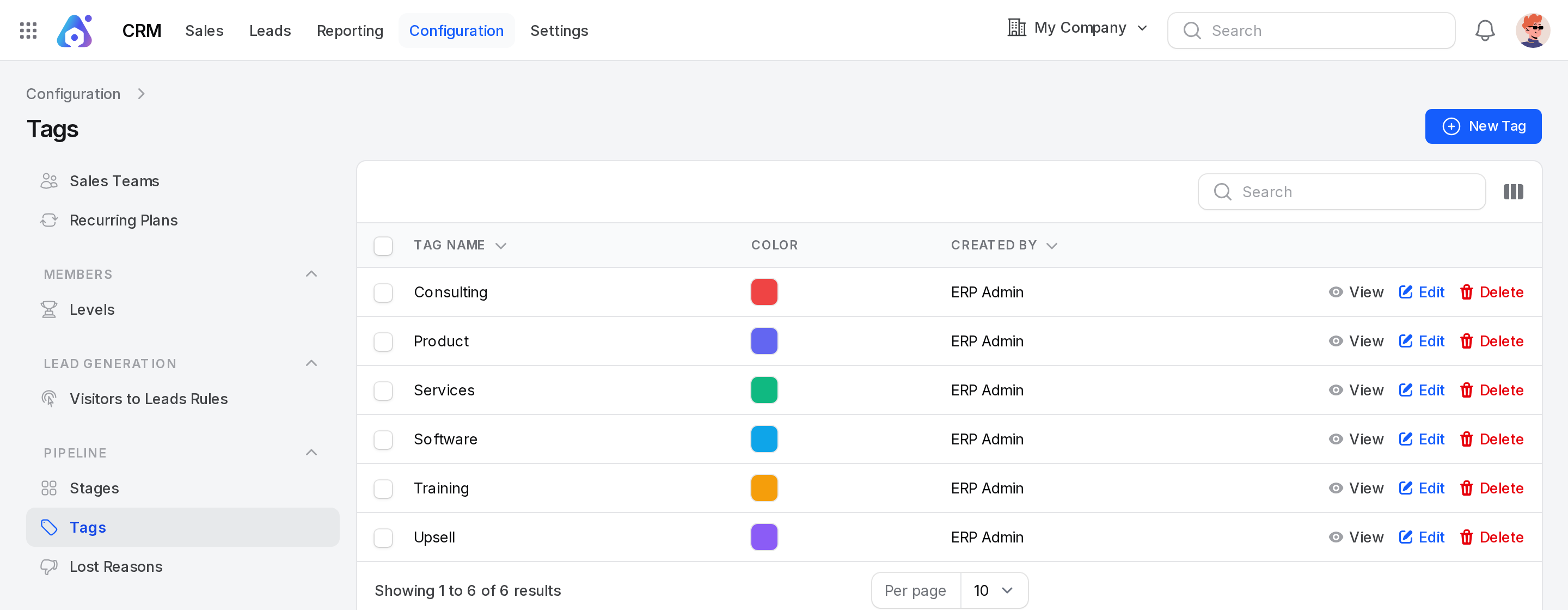
The default tags are Consulting, Product, Services, Software, Training and Upsell.
Columns
- Tag Name: The name of the tag. You can sort by it.
- Color: A swatch of the tag colour.
- Created By: The user who made the tag.
- Created At: Hidden at first. Show it with the column toggle.
Search, sort and export
- Type in the search box to find a tag.
- Click a column heading to sort. The list starts sorted by name.
- Select rows and use the bulk action to export them.
Row actions
- View: Opens a small card with the Tag Name and Color.
- Edit: Changes the tag.
- Delete: Removes the tag.
Create a tag
- Go to
CRM → Configuration → Pipeline → Tags. - Click New Tag.
- Fill in the form.
- Click Create.
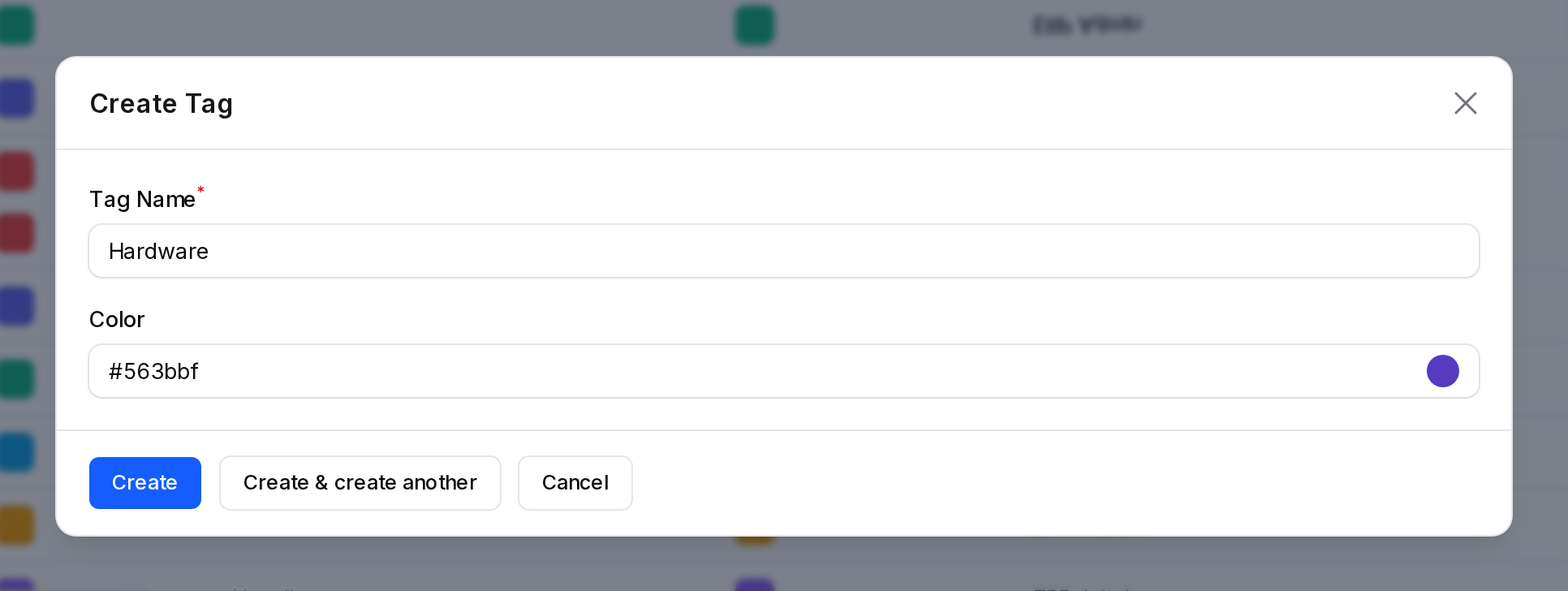
- Tag Name: The label text. Required. Up to 255 characters. Two tags cannot have the same name.
- Color: The colour of the tag. Pick it from the colour picker or type a hex code such as
#3b82f6. Optional.
Example: Name Hardware and pick a blue colour. A notice says the tag was created.
Use a tag
Add tags in the Tags field of a lead or an opportunity. You can pick more than one. Tags show on pipeline cards and on forecast cards in their colour. See Create a lead.
Edit and delete
- Click Edit, change the name or colour, then click Save. A notice says Tag updated.
- Click Delete and confirm to remove a tag. A notice says Tag deleted.
Behind the scenes
- A tag is shared. Every lead and opportunity can use the same tag.
- Editing a tag changes it everywhere it is used.
- Lead generation rules can also add tags to the leads they create. See Lead generation.