

Create a page
A page holds text, links and pictures that describe your business. You give it a title, write the content and choose whether its link shows in the top menu, the footer or both. Search engines read the optional SEO fields to describe the page in their results.
In simple words: Fill in the title and content, pick the menu switches, click Create. Then publish the page so visitors can see it.
Open Website → Pages.
Overview
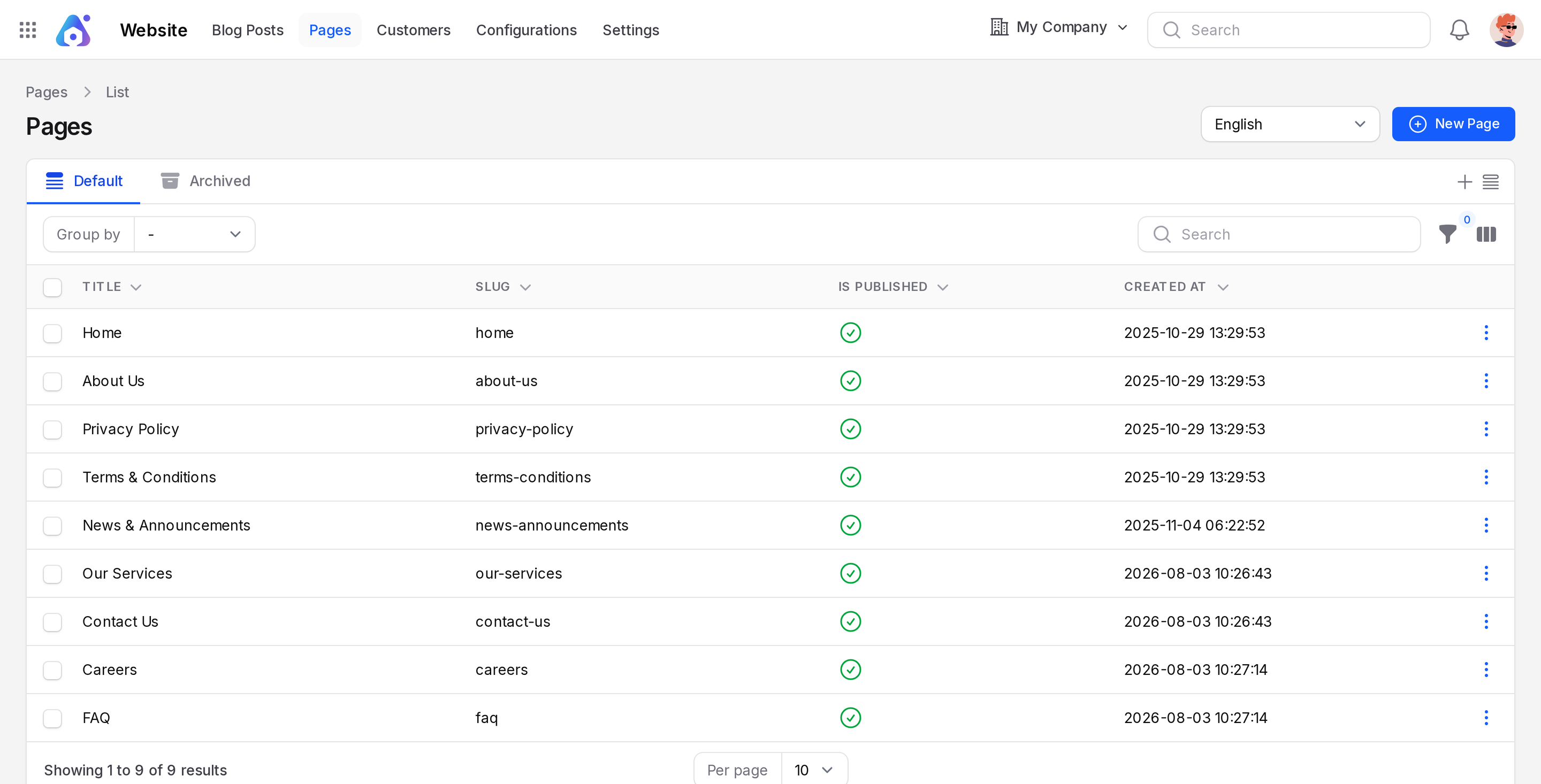
- Button: New Page.
- Tabs: Default and Archived. Archived pages sit on the second tab.
- Columns: Title, Slug, Is Published, Created At.
- Hidden columns: Created By, Is Visible Header Menu, Is Visible Footer Menu, Updated At. Turn them on with the column toggle.
- Group by: Created At.
- Row actions: View, Edit, Delete.
Create a page
Scenario: add a page called Our Team to the top menu and the footer.
- Open
Website → Pagesand click New Page.
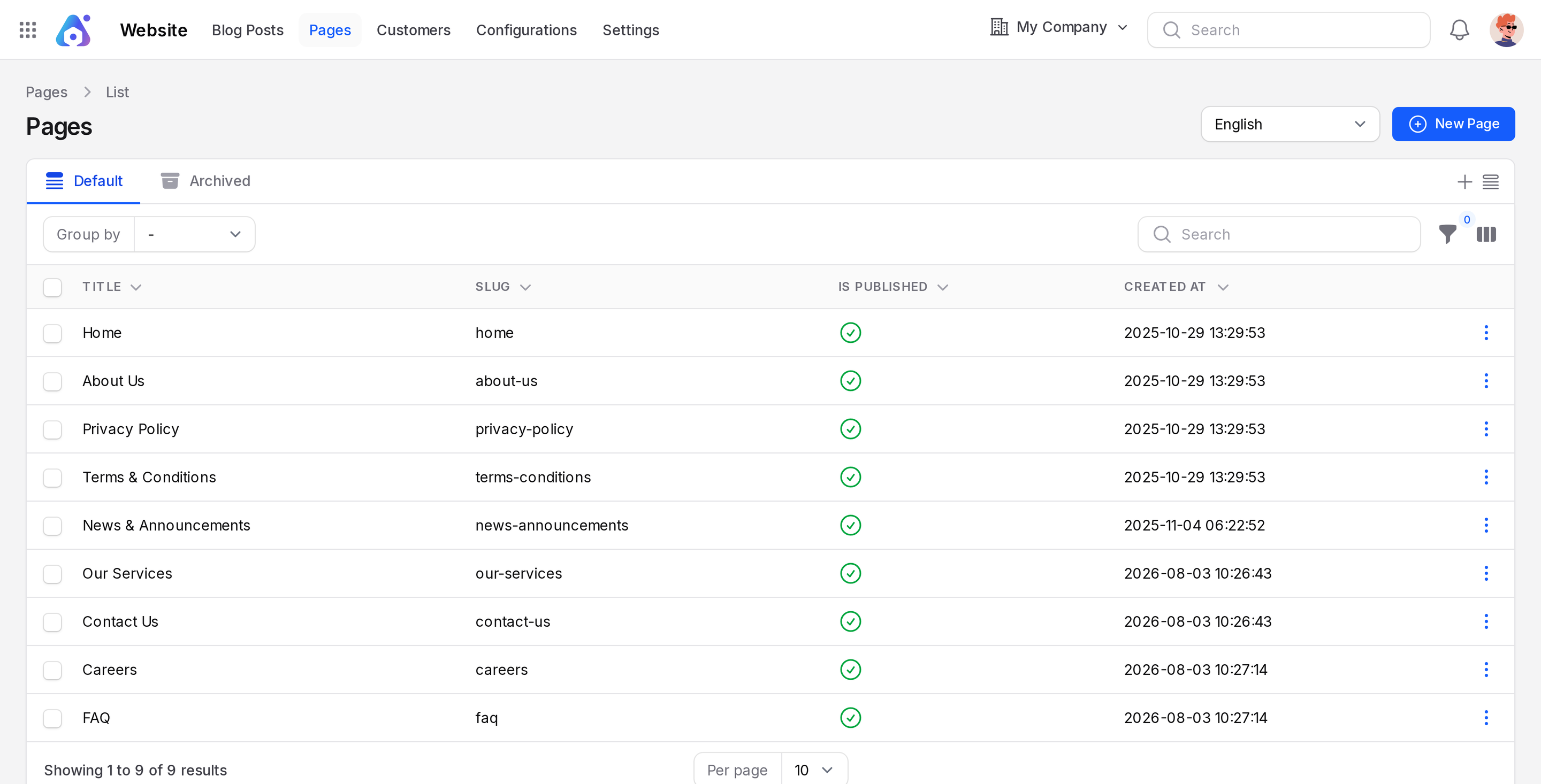
General
- Fill in the General section.
- Title: Required. The name visitors see, for example
Our Team. - Slug: Filled in from the title as you type, for example
our-team. After you save, Aureus locks it. This becomes the web address. - Content: Required. The body of the page. Use the editor toolbar for headings, bold, lists and links.
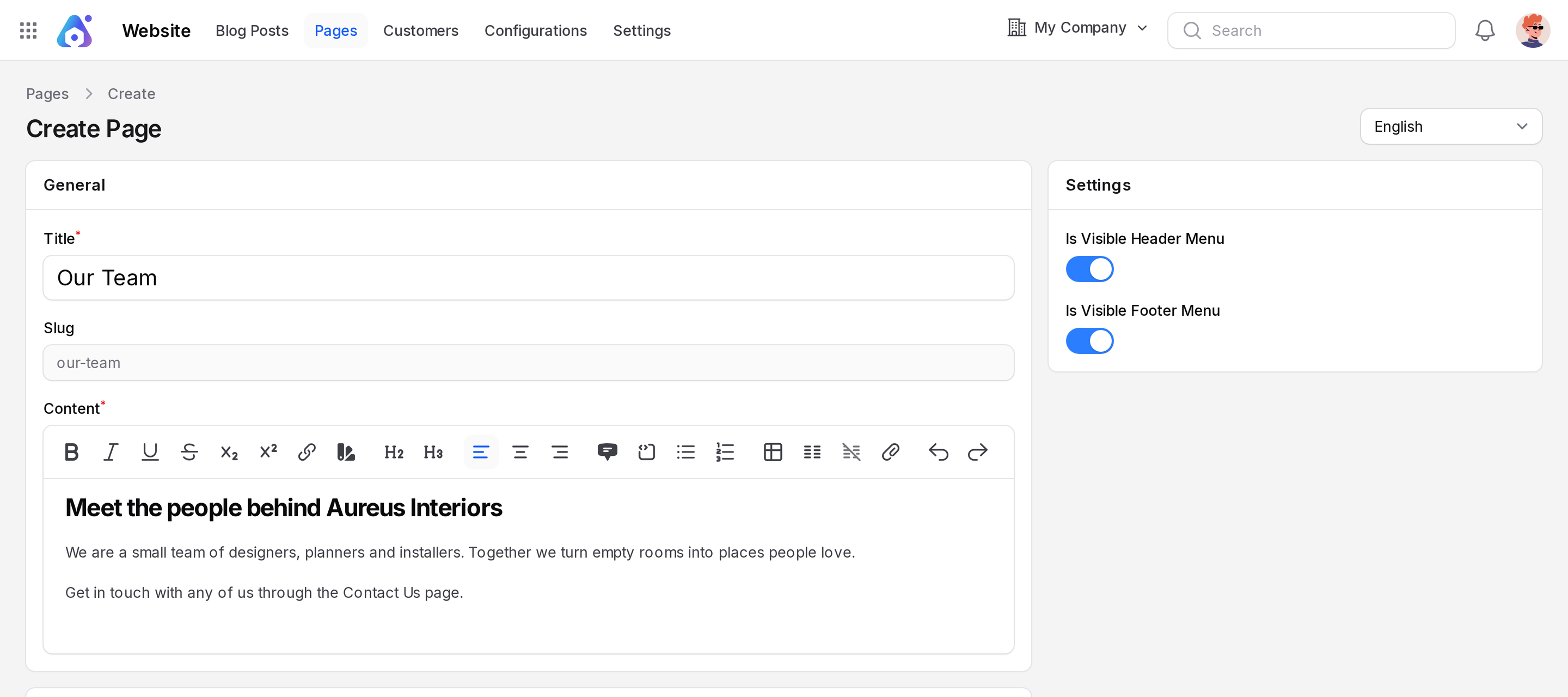
SEO
SEO means search engine optimisation. These fields tell search engines what your page is about. You can leave them empty.
- Open the SEO section. These fields help search engines describe your page.
- Meta Title: A short headline for search results.
- Meta Keywords: Words that match the page, separated by commas.
- Meta Description: One or two sentences that summarise the page. Keep it under 160 characters.
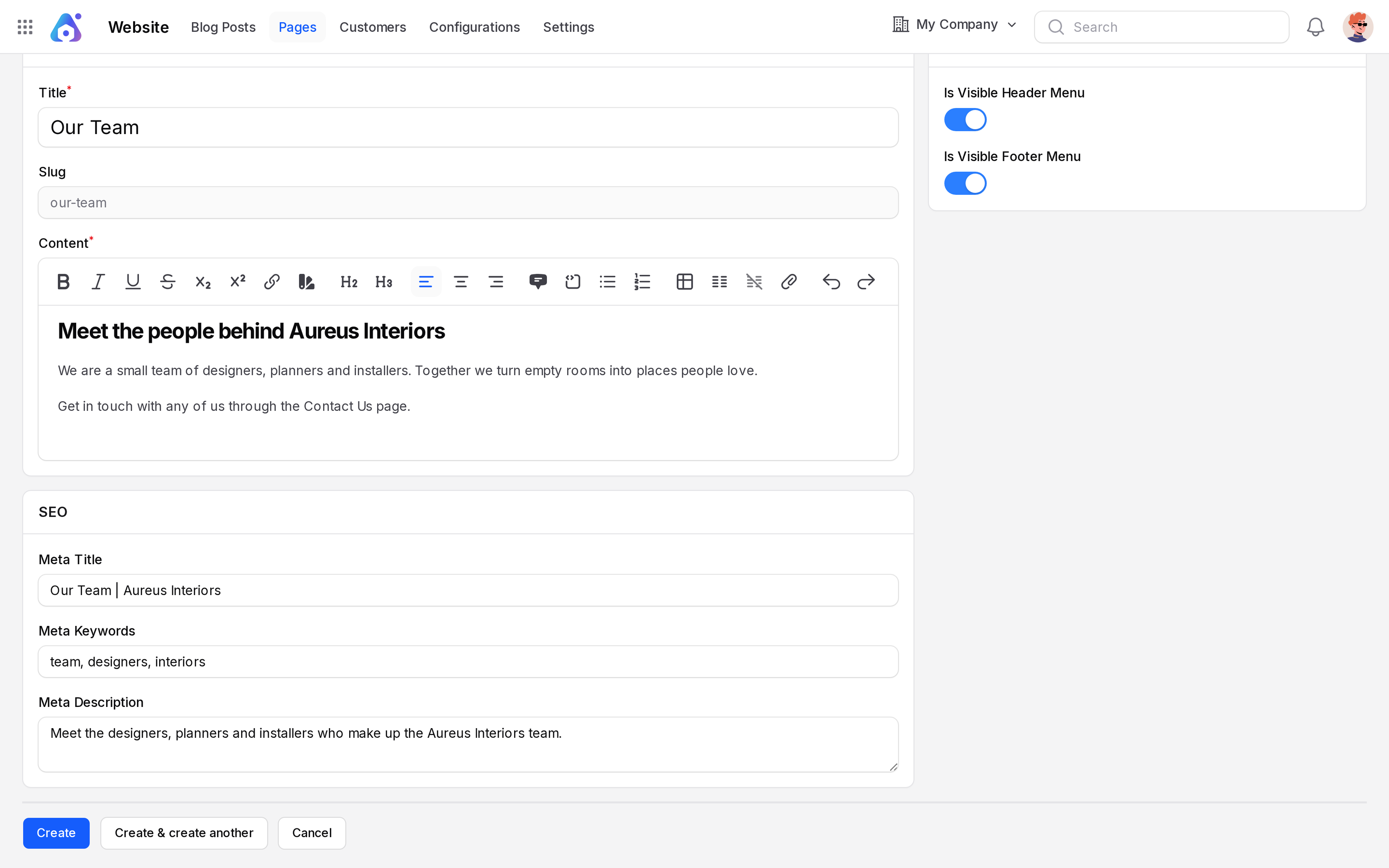
Settings
- Open the Settings section and choose where the link appears.
- Is Visible Header Menu: Turn on to show the link in the site header.
- Is Visible Footer Menu: Turn on to list the page under Useful Links in the footer.
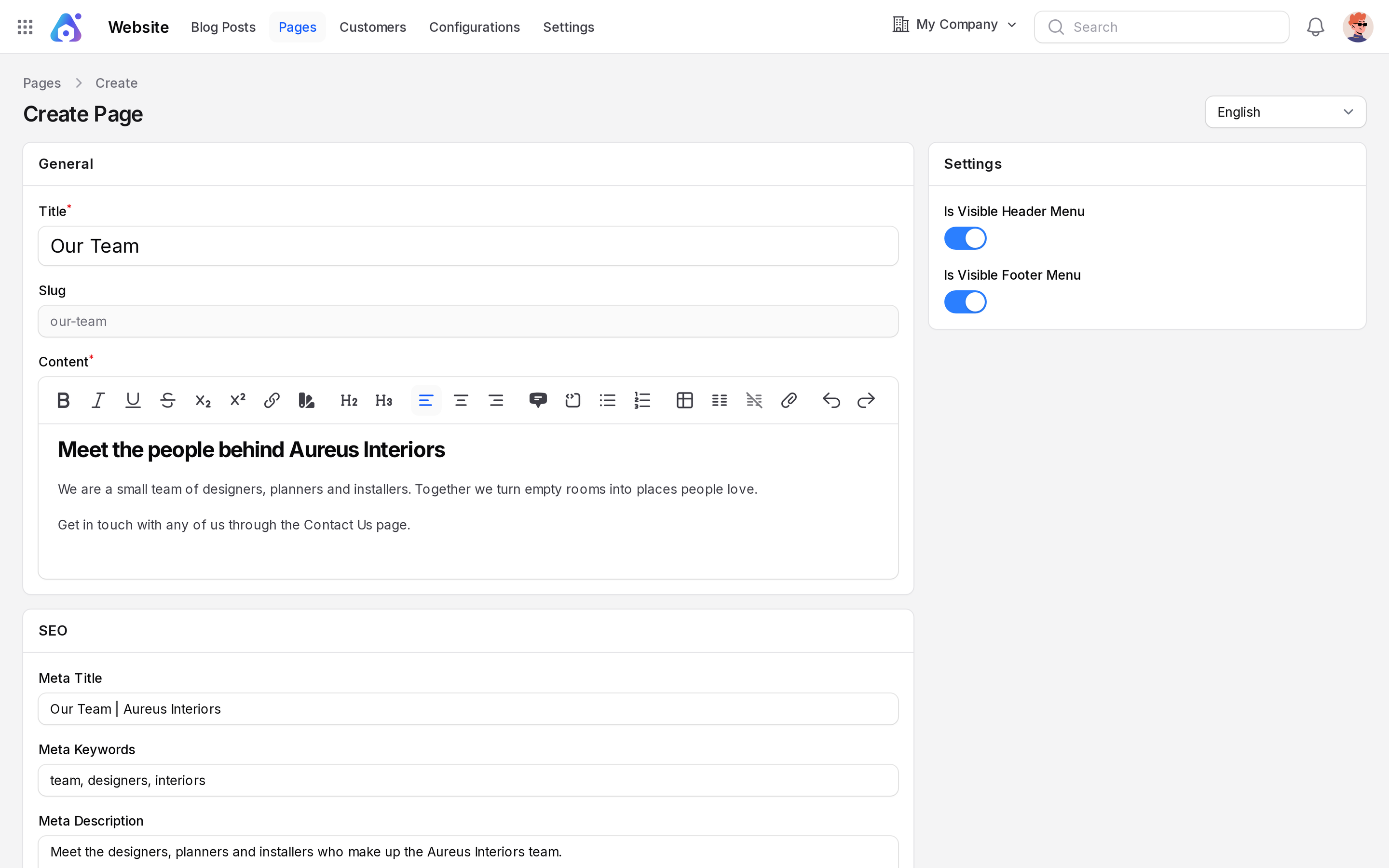
- Click Create. Other buttons: Create & create another saves and opens a blank form. Cancel leaves without saving.
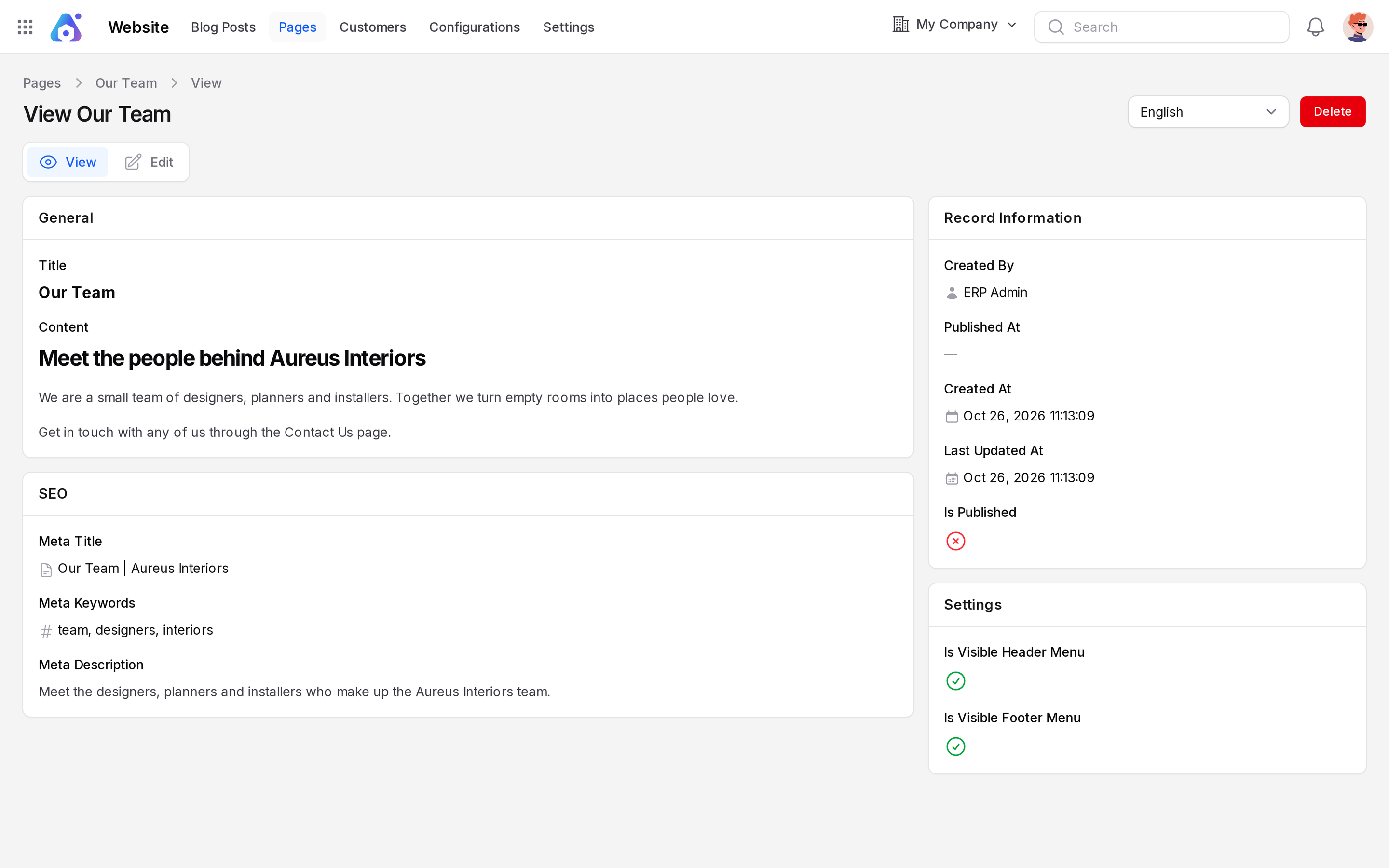
Aureus shows Page created. The page is a draft for now. See Publish and draft.
The content editor
The Content field is a rich text editor. Use it to:
- Add headings to split long text.
- Make words bold or italic.
- Build bullet and numbered lists.
- Add links to other pages or sites.
TIP
Write short paragraphs. Visitors skim web pages.
What the visitor sees
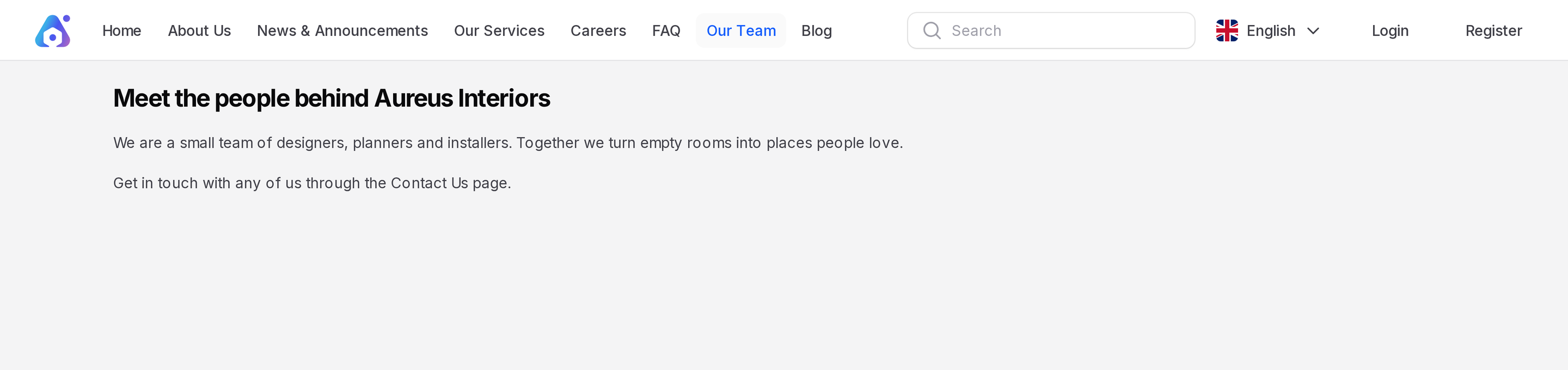
After you publish, the page opens at /pages/our-team. The title and content fill the main area. If you turned on Is Visible Header Menu, the title appears in the top bar next to Blog. If you turned on Is Visible Footer Menu, it appears under Useful Links in the footer.
Edit a page
Click Edit on the row. Change the fields, then click Save. Aureus shows Page updated. The slug stays locked.