

Contacts
A contact is a person or a company you deal with. Customers, vendors and your own company are all contacts. Aureus keeps each contact once, with its phone, email, tax number and addresses. Other modules, such as Sales and Purchase, pick people from this list.
In simple words: Contacts is your address book. Add a person or a company once and use it everywhere.
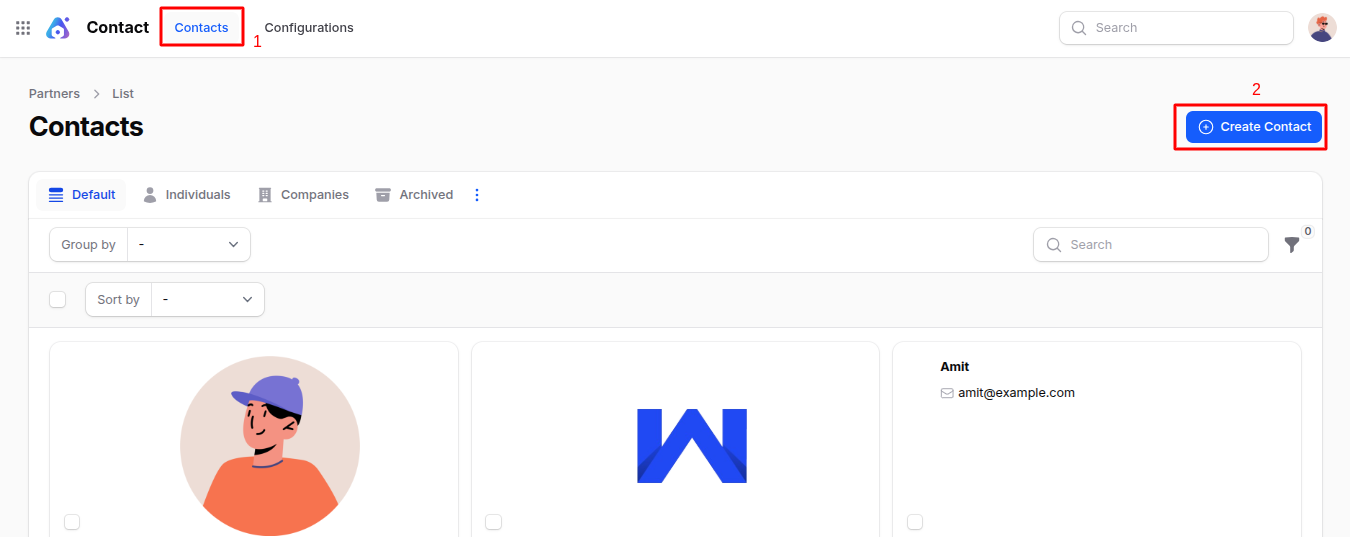
Open Contacts → Contacts.
Before you start
The Contacts plugin must be installed. See Plugins. Create titles, tags and industries first if you want to pick them on the form.
Overview
The page opens on the contact list. Tabs filter it: Individuals, Companies, Employees, Customers, Vendors and Archived. The list shows one card per contact. A card shows the name, the company, the job title, the email, the phone and the tags. Use the search box to find a contact. Group the cards by Account Type, Company, Title, Job Title or Industry. The filter panel lets you narrow the list by fields such as Name, Email, Job Title, Website and Tax ID.
Each card has View, Edit and Delete. A clock icon schedules an activity.
Create a contact
- Open
Contacts → Contactsand click Create Contact.
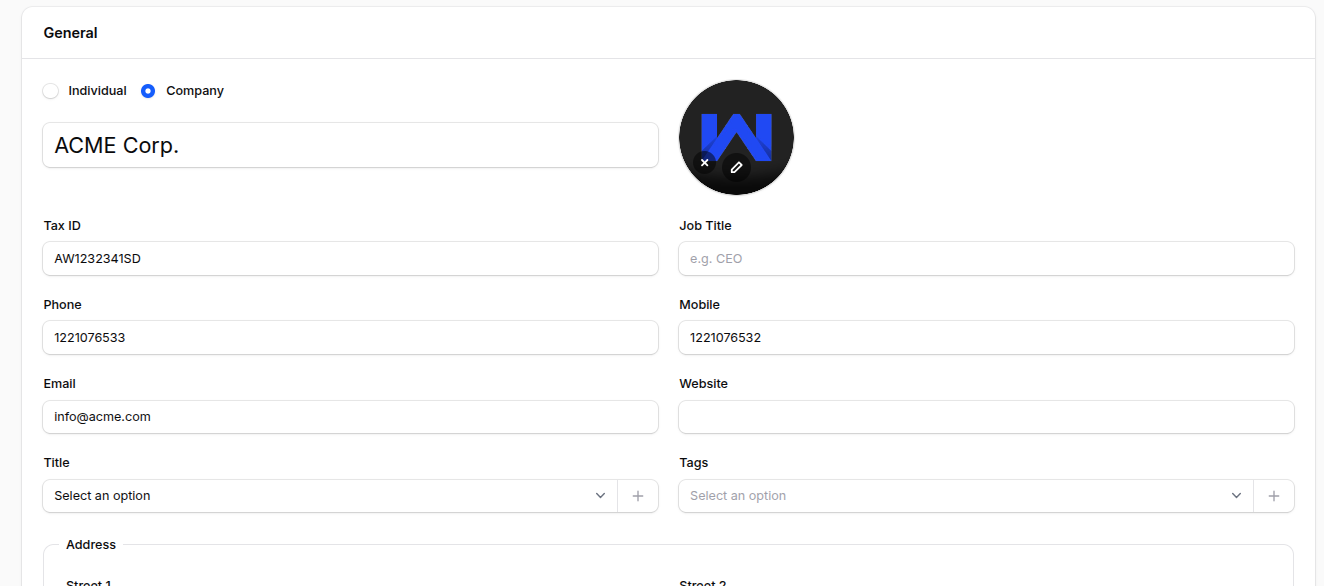
- Fill in the General section.
- Individual or Company: Choose Company for a business. Choose Individual for a person. Only a person can belong to a company, so the Company field shows for Individual.
- Name: Required. The full name of the person or the business.
- Company: The business this person works for. Pick one, or create it from the field.
- Tax ID: The tax number of the contact, for example
29ABCDE1234F1Z5. - Job Title: The role of the person, for example
Purchase Manager. - Phone and Mobile: The office number and the direct number.
- Email and Website: How to reach the contact.
- Title: A prefix such as
Dr.orMr.. See Configurations. - Tags: Labels such as
VIPorSupplier. You can create a tag from the field. - Address: Street, city, zip code, state and country.
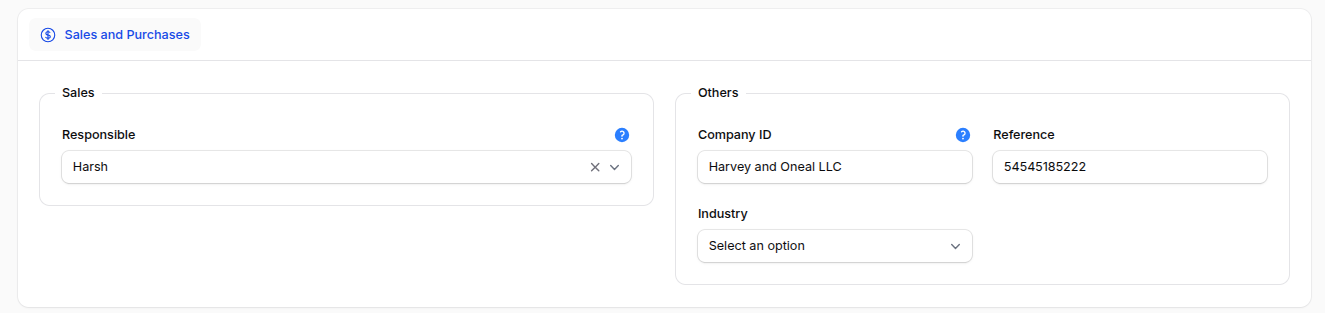
- Open the Sales and Purchases tab if you need it.
- Responsible: The user who looks after this contact, for example the account manager.
- Company ID: The registration number of the company, for example
CMP-0042. - Reference: Your own code for the contact, for example the ID in an old system.
- Industry: The business sector of the contact. See Configurations.
- Click Create. Click Create & create another to save and open a blank form. Click Cancel to leave without saving.
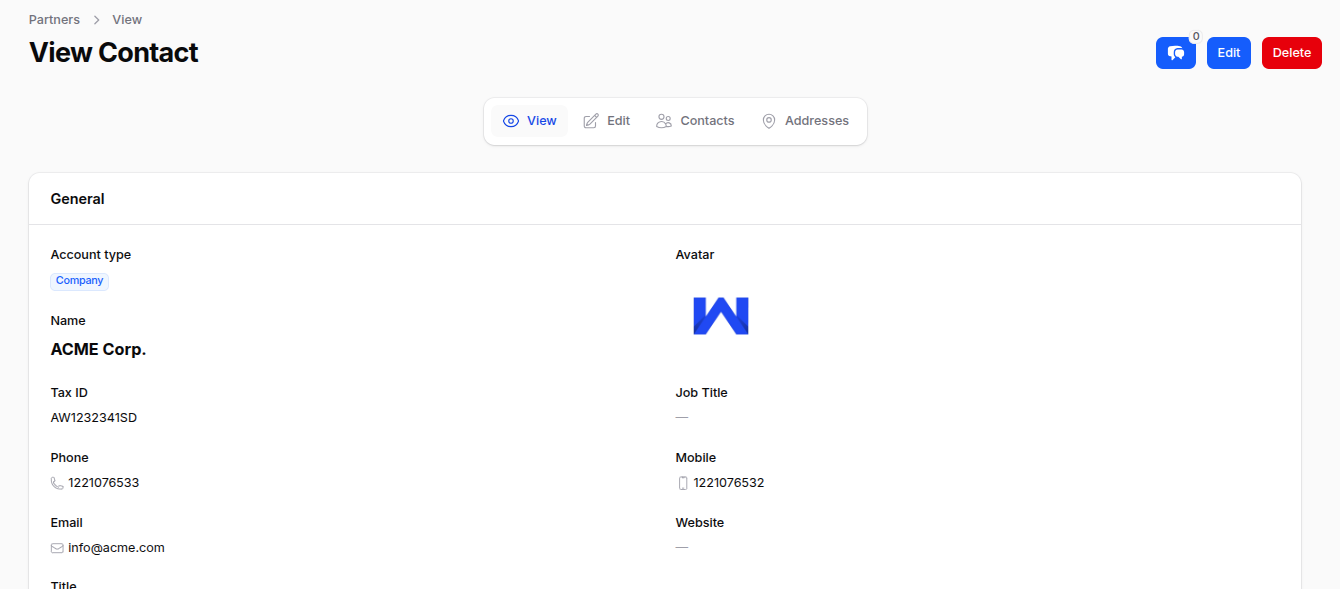
Aureus opens the contact on its View page.
Add people to a company
A company often has several people you talk to. Add them to the company contact.
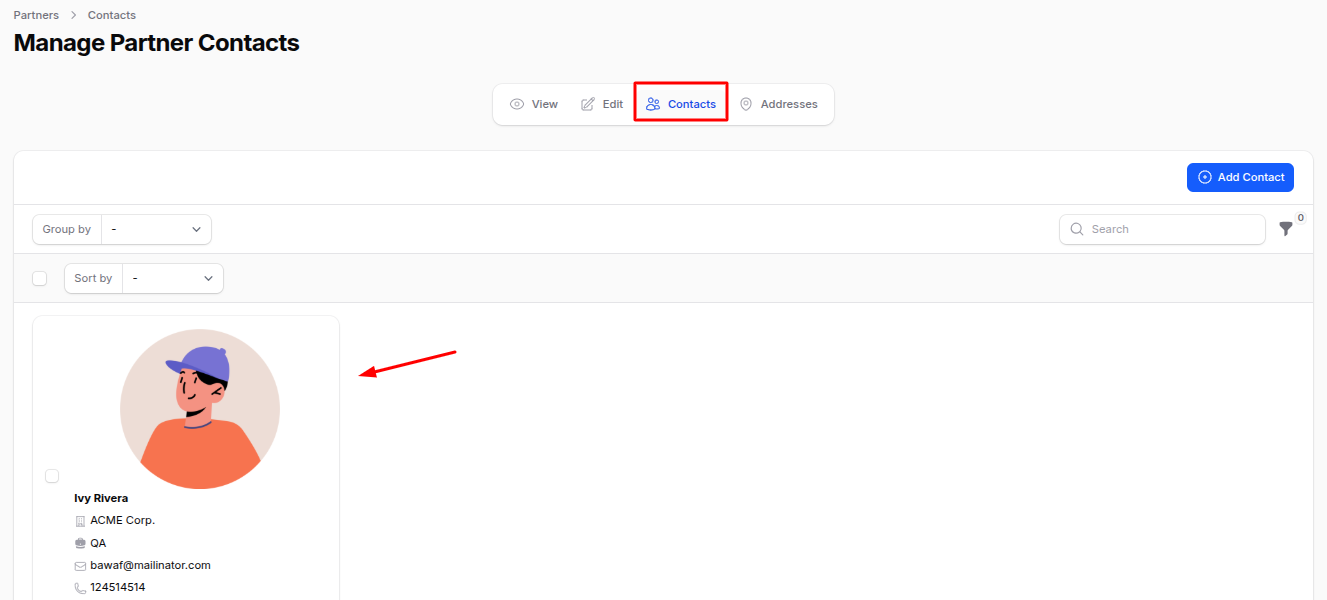
- Open the company contact. Open its Contacts tab.
- Click Add Contact. A window opens with the same fields as the main form.
- Fill in the person, for example a billing contact, and save.
Add an address
A contact can have several addresses, for example one to bill and one to deliver to.
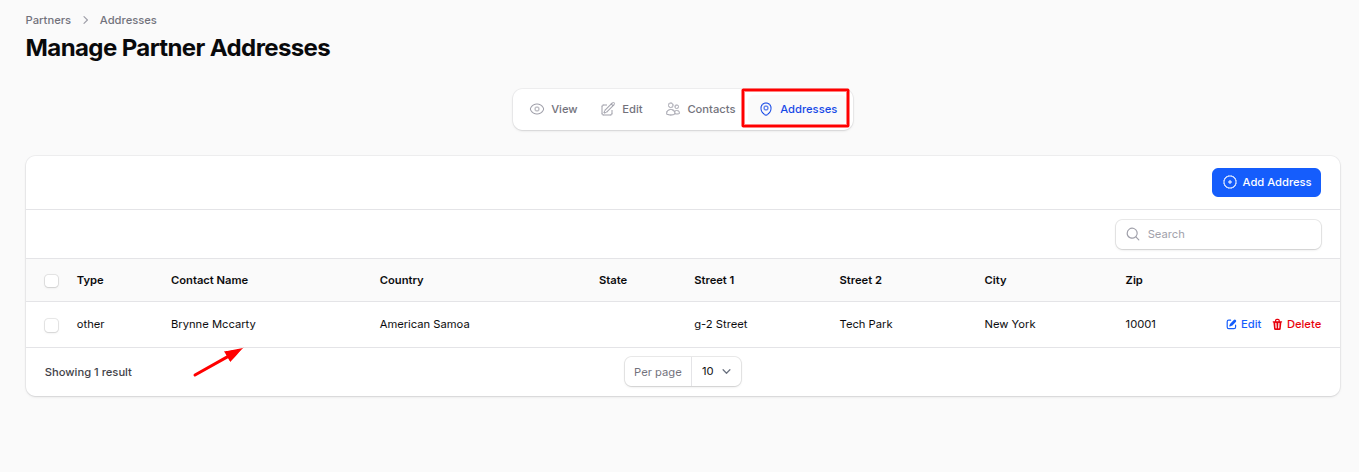
- Open the contact. Open its Addresses tab.
- Click Add Address. The tab is called Addresses.
- Choose the Types value: Permanent, Present, Invoice, Delivery or Other.
- Fill in the name, email, phone, mobile and the full address. Save.
Actions and statuses
- Edit: opens the same form. Change values and click Save changes.
- Delete: archives the contact. It moves to the Archived tab.
- Restore: brings an archived contact back.
- Force delete: removes the contact for good. It fails if other records still use the contact.
- Chatter: the button on the View page. Use it for messages, notes and activities. See Chatter.
WARNING
Force delete cannot be undone. Use Delete if you may need the contact again.