

Leave types
A leave type is one kind of time off, such as Paid Time Off or Sick Time Off. It decides who must approve a request, whether the person needs days given first, and how the request is counted and coloured. Every request and every allocation uses a leave type.
In simple words: A leave type is a kind of leave with its own rules.
Open Time Off → Configuration → Leave Types.
Prerequisite
Notified officers are users. Create them first in Manage users. Seven leave types already exist, so you can start without creating one.
Overview
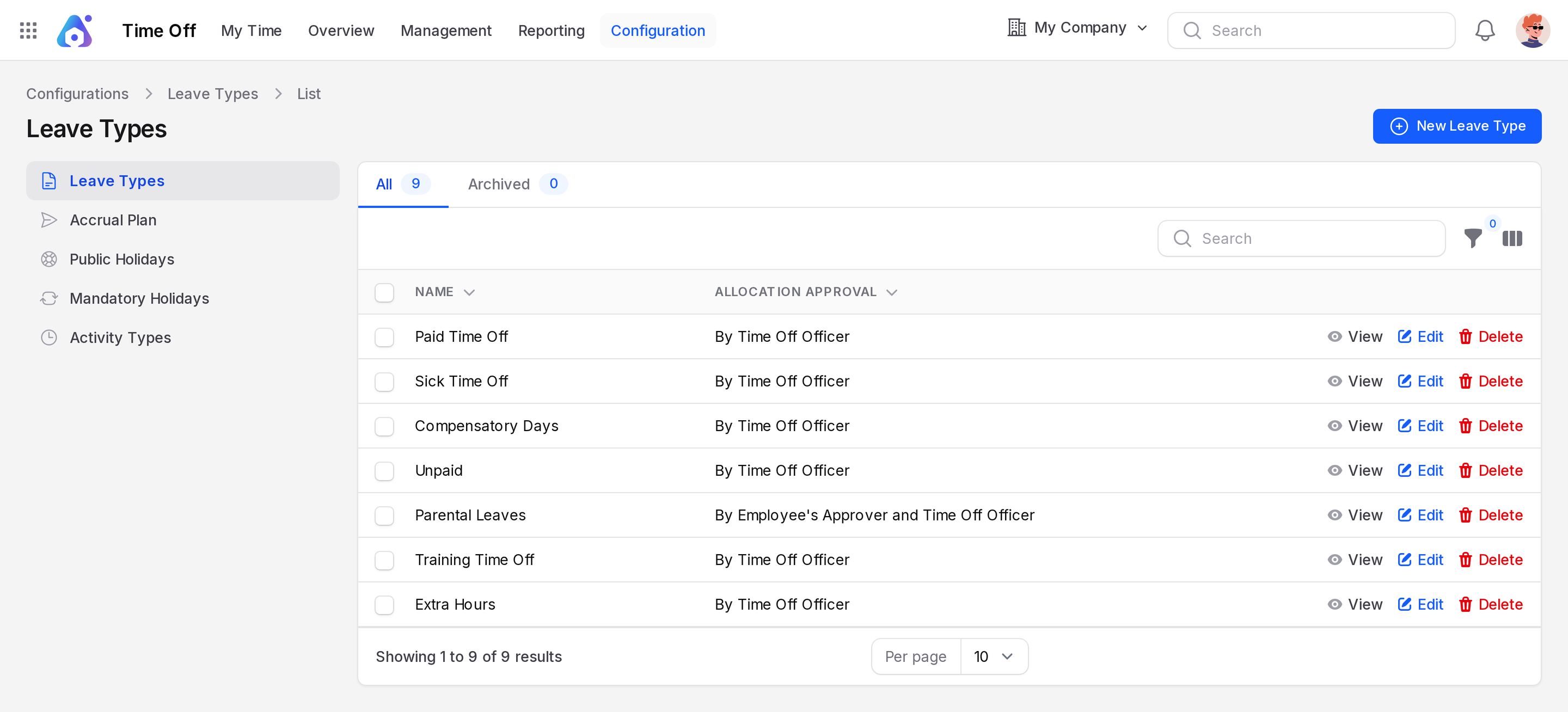
The page lists every leave type. Two tabs sit above the list.
- All: leave types in use.
- Archived: leave types you deleted. You can restore them here.
The columns Name and Allocation Approval show by default. Use the columns icon (the toggle next to the search box) to add Time Off Approval, Notified Time Officers, Requires Allocation, Employee Request, Color and Company. Use the search box to find a type. The funnel icon opens the filters, where you can build rules on fields such as Name, Requires Allocation and Time Type.
Each row has View, Edit and Delete. Delete archives the type.
Create a leave type
This example creates a type for study leave.
- Open
Time Off → Configuration → Leave Types. - Click New Leave Type. A full page opens.
- Fill in the three cards below.
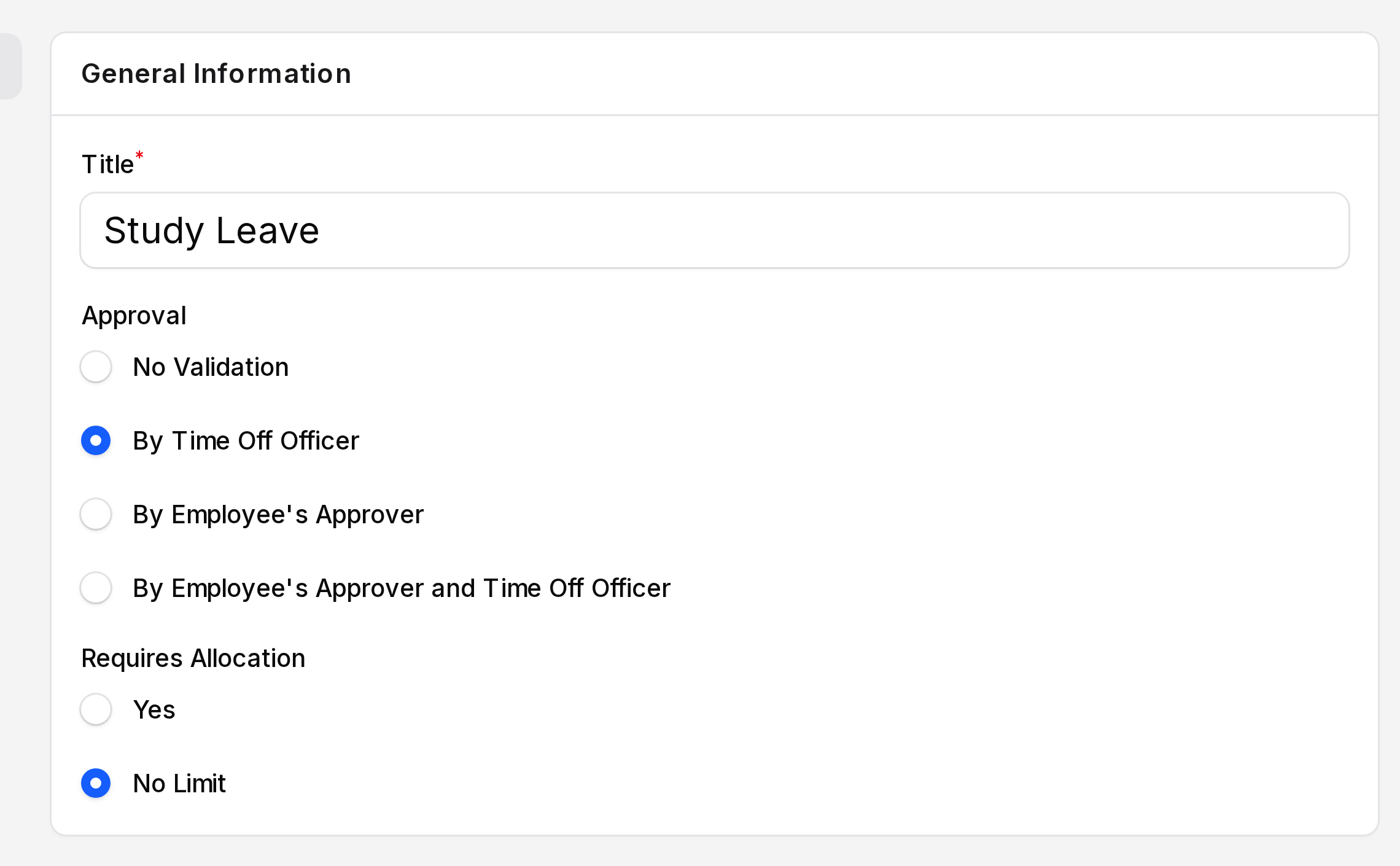
General Information
- Title: Required. The name people see, for example
Study Leave. - Approval: Who must approve a request. The default is By Time Off Officer.
- Requires Allocation: Choose Yes or No Limit. The default is No Limit. Yes adds allocation settings. They show on the Edit page of the saved type. No Limit has none. Aureus still checks approved days when a request is saved.
Approval has four options.
- No Validation
- By Time Off Officer
- By Employee's Approver: the approver named on the employee form.
- By Employee's Approver and Time Off Officer
INFO
The choice records your policy for the leave type. On Time Off → Management → Time off, the Approve button shows on every request that is not yet approved.
What Requires Allocation reveals
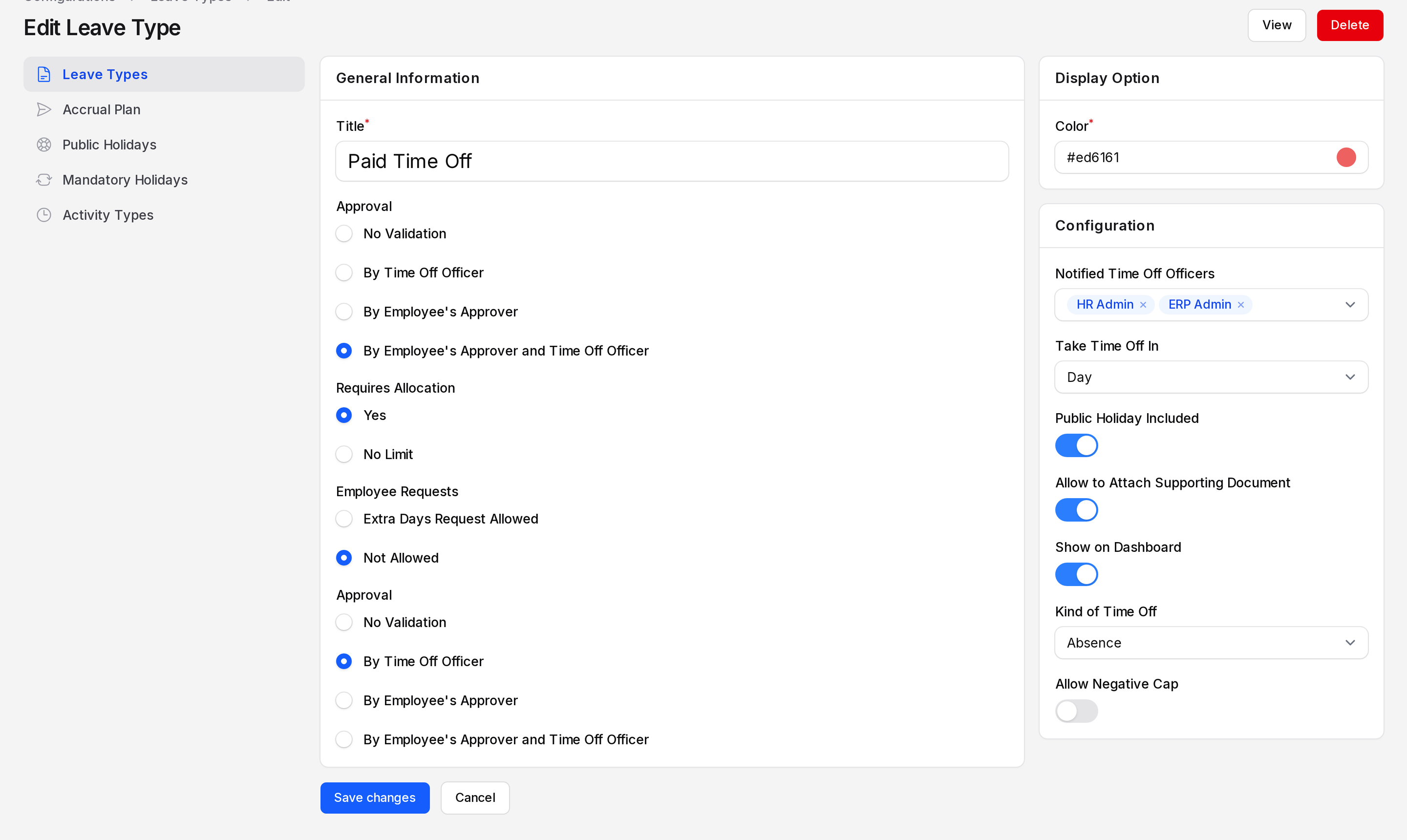
Save a type with Yes, then open its Edit page. Two more fields show.
- Employee Requests: Not Allowed (default) or Extra Days Request Allowed.
- Approval: A second Approval field, for allocations. Same four options. The default is By Time Off Officer. It shows in the list as Allocation Approval.
TIP
The first Approval is for requests. In this guide it is the request approval. The second is for allocations, shown in the list as Allocation Approval. They have the same label on the form.
Display Option
- Color: Required. Empty by default. Type a hex code such as
#2f72cc, or click the swatch dot and pick a colour in the panel. It paints the balance card and the calendar bars.
Configuration
- Notified Time Off Officers: Pick users from a searchable list. It is empty by default.
- Take Time Off In: The unit of the type. The default is Day. Half Day and Hour are also available.
- Public Holiday Included: Toggle, off by default. Public holidays do not change Duration in the request form.
- Allow to Attach Supporting Document: Toggle, off by default. Turn it on for types that need proof, such as a doctor's note.
- Show on Dashboard: Toggle, off by default. When on, the type gets a balance card on
Time Off → My Time → Dashboard. - Kind of Time Off: Absence (default) or Worked Time.
With Requires Allocation set to Yes, two more settings appear.
- Allow Negative Cap: Toggle, off by default. Use it with Max Negative Cap.
- Max Negative Cap: Required number, default
0. It shows only when Allow Negative Cap is on.
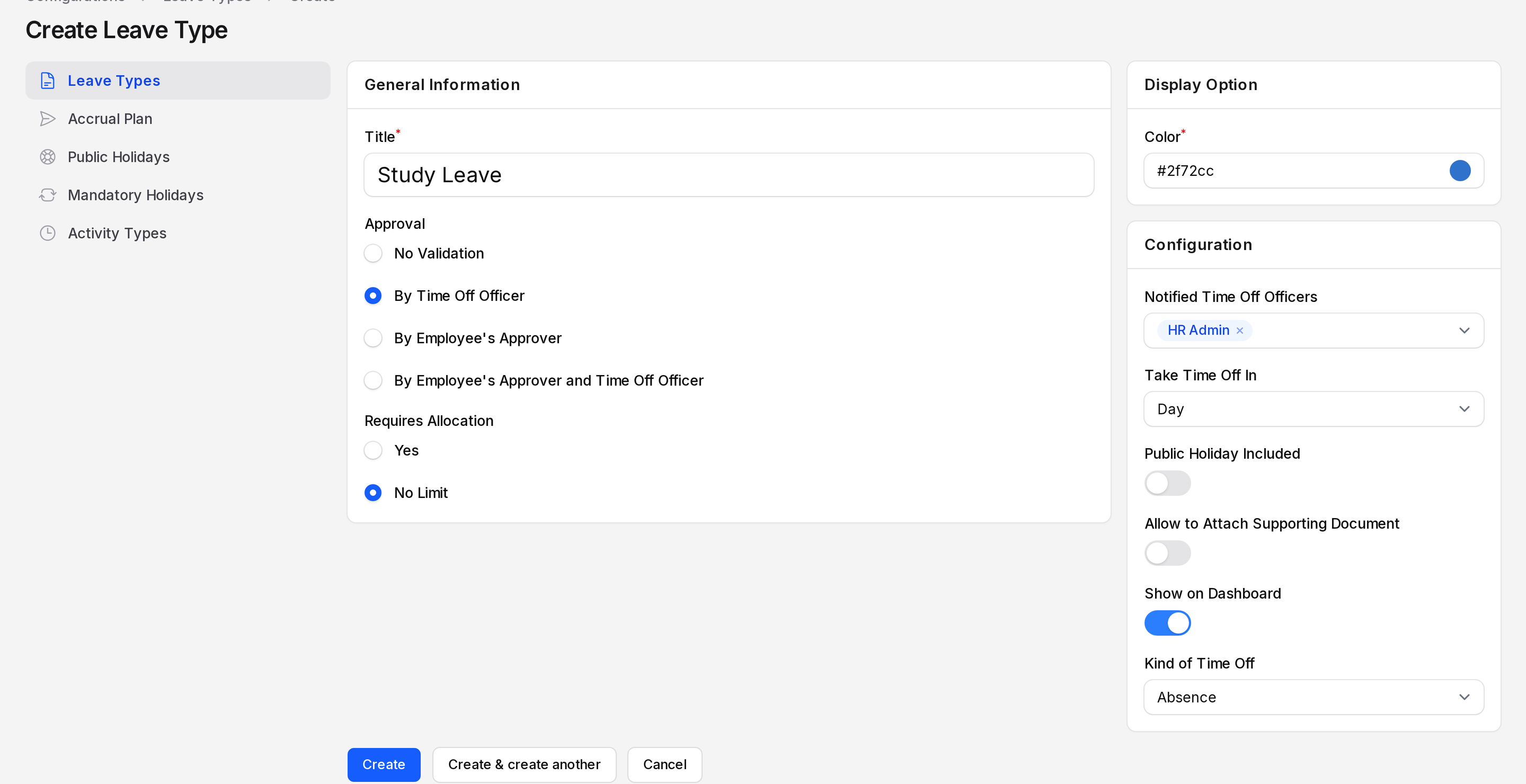
- Click Create. The type opens in the list. Use Create & create another to add several.
The seeded leave types
| Type | Approval | Requires Allocation | Employee Requests | Allocation Approval | Public Holiday Included | Allow Negative Cap |
|---|---|---|---|---|---|---|
| Paid Time Off | By Employee's Approver and Time Off Officer | Yes | Not Allowed | By Time Off Officer | On | Off |
| Sick Time Off | By Time Off Officer | No Limit | On | |||
| Compensatory Days | By Employee's Approver | No Limit | Off | |||
| Unpaid | By Employee's Approver and Time Off Officer | No Limit | Off | |||
| Parental Leaves | By Employee's Approver and Time Off Officer | Yes | Extra Days Request Allowed | By Employee's Approver and Time Off Officer | Off | Off |
| Training Time Off | By Employee's Approver and Time Off Officer | Yes | Not Allowed | By Time Off Officer | Off | On |
| Extra Hours | By Employee's Approver | No Limit | Off |
All seven have Show on Dashboard on and Kind of Time Off set to Absence.
Two examples
Paid Time Off needs an allocation. Priya Sharma has no days, so her request is refused until you allocate some. After you allocate 12 days, she can book up to 12.
Sick Time Off has no day limit. Priya still needs an approved Sick Time Off allocation before Aureus accepts a request.
Edit, view or delete
Click Edit to change any field, then Save changes. Click View for a read-only page. Click Delete to archive the type. Use Restore on the Archived tab to bring it back. A type that is in use cannot be deleted for good.