

Refunds
A refund returns products from a paid order and gives the money back. You start it from the terminal's Orders page. Aureus creates a new order with negative amounts, so the original sale stays untouched and your totals stay correct.
In simple words: Find the old order, choose what comes back, click Refund, and pay the customer back.
You can refund only orders that are already paid. You cannot refund an order that is still New.
Find the order
- Click your initials at the top right of the terminal, then Orders.
- Search by order, receipt or customer. Or use the status filter, which starts on All active orders.
- Click the order in the list. Its lines show on the right.
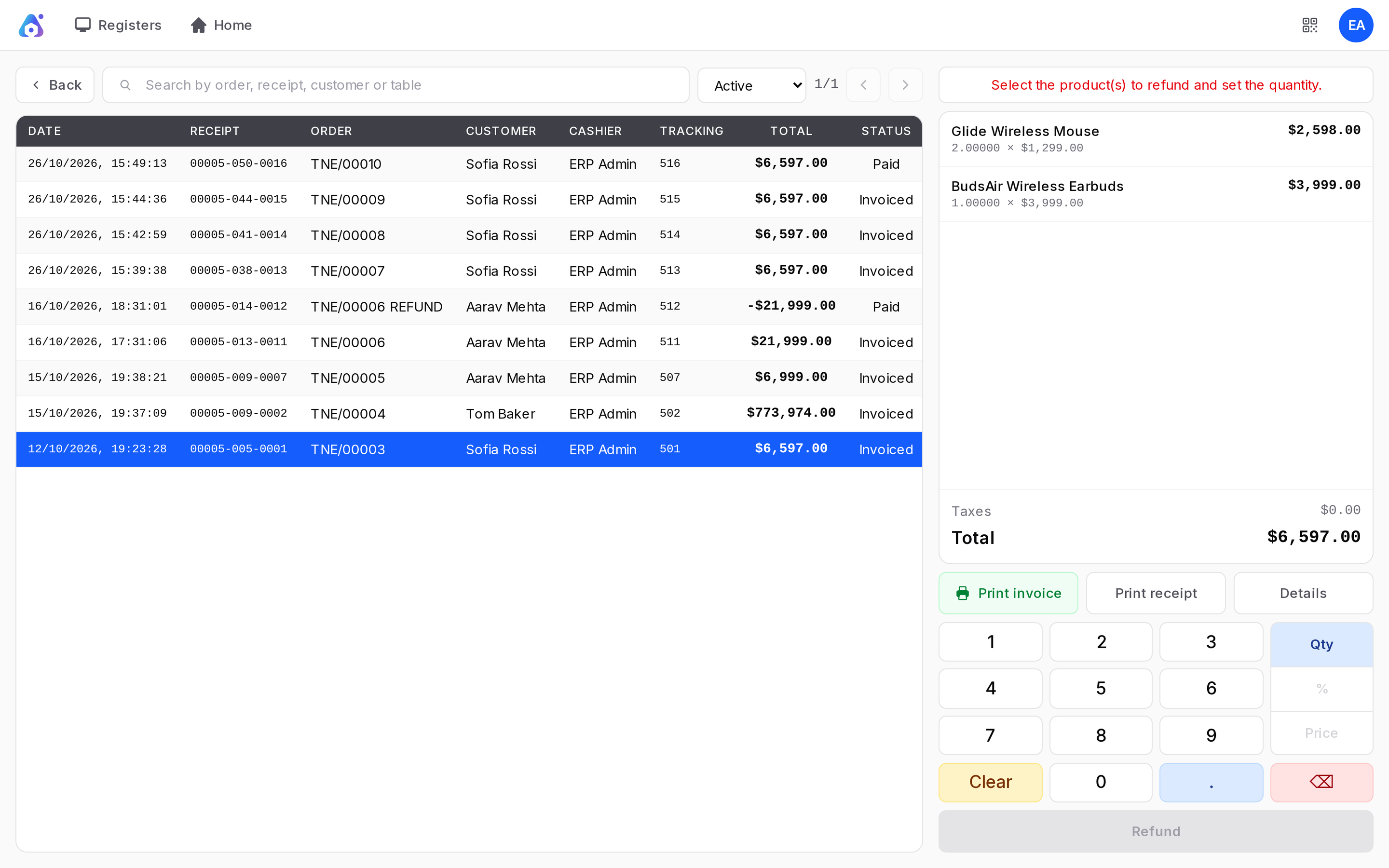
The list shows Date, Receipt number, Order number, Customer, Cashier, Tracking number, Total and Status.
Choose what to refund
- Click the line you want to return. The panel says "Select the product(s) to refund and set the quantity".
- Use the number pad to set the quantity. The line shows To refund.
- Repeat for other lines.
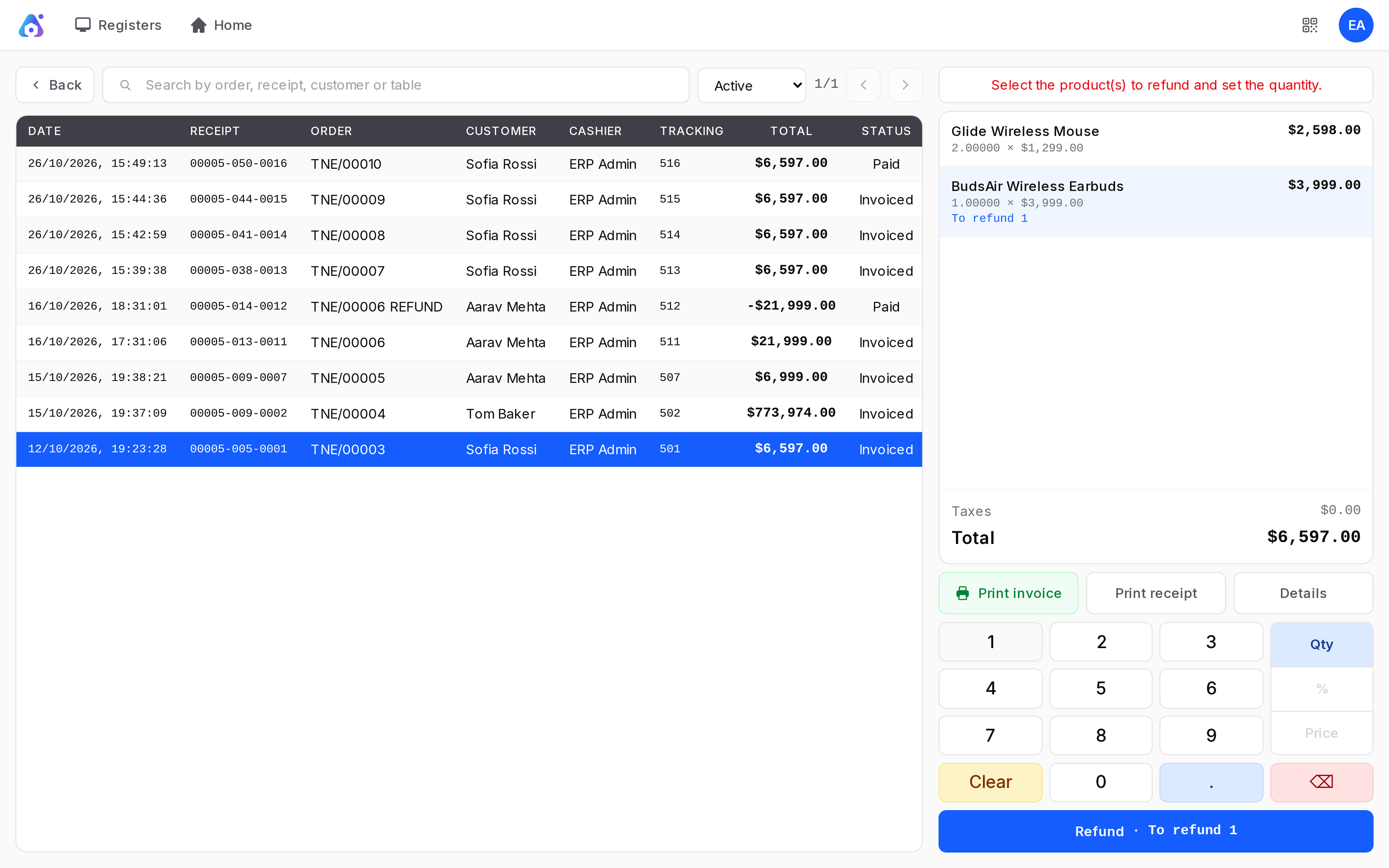
Example: Tom Baker bought one Nova X5 Smartphone for 24,999 on order TNE/00002. He brings it back. Click the line and keep the quantity at 1.
A line also shows what is still Refundable. You cannot return more than the customer bought, and a partial refund is fine. For example, refund one of two mice.
Create the refund
Click Refund. The terminal opens a new order with the returned lines at negative quantity. The customer is the same as on the original order. The total is negative, for example -24,999.
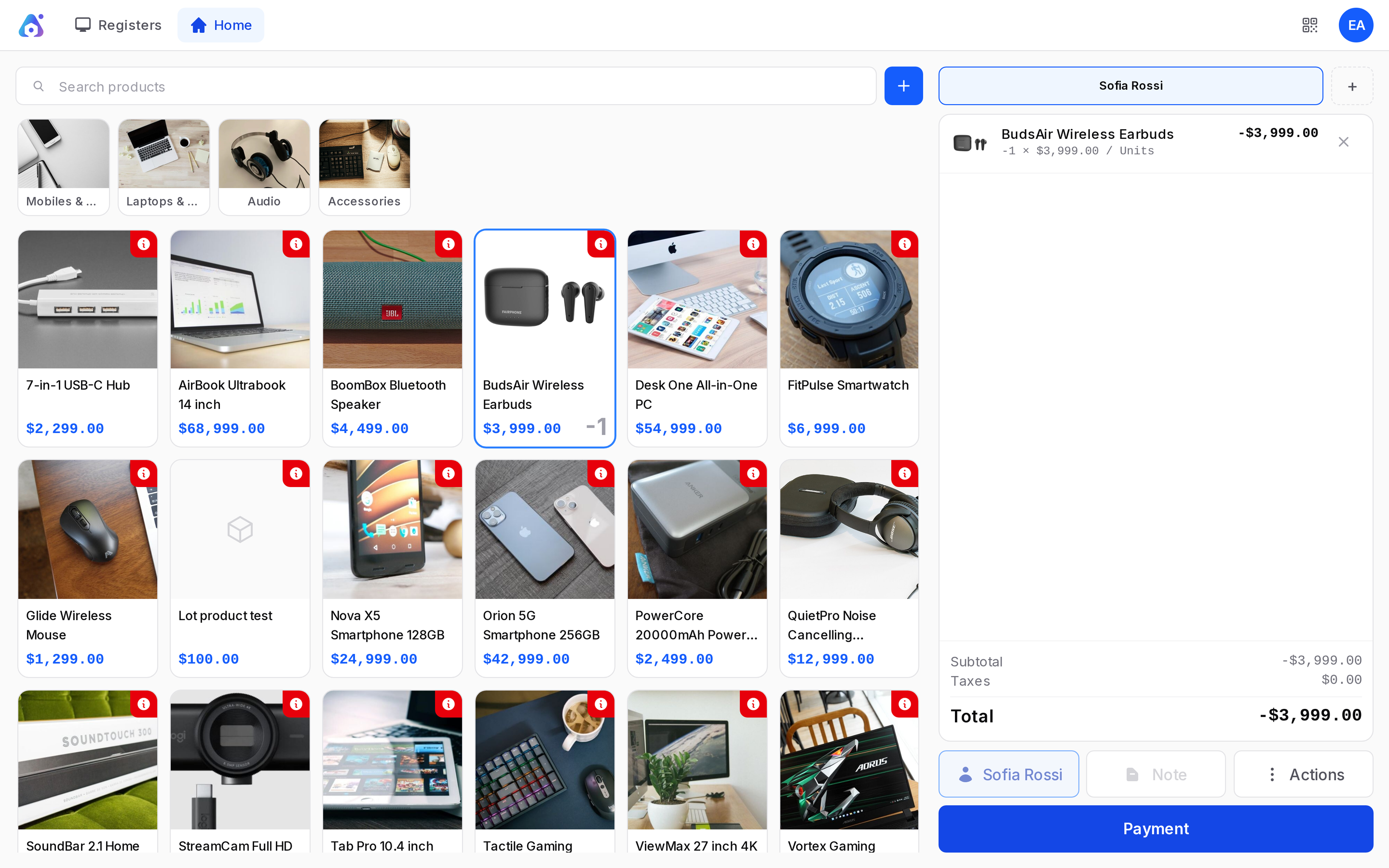
Pay the refund
- Click Payment.
- Choose the method, for example Cash. The amount is the negative total.
- Click Validate.
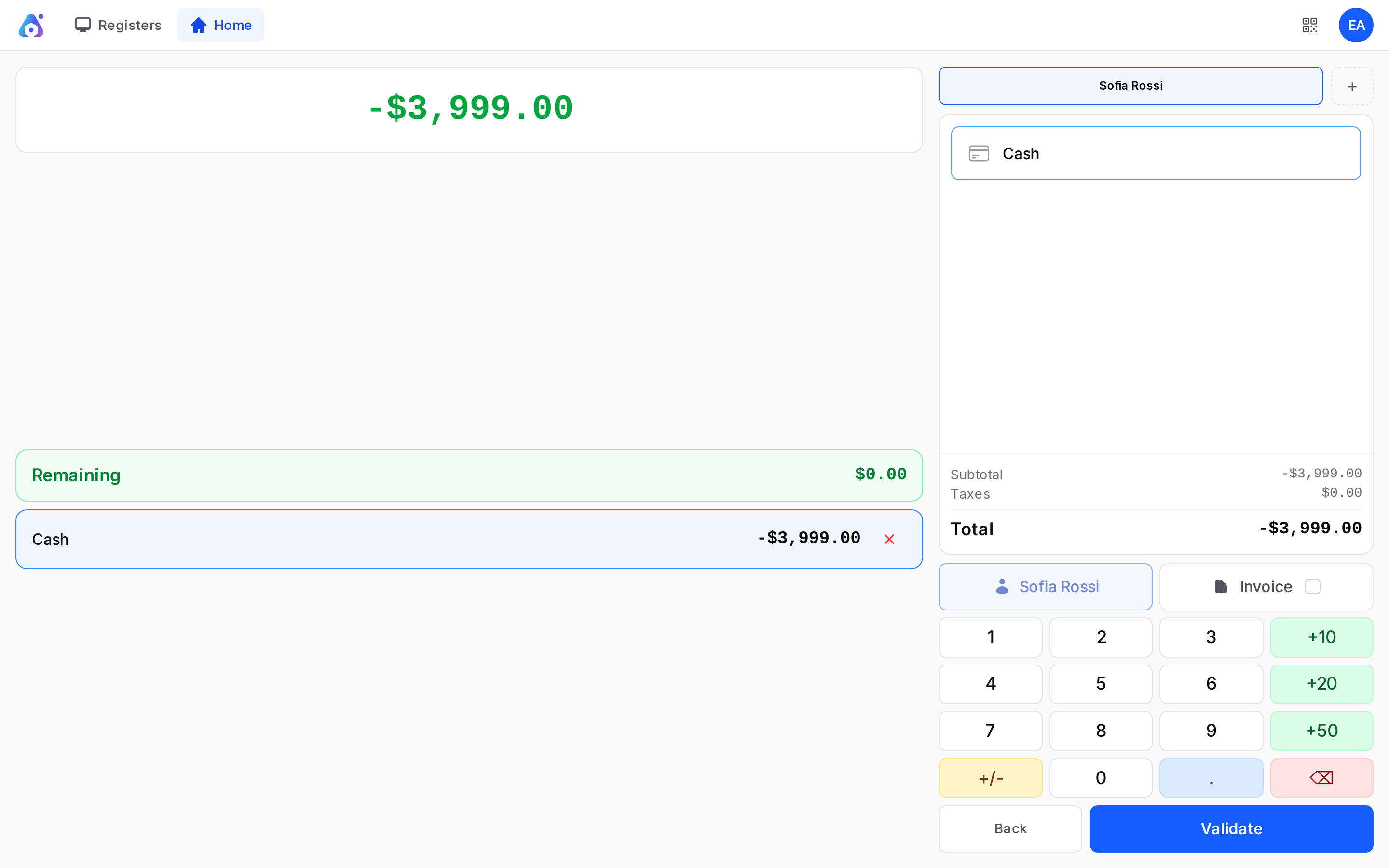
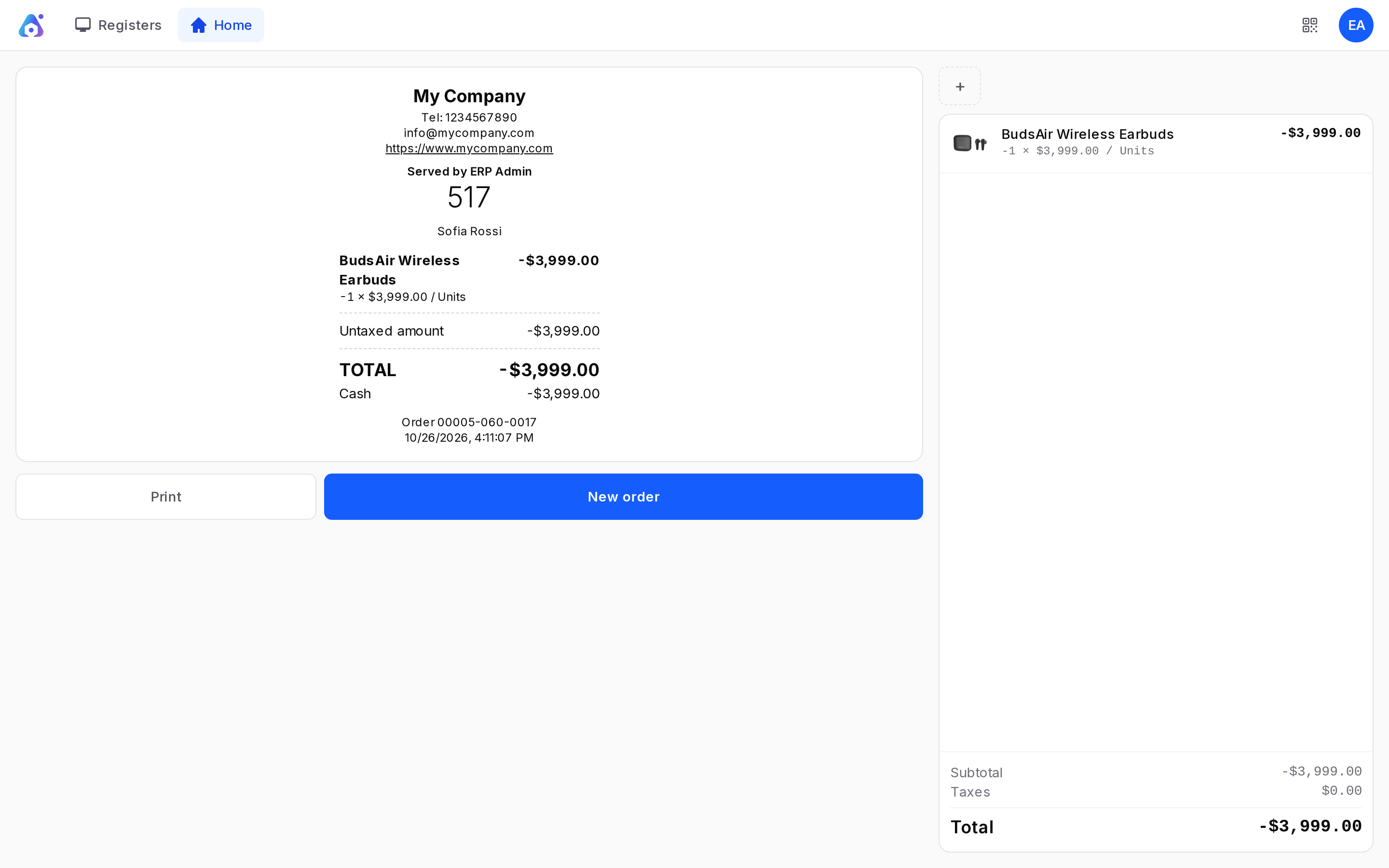
The receipt shows negative amounts: TOTAL -24,999 and Cash -24,999. Print it for the customer if you wish. Give the cash back from the drawer.
Where the refund appears
In the Orders list the refund shows as its own row, "TNE/00002 REFUND", with the status Paid and a negative total. In the back office open Point of Sale → Orders → Orders and use the Refunds tab. The session also counts the money you gave back, so the cash at closing still balances.
Actions and statuses
- Details: Shows the order details.
- Invoice: Creates an invoice for the selected order. See Invoice a POS order.
- Print receipt: Prints the receipt of the selected order again.
- Refund: Creates the refund order.
If the original order was invoiced, invoicing the refund produces a credit note for the customer. See Credit notes and refunds.
TIP
Refund and pay in the same session when you can. The drawer then shows the cash movement clearly.
WARNING
A refund only returns what the original order sold. To change a price, cancel before payment instead.