

First steps
This tutorial takes you through one full maintenance job. You set up a team and a category, add a machine, report a fault, repair it, and then schedule the same care to repeat each month. Every step uses the same machine, the Hydraulic Press 200T.
In simple words: Build the press, break the press, fix the press, then make sure it is looked after every month.
Think of the tutorial as a map. Each step gives a short instruction and links to the page that explains it in depth.
Setup (1-3) → Equipment (4) → Request (5-7) → Calendar (8) → Preventive (9)Before you start
This tutorial uses a technician named Linda Ndlovu, a user named Sales Admin and a vendor named Consolidated Components. Use your own users and vendor if these do not exist. Create users in Manage users and vendors in Contacts.
1. Check the stages and the team
Open Maintenance → Configurations → Stages. The list shows New Request, In Progress, Repaired and Scrap. Repaired and Scrap have a green tick under Done. Then open Maintenance → Configurations → Teams. The team Internal Maintenance is there.
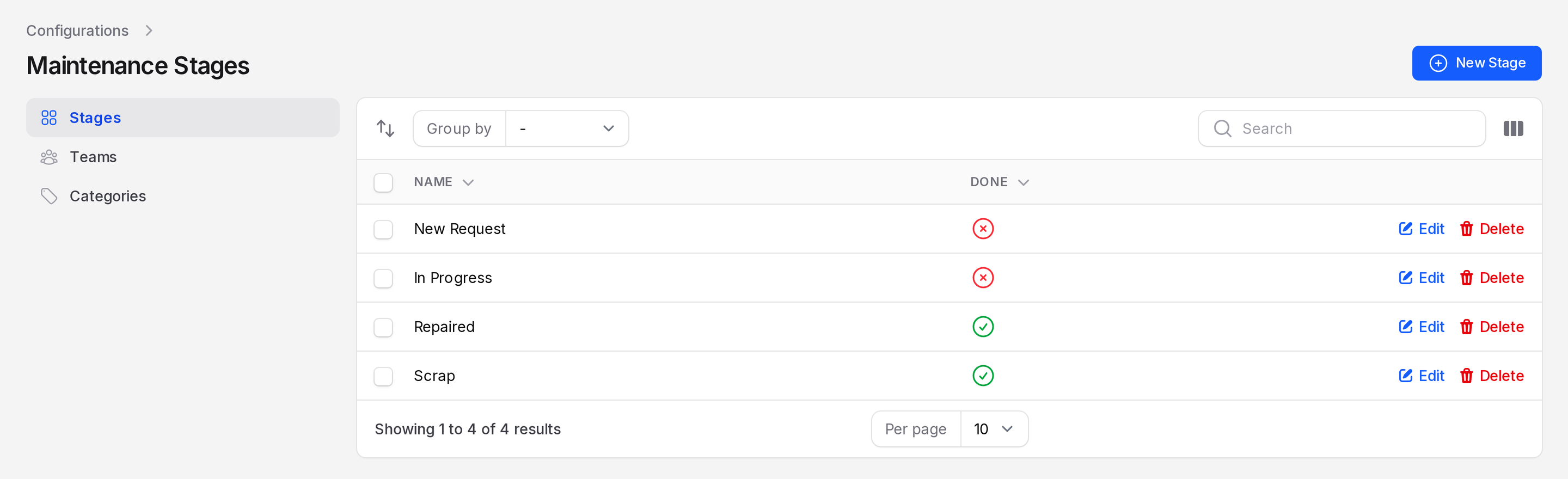
Behind the scenes: the Done flag decides when a request counts as closed. See Stages.
2. Create a category
Open Maintenance → Configurations → Categories and click New Category.
- Name:
Packaging Machines - Responsible:
Linda Ndlovu
Click Create. The notification Category created appears and the category opens on its view page.
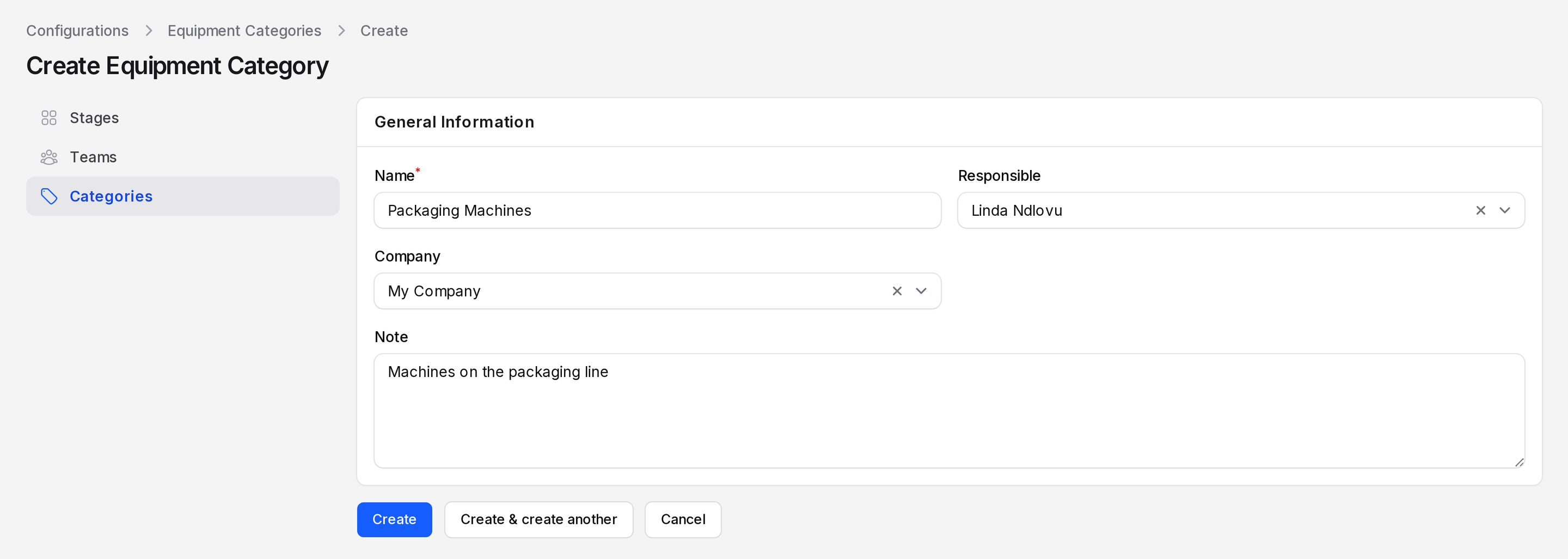
Behind the scenes: Linda becomes the default technician for requests on this kind of machine. See Equipment categories.
3. Create a team
Open Maintenance → Configurations → Teams and click New Team.
- Name:
Electrical Maintenance Team - Team Members:
Linda Ndlovu
Click Create.
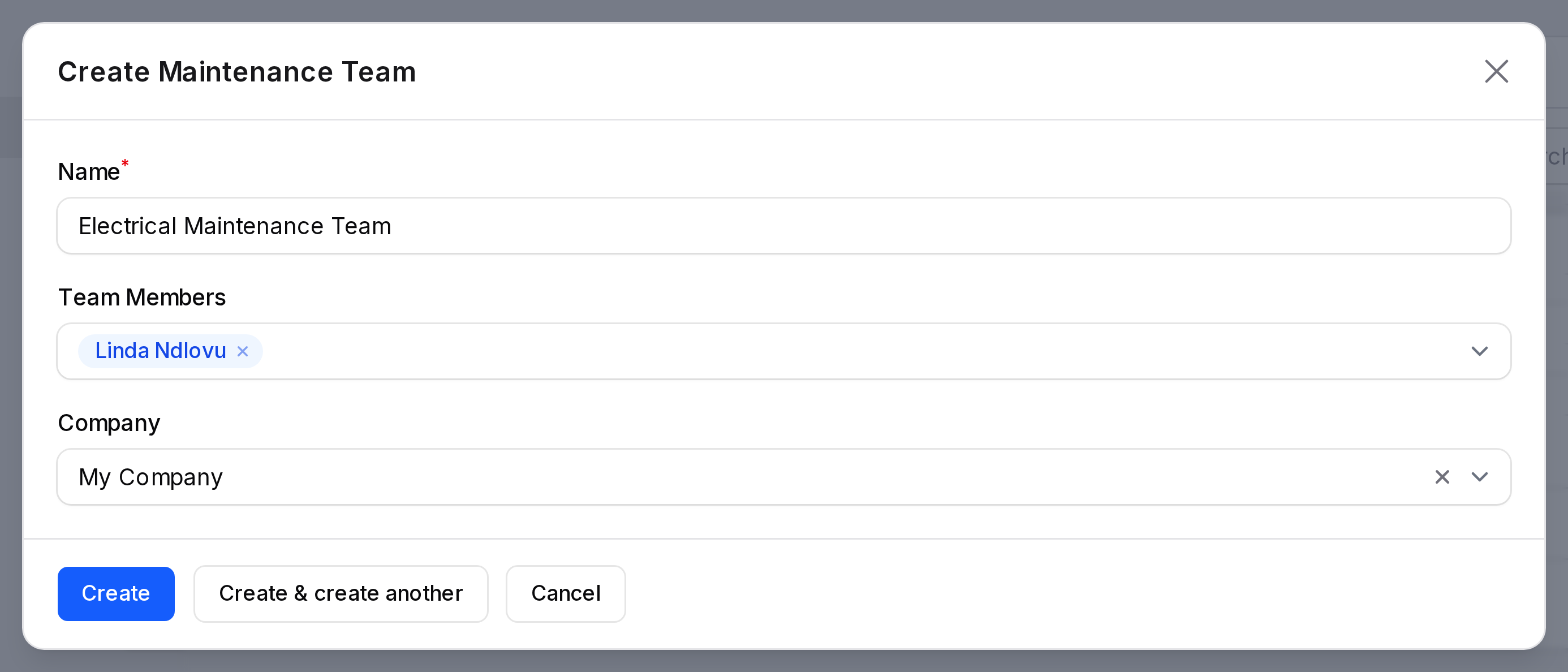
See Maintenance teams.
4. Add the equipment
Open Equipment and click New Equipment. Fill in the form.
- Name:
Hydraulic Press 200T - Vendor: an existing vendor, such as
Consolidated Components - Model:
HP-200 - Serial Number:
HP-200-2026-001 - Cost:
18500 - Warranty Expiration Date:
2028-06-30 - Equipment Category:
Packaging Machines. The Technician fills with the category's Responsible, Linda Ndlovu. - Maintenance Team:
Electrical Maintenance Team - Technician:
Linda Ndlovu - Owner:
Sales Admin - Used in location:
Workshop A - Expected Mean Time Between Failure:
90
Click Create. The equipment opens on its view page.
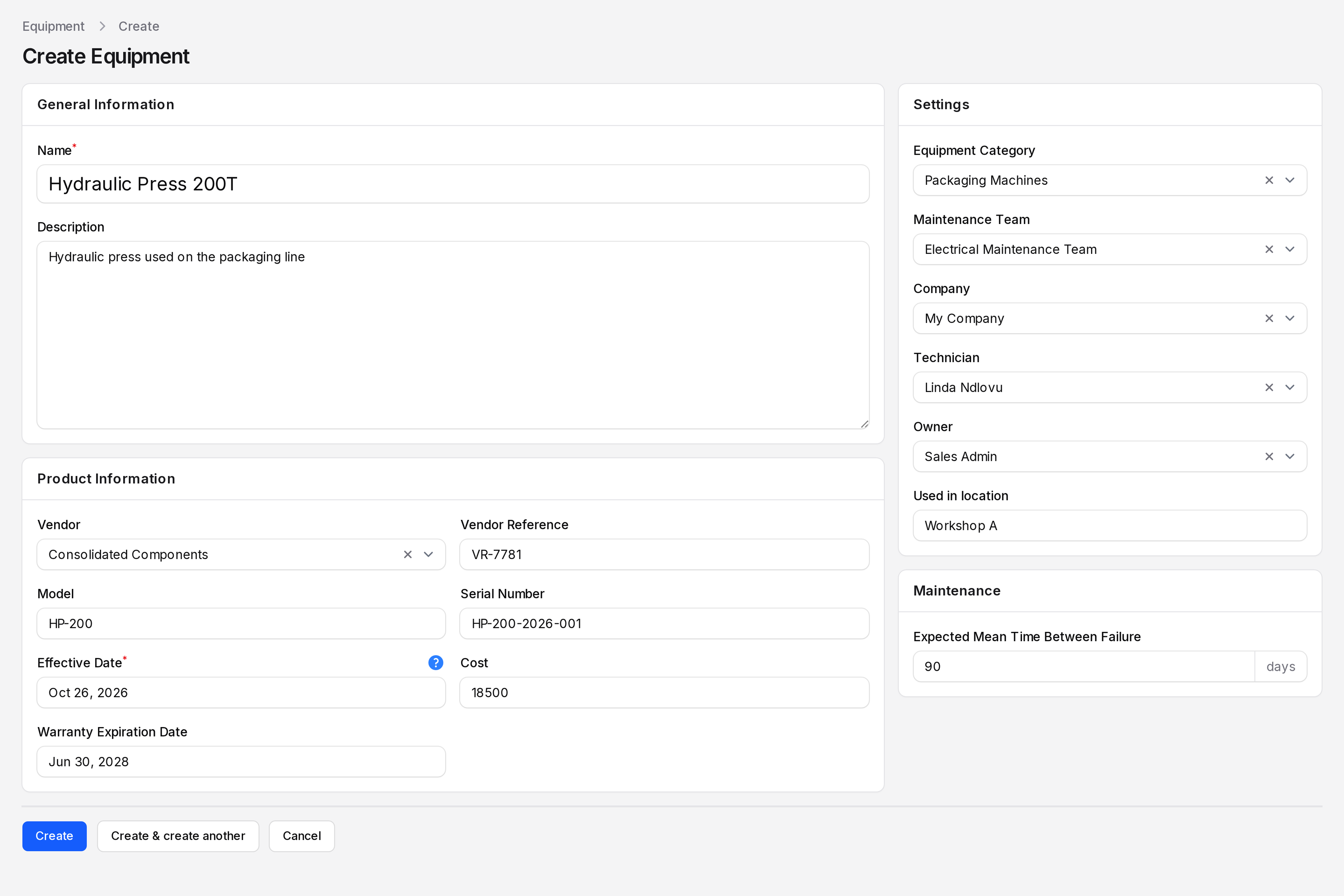
See Add equipment.
5. Report the problem
The press is leaking oil. Open Maintenance → Maintenance Requests and click New Maintenance Request.
- Request:
Hydraulic press oil leak - Equipment:
Hydraulic Press 200T
When you pick the equipment, Aureus fills Category, Team, Responsible and Company for you. Request Date takes the date of the equipment. Leave Maintenance Type on Corrective. Do not click Create yet. Go on to step 6.
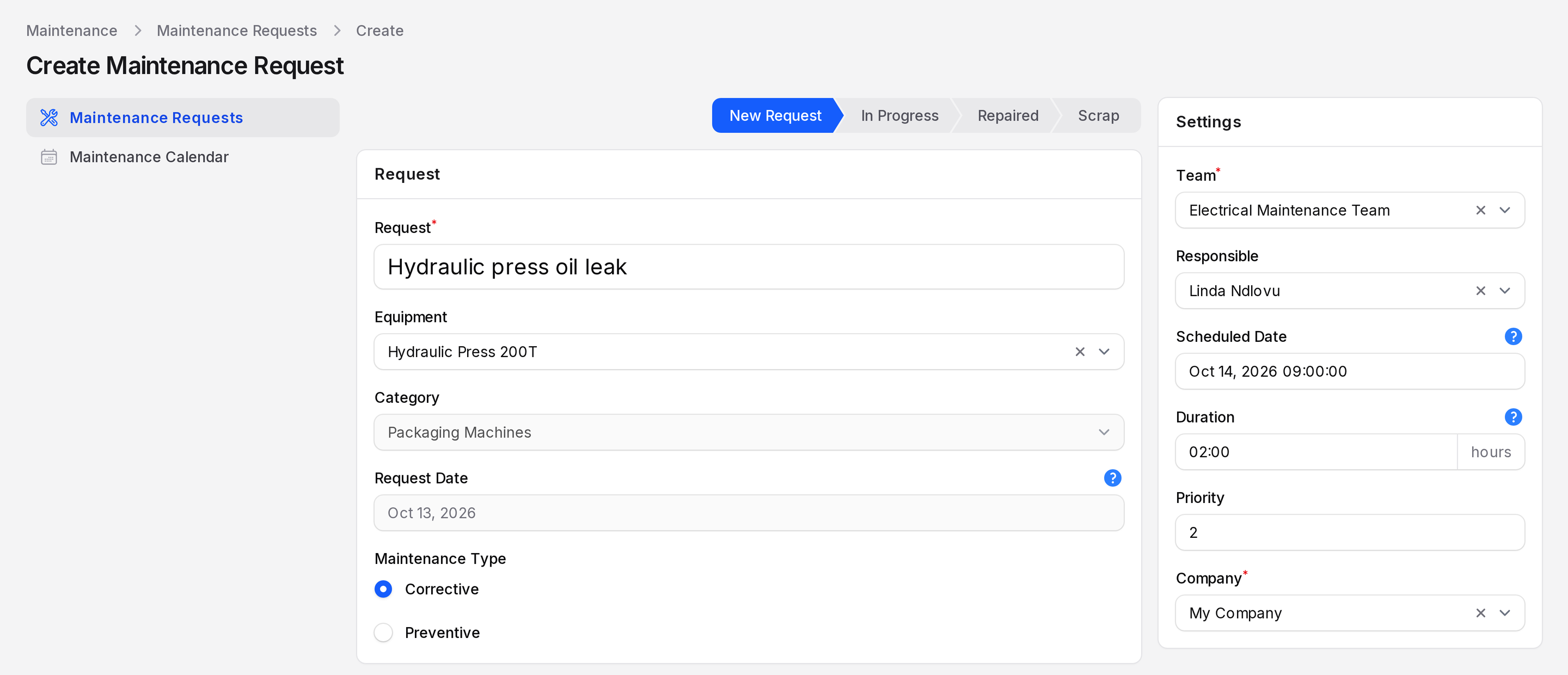
Behind the scenes: the values come from the equipment. You can still change them on this request. See Create a maintenance request.
6. Assign and schedule
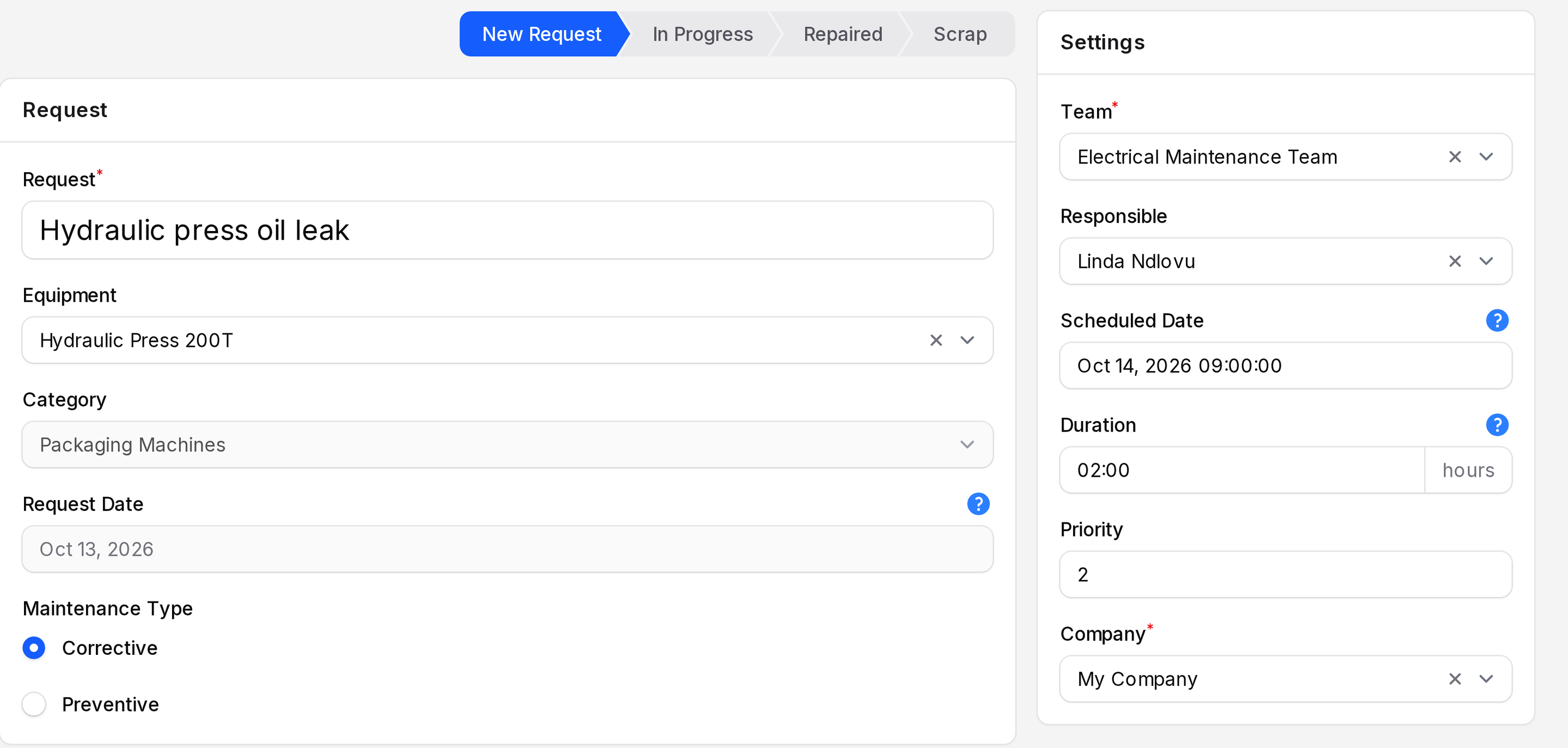
In the Settings card on the right, set:
- Responsible:
Linda Ndlovu - Scheduled Date: a date in the near future, for example
Oct 14, 2026 09:00 - Duration:
02:00 - Priority:
2. Use 0 for normal work and 1 to 3 for work that needs attention first.
Click Create. The notification Maintenance request created appears and the request opens on its view page in the stage New Request.
7. Move it to Repaired
Open the request and click Edit. The stage bar on the view page is read only. Click In Progress on the stage bar when Linda starts, then click Save changes. When the leak is fixed, click Repaired, then click Save changes. The notification Maintenance request updated appears.
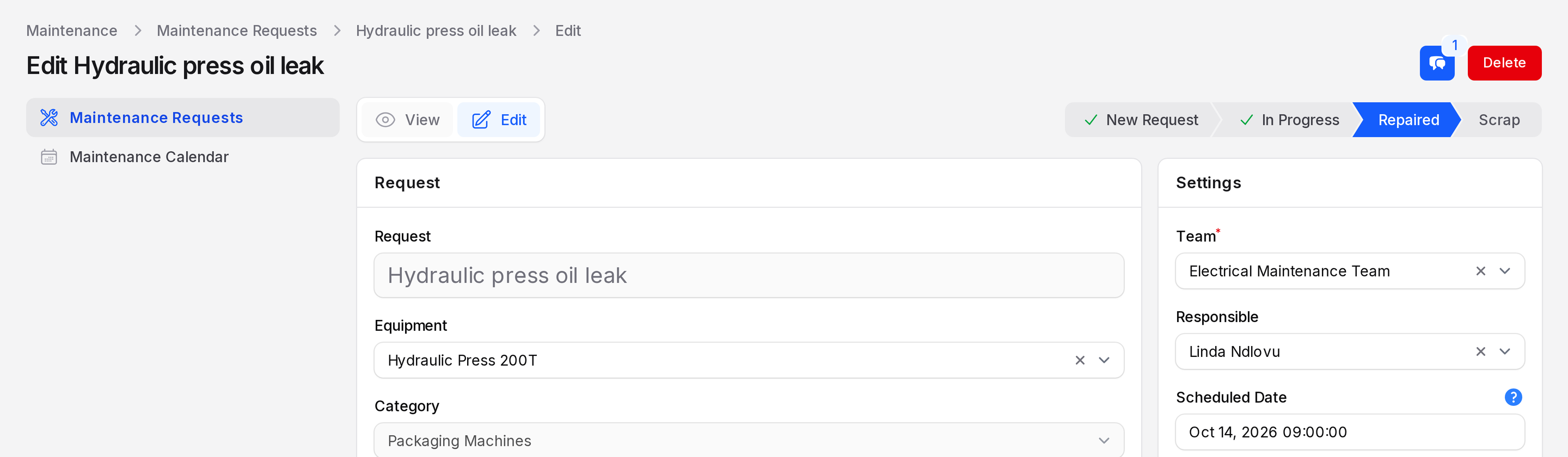
Behind the scenes: Repaired has the Done flag, so the request is closed. It moves from the To Do tab to the Done tab. See Process a request.
8. See it on the calendar
Open Maintenance → Maintenance Calendar. The request shows on its scheduled day, 14 October 2026. It is green because its stage is done. Open jobs are blue. The request is on 14 October, so the grid shows it in the October 2026 month.
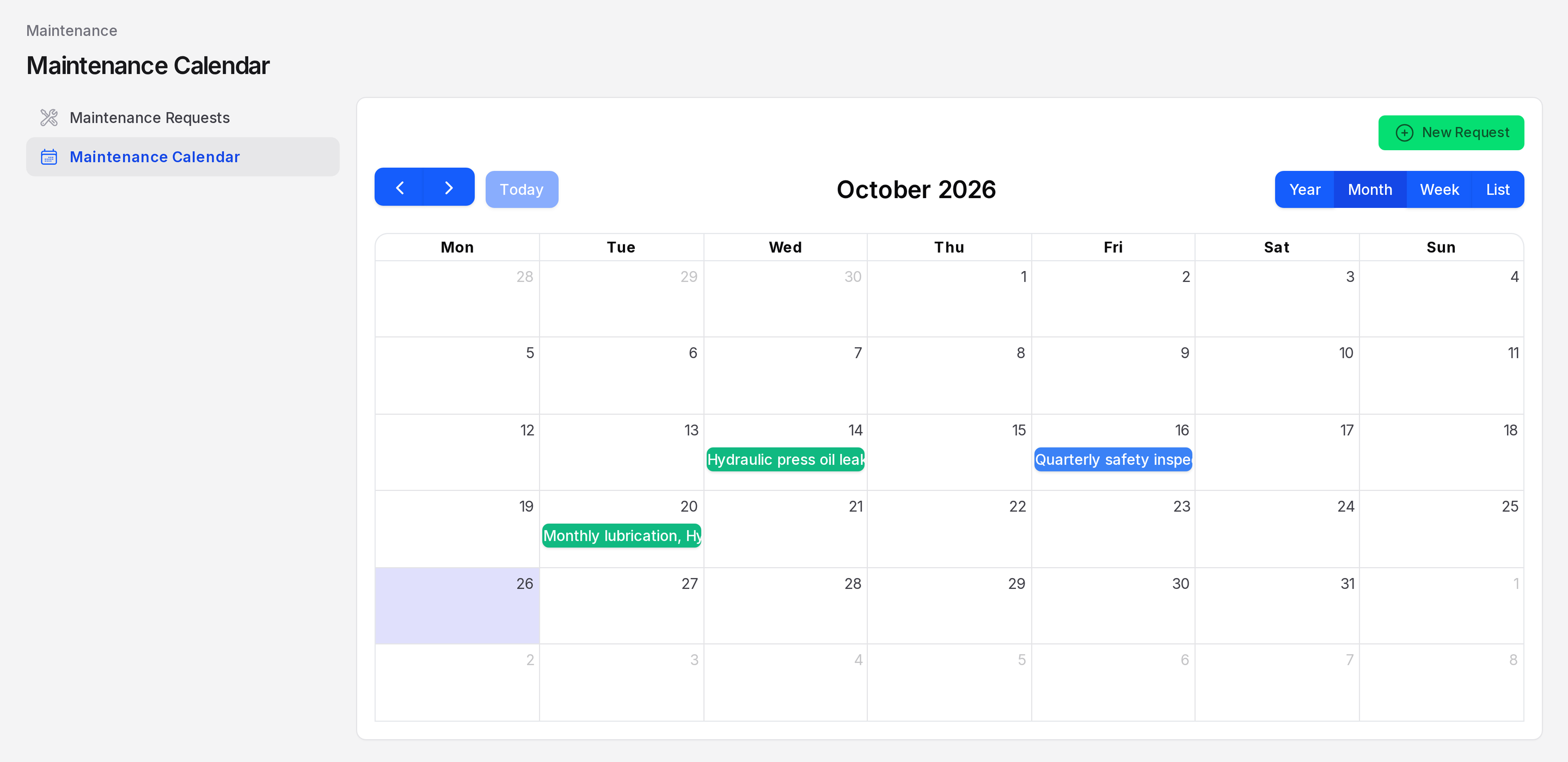
See Maintenance calendar.
9. Set up the monthly preventive job
Fixing faults is not enough. Create a second request to look after the press before it breaks.
- Click New Maintenance Request.
- Request:
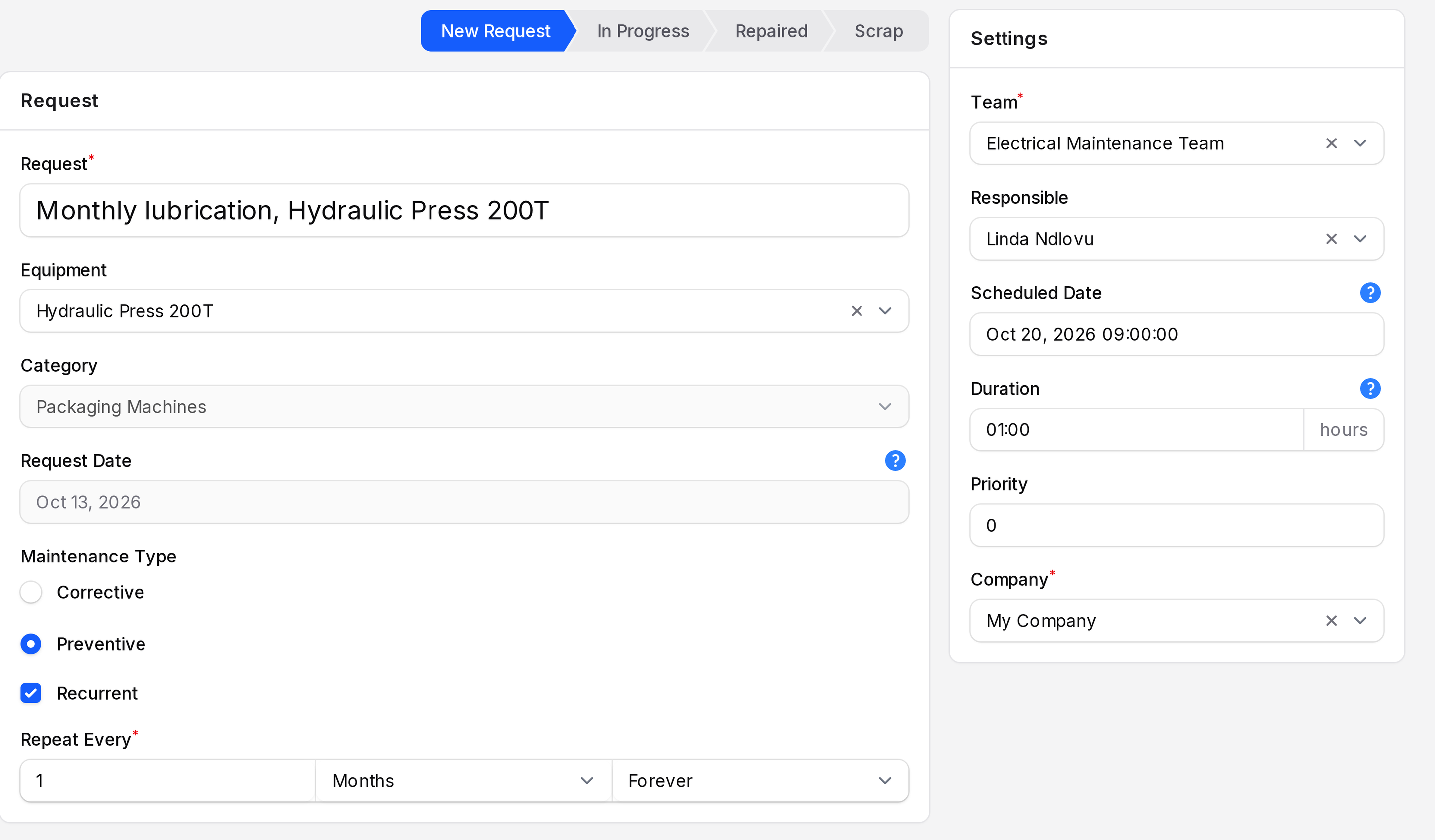
Monthly lubrication, Hydraulic Press 200T. - Equipment:
Hydraulic Press 200T. - Maintenance Type: Preventive.
- Tick Recurrent.
- Repeat Every:
1,Months,Forever. - Set Scheduled Date to
Oct 20, 2026 09:00and Duration to01:00. Click Create.
Open the request, click Edit, choose Repaired and click Save changes. Aureus creates a copy in New Request, scheduled one month after the original: Nov 20, 2026 09:00.
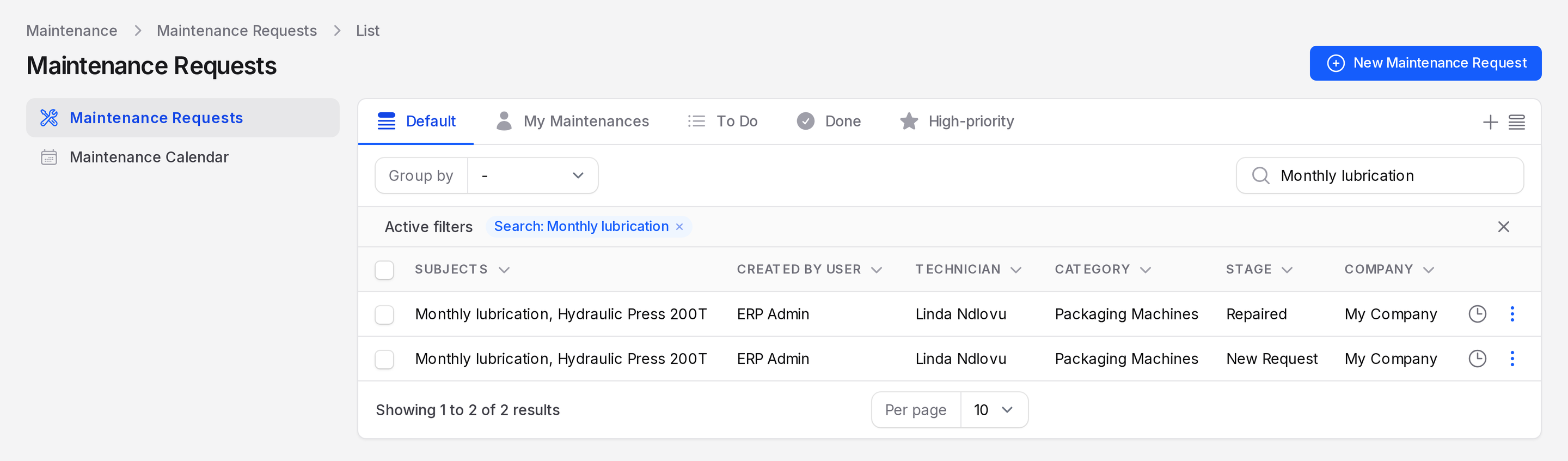
Behind the scenes: the copy keeps the time and duration, and it also creates an activity for the responsible person, so it shows up in their to-do list. See Preventive maintenance.
TIP
You now know the full loop. Use the request list to see all jobs at a glance. See Request list.